This article will explain how to use Secure Browser when administering an assessment within the Pathways Assessment module.
The secure browser feature limits students ability to open new browser tabs or navigate away from the test without first logging out of the test or turning off the device.
1. Ensure that all testing devices have been configured with either Chrome Kiosk Mode (for Chromebooks) or Safe Exam Browser (for any other device type).
For instructions on this installation, see Configuring Kiosk Mode for Chromebooks or Configuring Safe Exam Browser for Windows, macOS, or iOS.
2. Navigate to 'Assessment' → 'Home.'
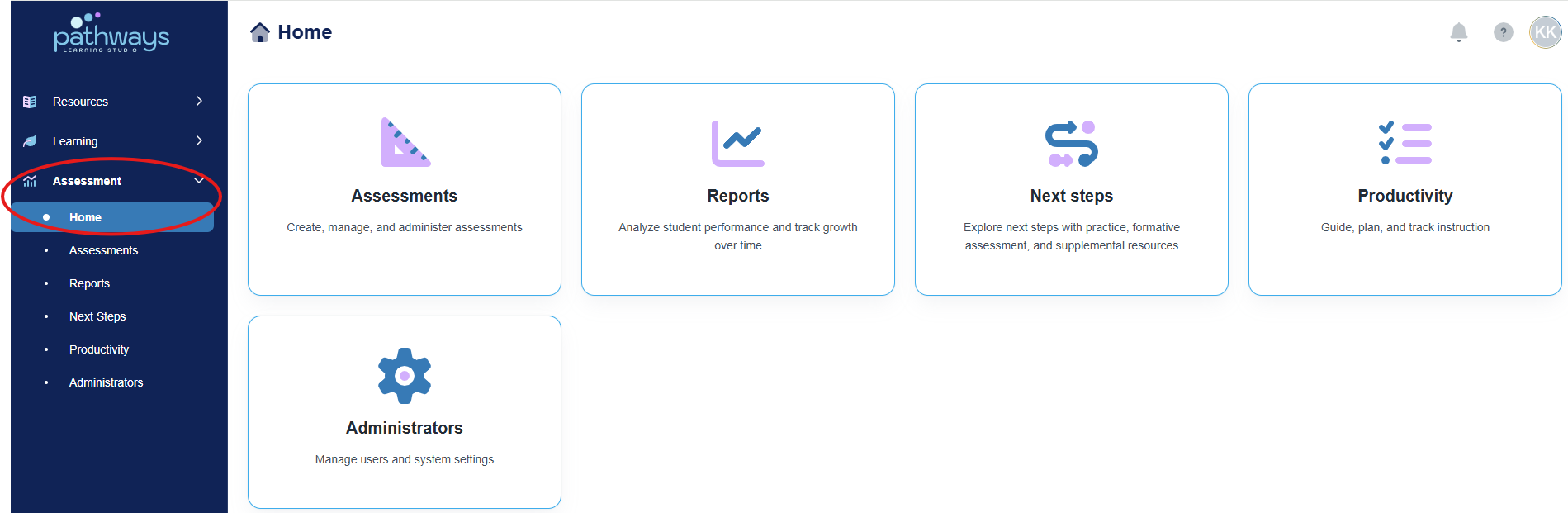
3. Select the 'Assessment' tile.
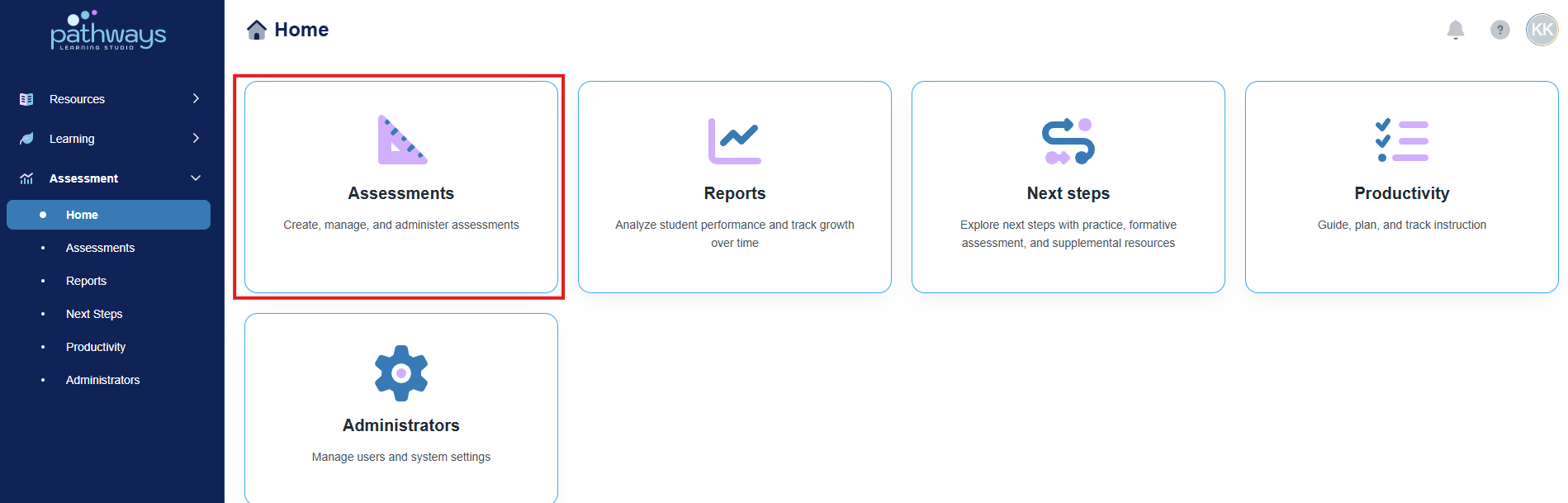
4. Select the 'Assignment' tile.
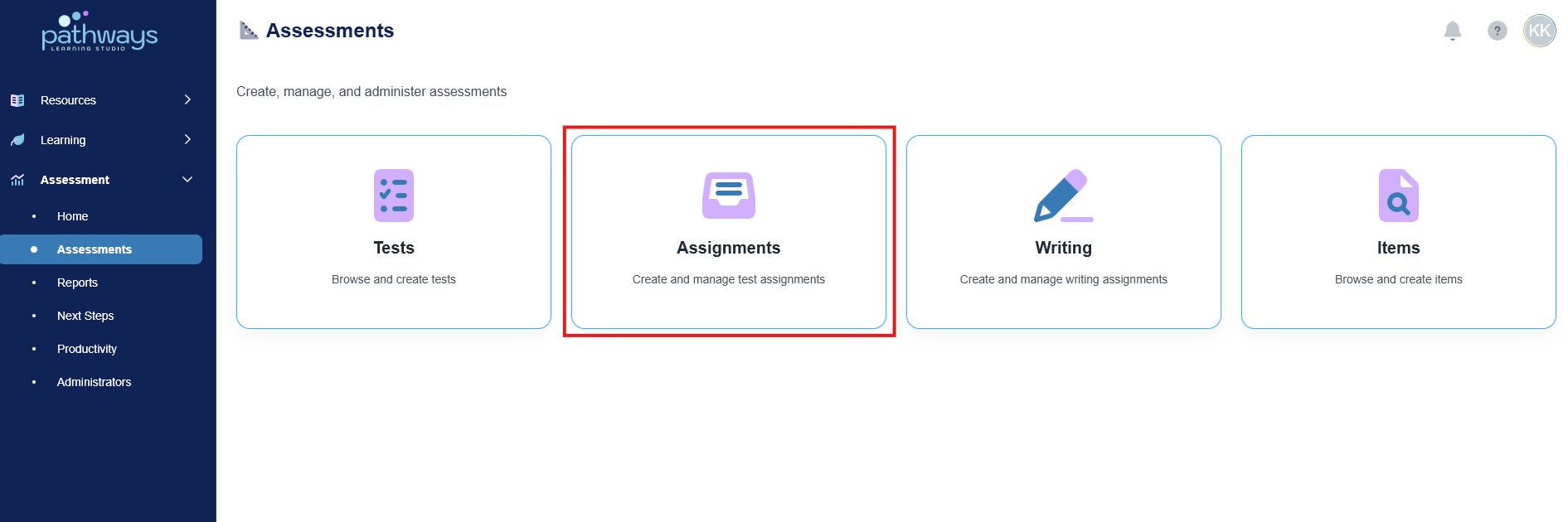
5.Choose the folder icon to the left of the assignment.
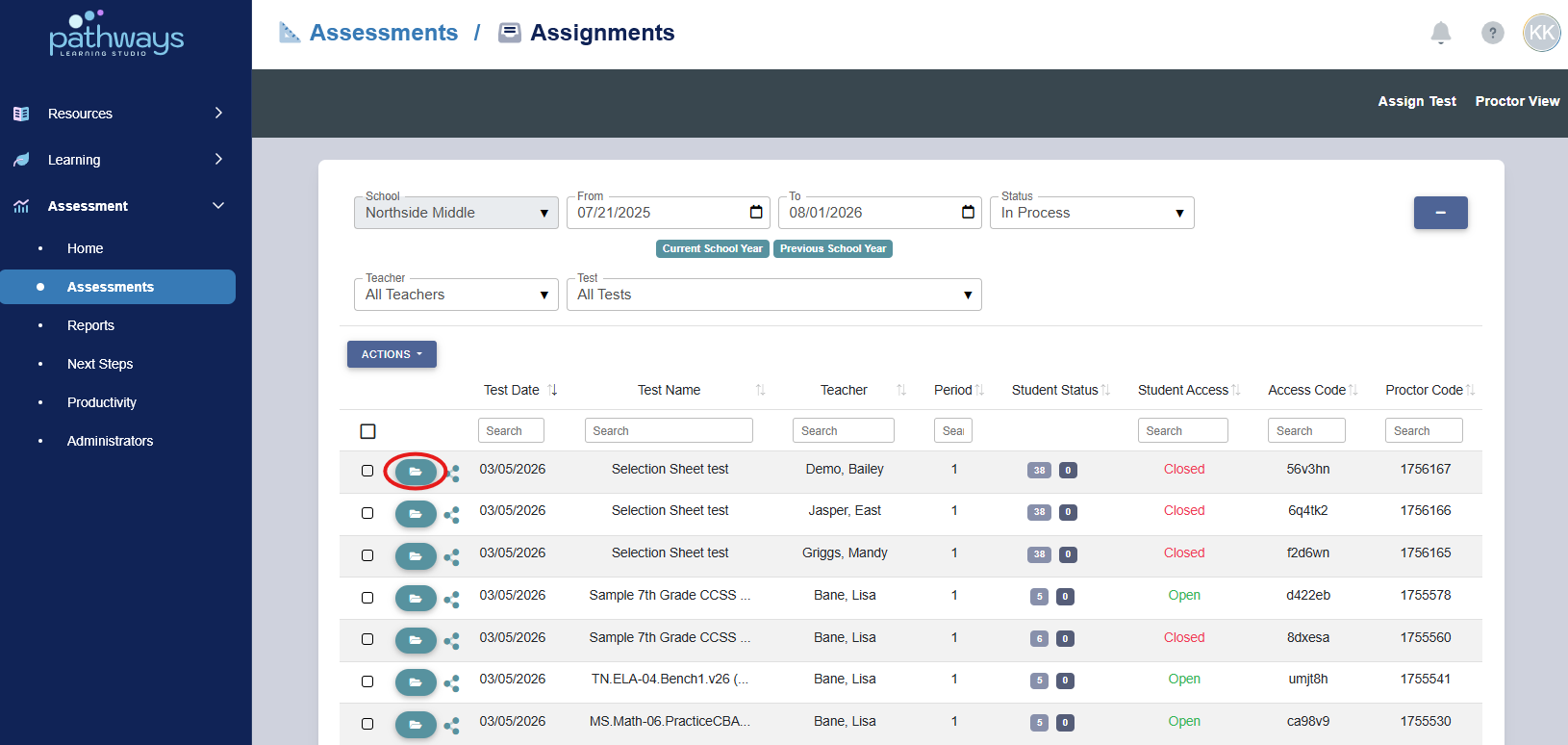
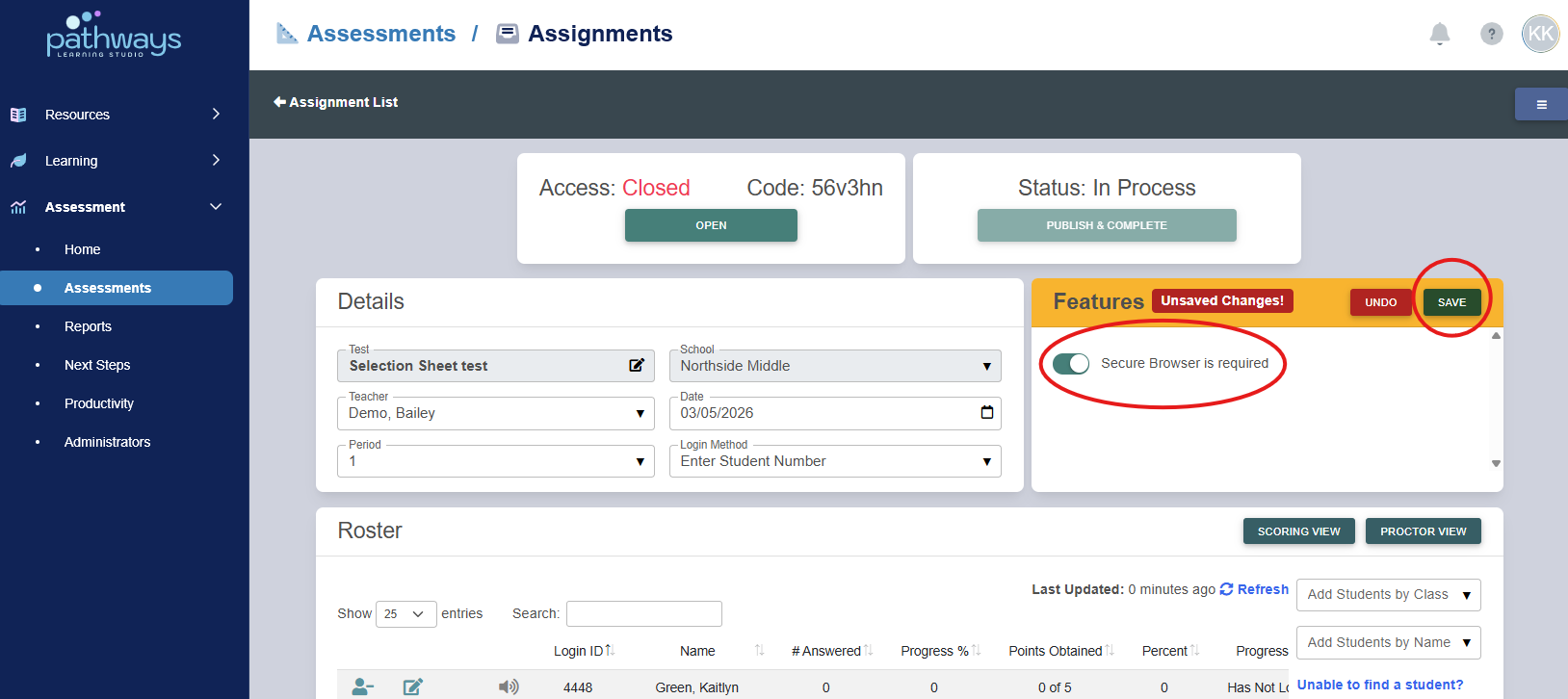
6. In the assignment view, turn on ‘Secure Browser Requirement’ from the top right module, then press ‘Save’.
Note: Steps 4-6 do not apply to students using Chromebooks. As long as the Chromebook is running kiosk mode when the student logs in, they will not be able to open new browser tabs or navigate away from the test without first logging out of the test or turning off the device.
7. Instruct your students to navigate to ola.k12pathways.cloud.
If the student is using a Windows, MacOS, or iOS, a button labeled ‘Open Secure Browser’ will display after the student enters the access code for the assignment. When a student selects this button, they will enter the assessment in Secure Browser mode.
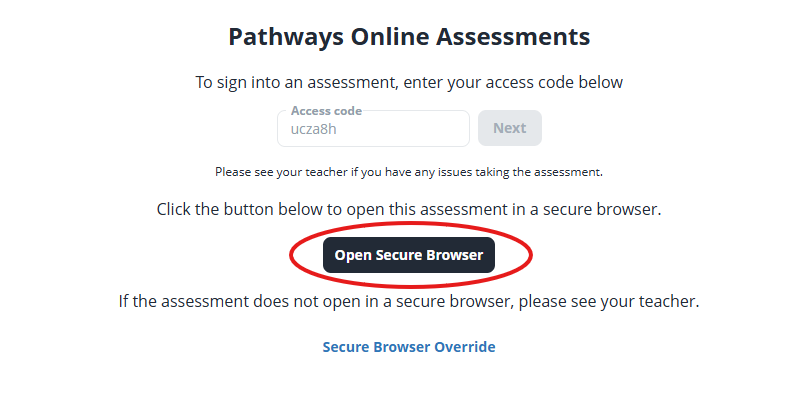 8. Once the student has started the assessment, they can still exit the assessment by clicking ‘log out’ at the top right corner.
The student will be asked to choose whether to submit their answers or save the assessment for later as with any normal assessment.
9. If a student needs to exit Safe Exam Browser, but they are having difficulty logging out, they should select the power button at the bottom right corner of the secure browser.
When a student selects the power button, the teacher will be asked to enter a ‘quit code’. The quit code is the same as the assessment proctor code. To understand how to access this code, see Accessing a Proctor Code.
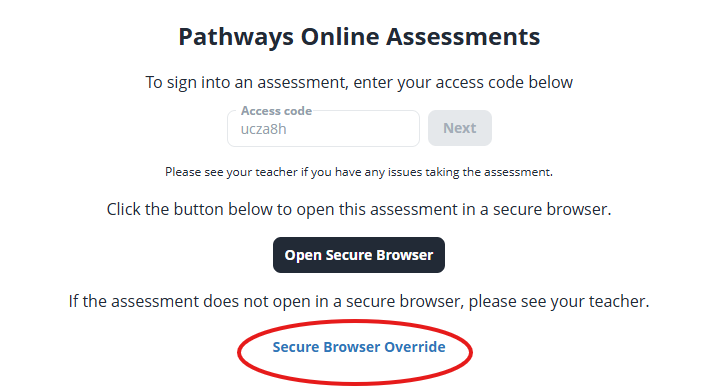
Note: If a device is not configured correctly but the student still needs to access the assessment, there is an option to override the secure browser.
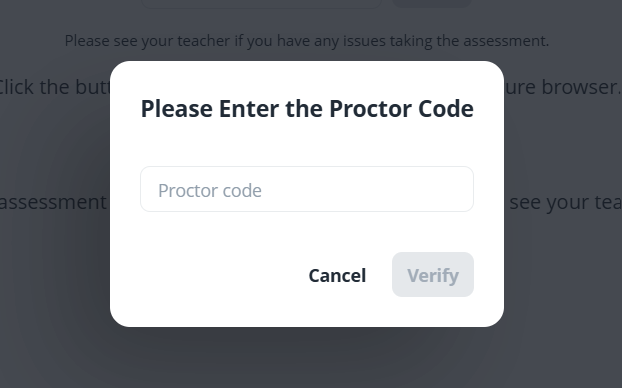
If the student clicks on 'Secure Browser Override' at the bottom of the page, they will be asked for the proctor code. If the teacher needs to allow a student to access the assessment without the secure browser, they can do so by entering the proctor code. To learn where to find the proctor code, see Accessing a Proctor Code.
Was this article helpful?
That’s Great!
Thank you for your feedback
Sorry! We couldn't be helpful
Thank you for your feedback
Feedback sent
We appreciate your effort and will try to fix the article