This article will explain how students can login using a direct link.
1. Login to your Pathways Learning Studio account through Clever, ClassLink, or at pathwayslearningstudio.com.
2. Navigate to 'Assessment' → 'Home.'
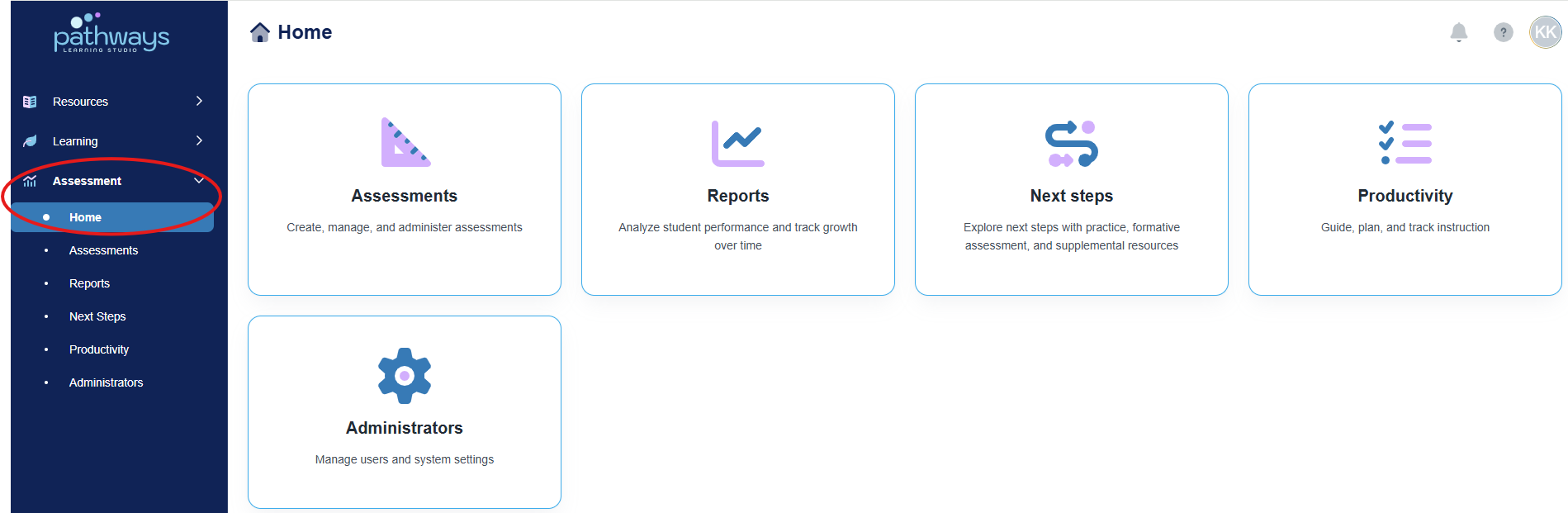
3. Select the 'Assessment' tile.
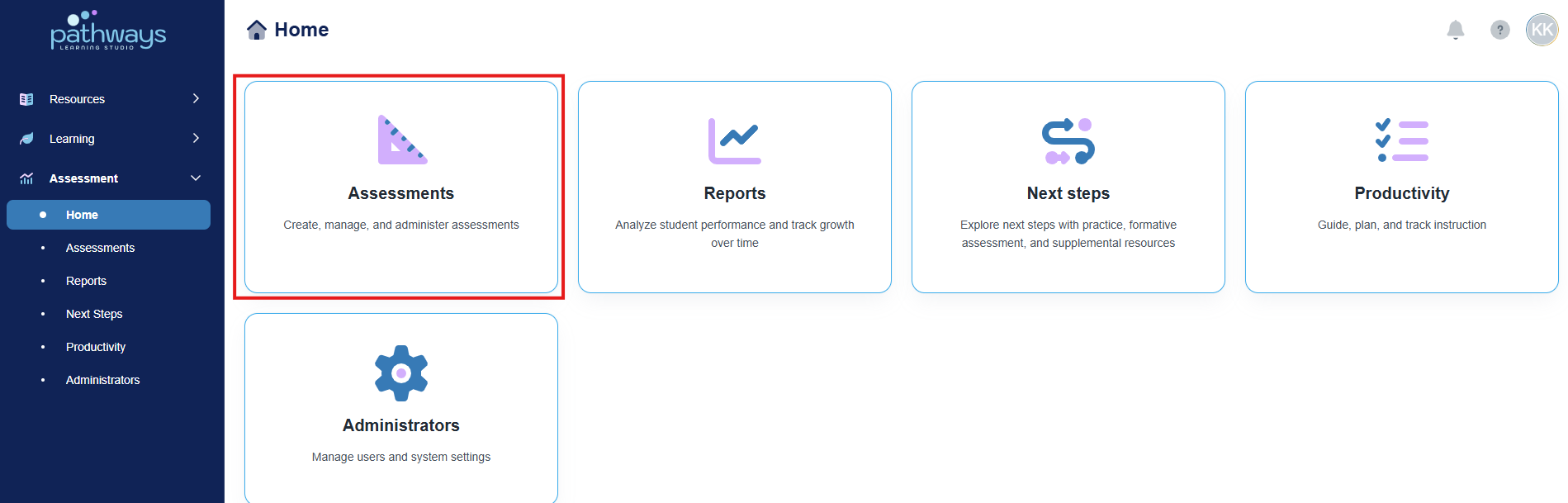
4. Select the 'Assignment' tile.
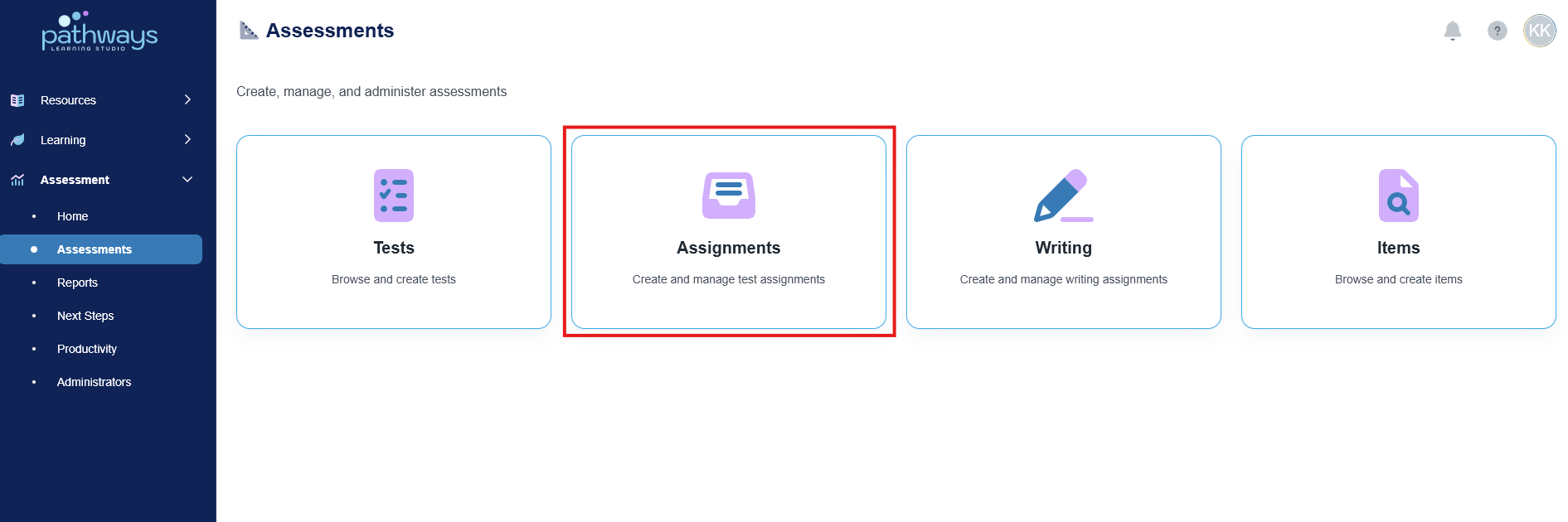
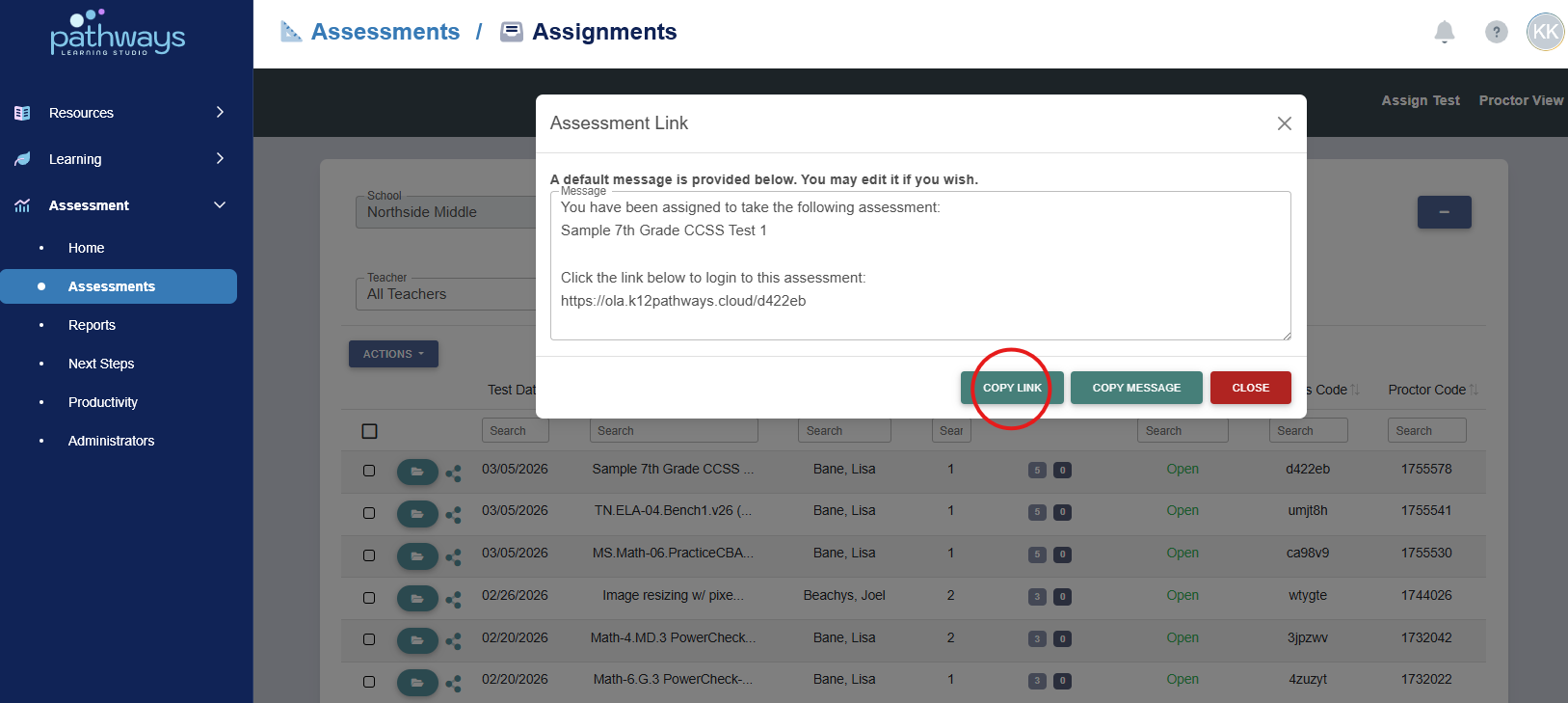
5. Locate the assignment and select the share icon to the left of the assessment date.
If the folder icon is not present, this means a district level administrator has made the assessment private.
Note: If you wish to print a list of the students included in the assignment, check the box beside the assignment and choose 'Print Student List' from the 'Actions' drop down menu.
6. From the pop up, choose ‘Copy Link’ or ‘Copy Message’ and share the link with students.
Students should copy and paste the link into their browser.
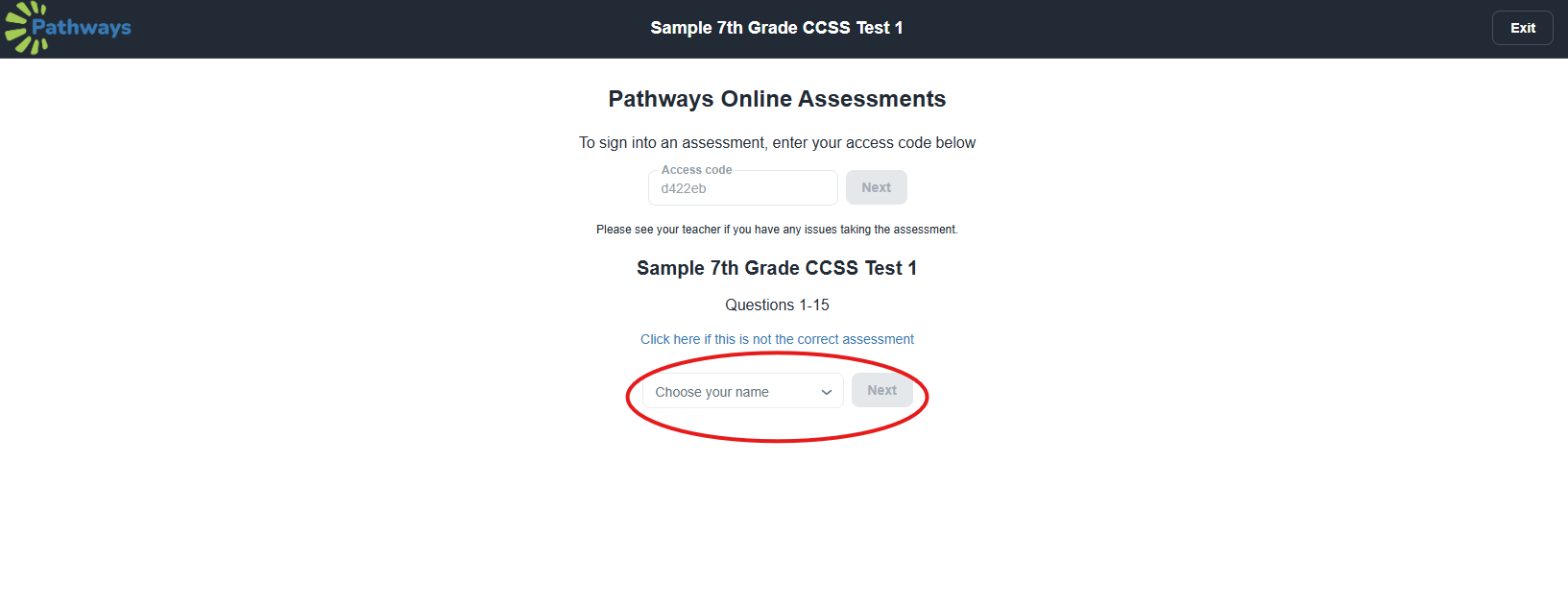
7. Each student will need to choose their name or enter their student ID number (depending on the assignment settings) in the text box at the bottom section of the page. The student will then select 'Next'.
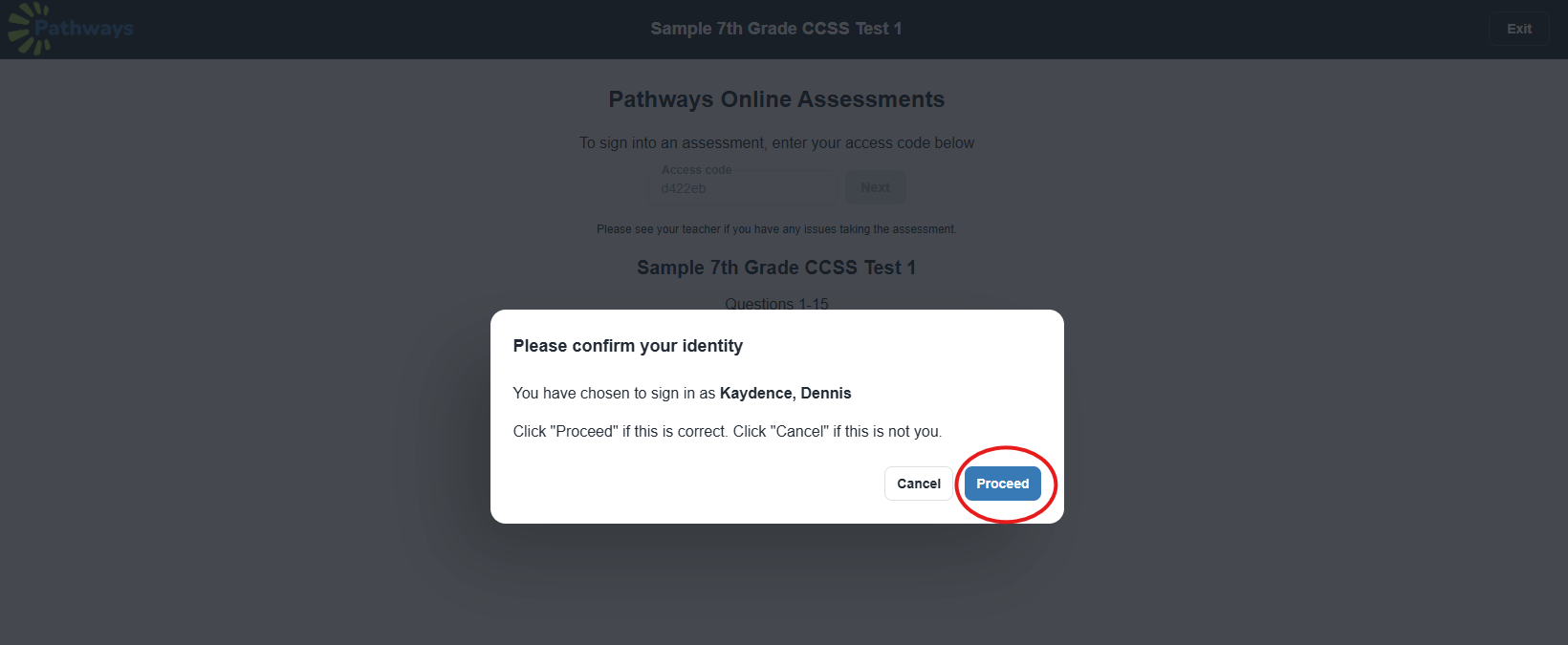
8. Once the student confirms their identity, they will select ‘proceed’ to begin the assessment.
9. The student’s answers will automatically save while navigating through the questions.
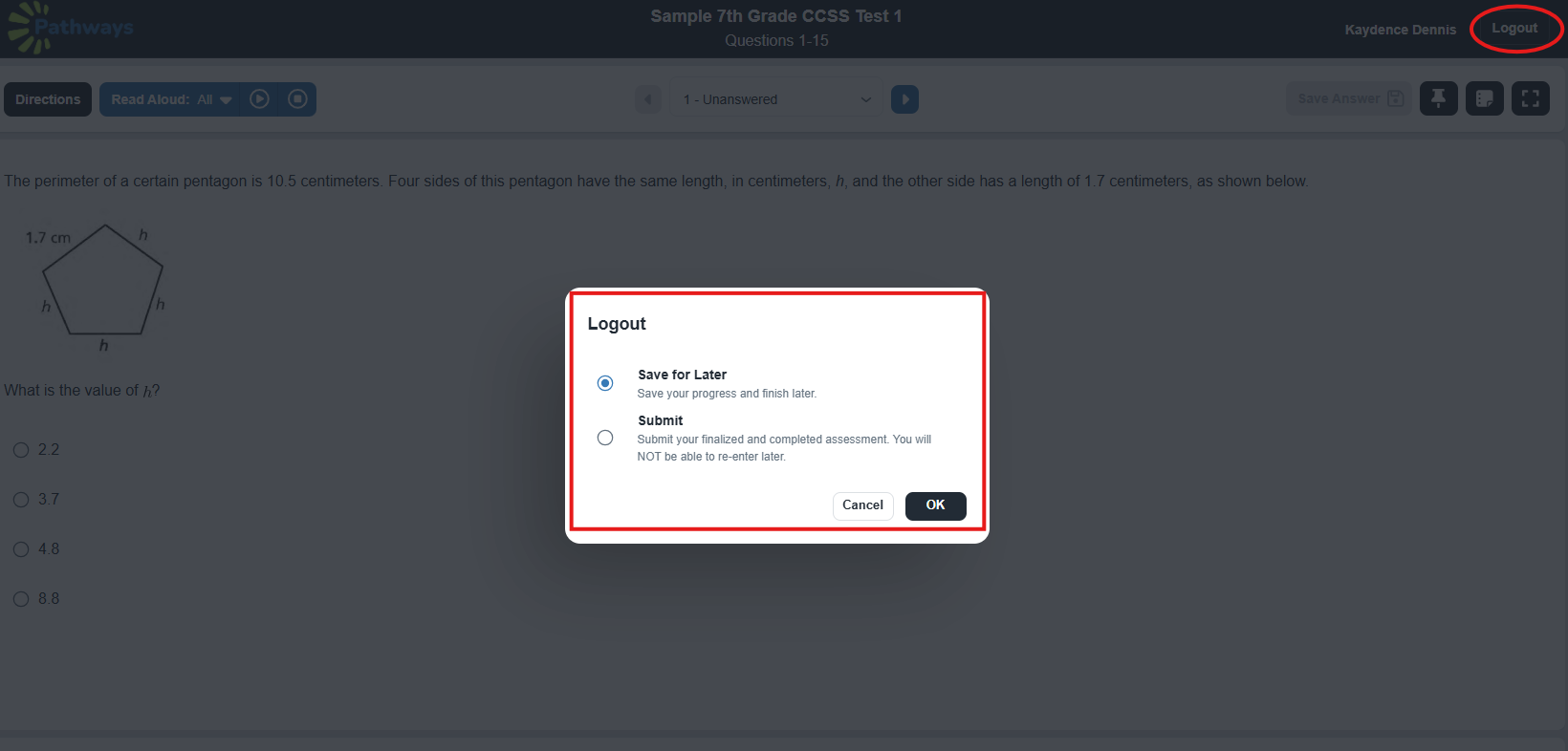
When the student is finished testing, they will click 'Log Out' in the upper right hand corner.
When logging out, they will choose between 'Submit' and 'Save for Later.'
If they are done with the assessment, the student should choose 'Submit.' The student will not be able to enter back into the assessment once they have clicked 'Submit.'
If the student needs to log out, but they have not finished the assessment, they should choose 'Save for Later.'
Was this article helpful?
That’s Great!
Thank you for your feedback
Sorry! We couldn't be helpful
Thank you for your feedback
Feedback sent
We appreciate your effort and will try to fix the article