This article offers guidance on administering a sectioned assessment.
The steps to log a student in for a sectioned assessment are the same as logging a student in for a normal assessment with Pathways. To learn more about this process, see Logging Students in for an Assessment with the OLA Website.
1. Once a student has logged in to a sectioned assessment using their access code, they will see this screen:

2. Students should either select their name or enter their student ID number depending on assignment settings and then select 'Next.'

3. The student will navigate the assessment until they reach the end of the first section.
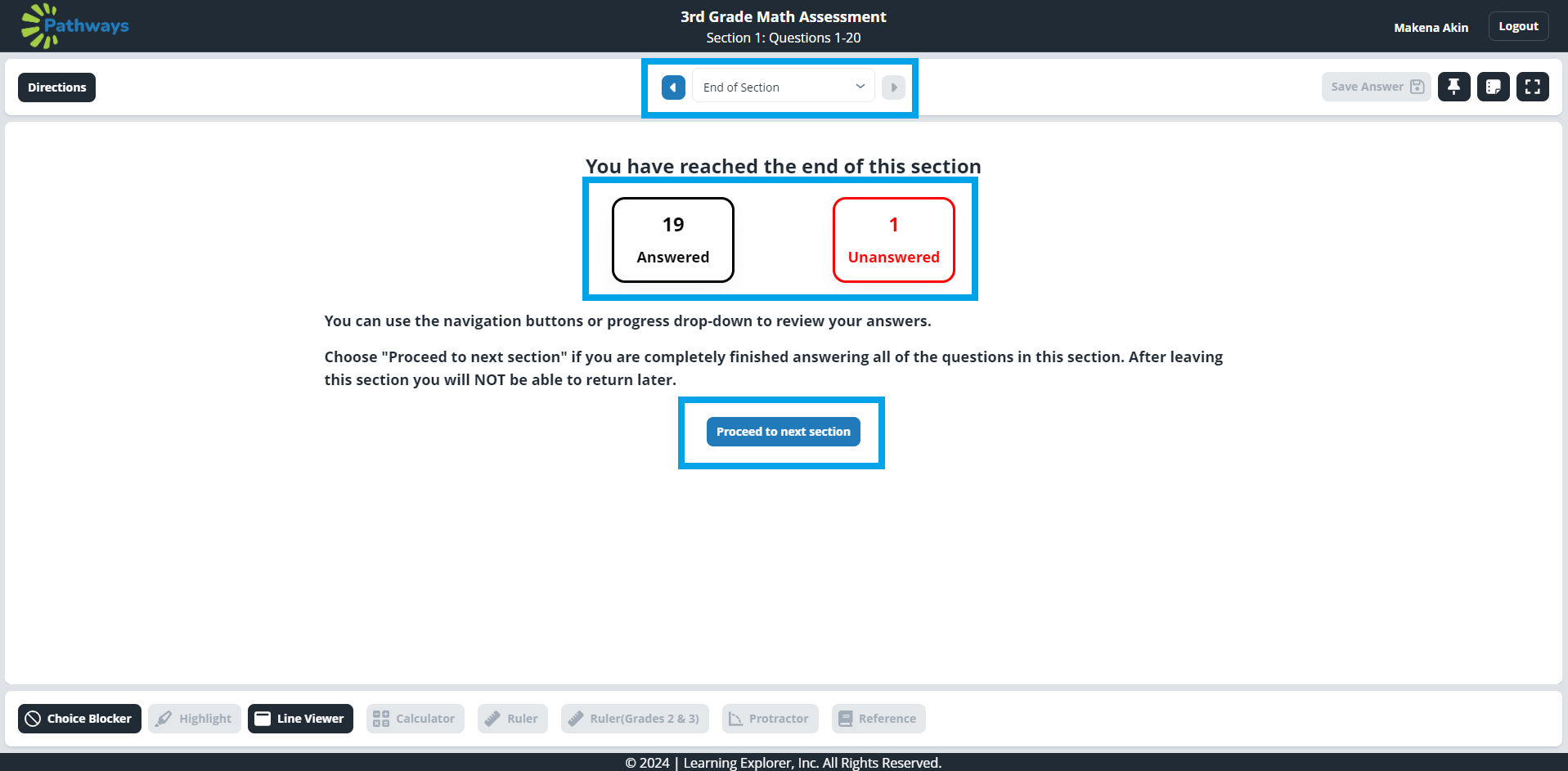
At the end of the first section, they will be informed of any unanswered questions. If they have an unanswered questioned, they can navigate back to the question using the arrows or drop down menu at the top of the screen.
When the student has answered all questions, they should select 'Proceed to next section' at the center of the screen.
Once a student selects 'Proceed to next section', they will be unable to access or edit their answers for the items from the first section.
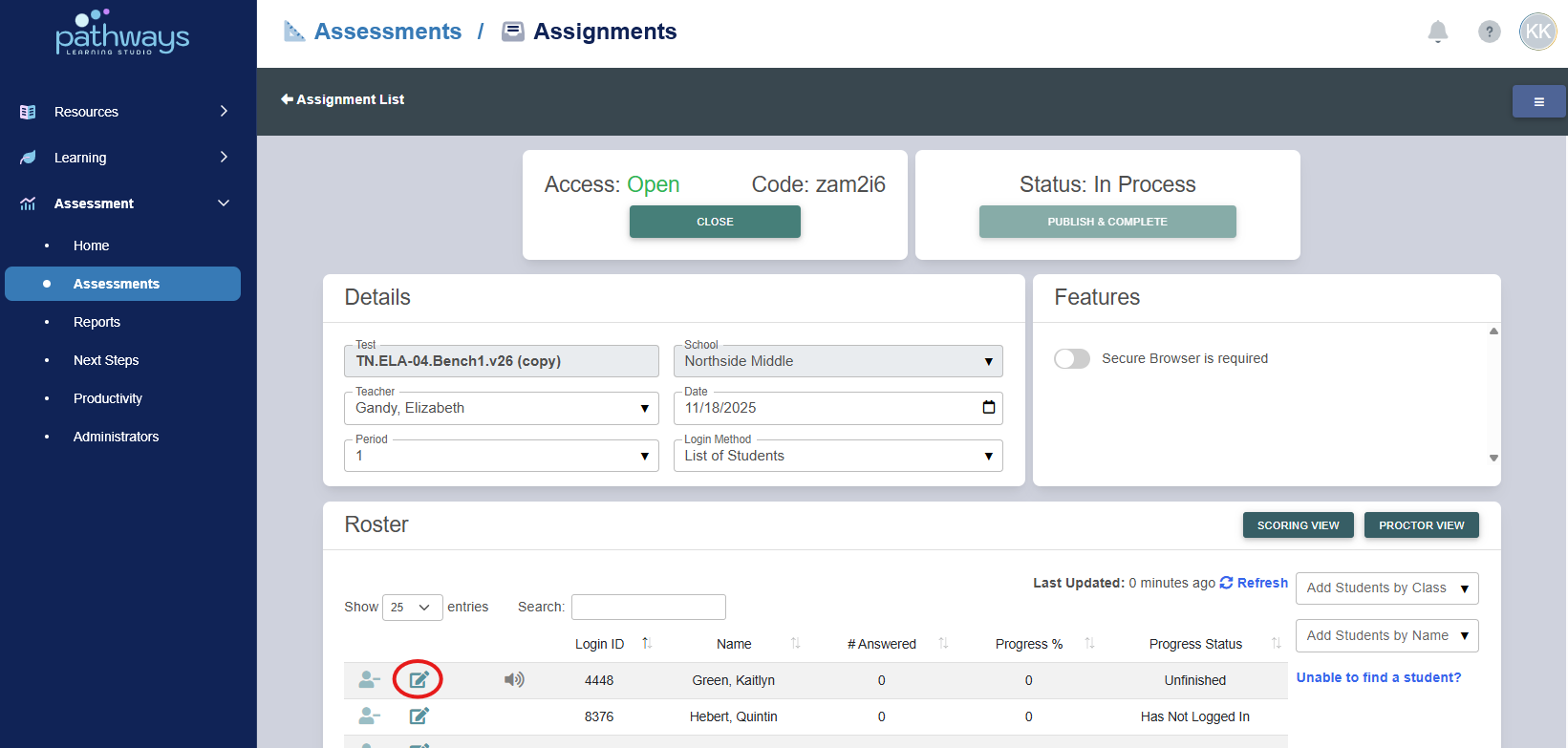
4. If a student proceeds to the next section unintentionally, their test can be reset by logging into your Pathways Learning Studio account and navigating to Assessments → Assignments.
From the assignments list, locate the assignment and select the folder icon by the assignment name.
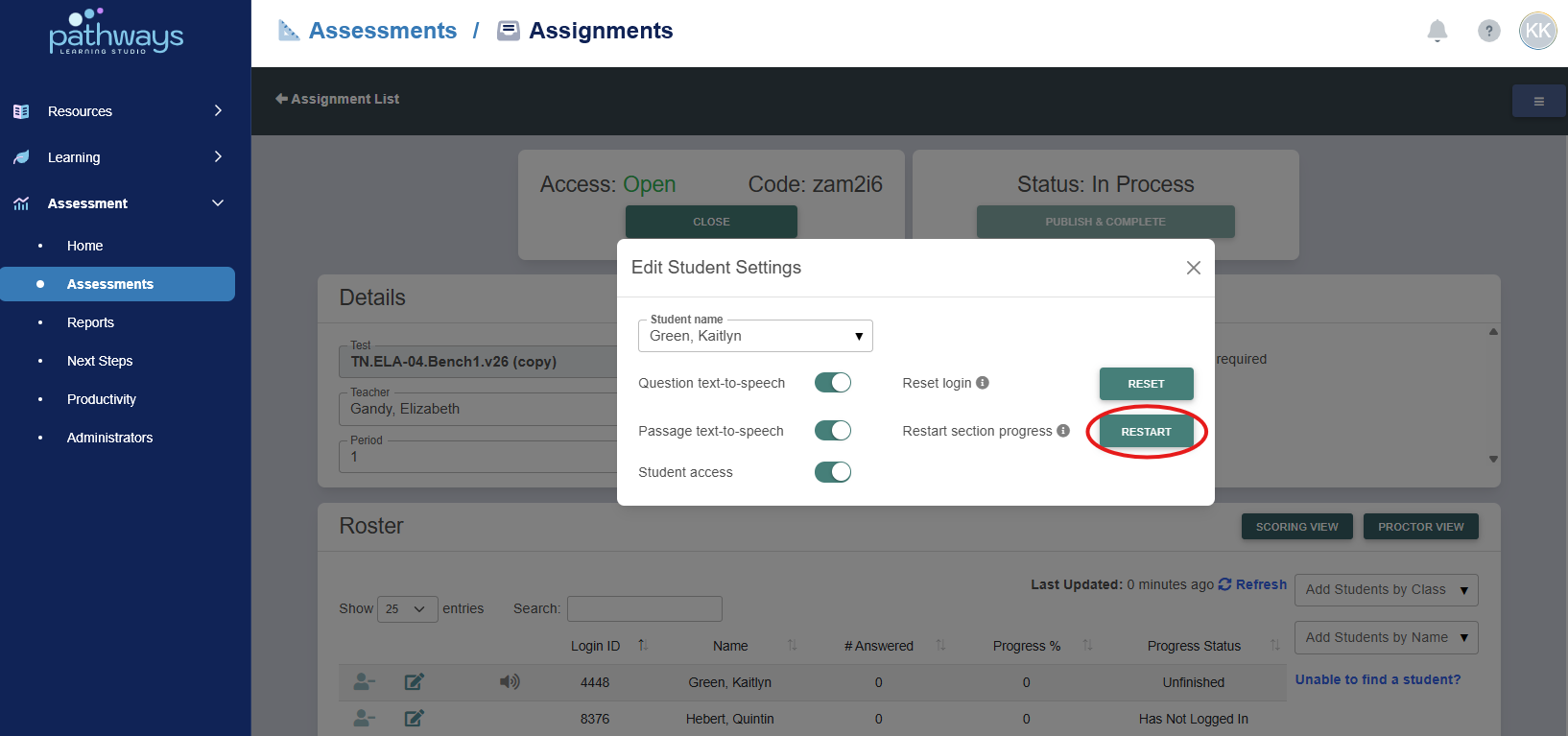
Within assignment view, select the edit icon by the student's name, and choose 'Reset Section Progress' in the pop up menu.
Once the sections have been reset, the student should refresh their screen and they will be taken back to the correct section.
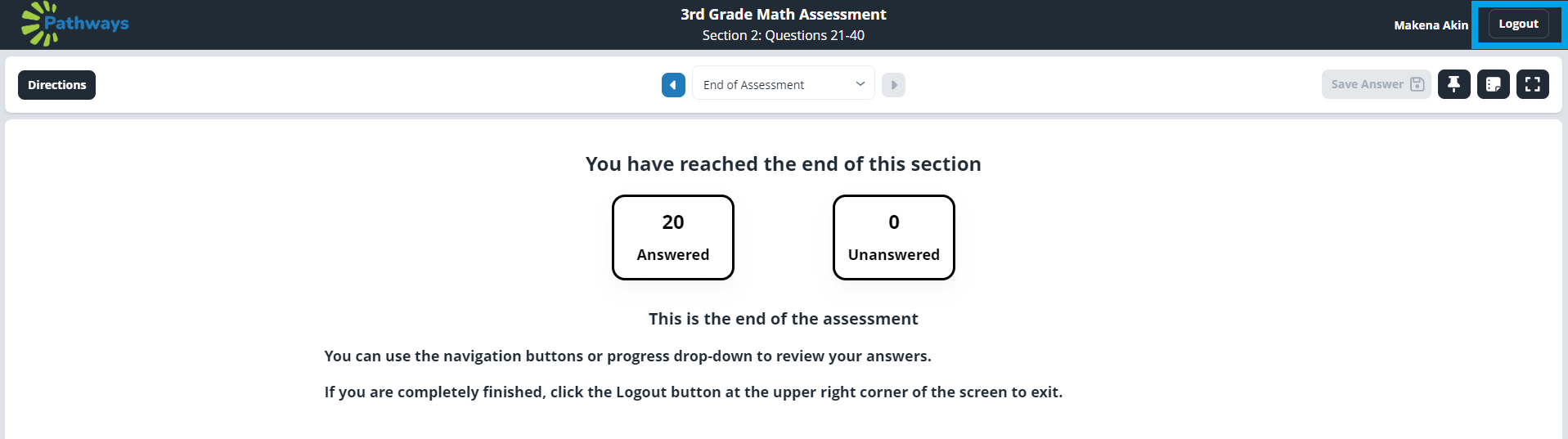
5. Once the student chooses 'Proceed to next section,' they will complete the assessment in the same manner as other assessments. Once complete, they should choose 'Logout' then 'Submit.'

Was this article helpful?
That’s Great!
Thank you for your feedback
Sorry! We couldn't be helpful
Thank you for your feedback
Feedback sent
We appreciate your effort and will try to fix the article