1. Login to your Pathways account through Clever, ClassLink, or at pathwayslearningstudio.com.
2. Navigate to 'Assessment' on the left-hand navigation bar.
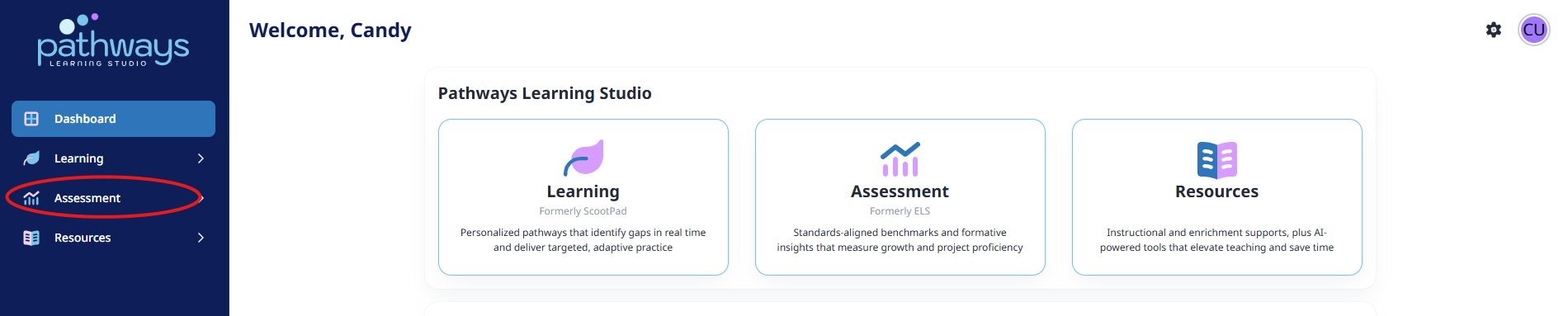
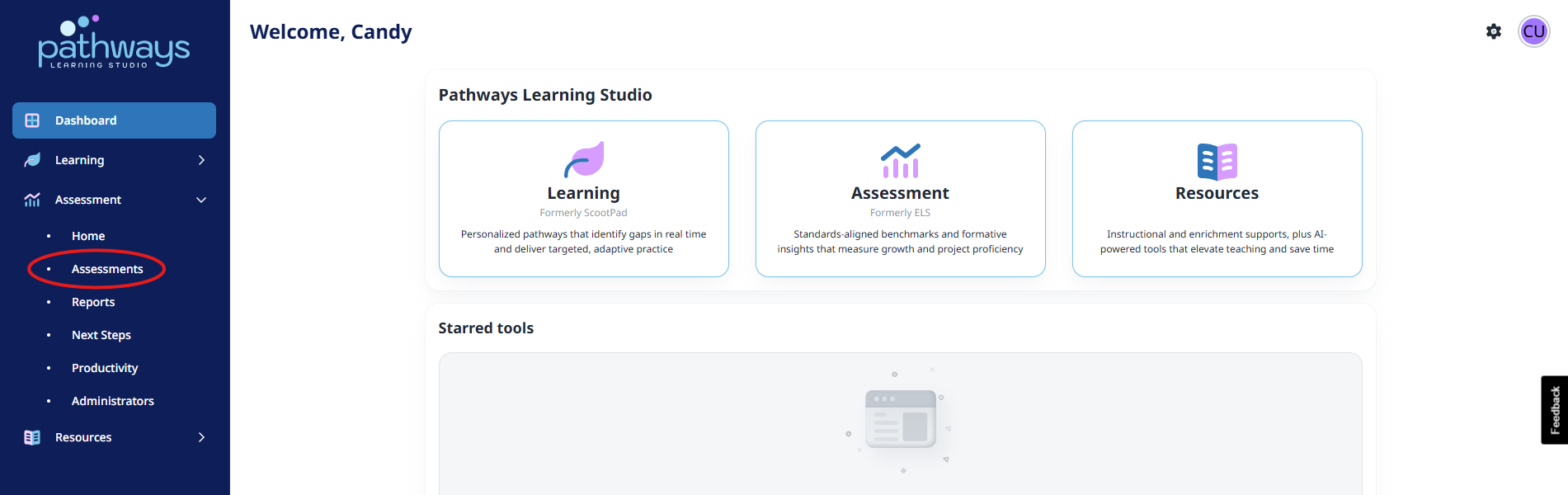
3. Navigate to 'Assessments' located under 'Assessment' on the left-hand navigation bar.
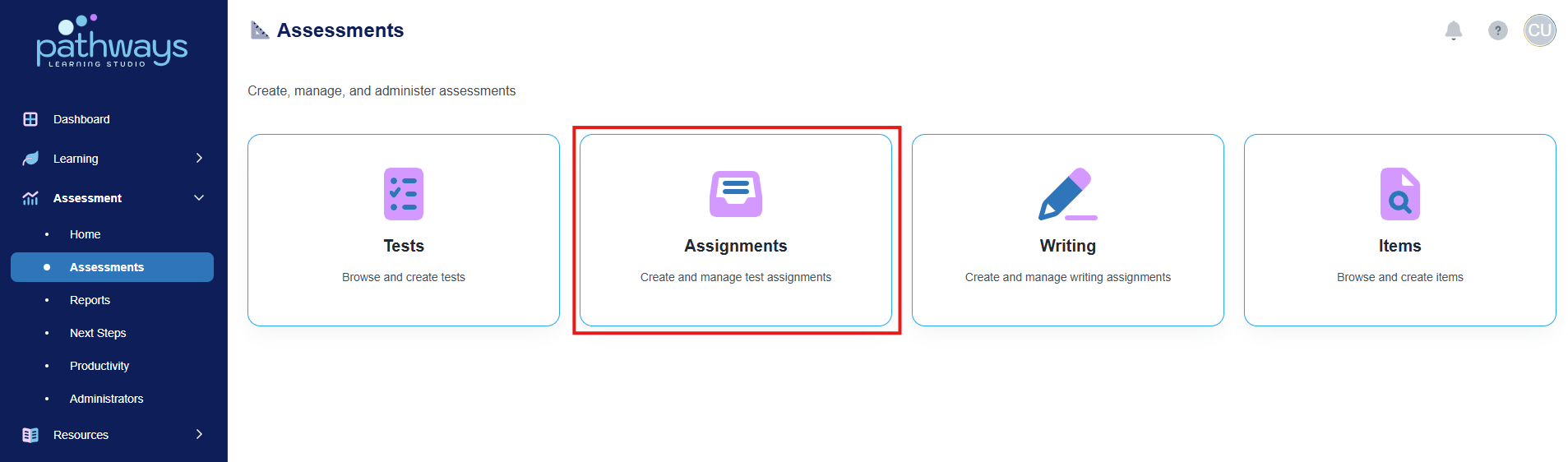
4. Select 'Assignments' from the Assessments dashboard.
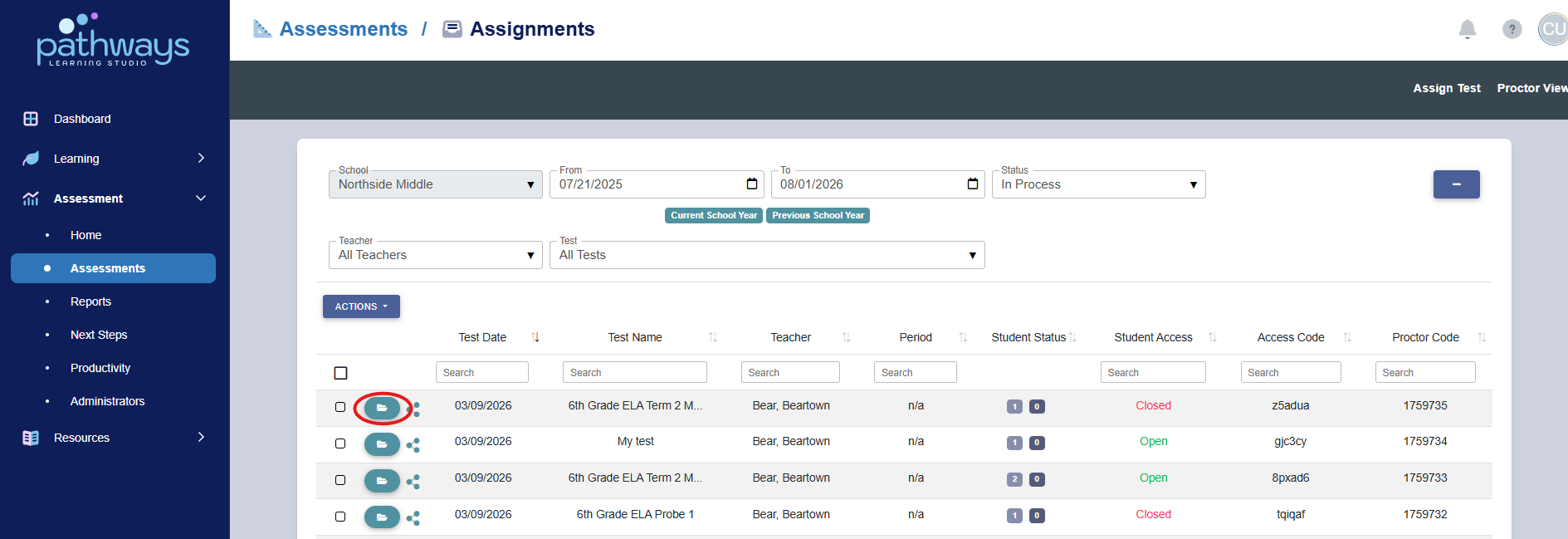
5. Locate the assignment you wish to view, and select the folder icon to the left of the assessment date.
If the folder icon is not present, this means a district level administrator has made the assessment private.
6. See descriptions below.
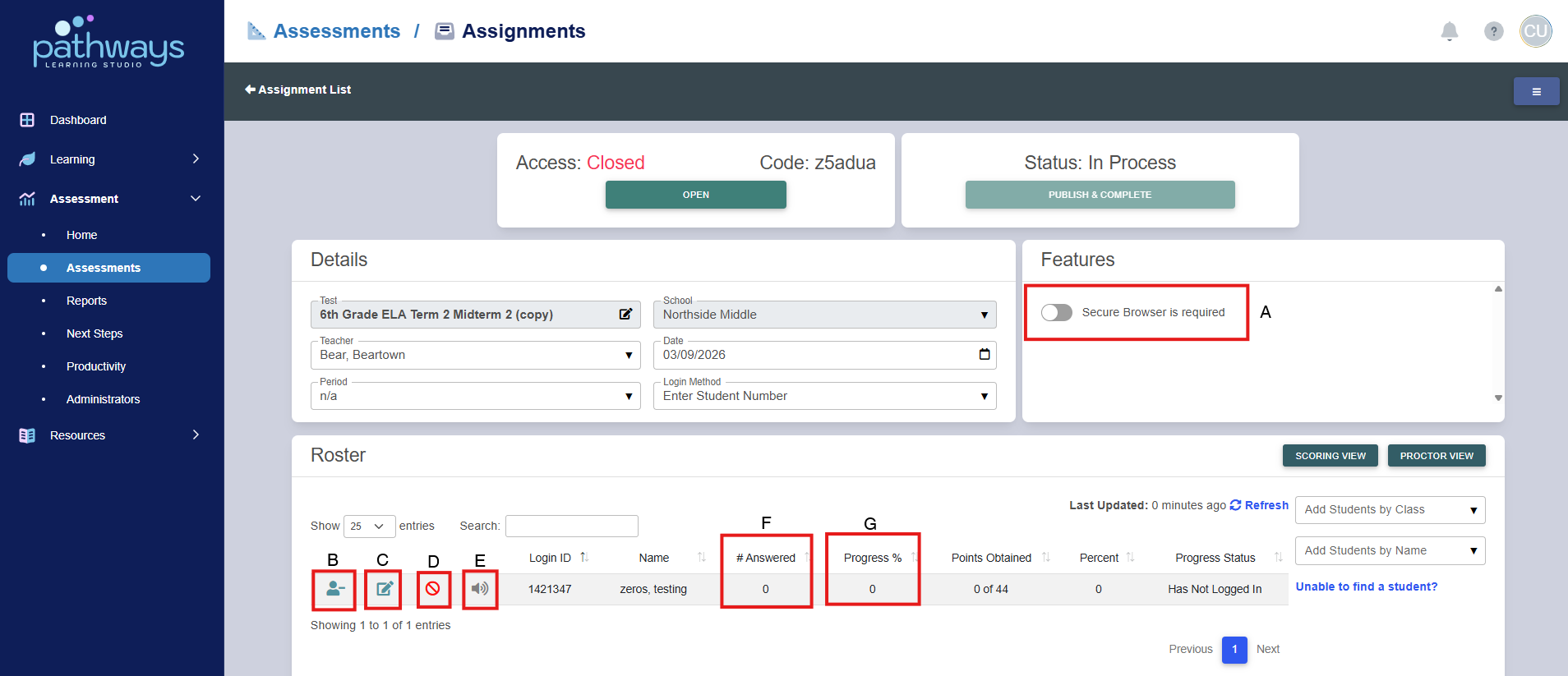
A. Turn on Secure Browser for the assessment (only do this if you know that the testing devices have been configured for Secure Browser).
B. Remove student from assignment
C. Edit student settings.
D. Student access is turned off.
E. Text to speech is on for the student.
F. Number of questions answered by the student.
G. Percentage of assessment completed by student.
Was this article helpful?
That’s Great!
Thank you for your feedback
Sorry! We couldn't be helpful
Thank you for your feedback
Feedback sent
We appreciate your effort and will try to fix the article