This article will explain how to assign an assessment through the assignments portal.
1. Login to your Pathways Learning Studio account through Clever, ClassLink, or at pathwayslearningstudio.com.
2. Navigate to 'Assessment' → 'Home.'
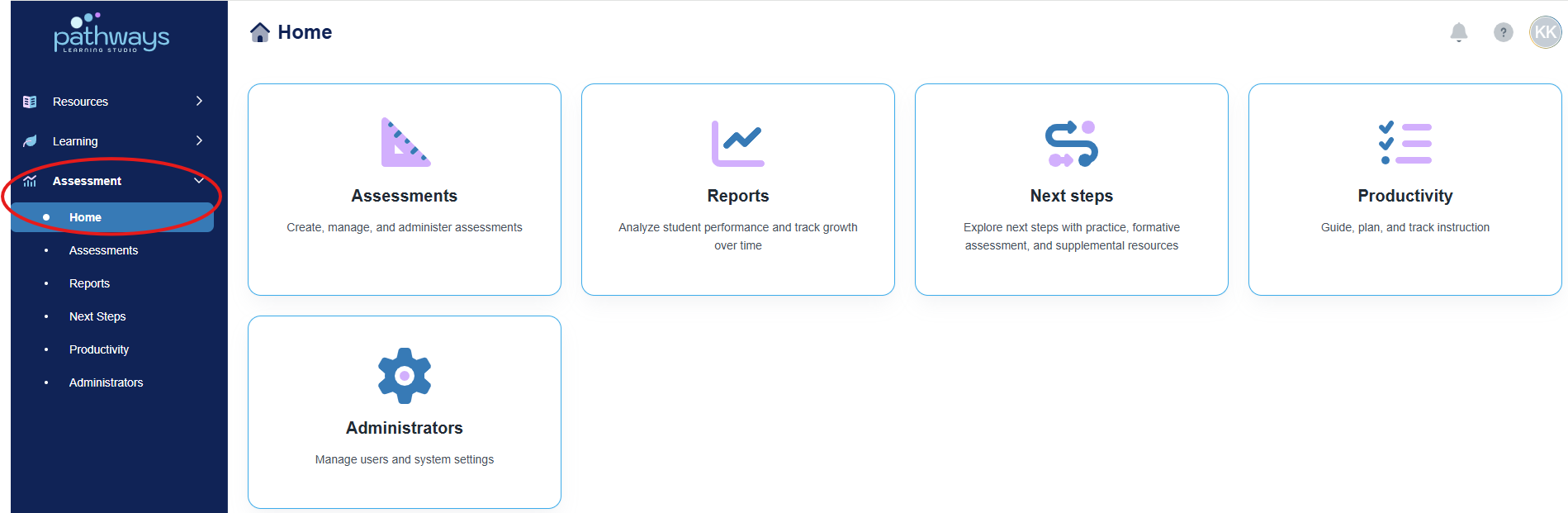
3. Select the 'Assessment' tile.
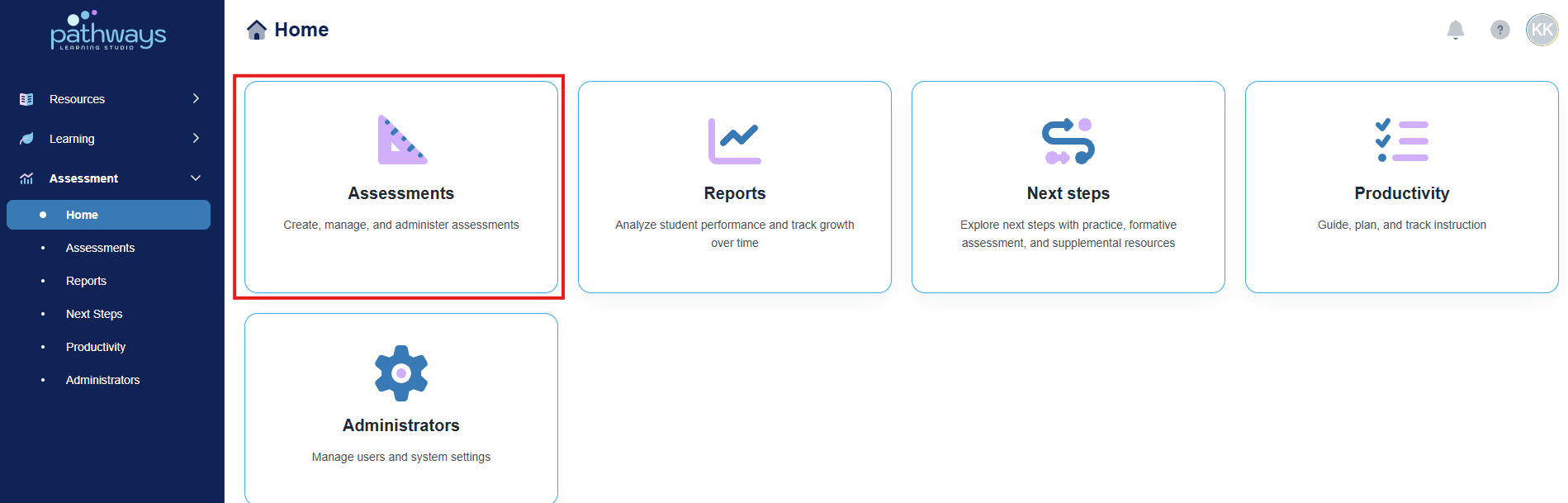
4. Select the 'Assignment' tile.
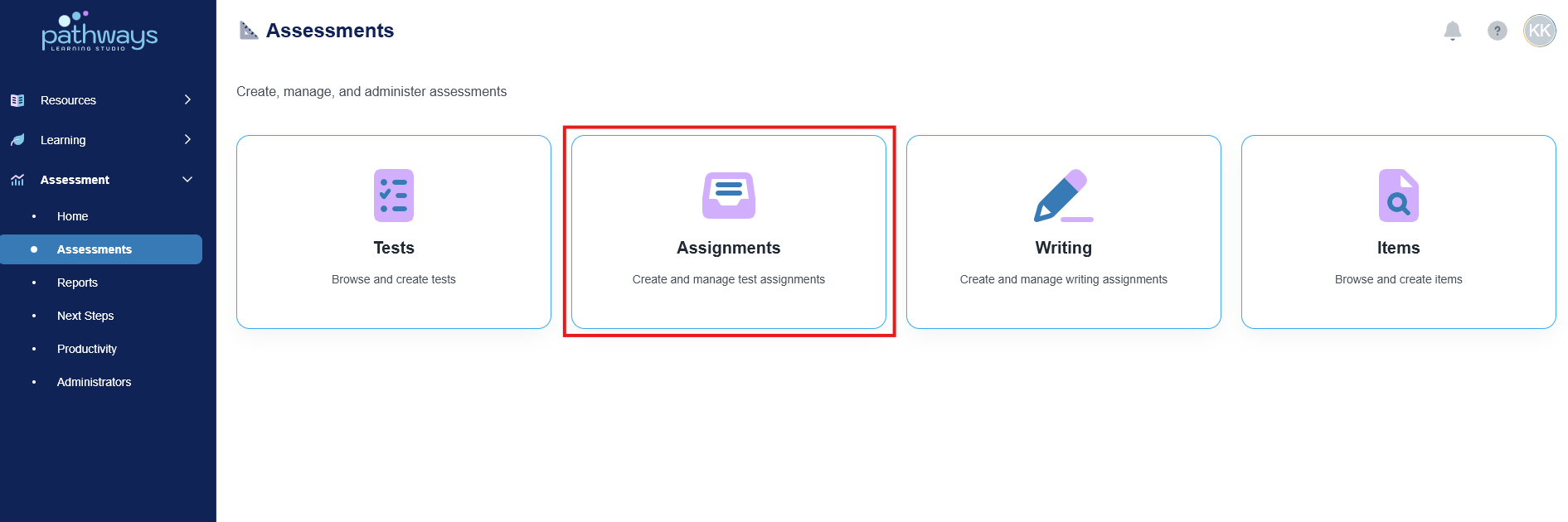
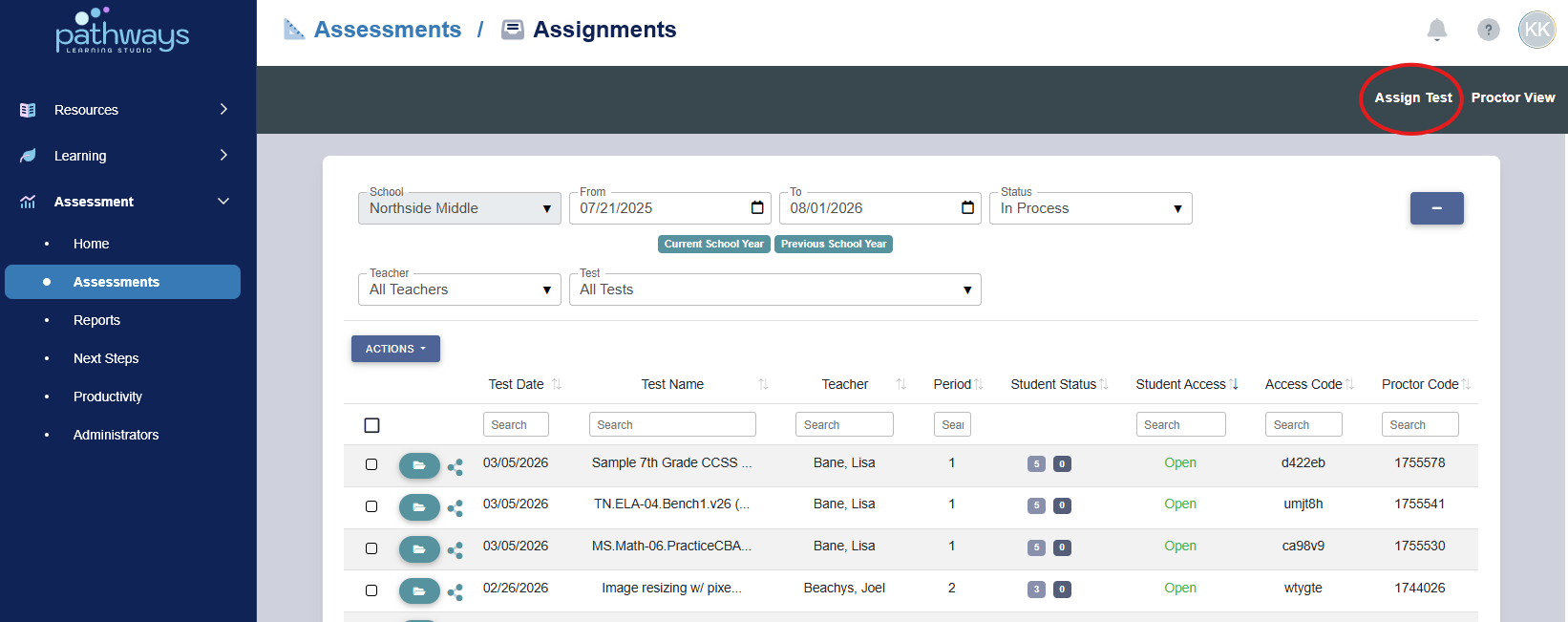
5. Select 'Assign Test' in the top right corner.
6. There are two ways to find the test you need to assign.
- Toggle to ‘Basic View’ to search by content area.
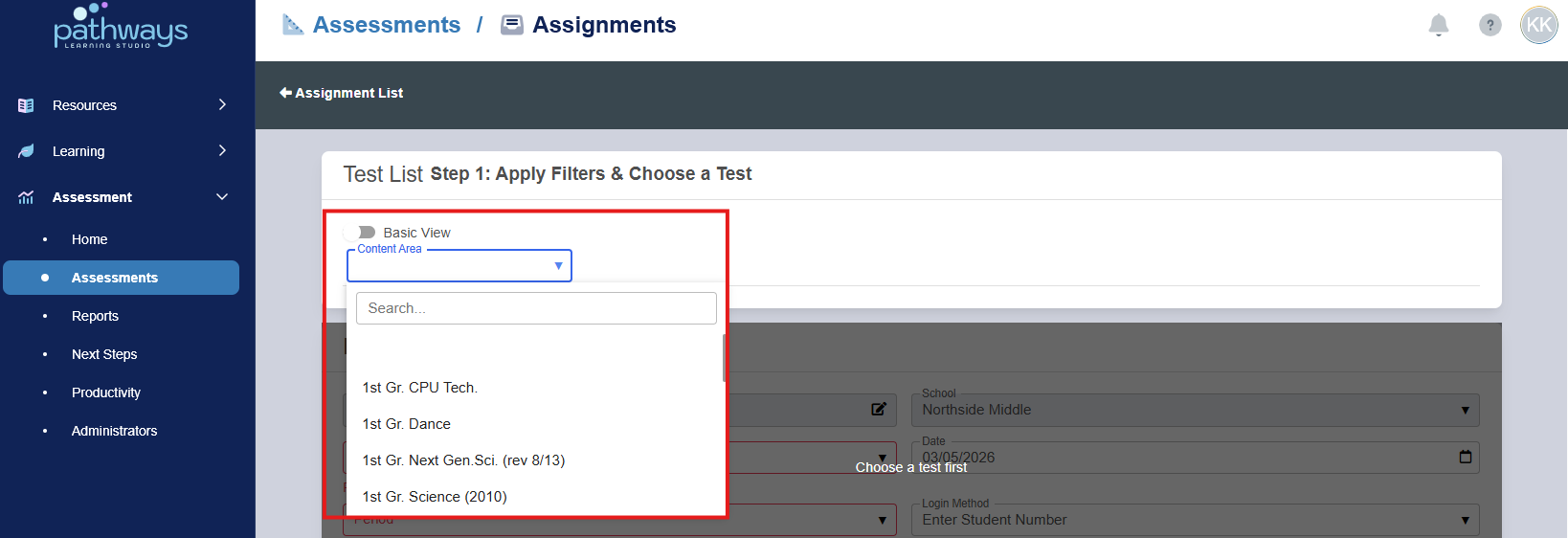
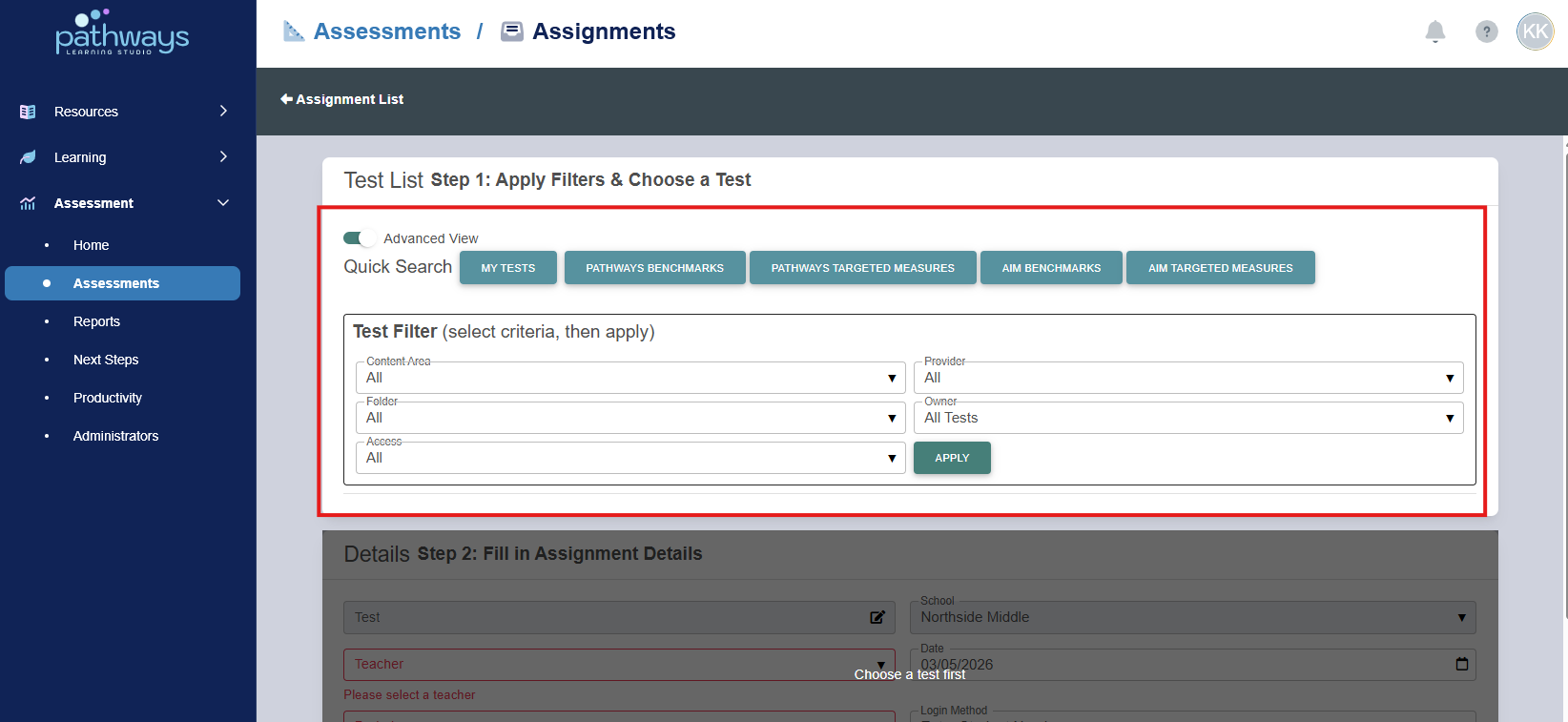
- Toggle to 'Advanced View' to search by additional filters such as Content Area, Folder, Owner, etc.
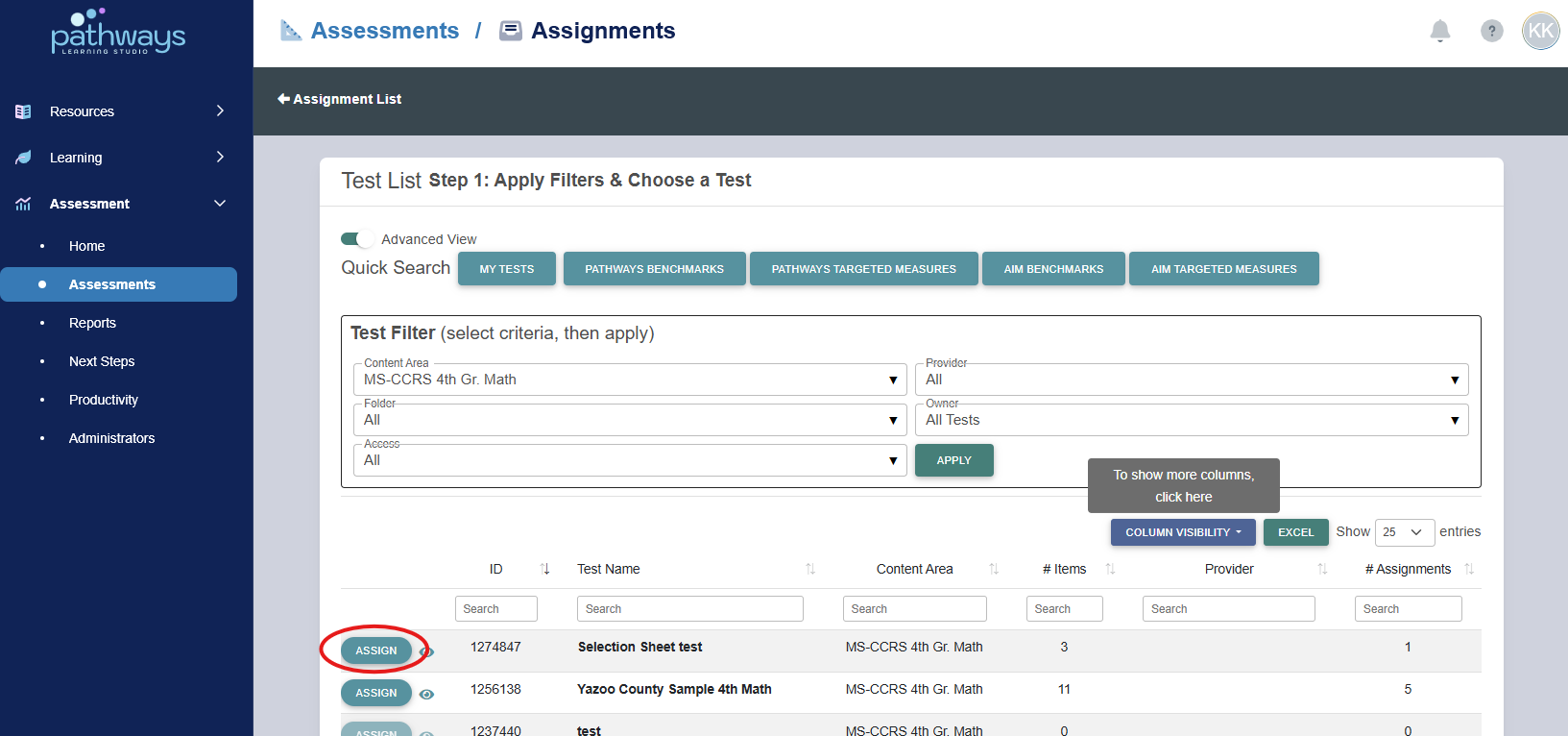
7. Locate the correct test, and select the ‘Assign’ button to the left of the assessment ID.
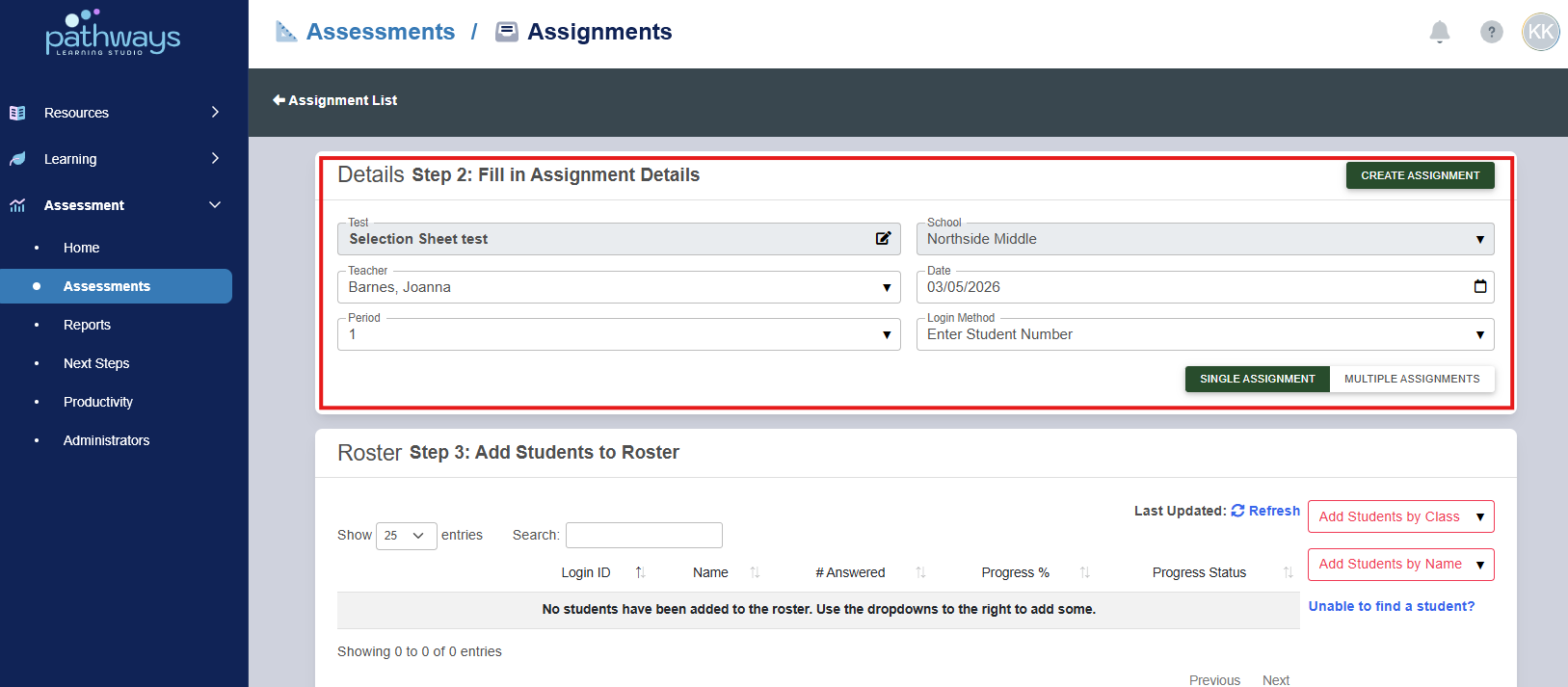
8. Fill in all assignment details.
When choosing ‘Login Method’, consider that using ‘Enter Student Number’ is more secure because it keeps a student from easily logging into another student’s assessment.
If you wish to create multiple assignments at once, switch to the 'multiple assignments' tab at the bottom right hand corner. To learn more, see 'Batch Assigning an Assessment.'
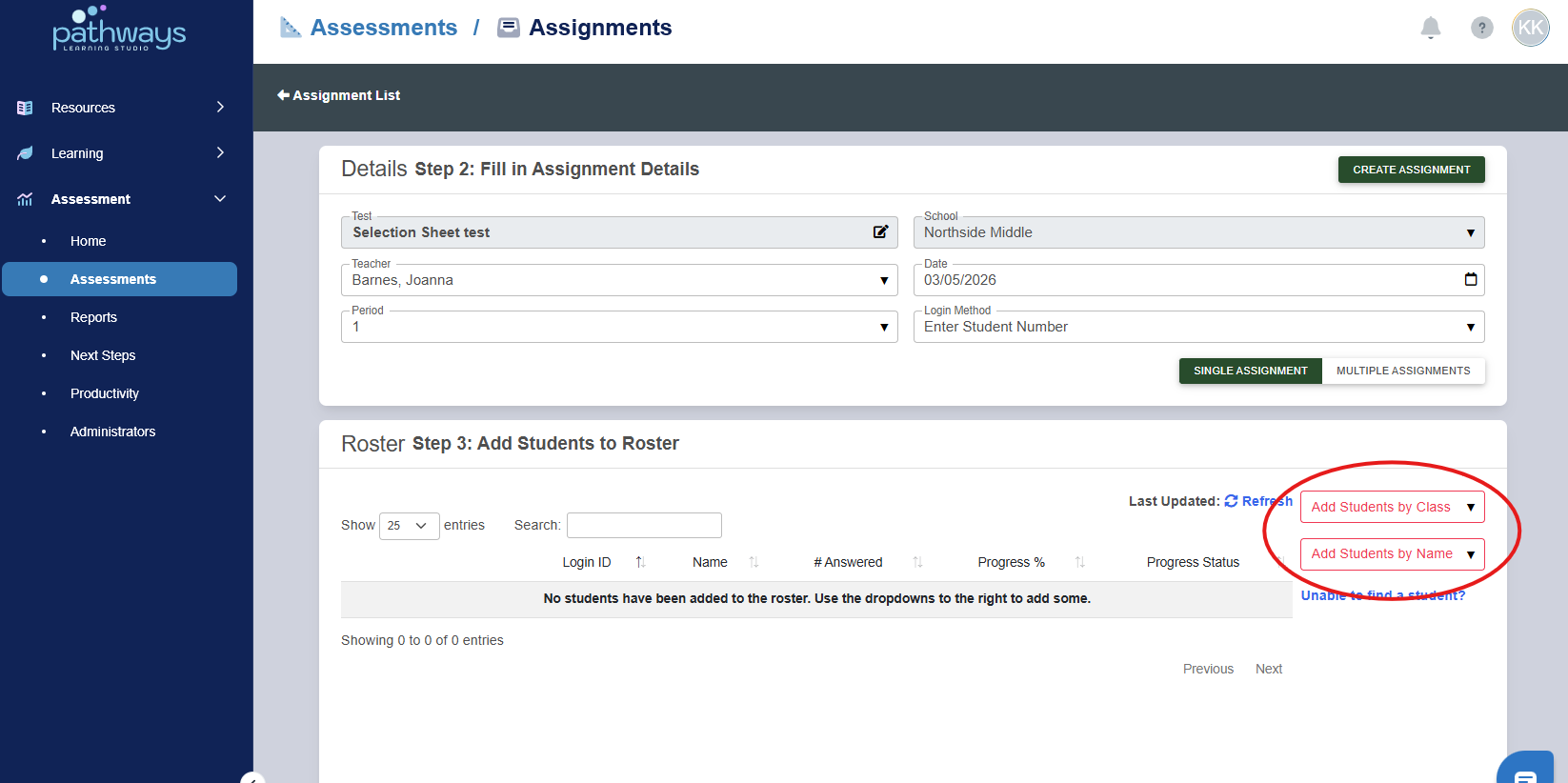
9. Add students by class or by name by selecting from the drop down menu at the right of the page.
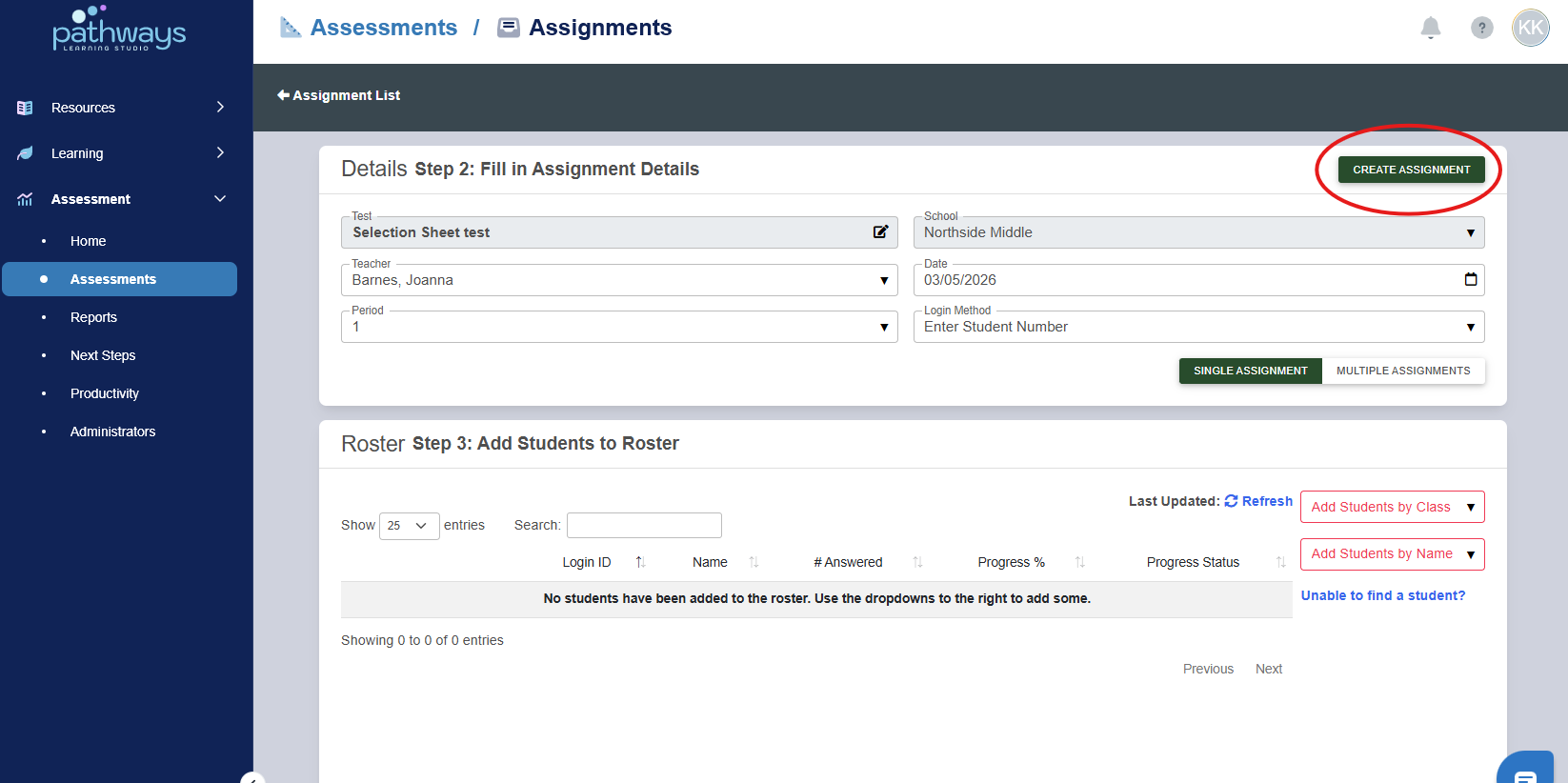
10. When all intended students have been added, press 'Create Assignment' at the top right corner of the page.
Was this article helpful?
That’s Great!
Thank you for your feedback
Sorry! We couldn't be helpful
Thank you for your feedback
Feedback sent
We appreciate your effort and will try to fix the article