This article will explain how to assign assessments in bulk.
1. Login to your Pathways Learning Studio account through Clever, ClassLink, or at pathwayslearningstudio.com.
2. Navigate to 'Assessment' → 'Home.'
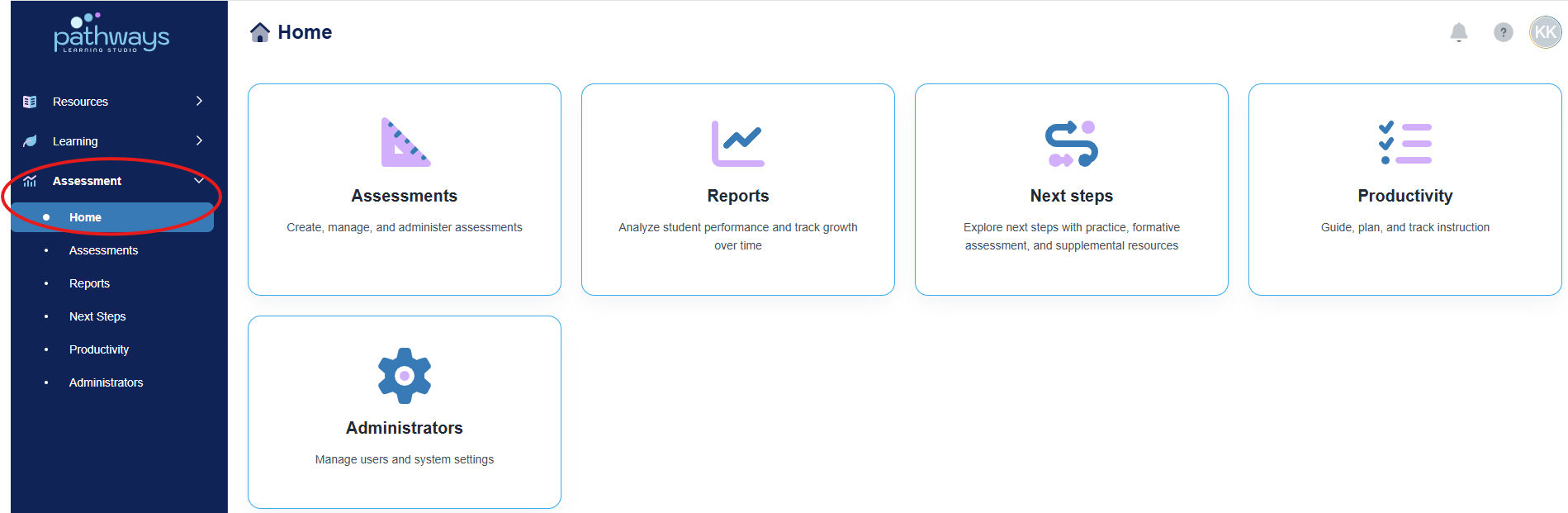
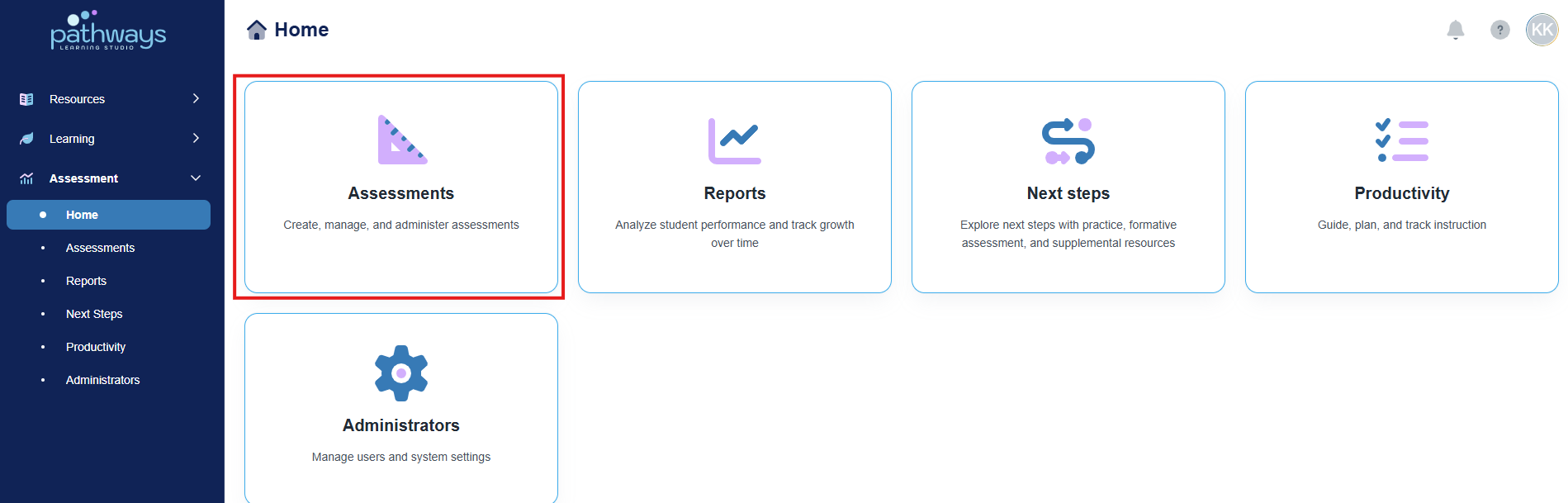
3. Select the 'Assessment' tile.
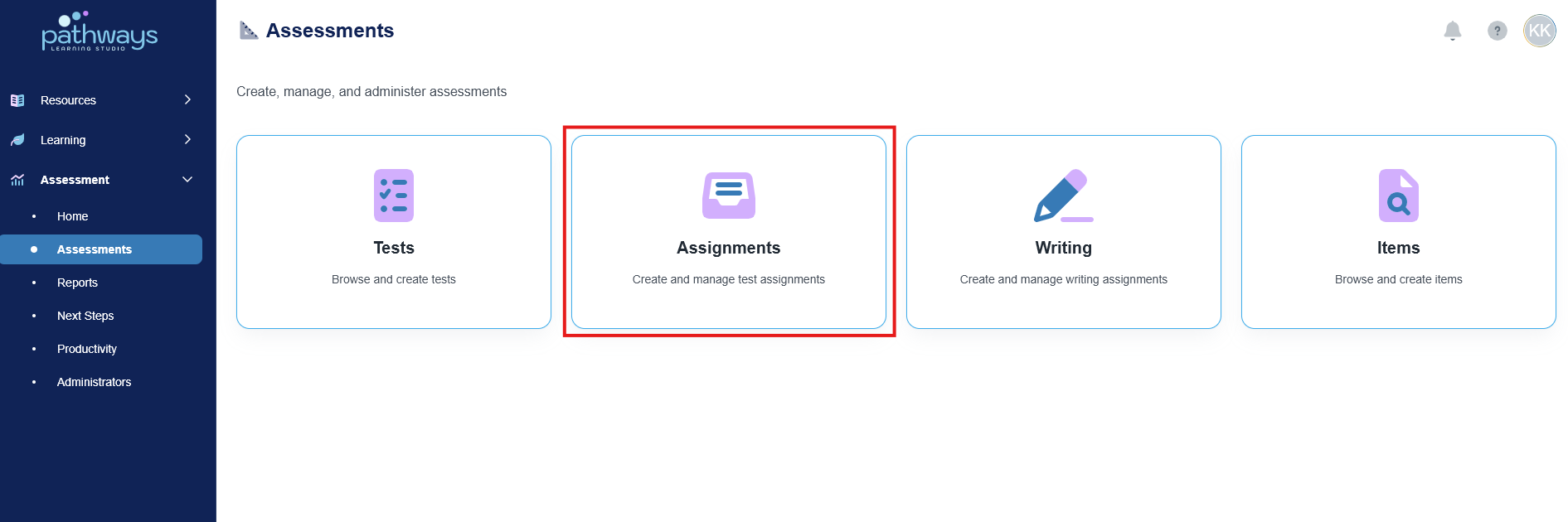
4. Select the 'Assignment' tile.
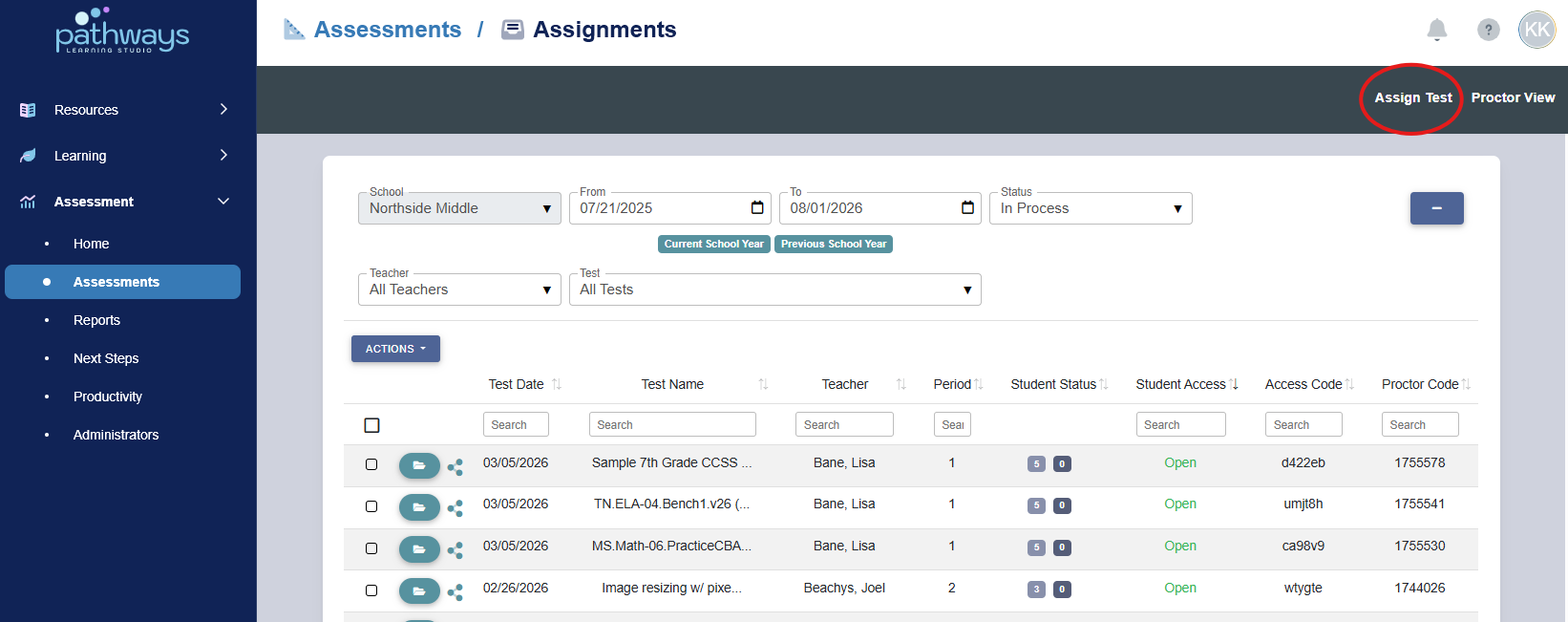
5. Select 'Assign Test' in the top right corner.
6. There are two ways to find the test you need to assign.
- Toggle to ‘Basic View’ to search by content area.
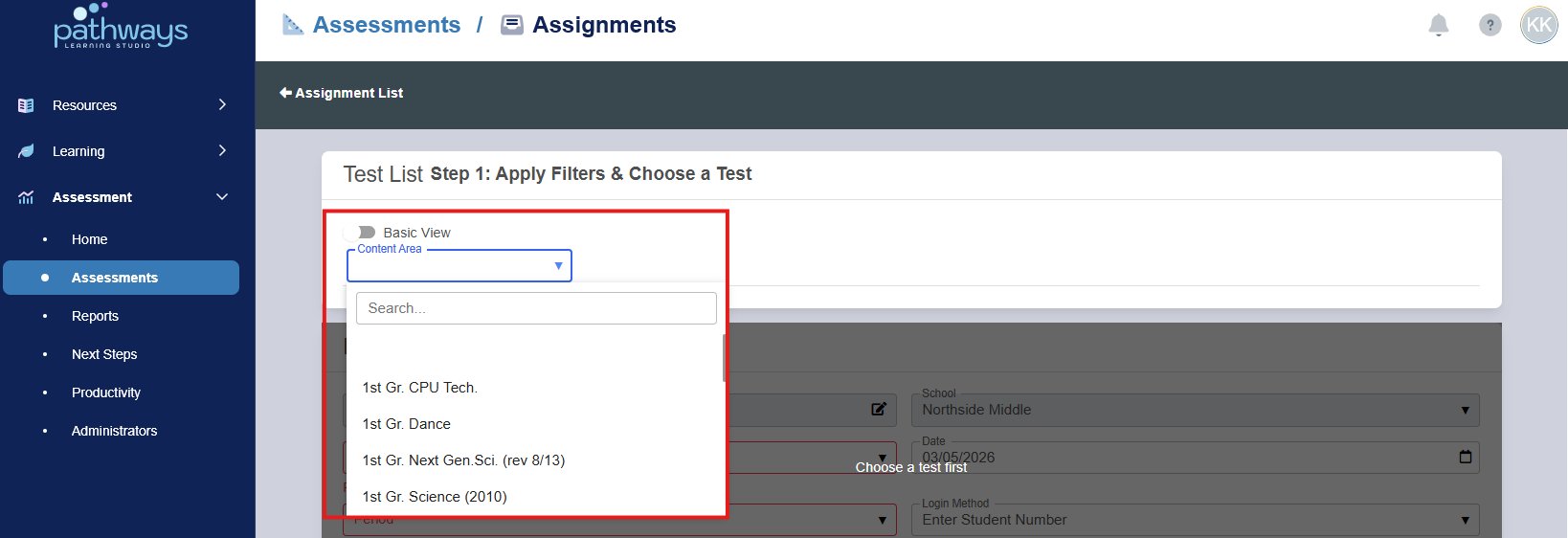
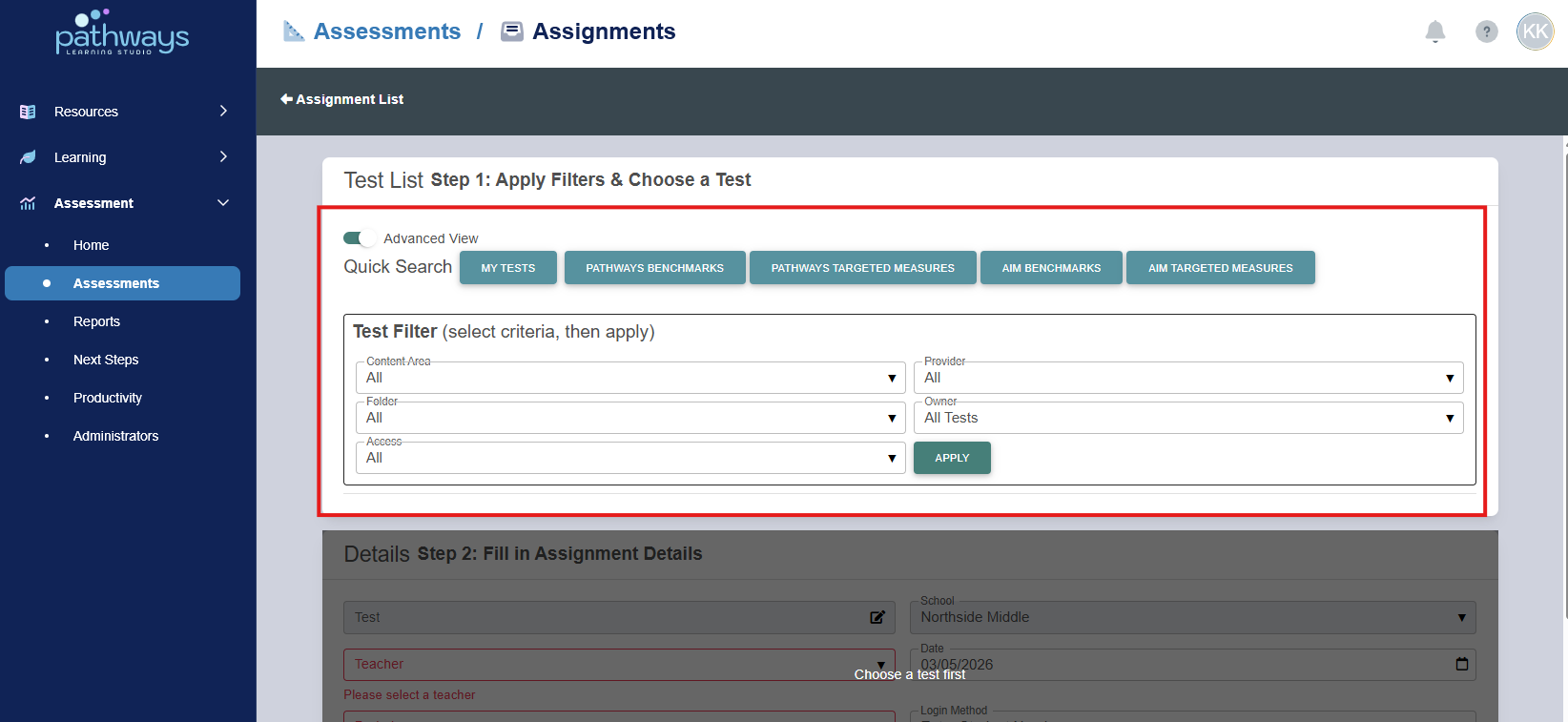
- Toggle to 'Advanced View' to search by additional filters such as Content Area, Folder, Owner, etc.
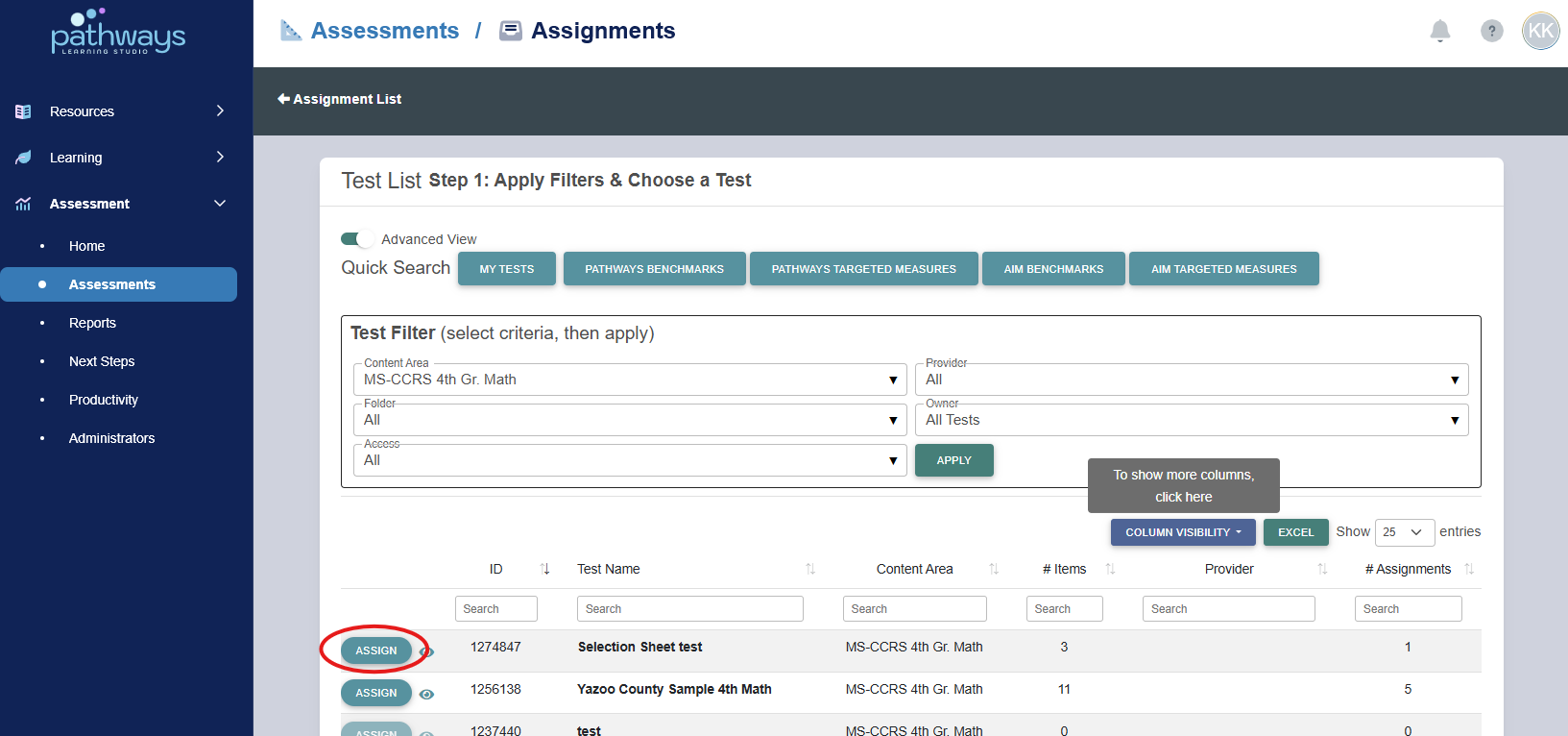
7. Locate the correct test, and select the ‘Assign’ button to the left of the assessment ID.
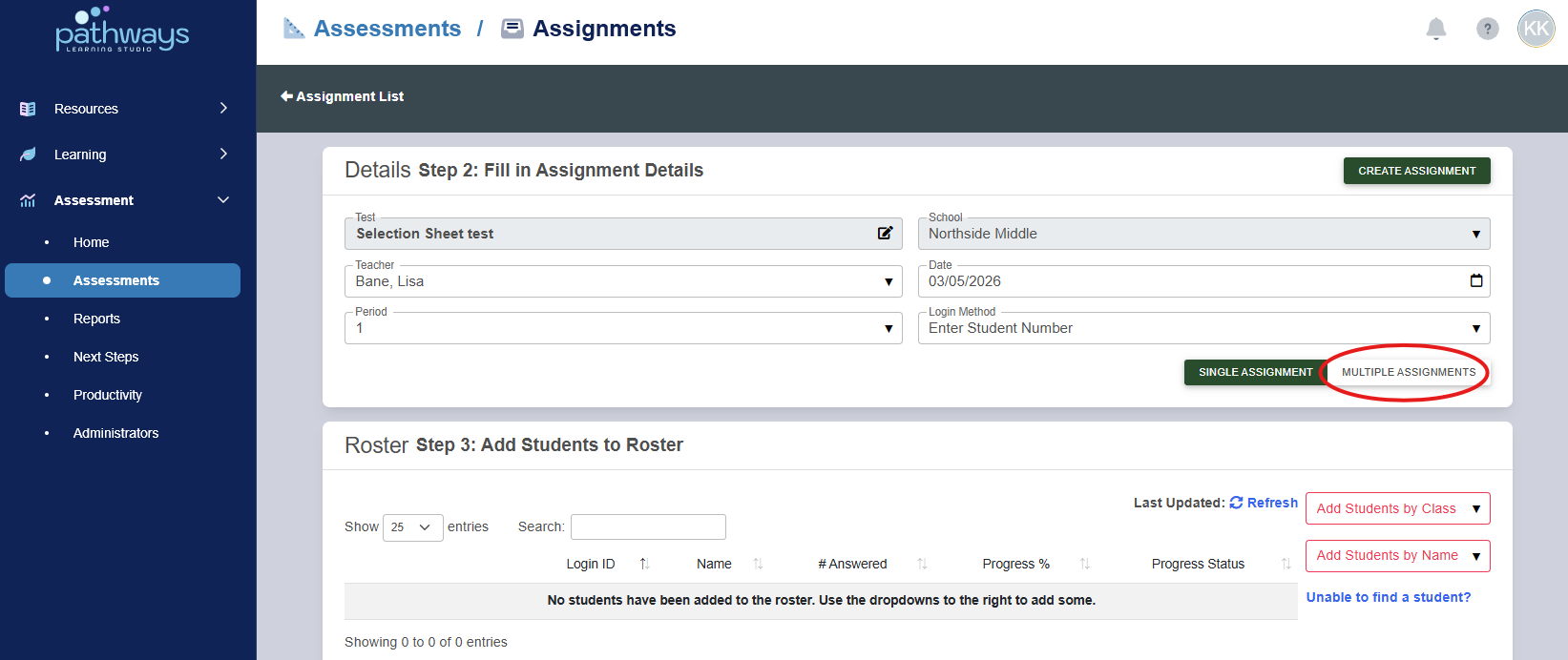
8. Select 'Multiple Assignments' in the bottom left of the panel.
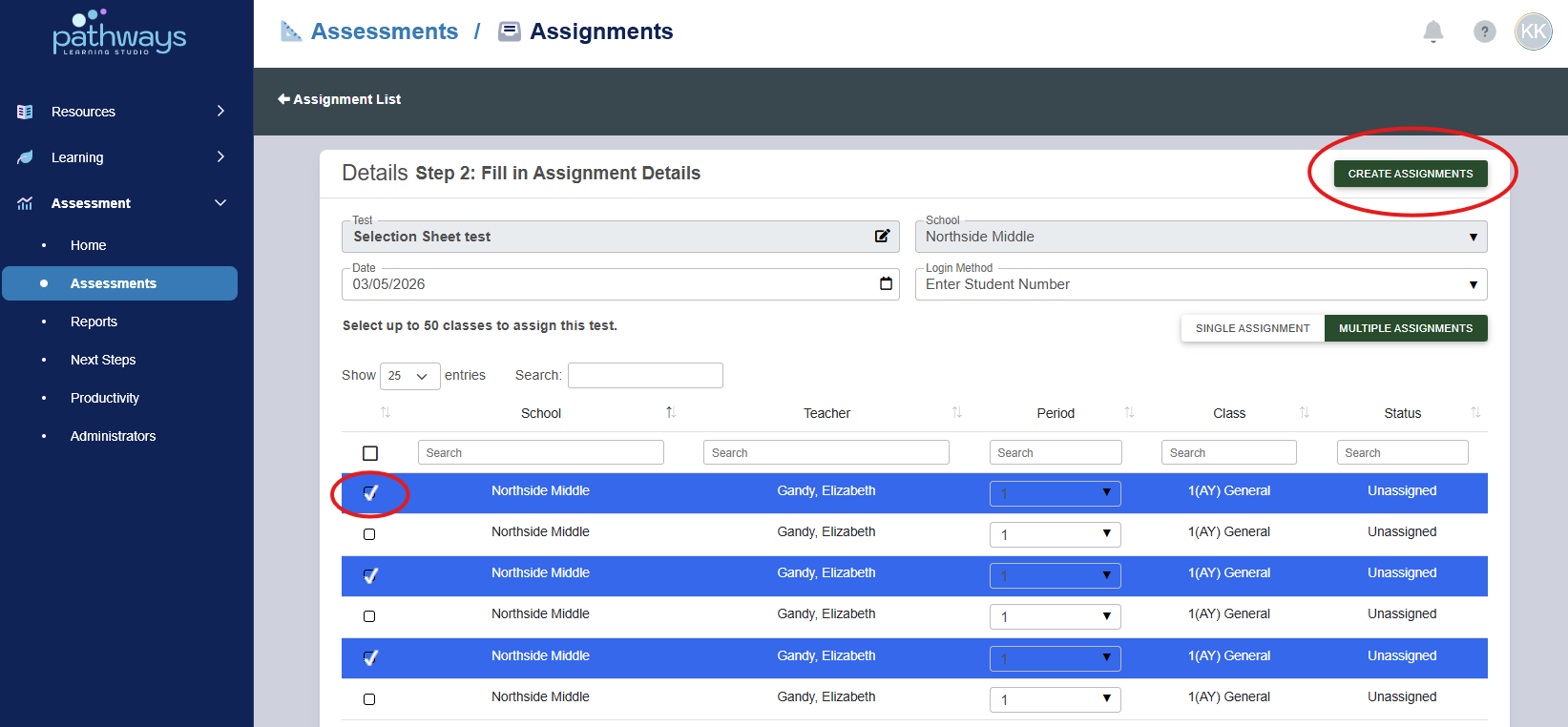
9. Classes will be listed by teacher name/class period. If a class period is incorrectly assigned, it can be corrected using the drop down menu in the 'period' column.
Once all classes for which you wish to assign the assessment have been selected, choose 'Create Assignments.'
The 'Multiple Assignments' option within the assignments portal allows users to create up to 50 assignments at once.
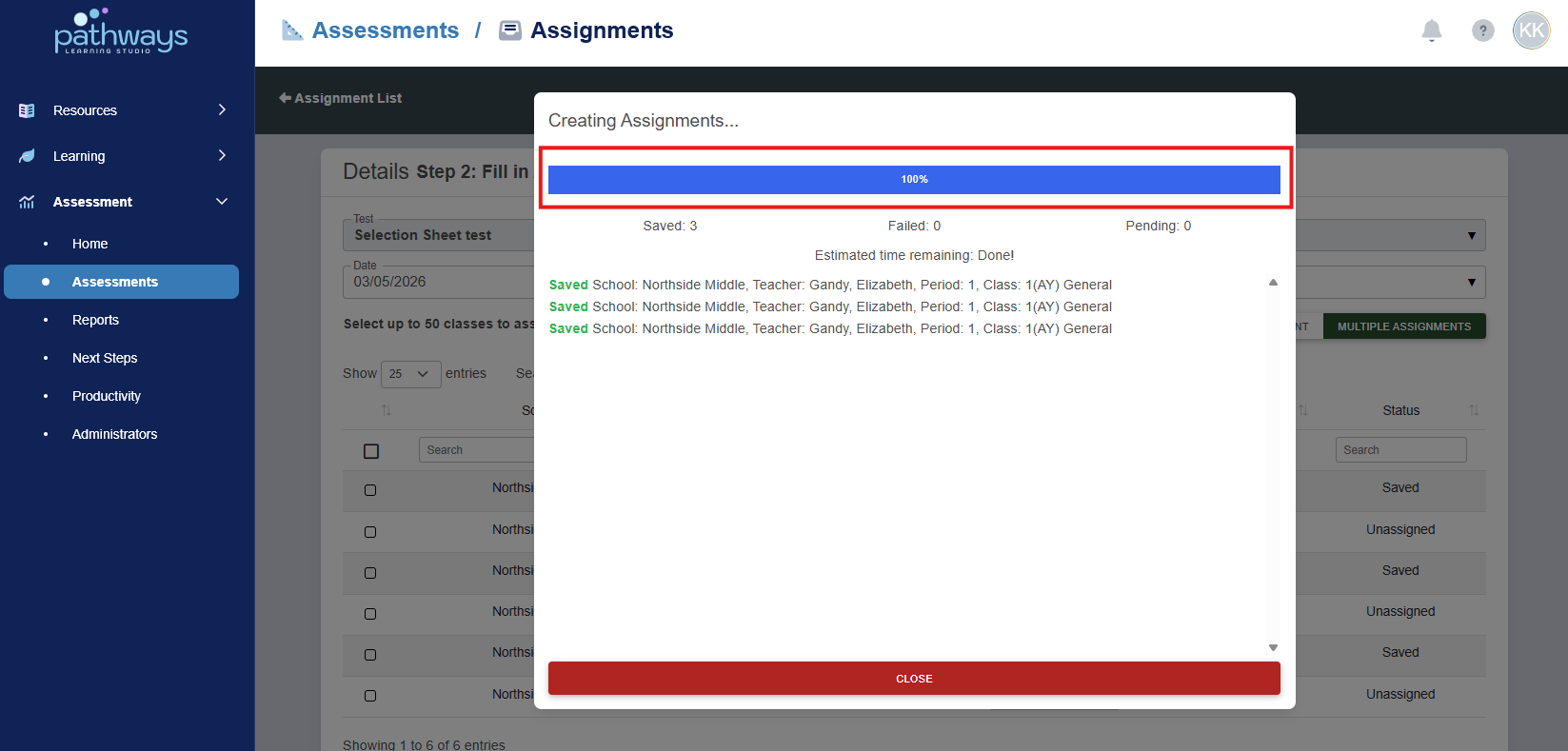
10. A screen will appear that informs you when each assignment has saved.
Important: Do not leave the page until all assignments have saved. If you close before all assignments save, the assignments still loading will be cancelled.
Was this article helpful?
That’s Great!
Thank you for your feedback
Sorry! We couldn't be helpful
Thank you for your feedback
Feedback sent
We appreciate your effort and will try to fix the article