This article will explain how to delete an assignment.
1. Login to your Pathways Learning Studio account through Clever, ClassLink, or at pathwayslearningstudio.com.
2. Navigate to 'Assessment' → 'Home.'
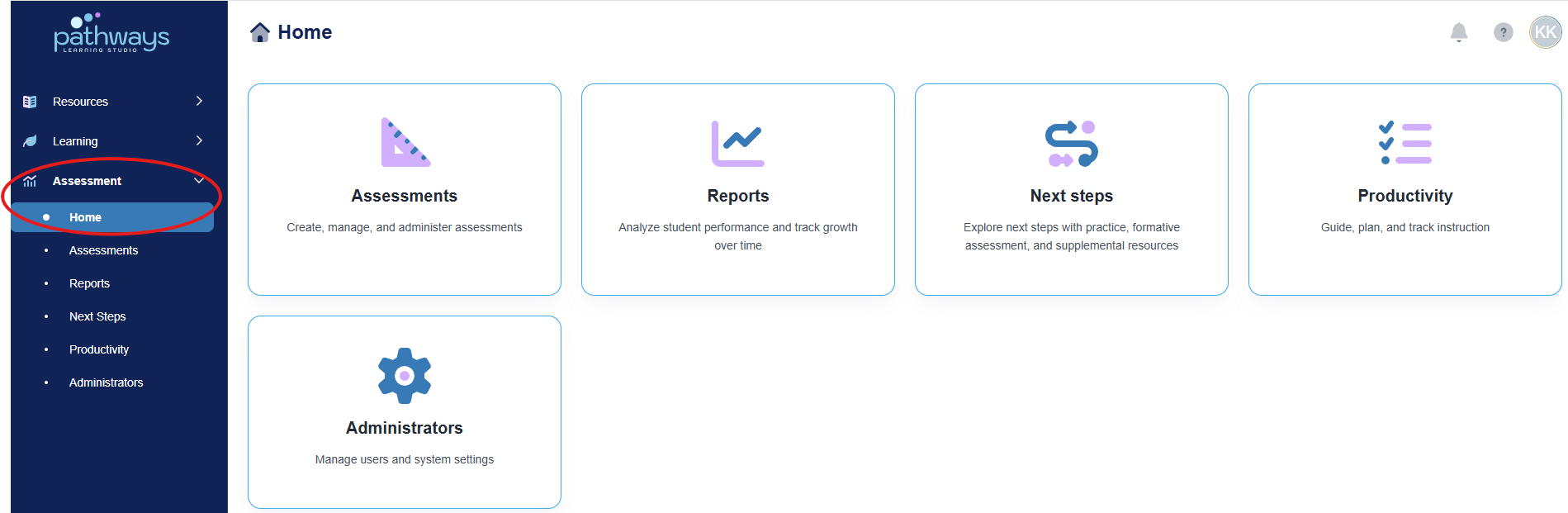
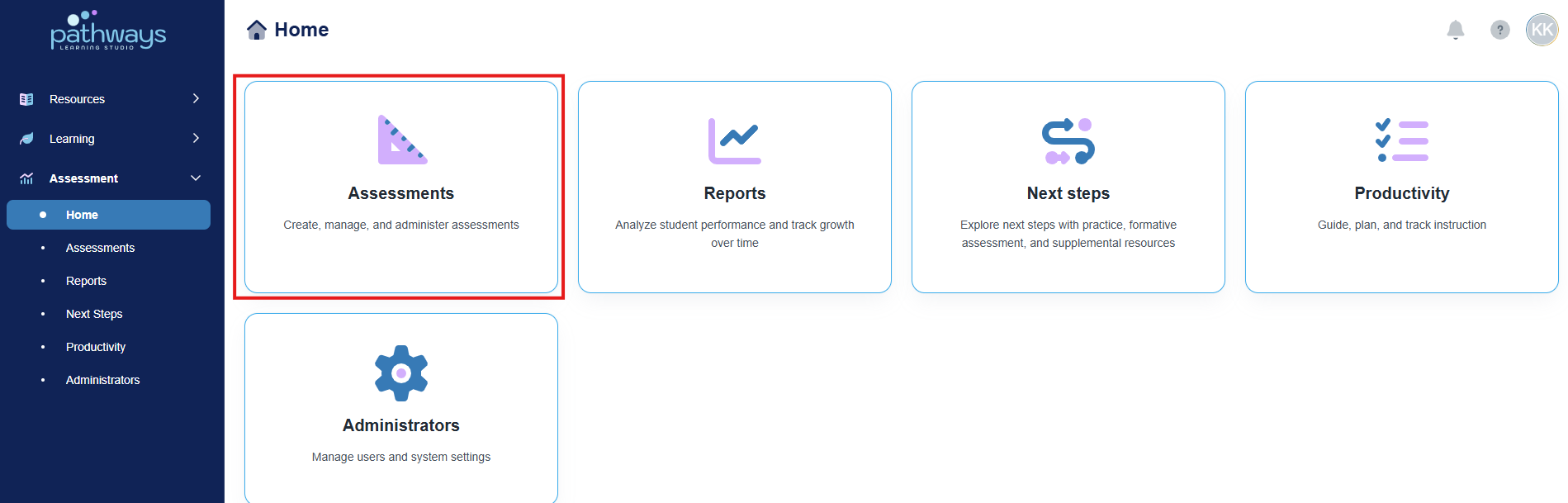
3. Select the 'Assessment' tile.
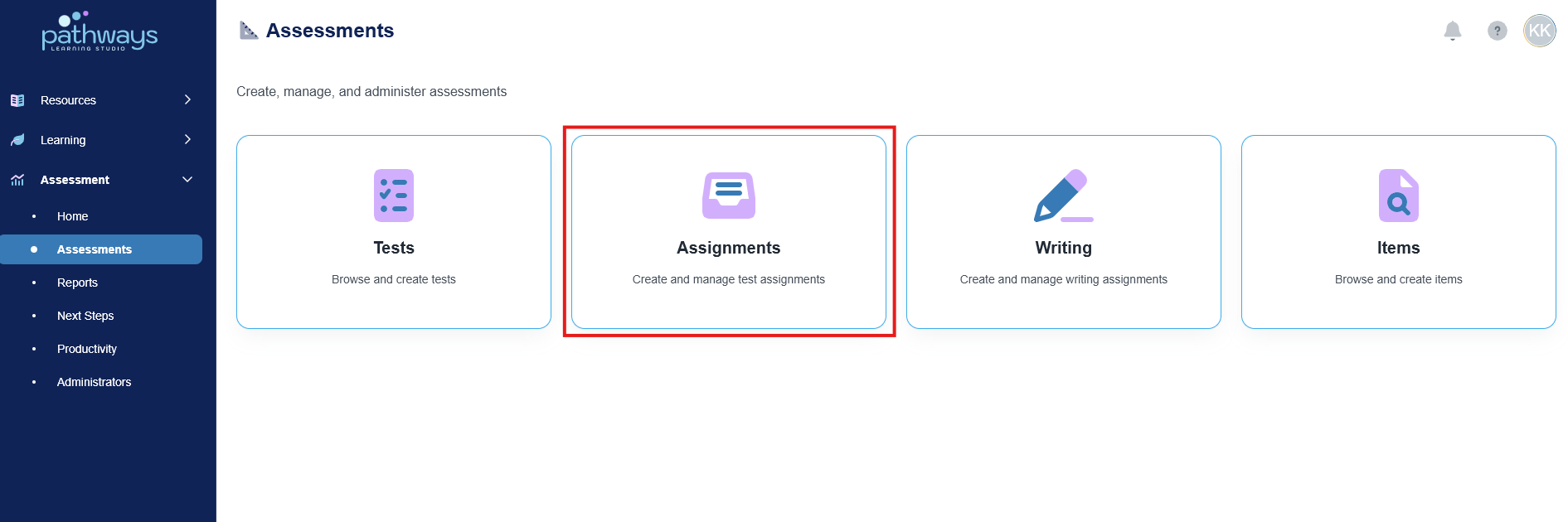
4. Select the 'Assignment' tile.
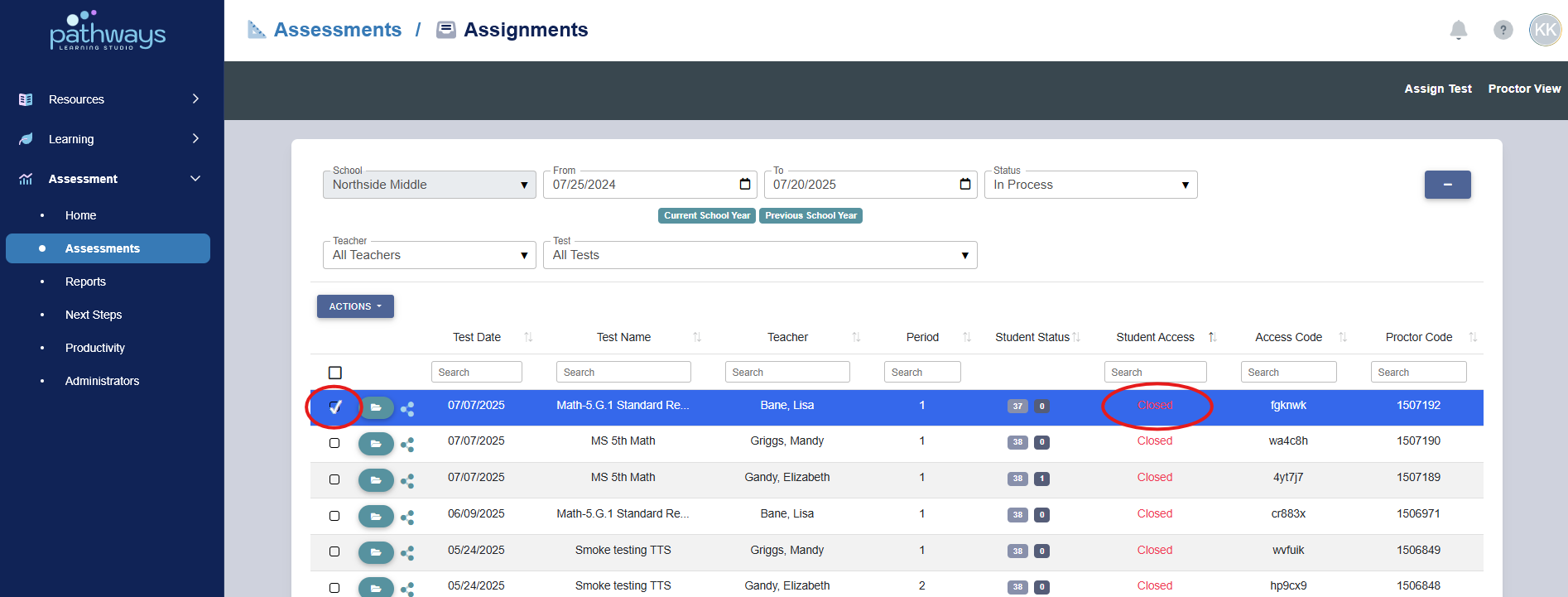
5. Locate the assignment(s) you would like to delete, and select the box(es) to the far left of the assignment(s).
Note: Before attempting to delete an assignment, the assignment must be closed to students. See Closing an Assignment for additional assistance.
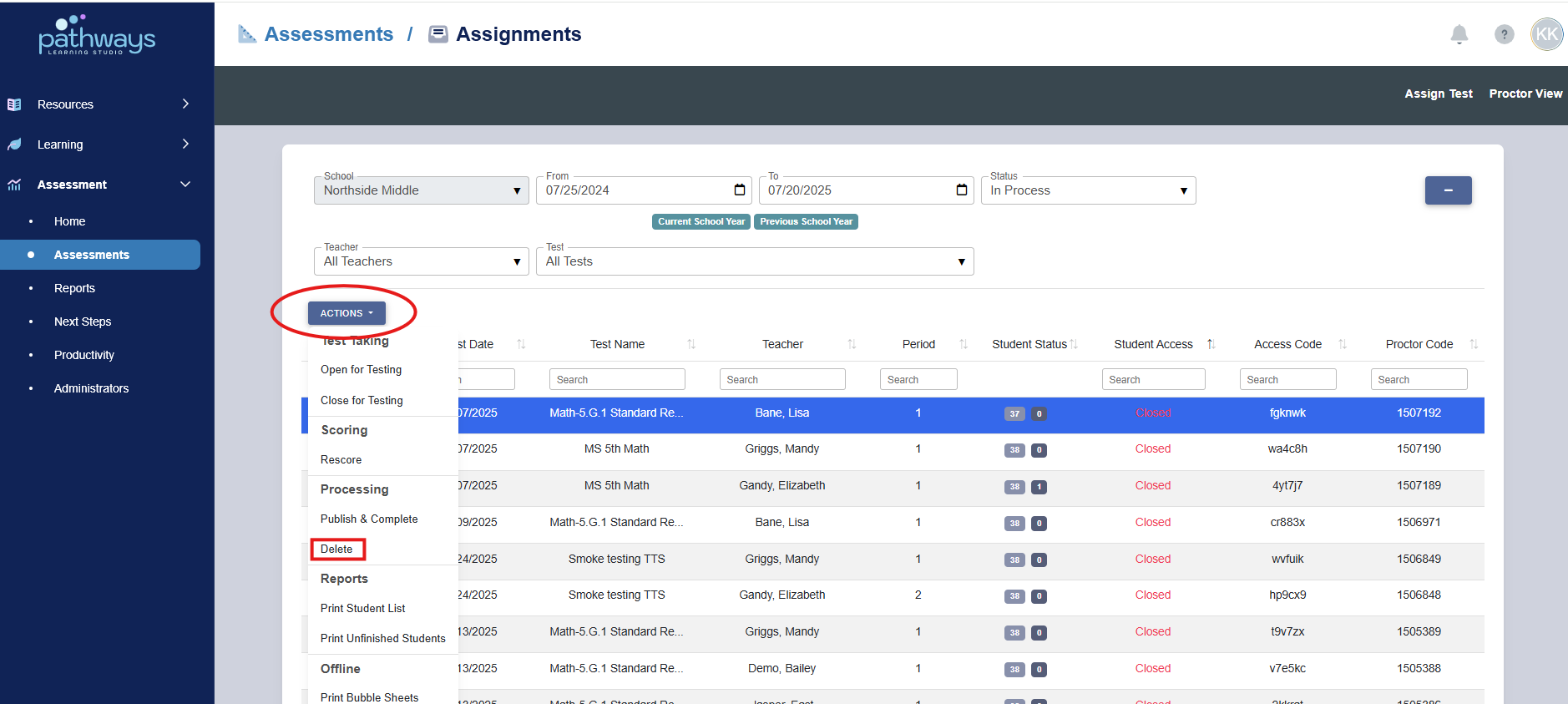
6. Press the ‘Actions’ drop down menu at the top left and choose ‘delete.’ Confirm the intent to delete by typing 'Delete Assignment' into the pop up and click 'Delete Assignment.'
Was this article helpful?
That’s Great!
Thank you for your feedback
Sorry! We couldn't be helpful
Thank you for your feedback
Feedback sent
We appreciate your effort and will try to fix the article