This article will explain how to edit an assignment.
1. Login to your Pathways Learning Studio account through Clever, ClassLink, or at pathwayslearningstudio.com.
2. Navigate to 'Assessment' → 'Home.'
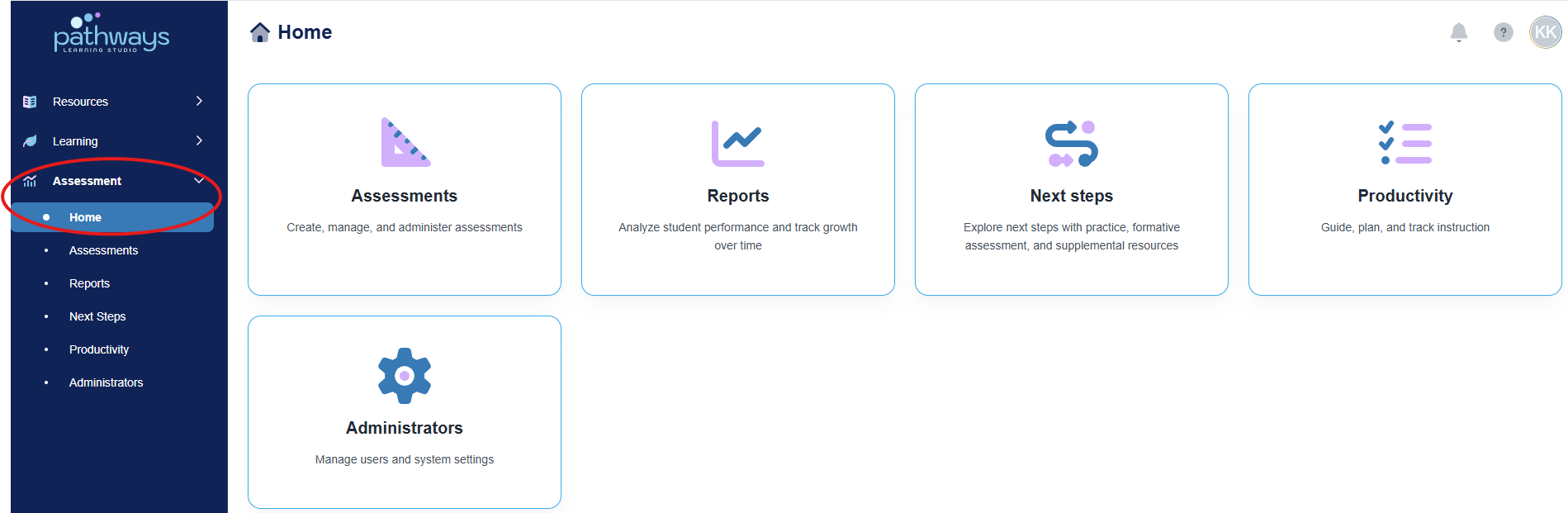
3. Select the 'Assessment' tile.
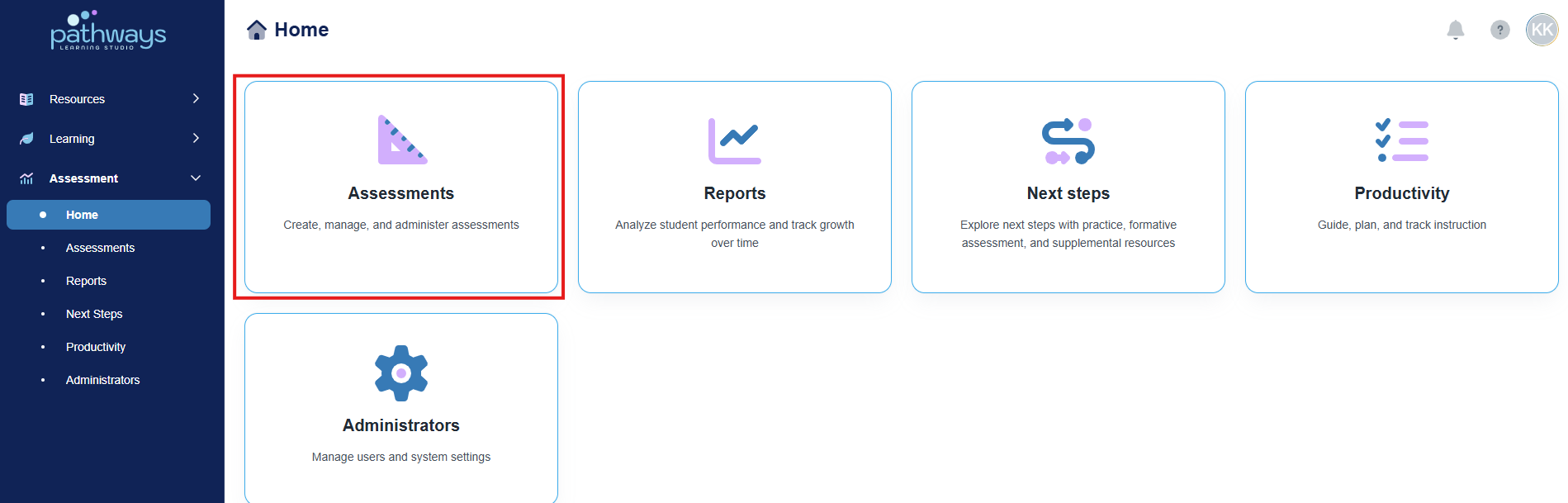
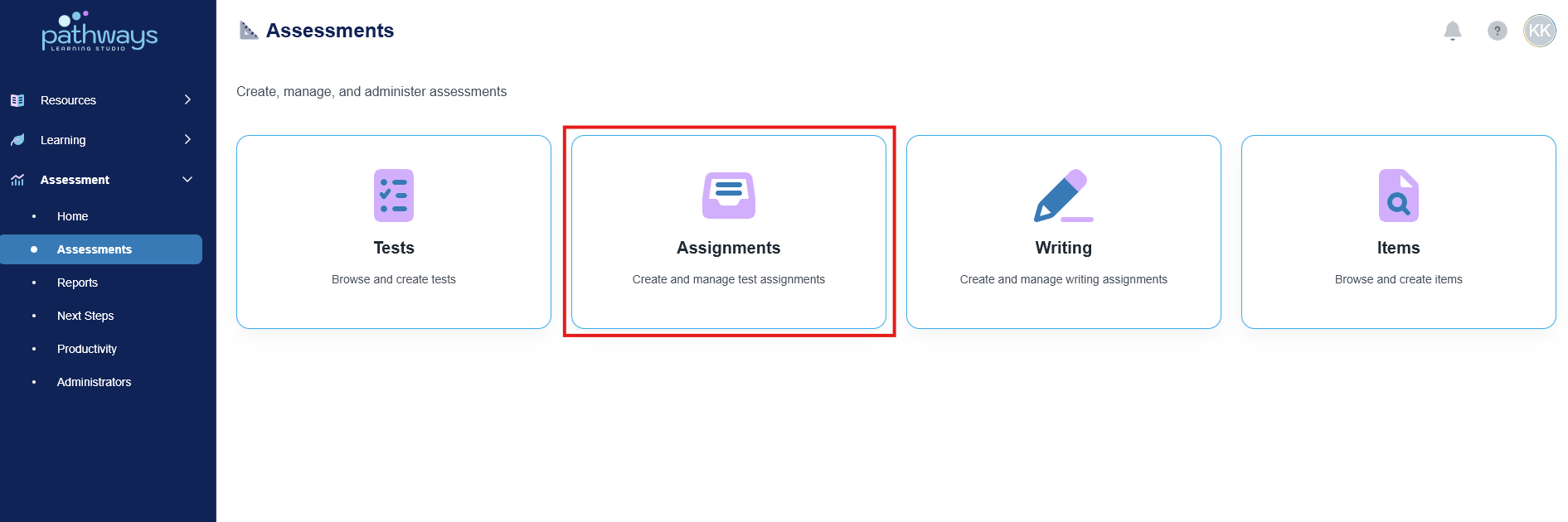
4. Select the 'Assignment' tile.
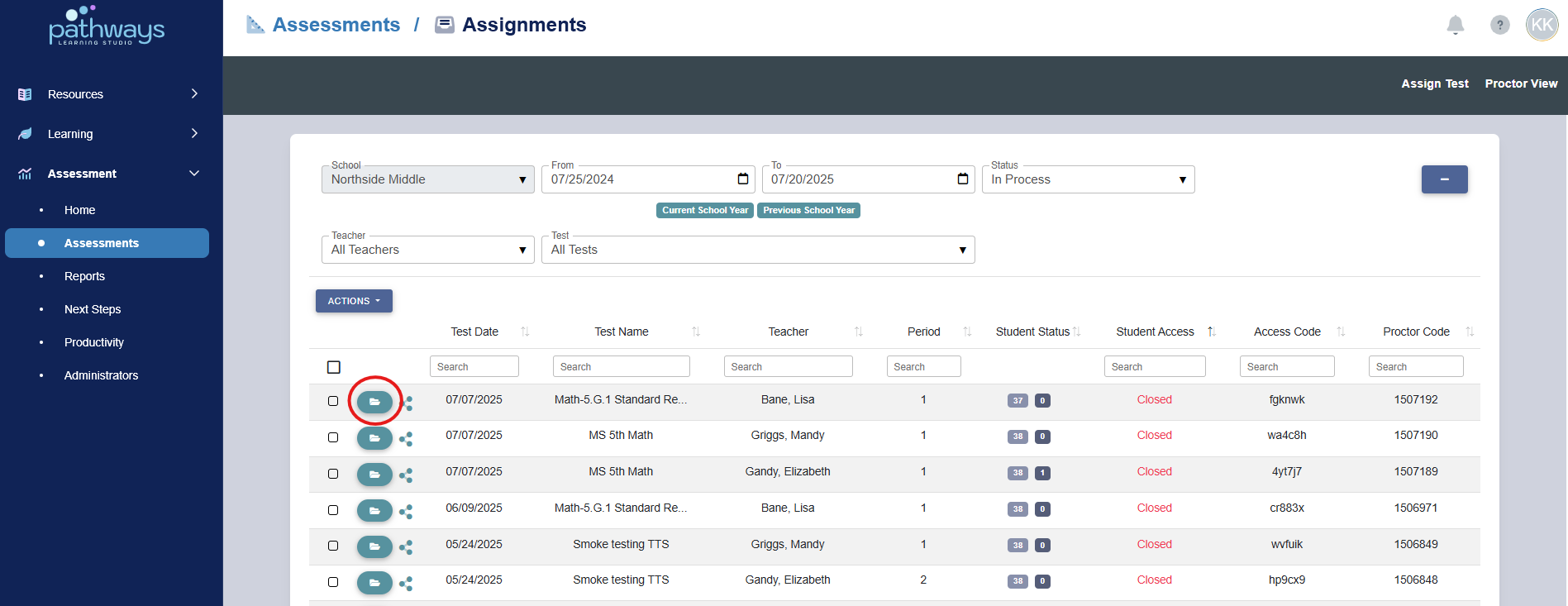
5. Locate the assignment you would like to edit, and select the folder icon to the far left of the assessment name.
Note: If the folder icon is not present, a district level administrator has made the assessment private.
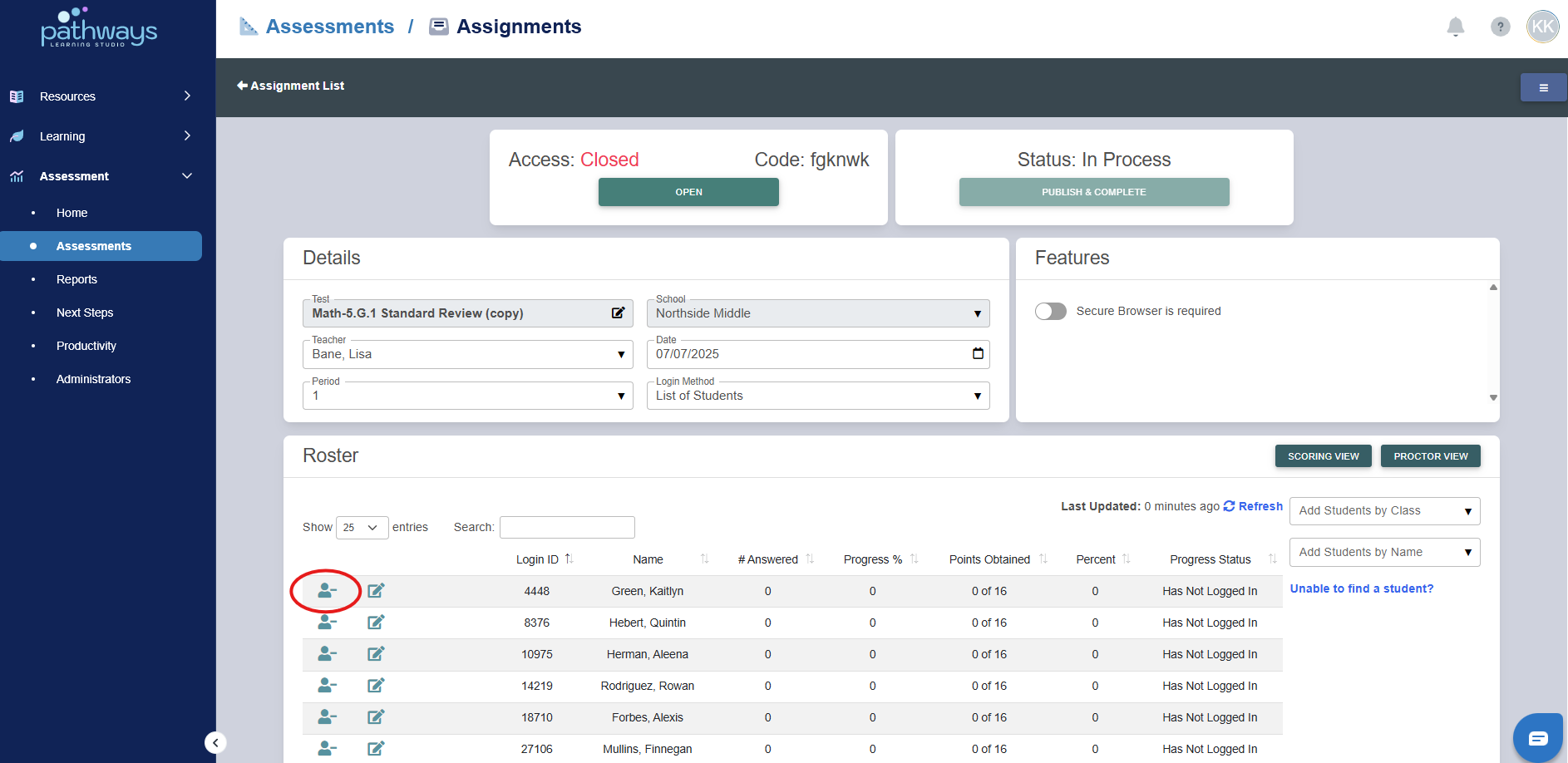
6. To delete a student from an assignment, select the blue icon to the left of the student’s name.
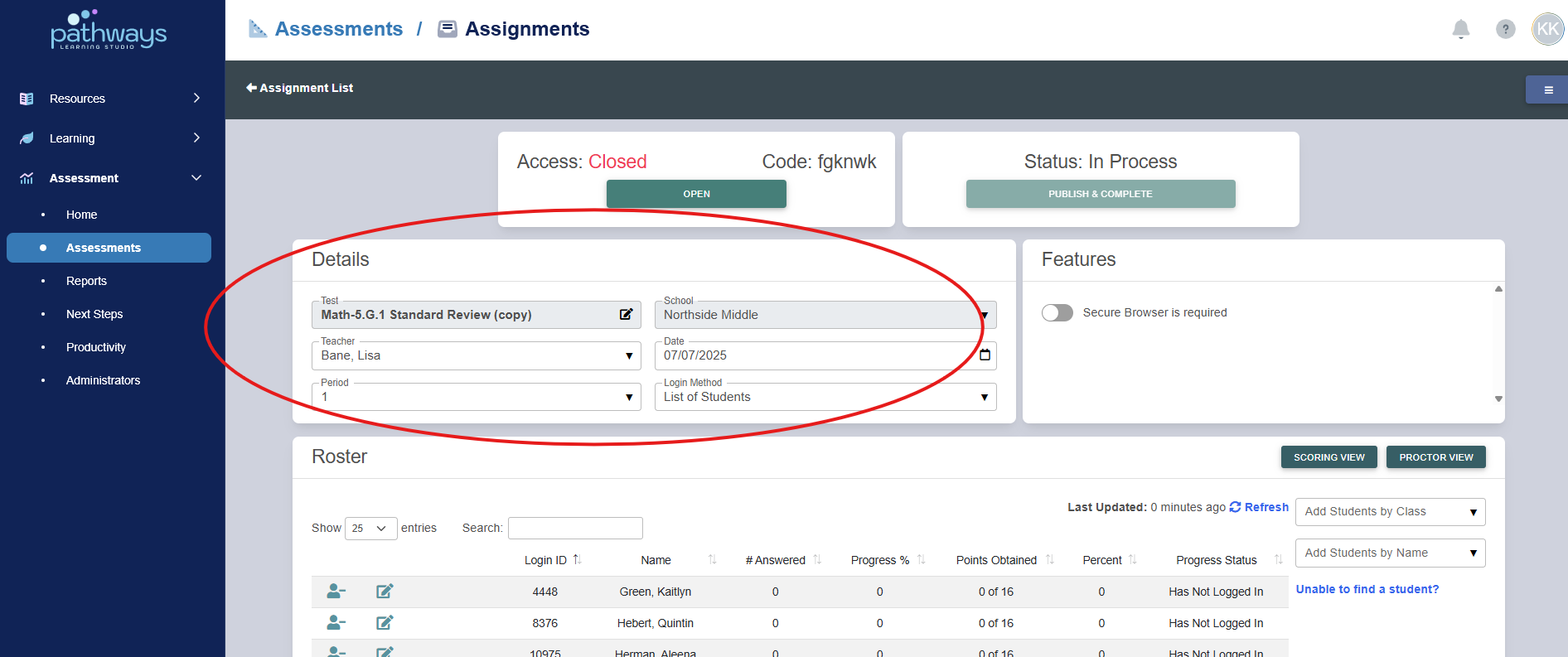
7. See details to change the teacher, date, period, or login method of the assignment.
Was this article helpful?
That’s Great!
Thank you for your feedback
Sorry! We couldn't be helpful
Thank you for your feedback
Feedback sent
We appreciate your effort and will try to fix the article