When a student's Text to Speech is activated through the administrator's tool page, the student will automatically have the text to speech functionality on all assignments. While this will set text to speech functionality as the default for a student on every assessment, administrators and teachers will still be able to adjust text to speech as needed on an assignment by assignment basis.
1. Login to your Pathways account through Clever, ClassLink, or at pathwayslearningstudio.com.
2. Navigate to 'Assessment' on the left-hand navigation bar.
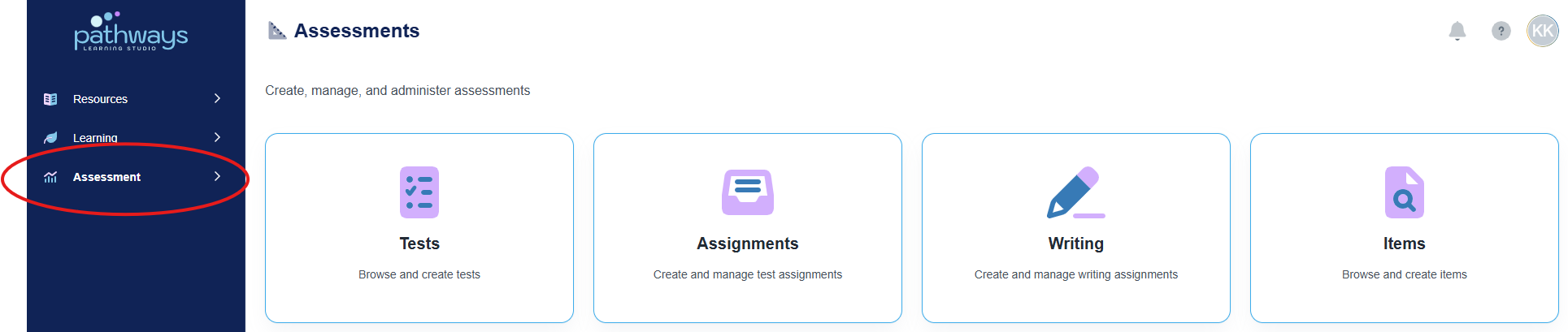
3. Navigate to 'Administrator' located under 'Assessment' on the left-hand navigation bar..
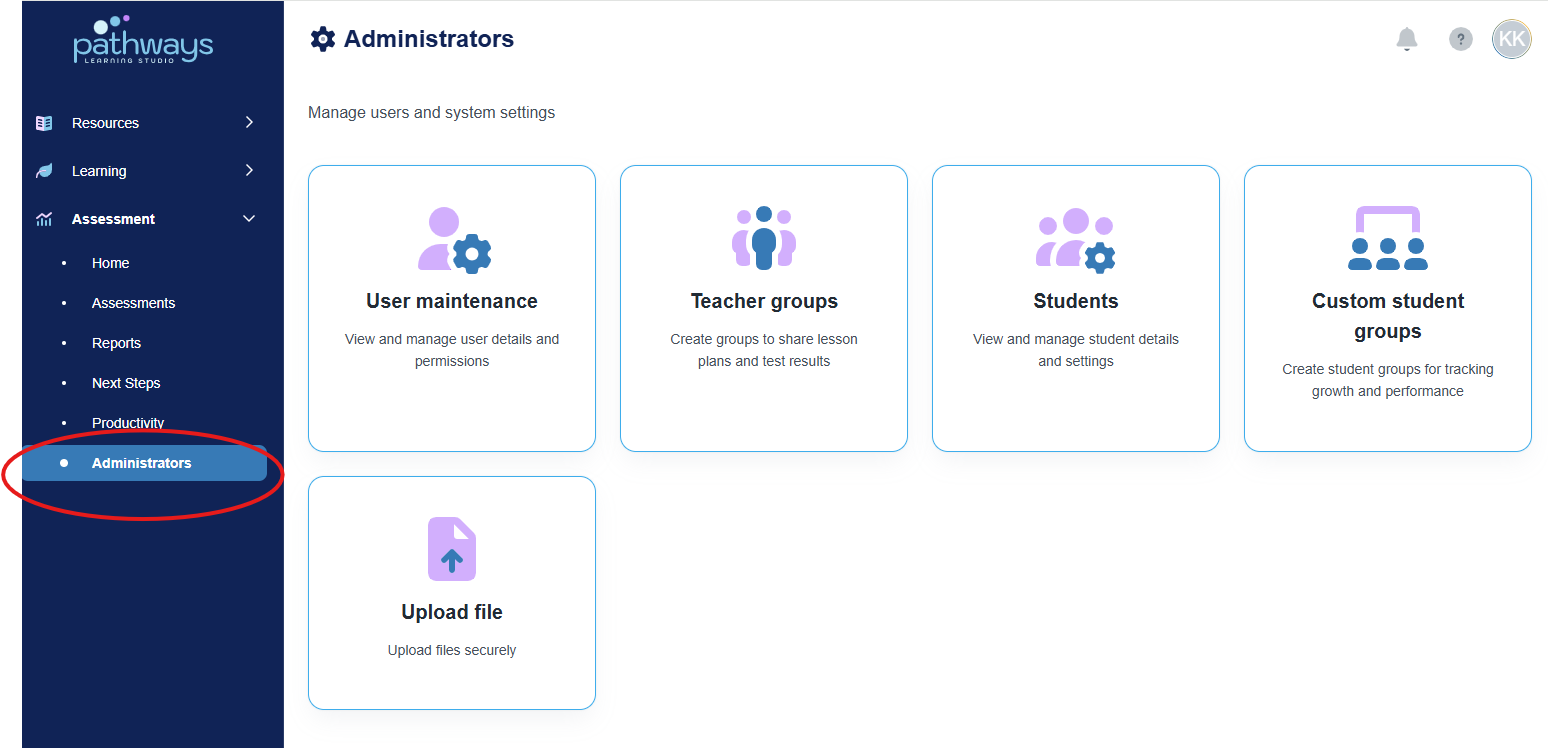
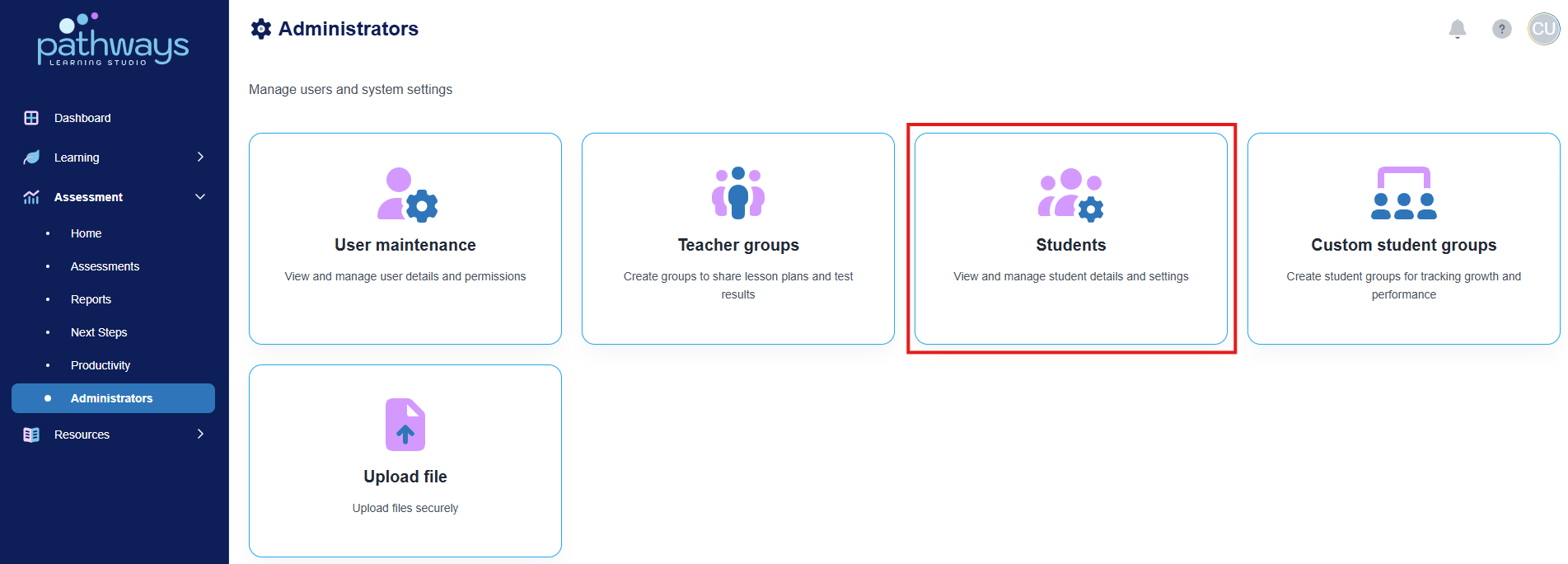
4. Select 'Students' from the Administrator dashboard.
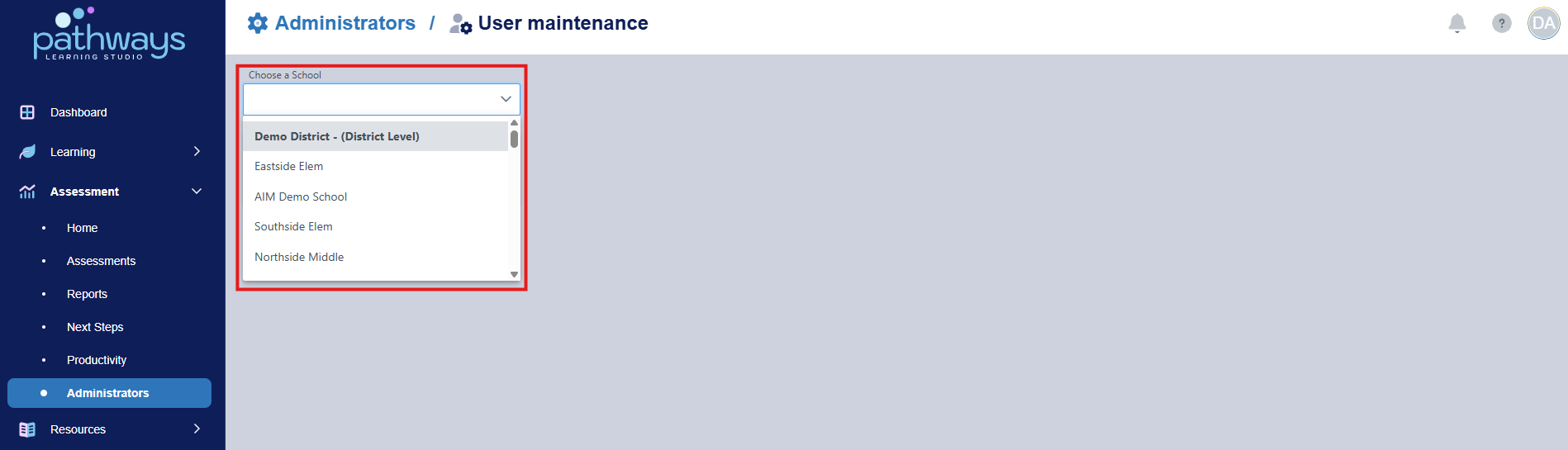
5. Select the school or district view for which you would like to update in the drop down menu at the top left of the page.
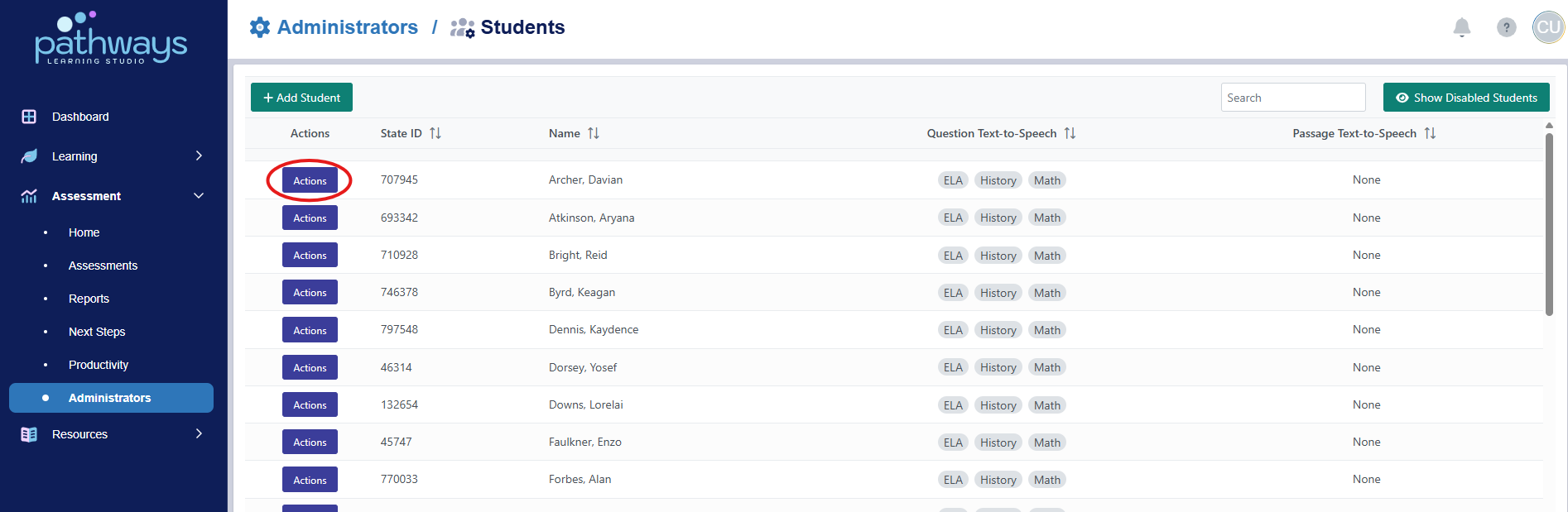
6. Select the blue 'Actions' button to the left of the student's name for whom you wish to activate Text-to-Speech for all assignments and click Edit.
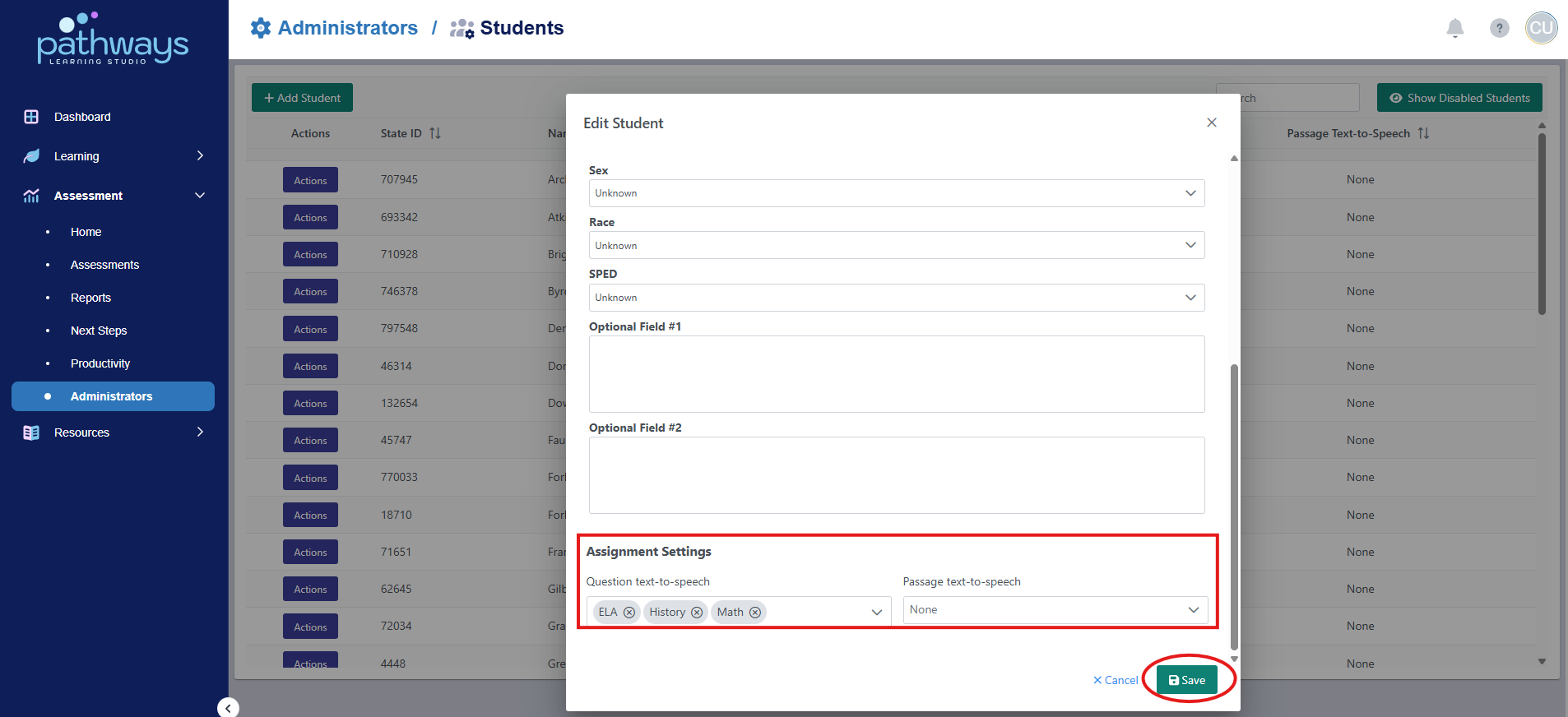
7. Scroll to the bottom of the pop up portal for the student, and select the toggle beside 'Question text-to-speech' and/or 'Passage text-to-speech' according to which aspects of Text-to-Speech you want available for the student (please note that the MAAP assessments do not allow passage text to speech for any students). When the correct toggles have been selected, press 'Save.'
NOTE: Once text-to-speech has been activated for a student, the student text-to-speech settings will take effect for any new assignments that are created. This will not impact any assignments that exist at the time that the student text-to-speech settings are changed for a student.
Was this article helpful?
That’s Great!
Thank you for your feedback
Sorry! We couldn't be helpful
Thank you for your feedback
Feedback sent
We appreciate your effort and will try to fix the article