1. Login to your Pathways account through Clever, ClassLink, or at pathwayslearningstudio.com.
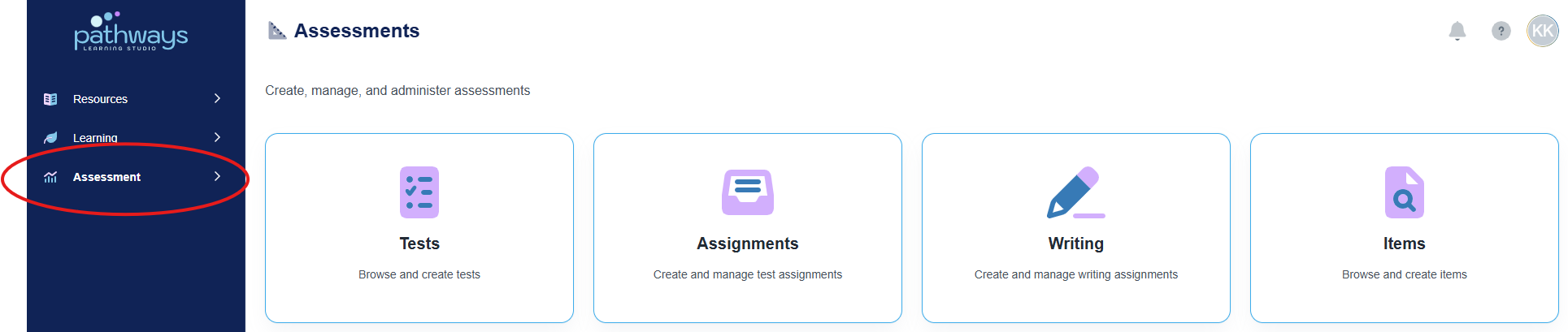
2. Navigate to 'Assessment' on the left-hand navigation bar.
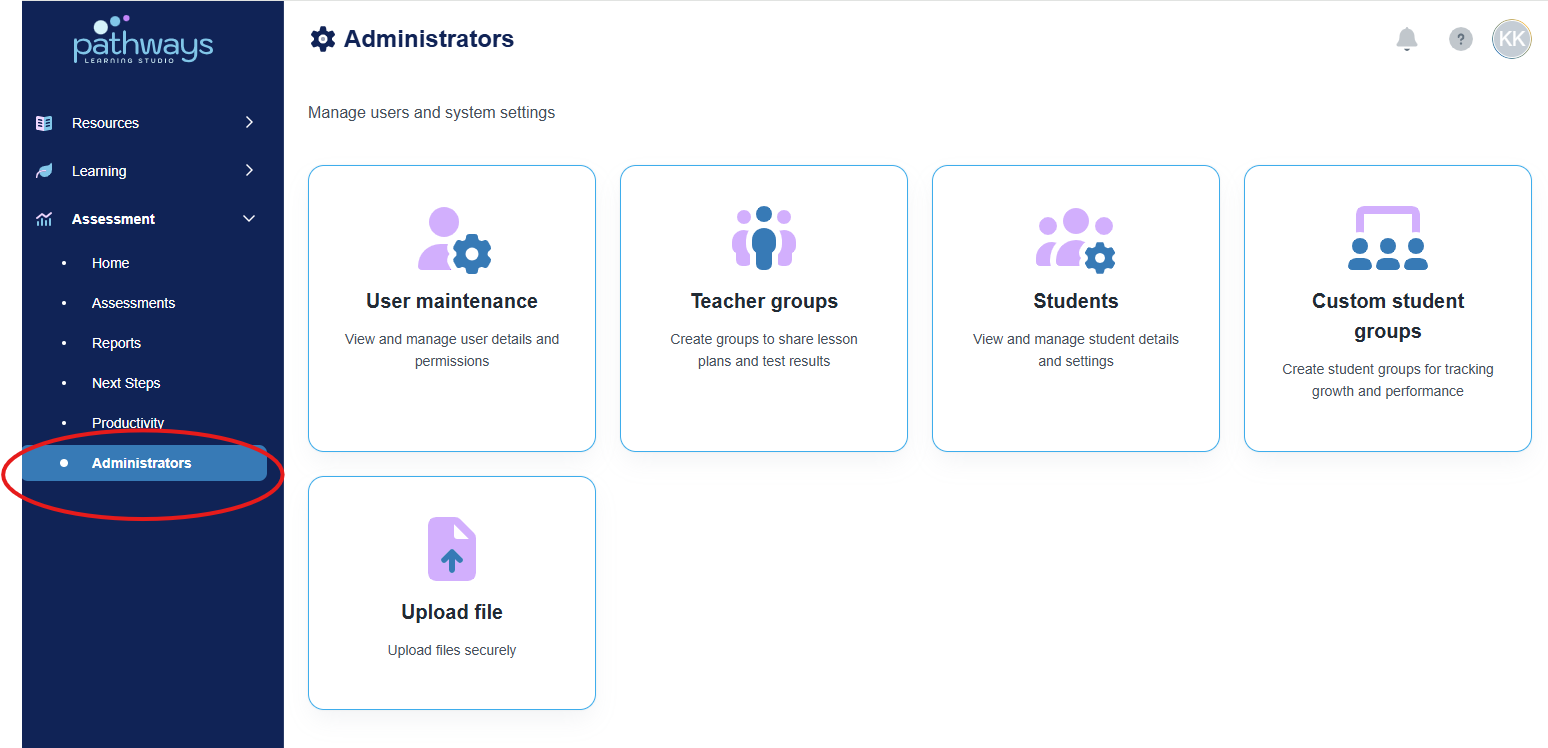
3. Navigate to 'Administrator' located under 'Assessment' on the left-hand navigation bar..
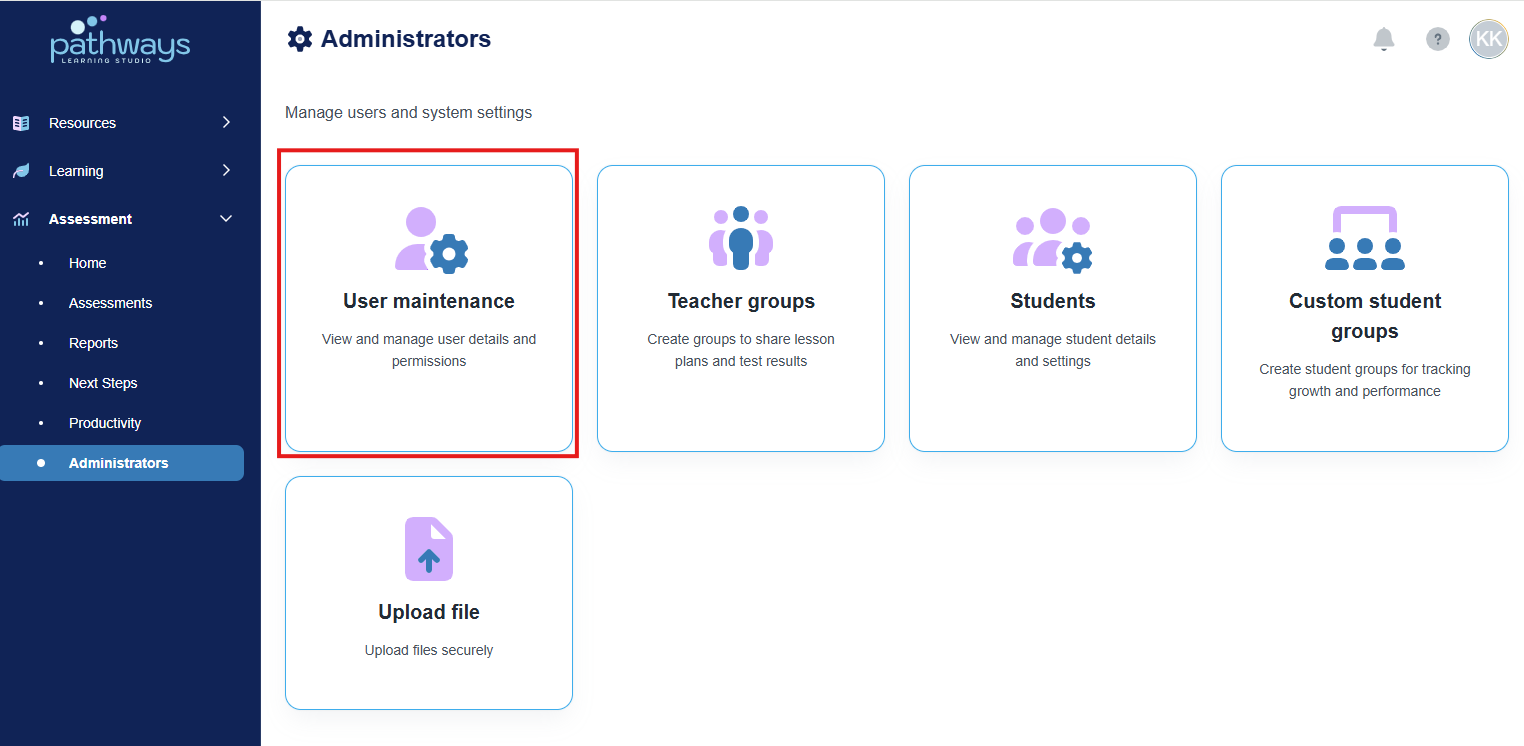
4. Select 'User Maintenance' from the Administrator dashboard.
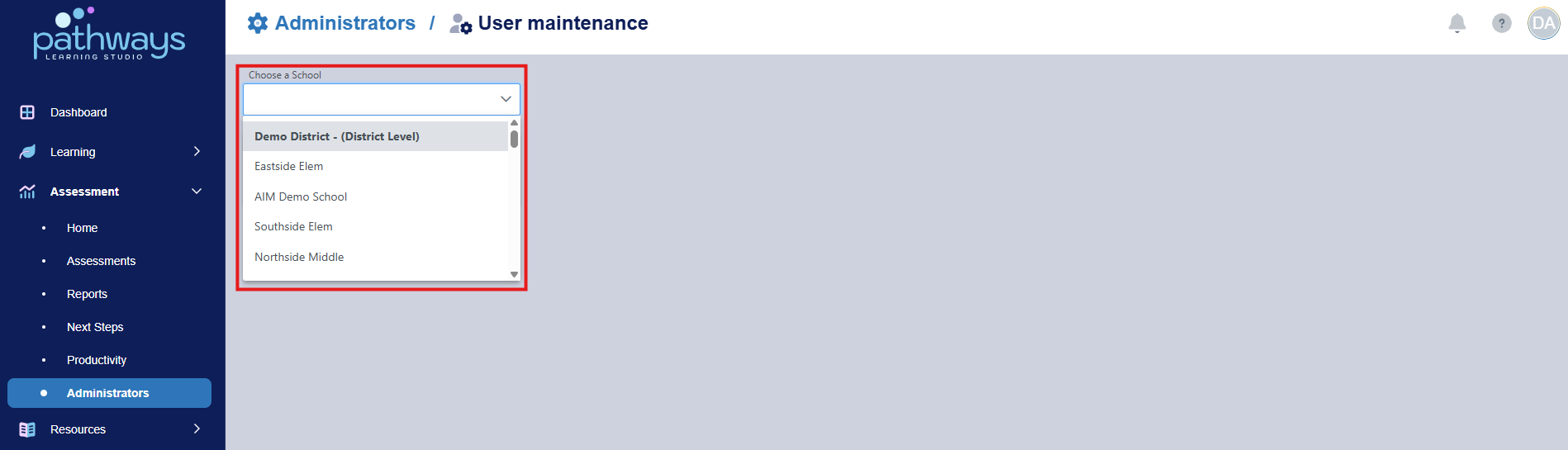
5. Select the school or district view for which you would like to disable or enable a user in the drop down menu at the top left of the page.
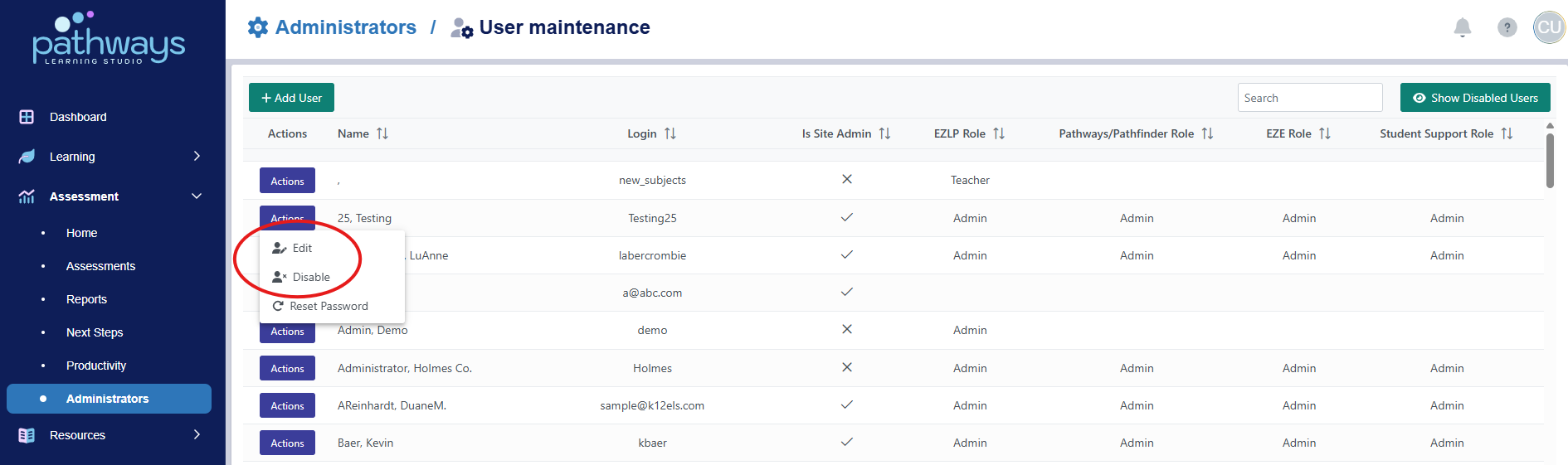
6. Locate the user you would like to enable or disable, and select 'disable' or 'enable' from the 'Actions' drop down menu beside the user's name.
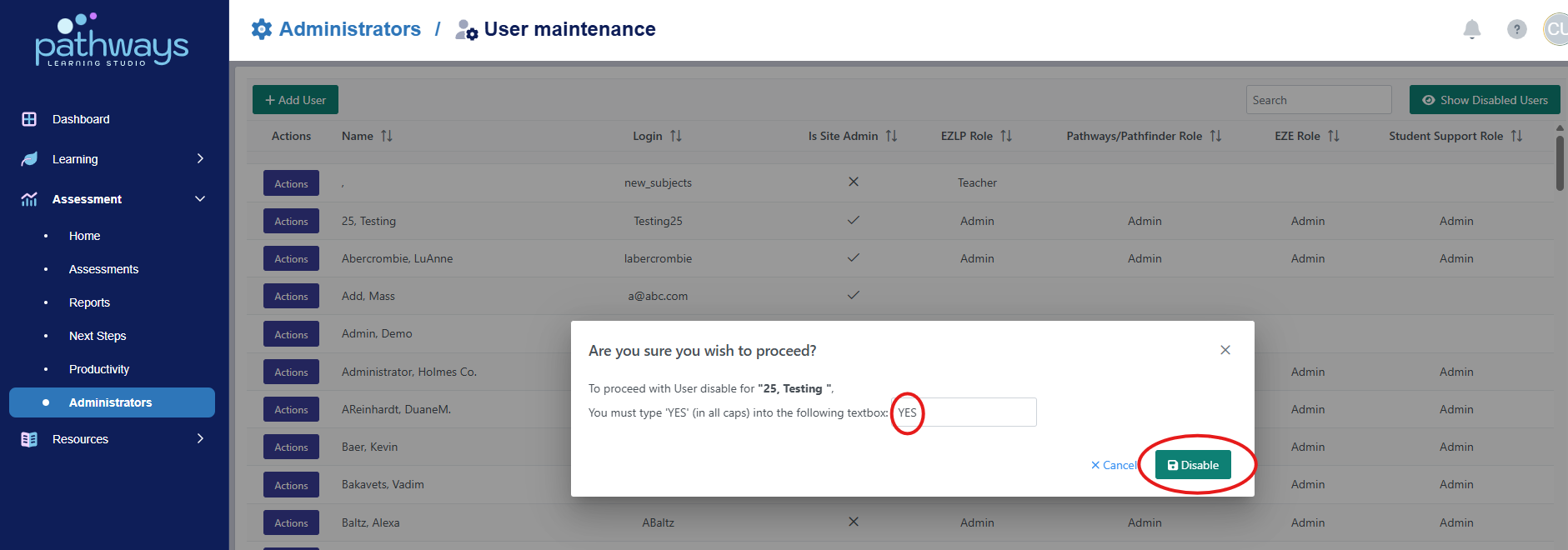
7. Type 'YES,' then choose 'disable' or 'enable.'
Was this article helpful?
That’s Great!
Thank you for your feedback
Sorry! We couldn't be helpful
Thank you for your feedback
Feedback sent
We appreciate your effort and will try to fix the article