To maintain test security, set the appropriate privacy level for an assessment by:
1. Login to your Pathways Learning Studio account through Clever, ClassLink, or at pathwayslearningstudio.com.
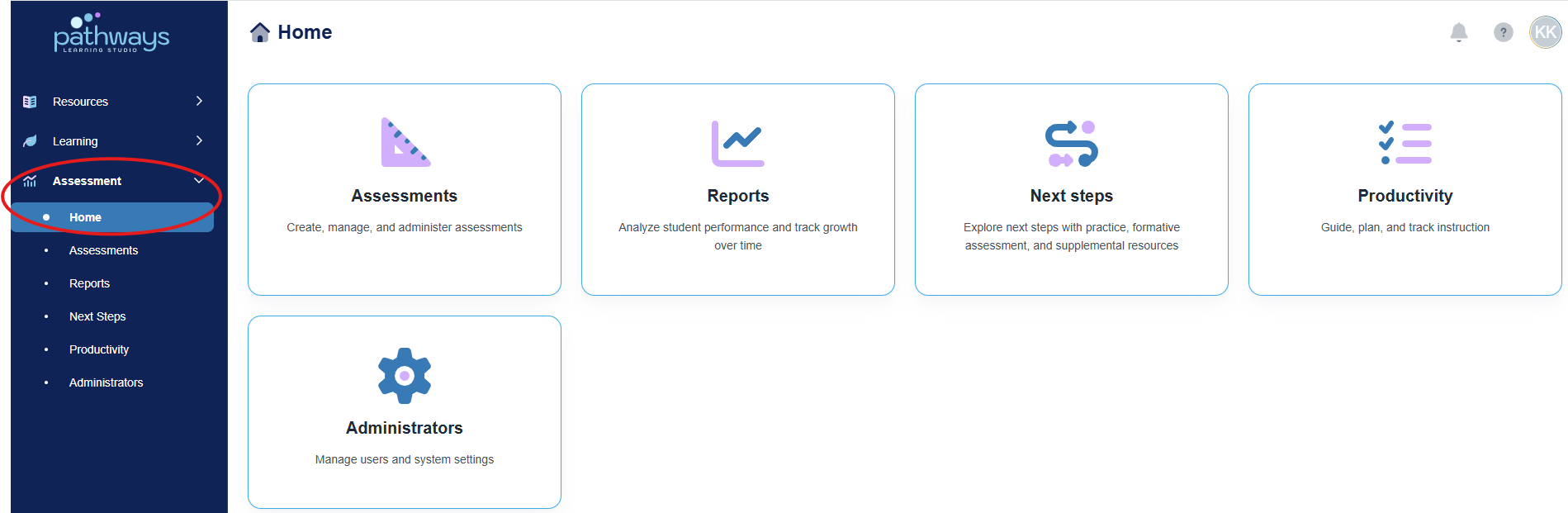
2. Navigate to 'Assessment' → 'Home.'
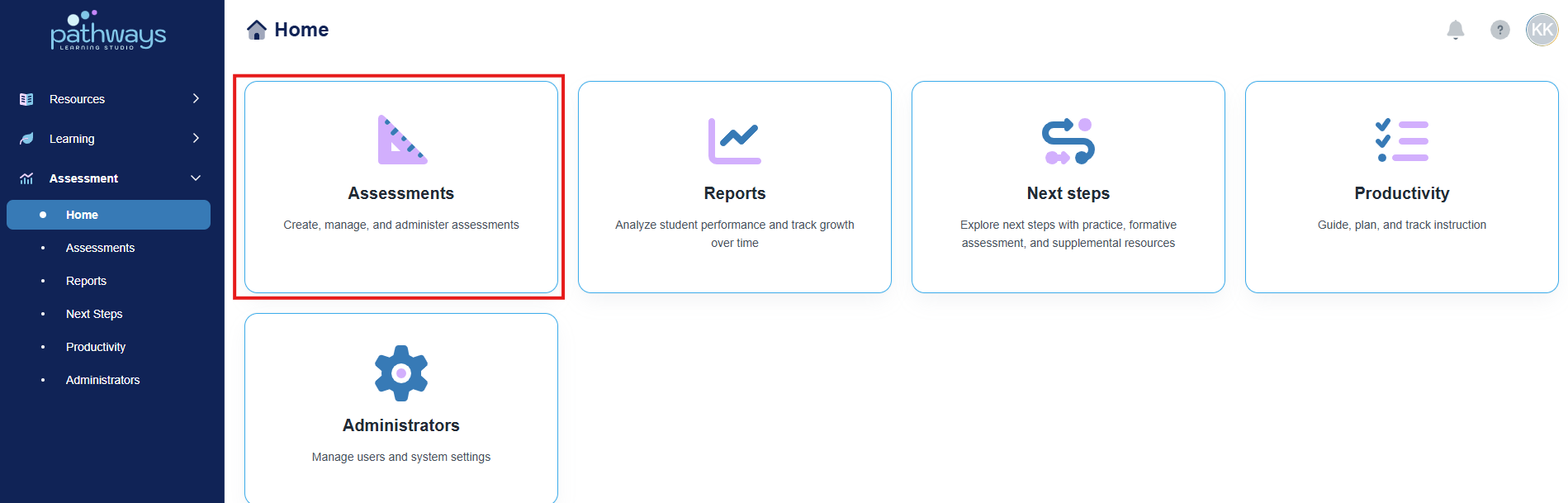
3. Select the 'Assessment' tile.
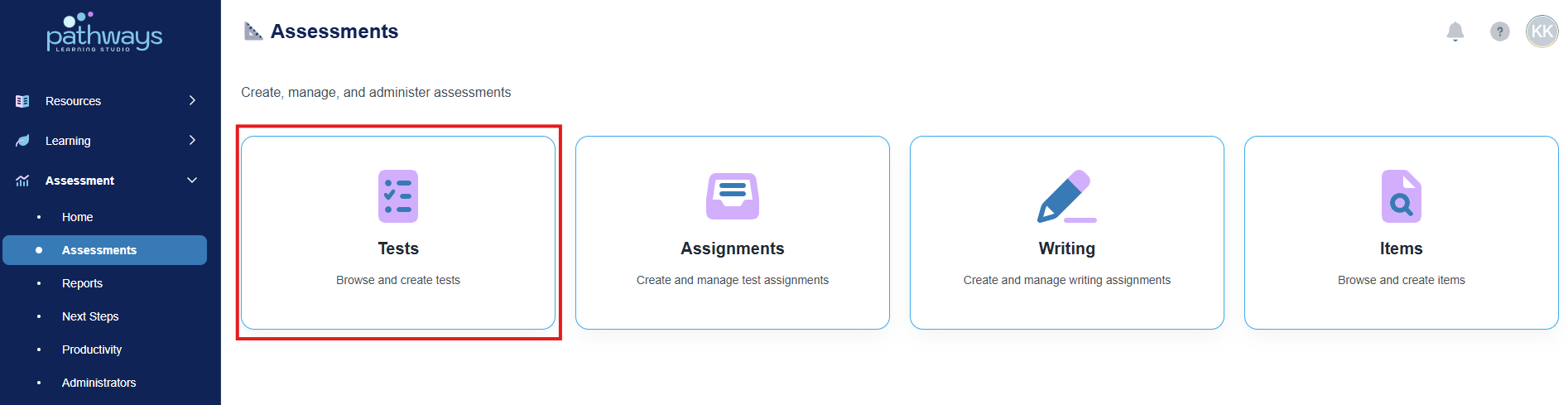
4. Select the 'Test' tile.
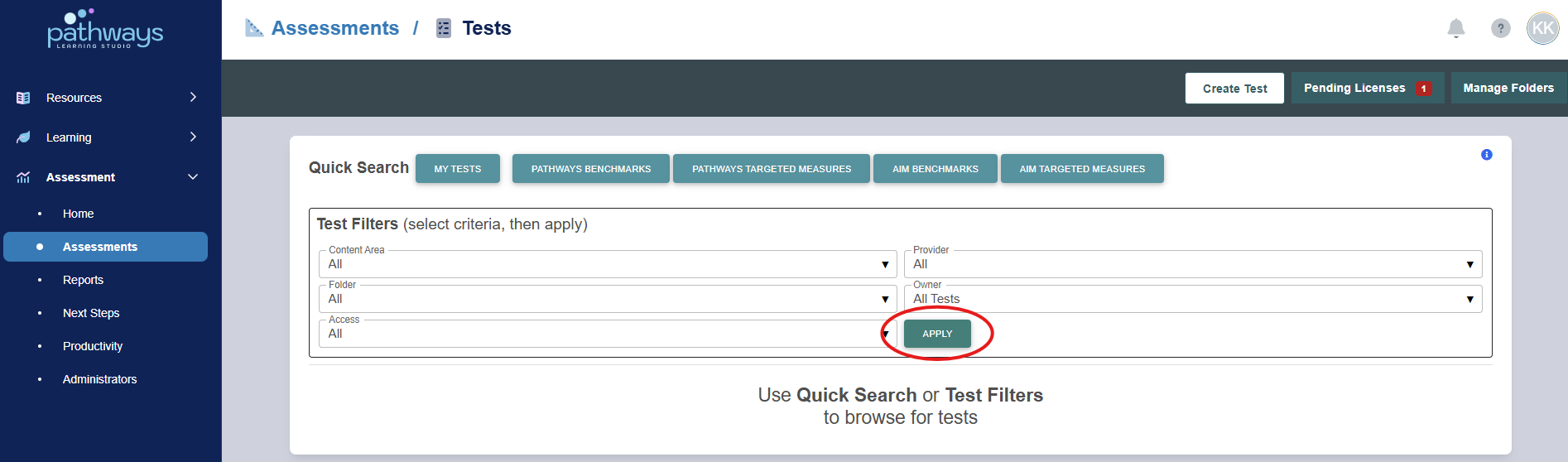
5. Select 'Apply' to load all existing assessments.
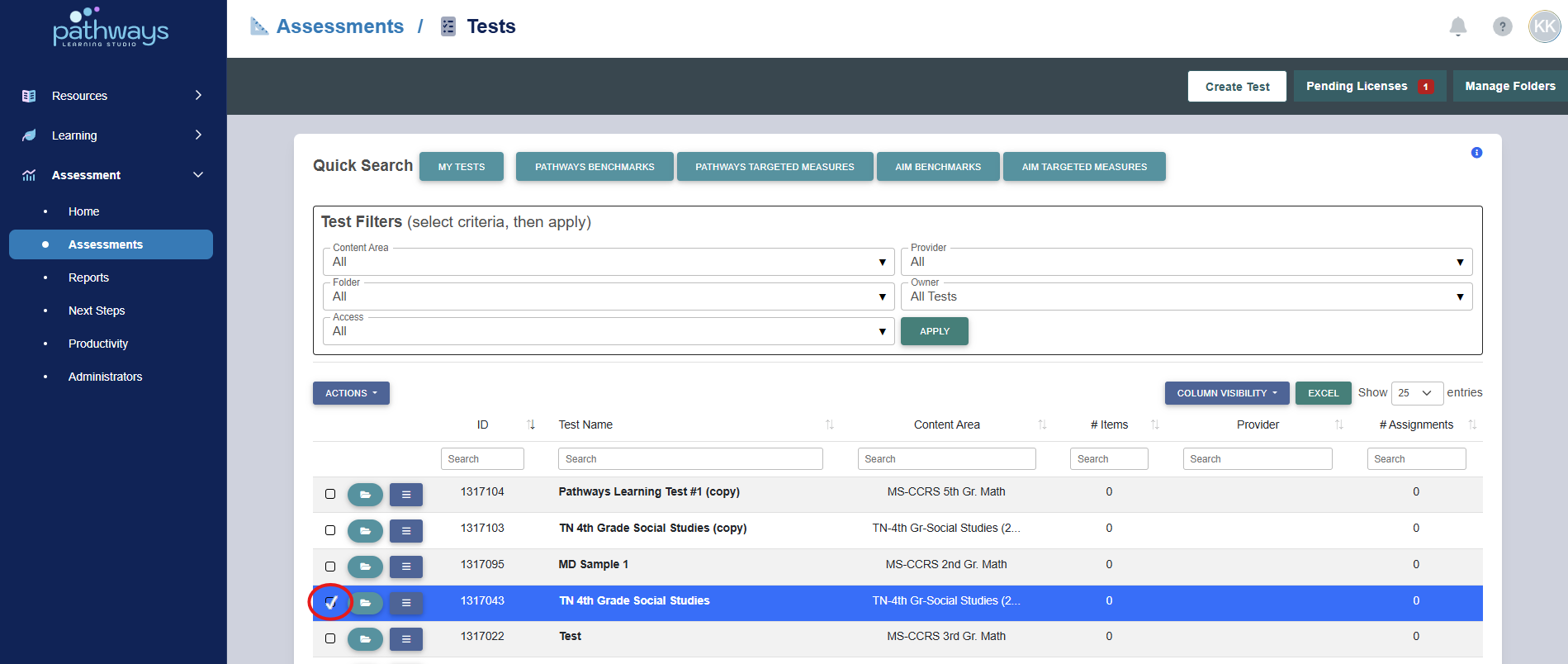
6. Locate the test for which you would like to set test permissions, and select the checkbox to the far left of the test ID.
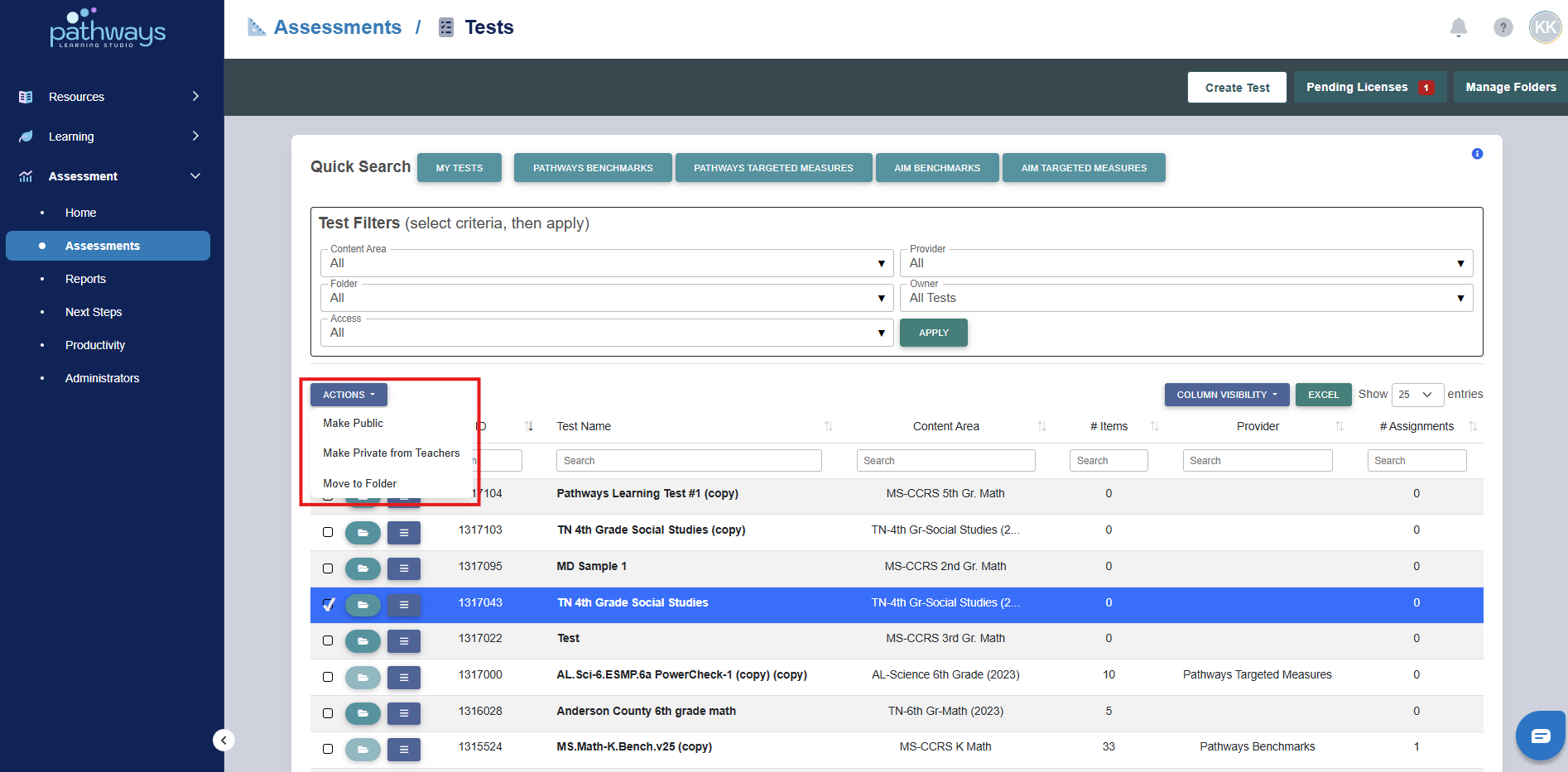
7. At the top left of the screen, select ‘Actions’ and select the appropriate privacy level from the drop down menu. To better understand the privacy levels, see Pathways Assessment: Privacy Levels.
Was this article helpful?
That’s Great!
Thank you for your feedback
Sorry! We couldn't be helpful
Thank you for your feedback
Feedback sent
We appreciate your effort and will try to fix the article