Within the Pathways Assessment module, assessment keys can be created from an external URL.
To administer, students login the same way they would for any other online Pathways Assessment benchmark and then select the URL that is added for the external assessment.
Follow these steps to create an assessment from an external resource:
1. Login to your Pathways Learning Studio account through Clever, ClassLink, or at pathwayslearningstudio.com.
2. Navigate to 'Assessment' → 'Home.'
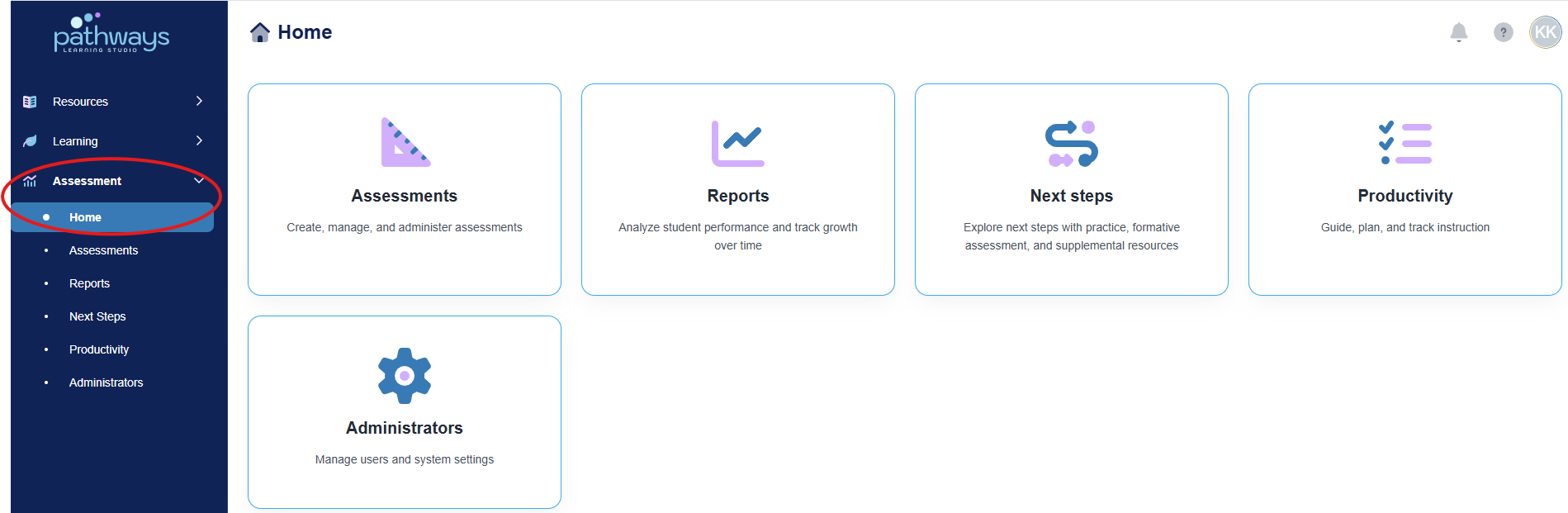
3. Select the 'Assessment' tile.
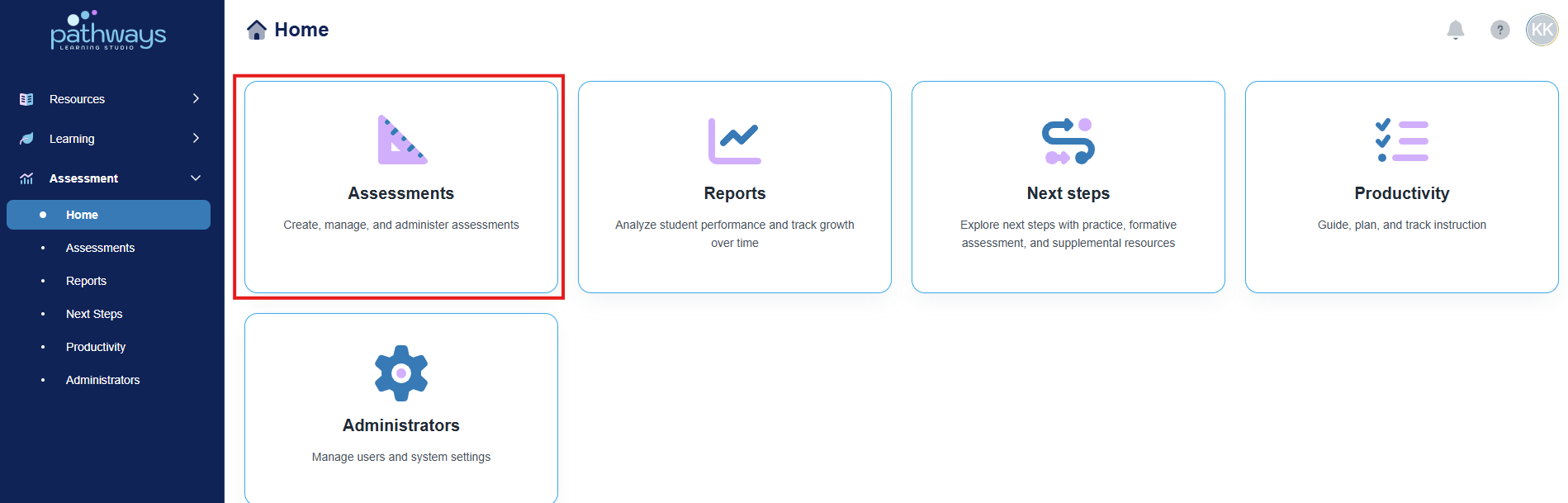
4. Select the 'Test' tile.
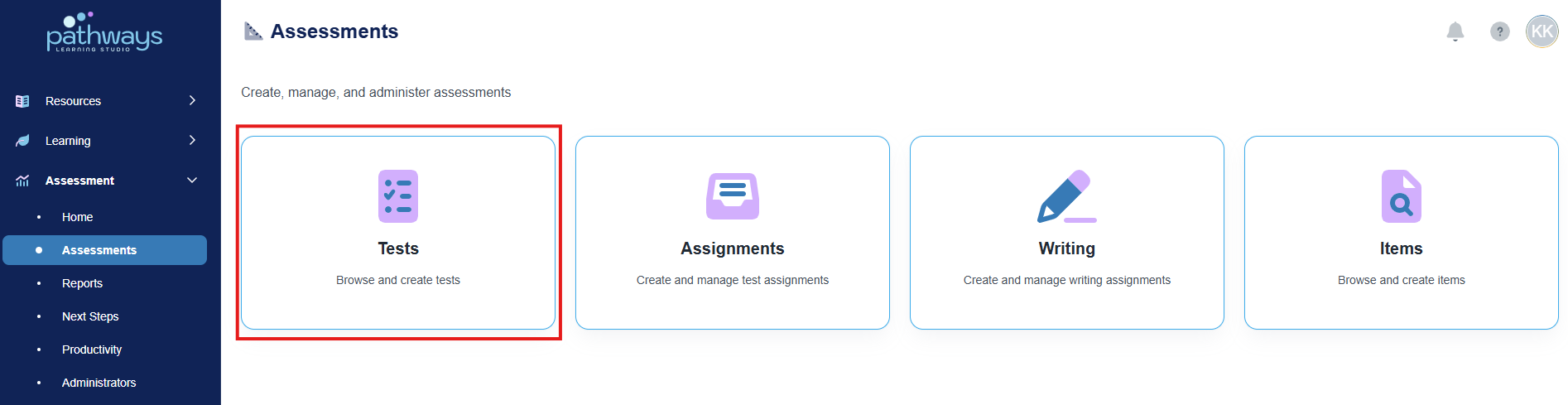
5. Select 'Create Test' in the top right-hand corner.
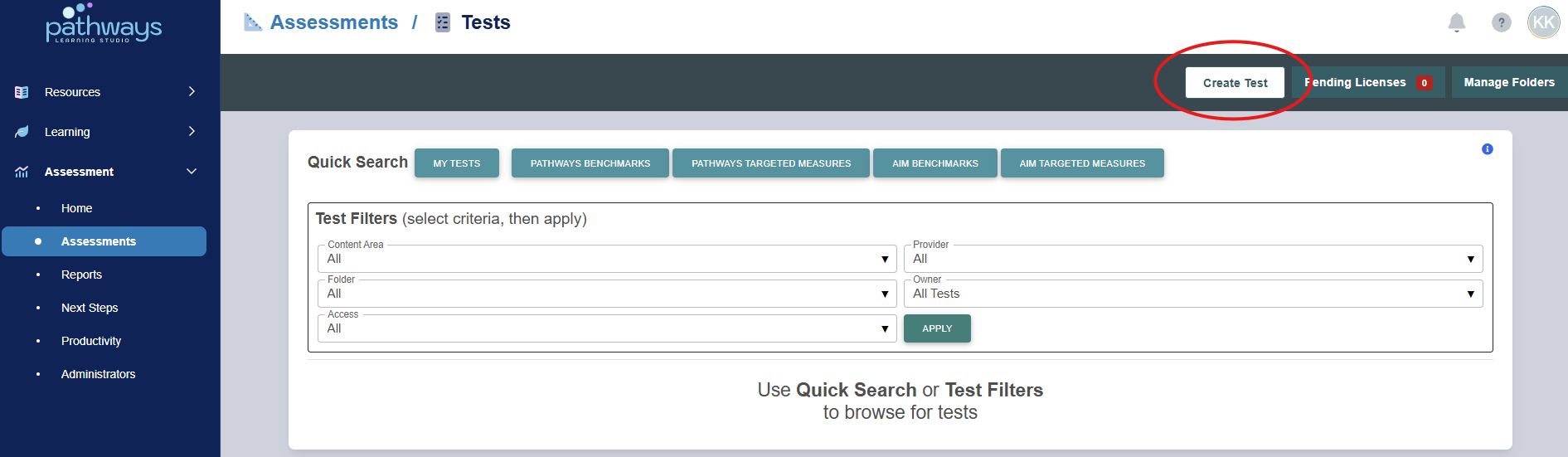
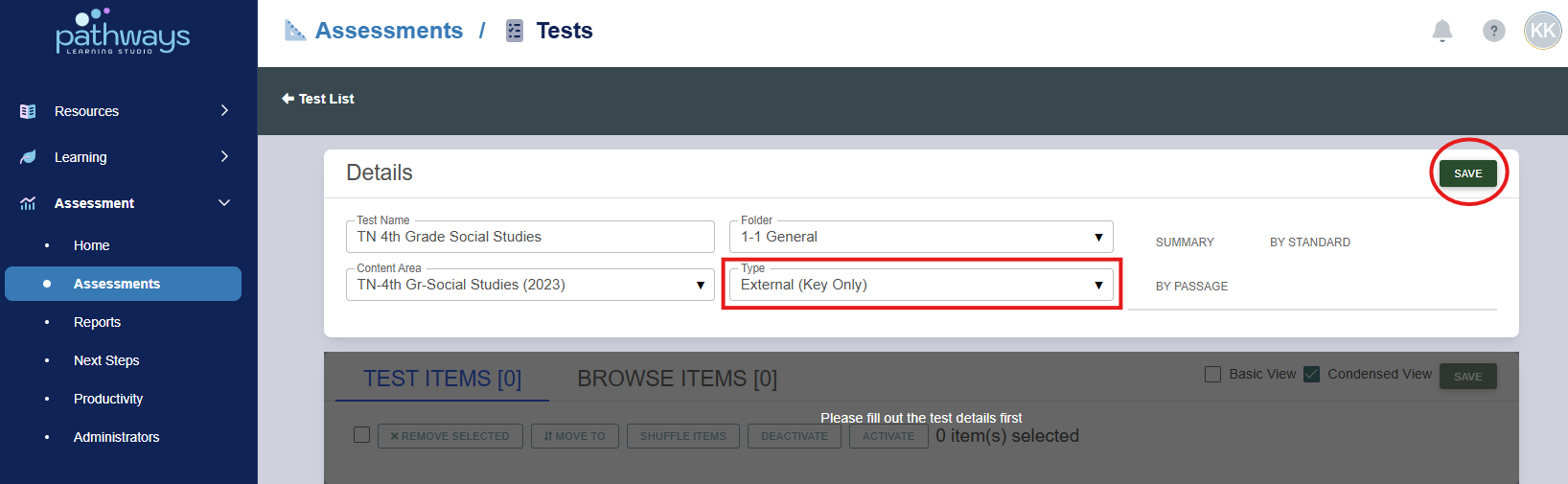
6. First, choose ‘External (Key Only)’ in the ‘Type’ drop down menu. Then, input the test name, choose the test folder, and select the test content area. Click Save.
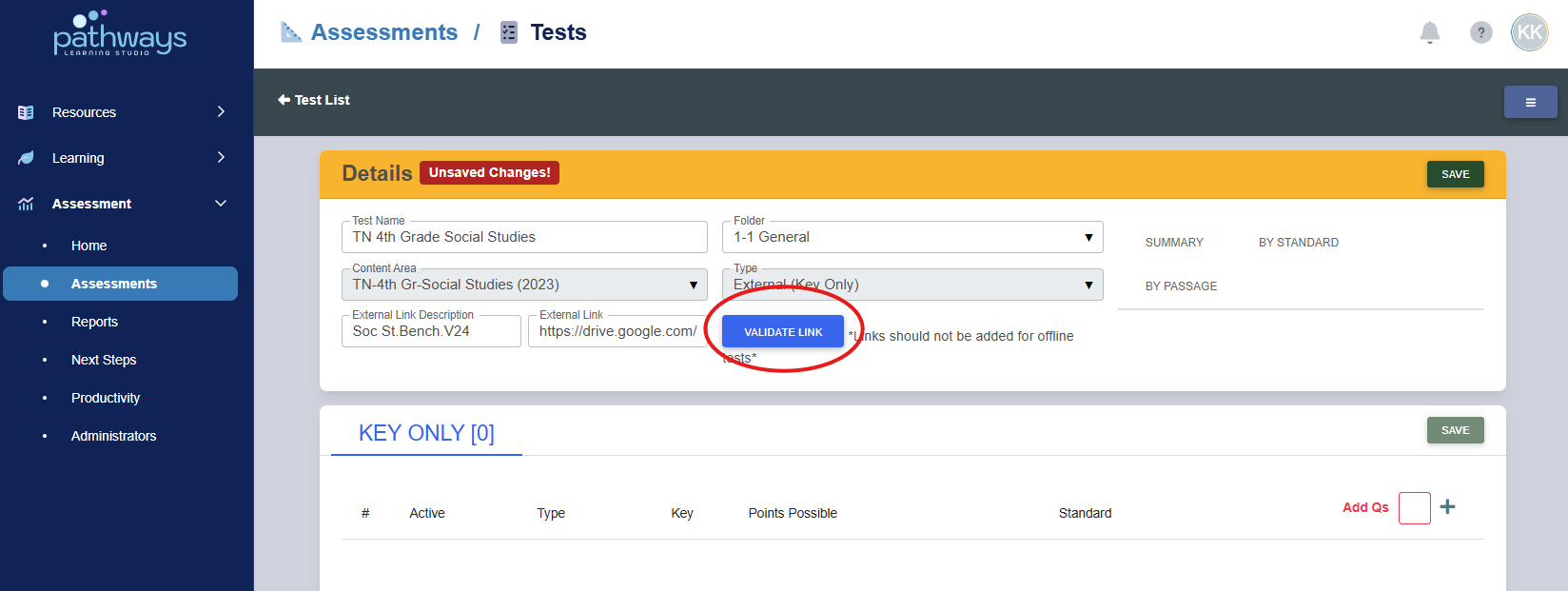
7. Input a description of the link, paste the URL to the external resource, and select ‘validate link.’ If the test you would like to upload is a PDF, it can be uploaded to Google Drive, Dropbox, etc. to generate a URL.
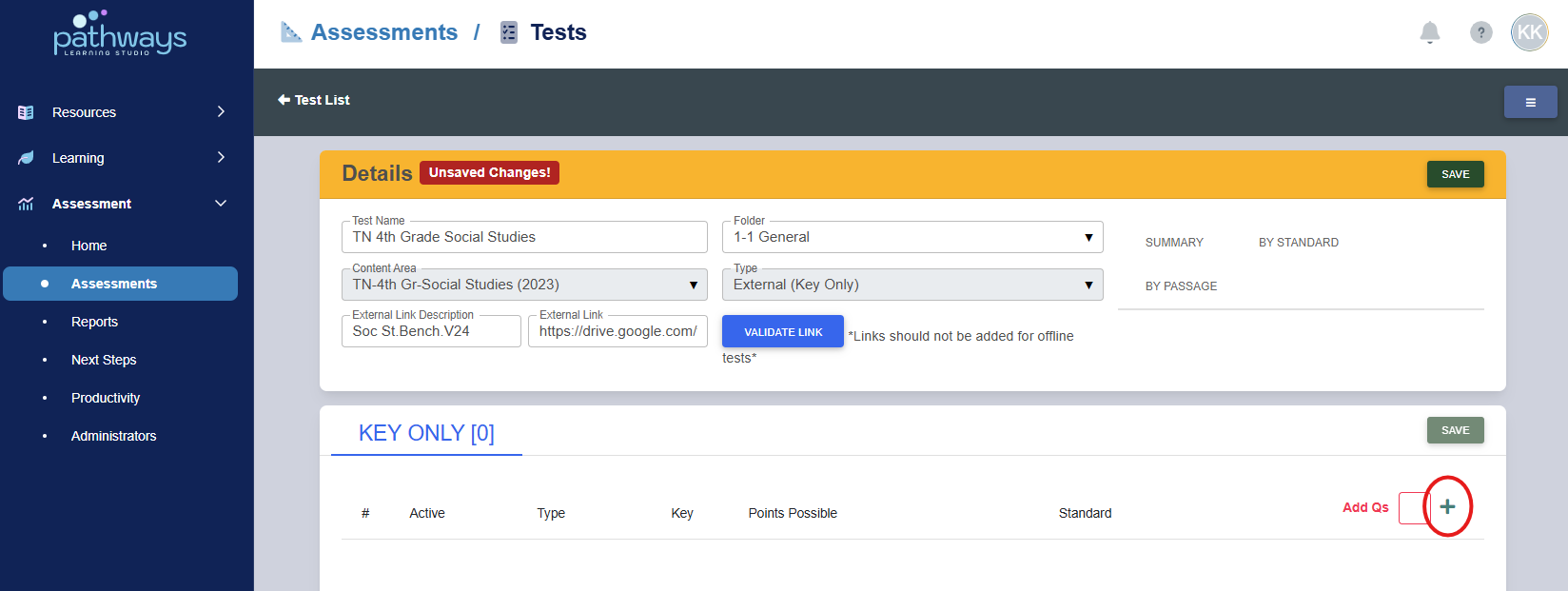
8. Select the green plus sign in the bottom right part of the screen to begin adding the answer key.
Note: External key assessments currently only support multiple choice and extended text item types.
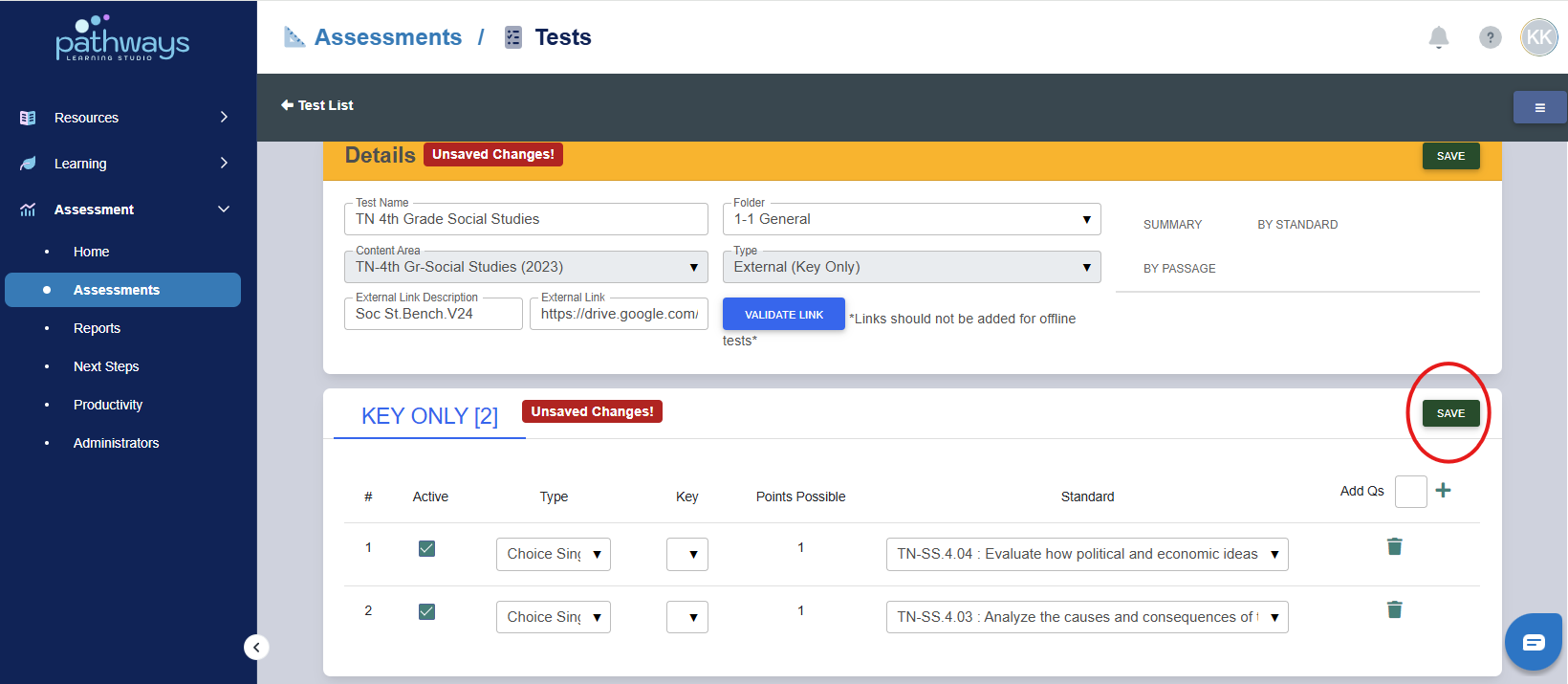
9. When finished adding all answers from the external test, press ‘save’ to create the test.
Was this article helpful?
That’s Great!
Thank you for your feedback
Sorry! We couldn't be helpful
Thank you for your feedback
Feedback sent
We appreciate your effort and will try to fix the article