This article will explain how to edit an assessment.
1. Login to your Pathways Learning Studio account through Clever, ClassLink, or at pathwayslearningstudio.com.
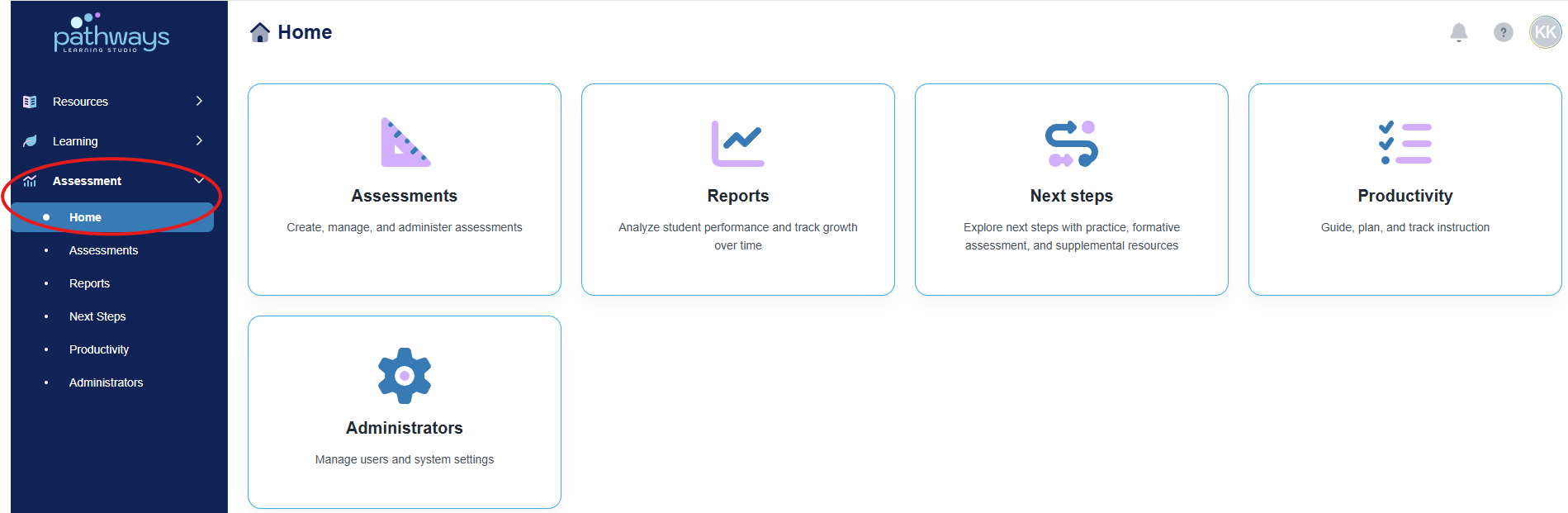
2. Navigate to 'Assessment' → 'Home.'
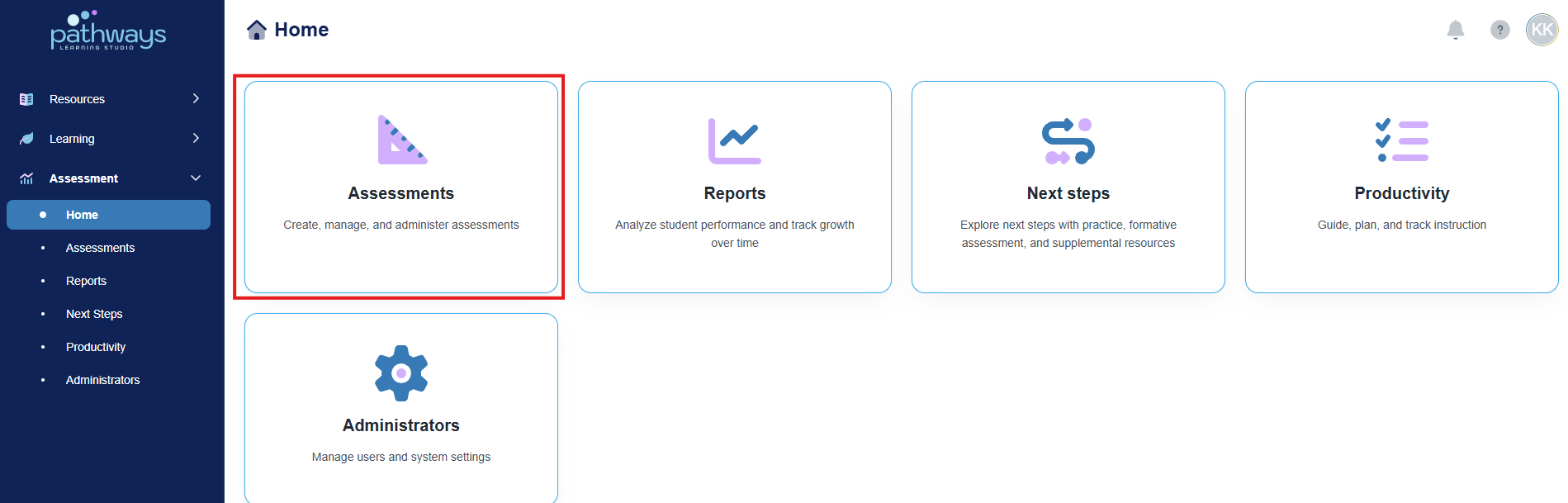
3. Select the 'Assessment' tile.
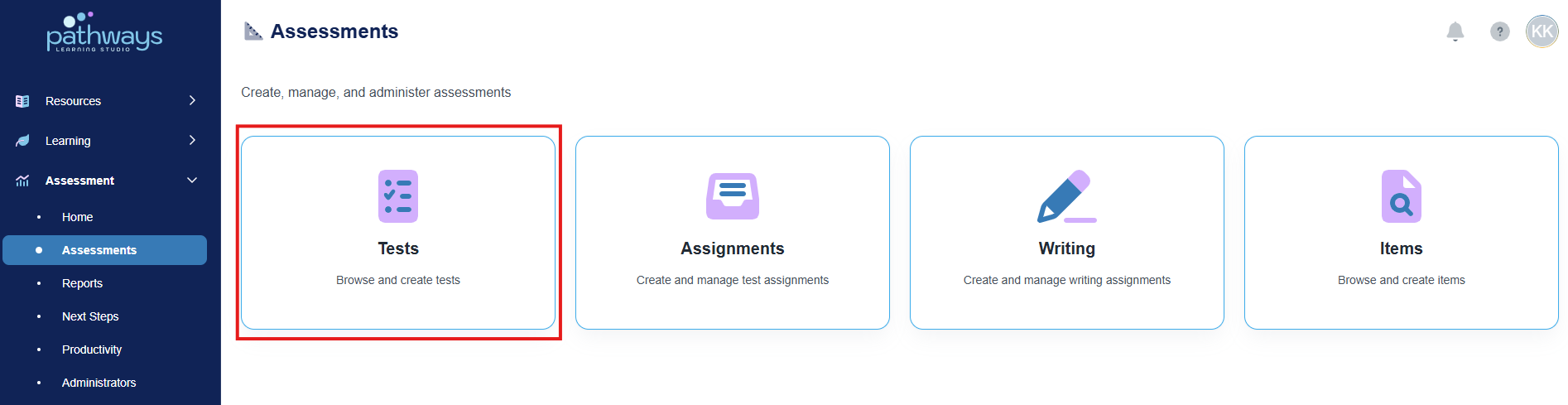
4. Select the 'Test' tile.
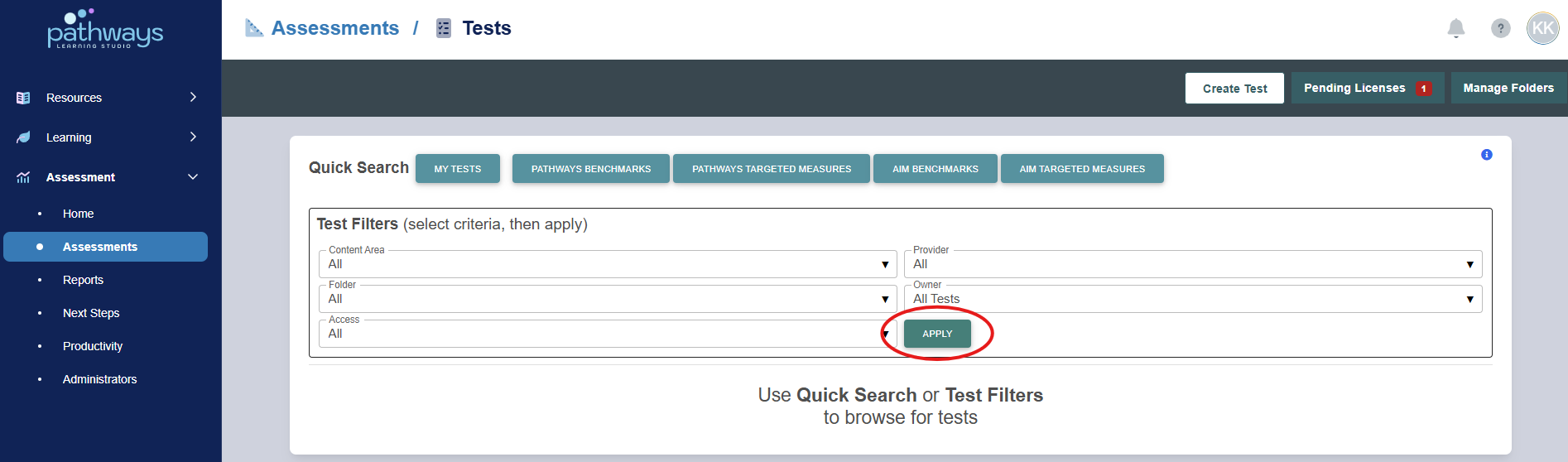
5. Select 'Apply' to load all existing assessments.
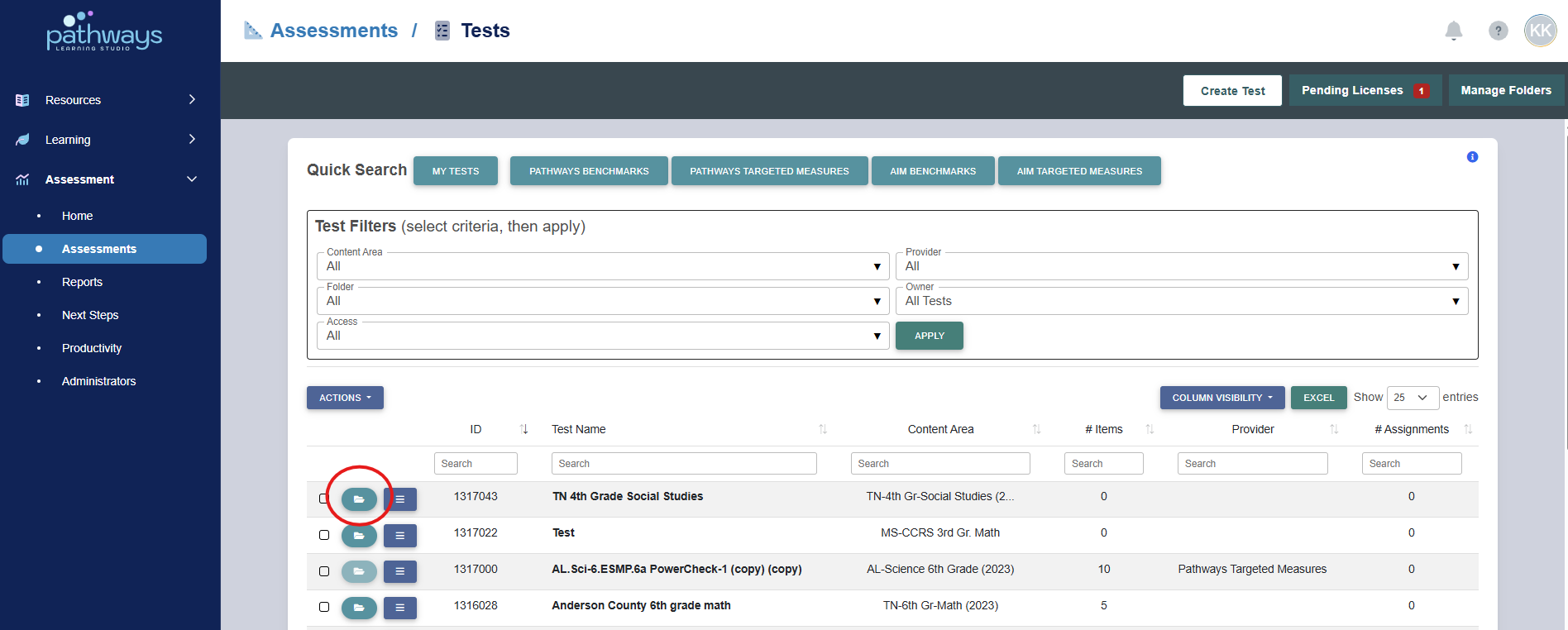
6. Locate the test you would like to edit, and press the folder icon to the left of the test ID.
Note: When hovering over the folder icon, if the message reads ‘view details’ rather than ‘edit’, the test is not editable. See Pathways Assessment FAQ to understand why the test may not be editable.
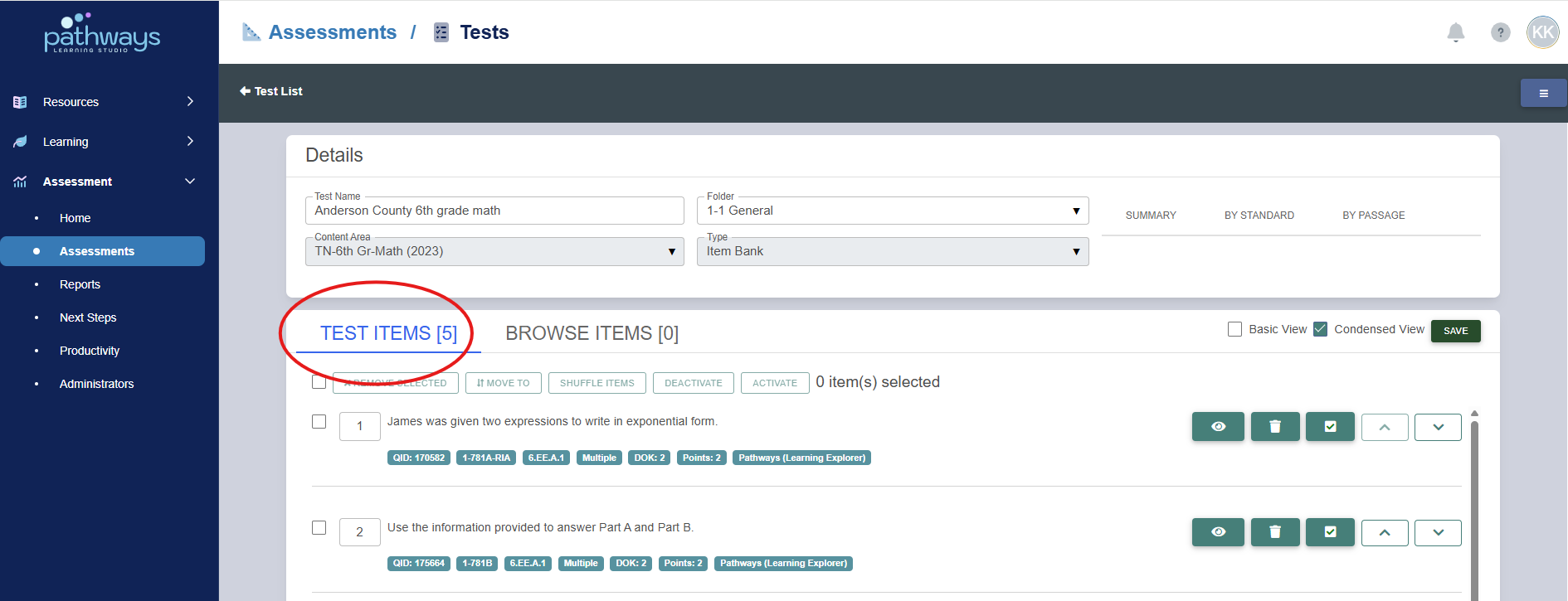
7. To change the order of items, navigate to the ‘Test Items’ tab.
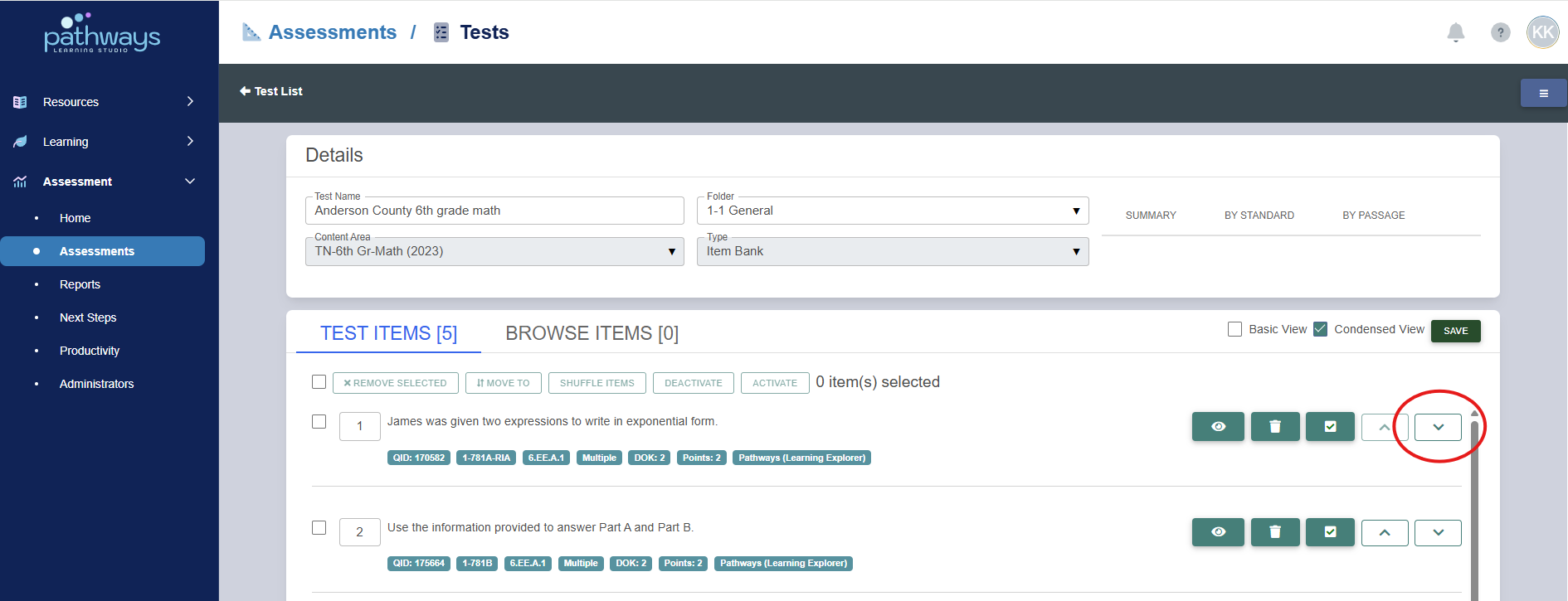
- Use the up/down arrows to the far right of the item to change the order.
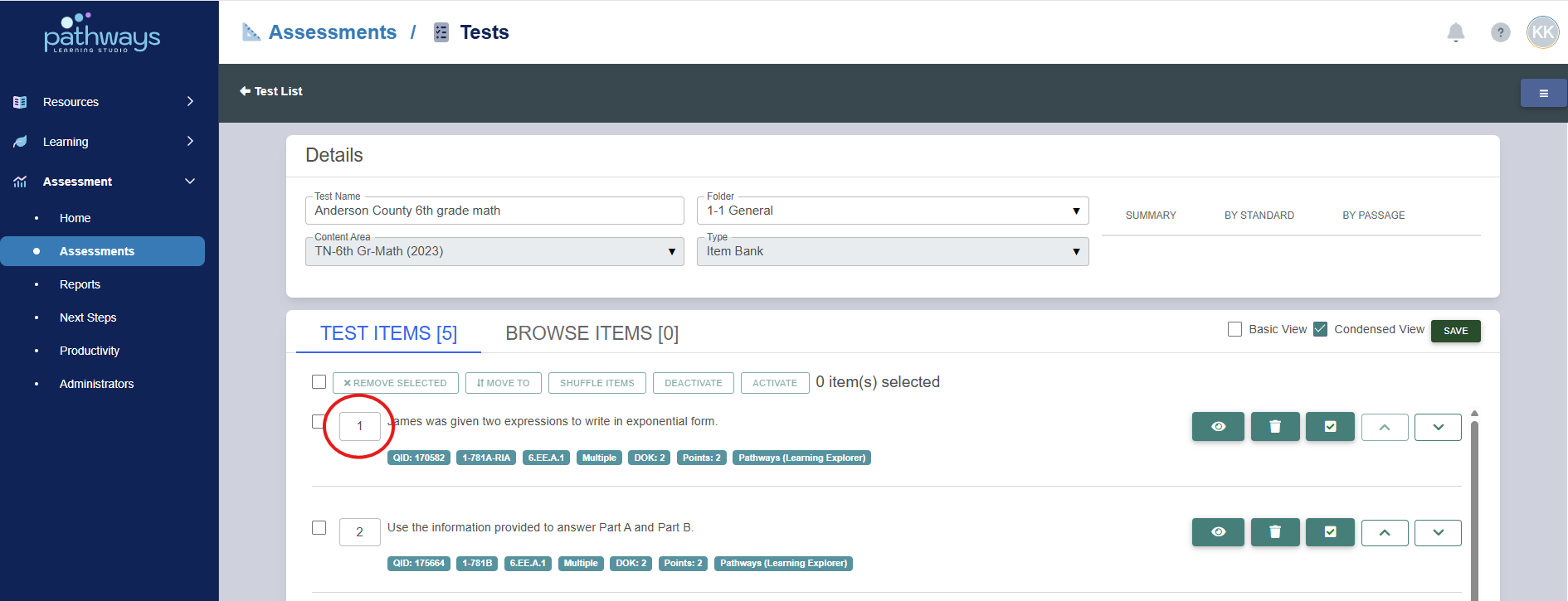
- Or, enter a new item order in the text box to the right of the question.
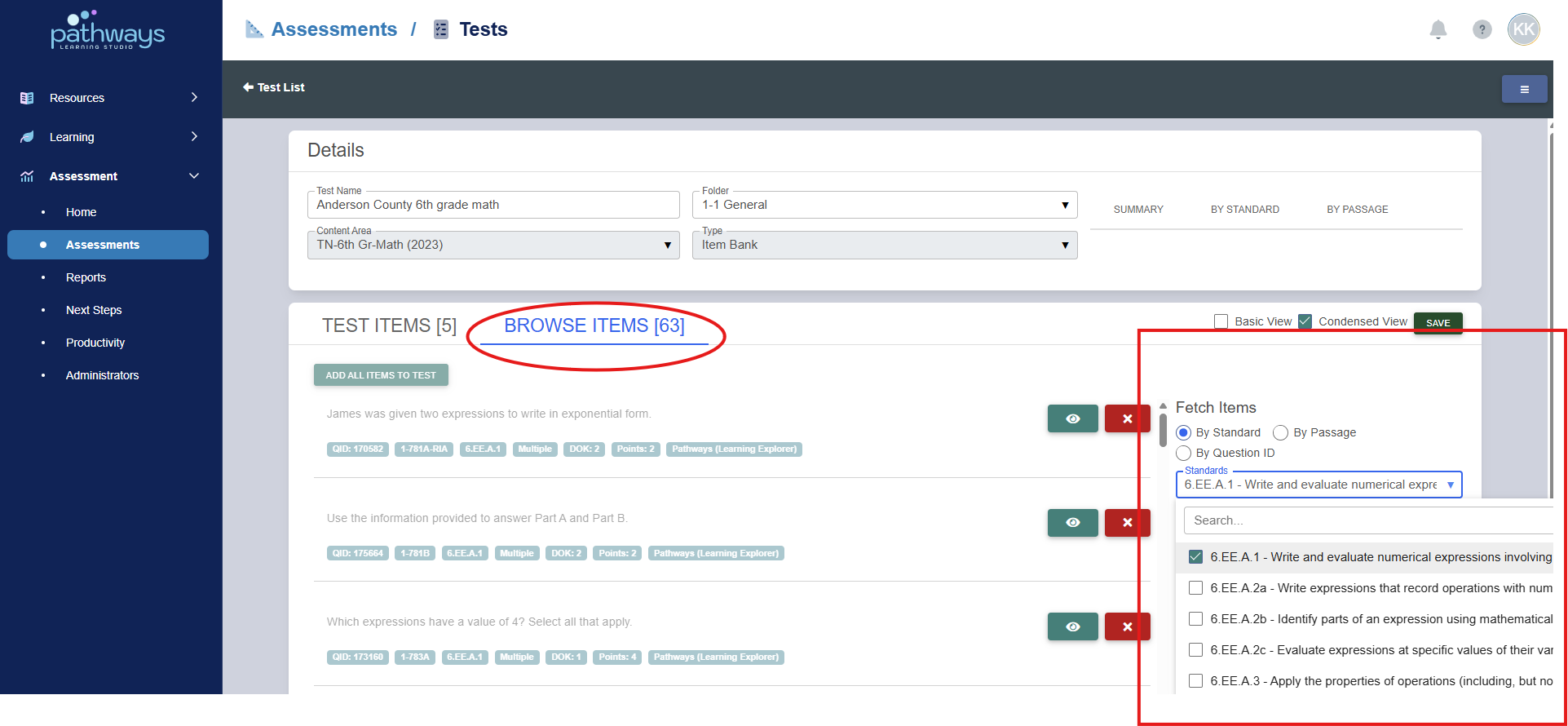
8. To add items, navigate to the ‘Browse Items’ tab. For additional details on fetching items, see our article on Creating an Assessment from the Item Bank.
Was this article helpful?
That’s Great!
Thank you for your feedback
Sorry! We couldn't be helpful
Thank you for your feedback
Feedback sent
We appreciate your effort and will try to fix the article