To edit an item, follow the steps below:
1. Login to your Pathways Learning Studio account through Clever, ClassLink, or at pathwayslearningstudio.com.
2. Navigate to 'Assessment' → 'Home.'
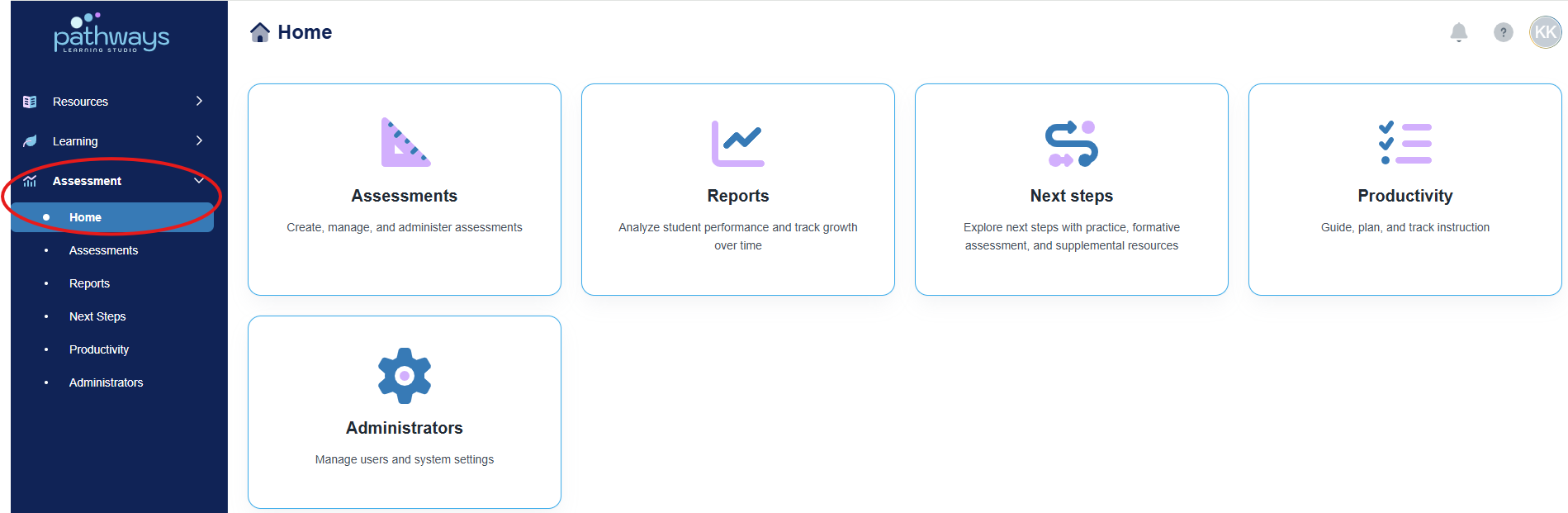
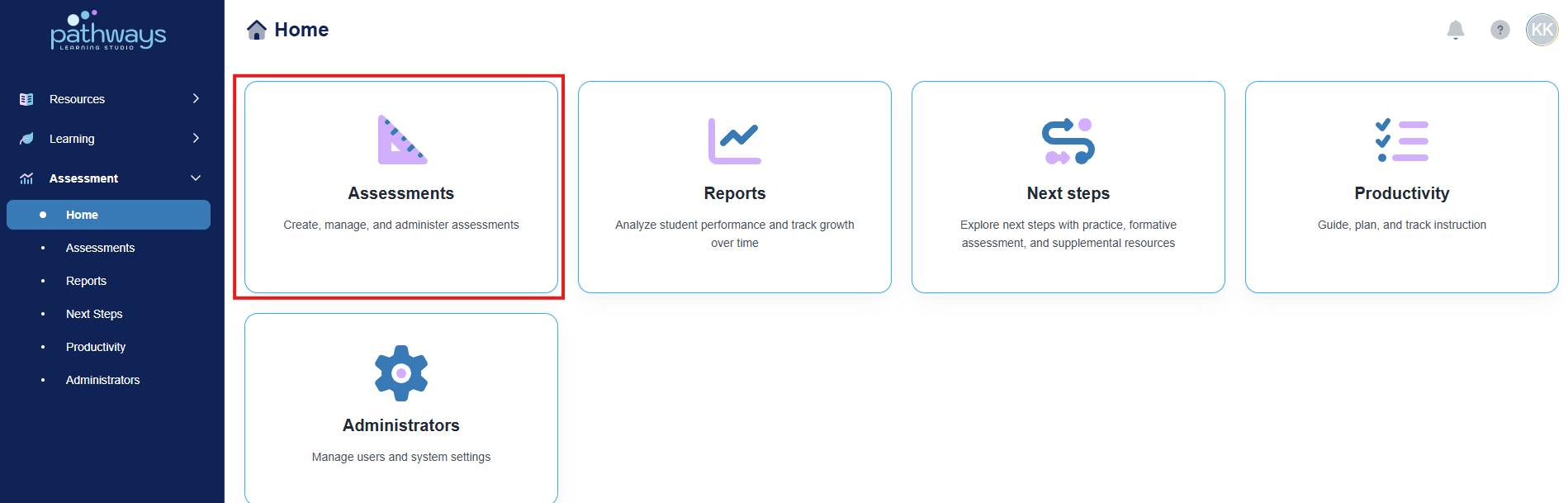
3. Select the 'Assessment' tile.
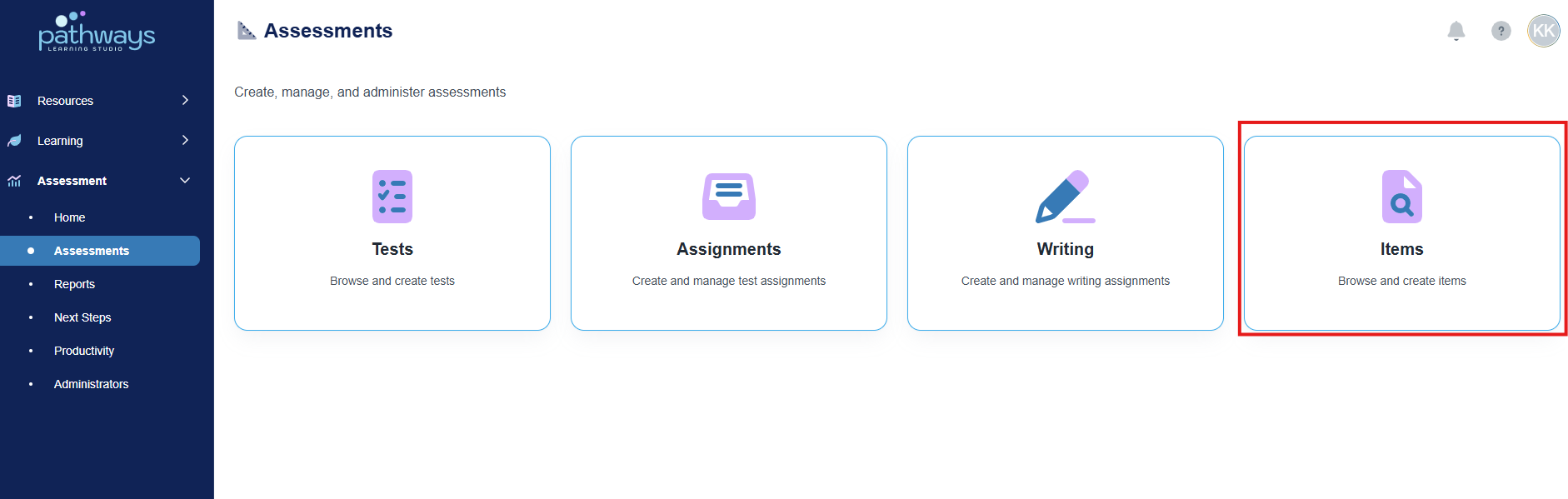
4. Select the 'Item' tile.
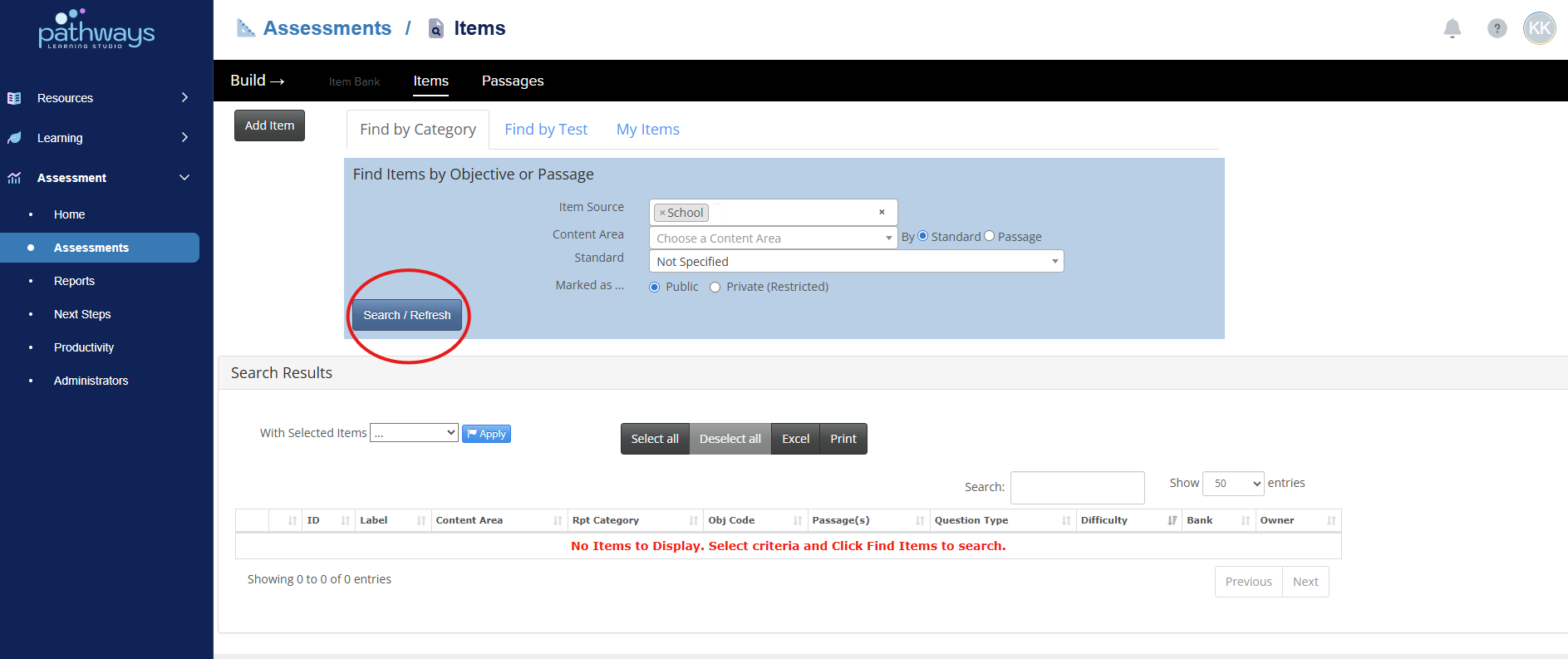
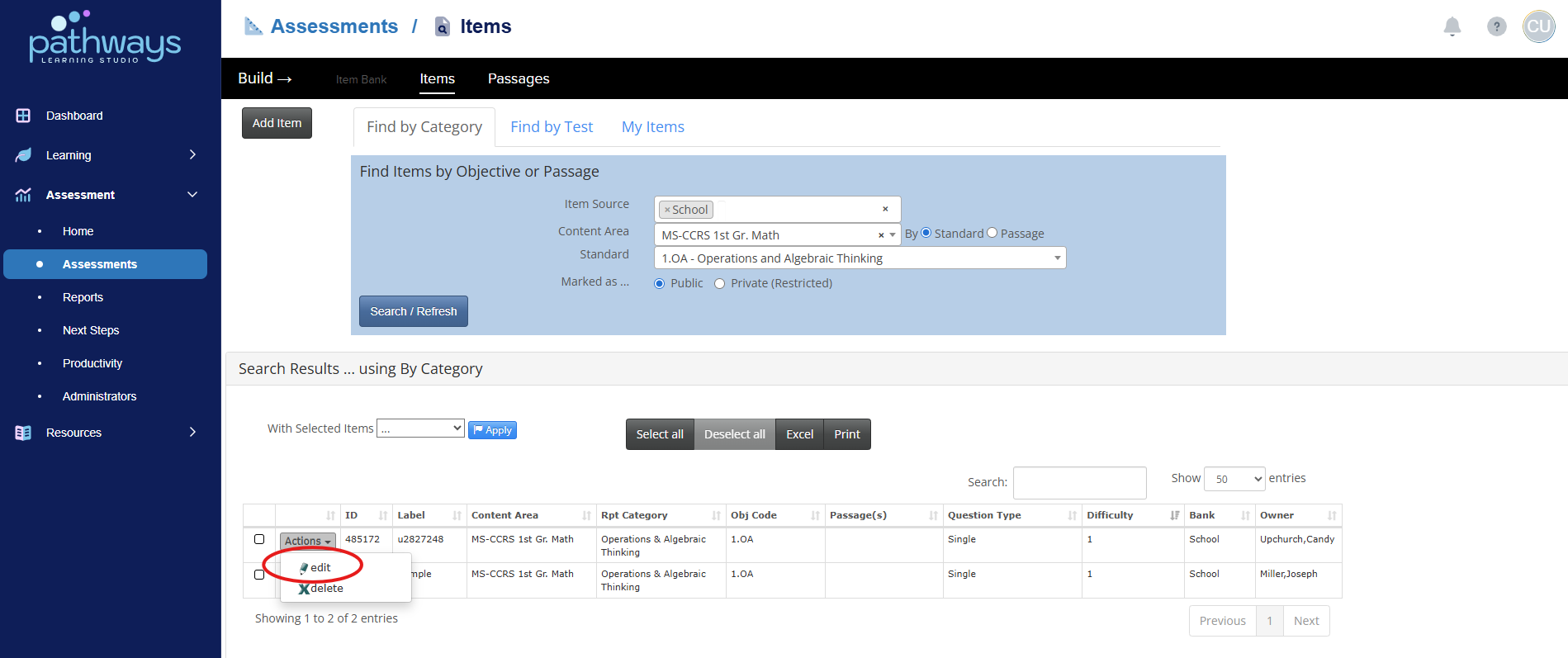
5. Select the Item Bank(s), Content Area, and Standard/Passage of the item you would like to edit, and press ‘Search.’
6. Locate the item you wish to edit, and select ‘edit’ in the ‘Actions’ drop down menu to the left of the Item ID.
Note: If the ‘edit’ option or the ‘Actions’ drop down menu does not appear, it means you are unable to edit the item. Teacher users can only edit items that they created.
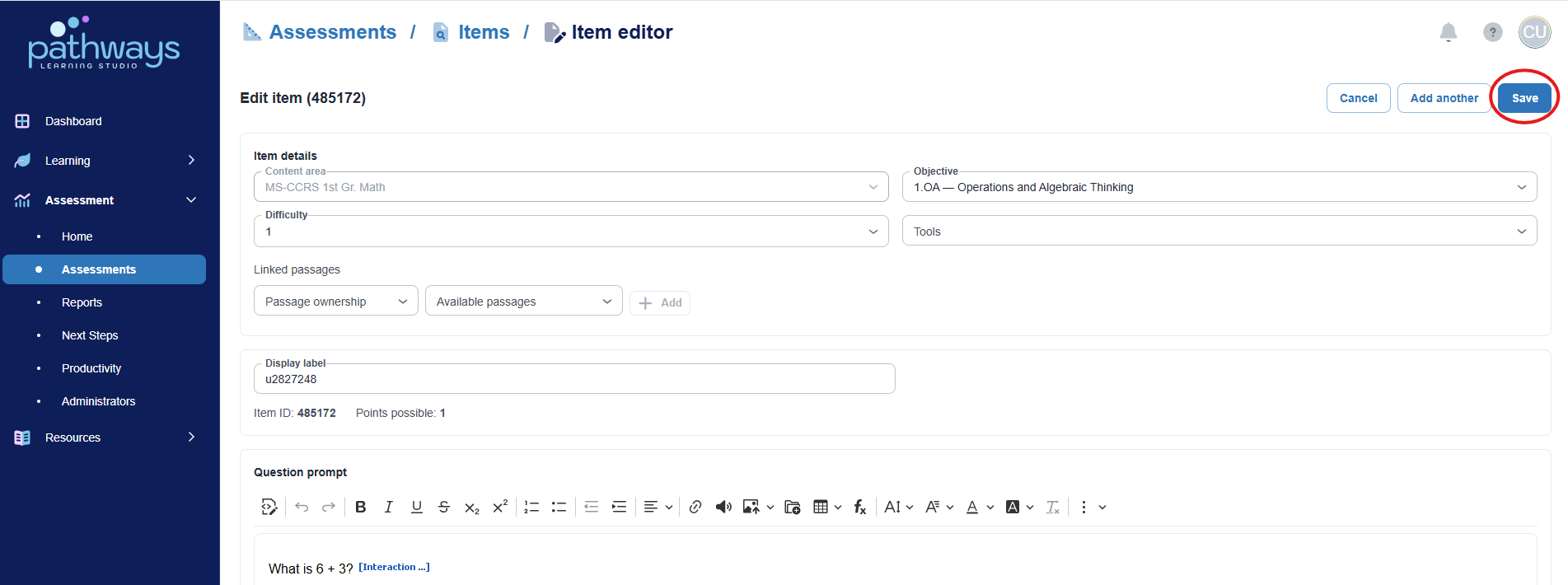
7. Make desired edits, and press ‘Save.’
Was this article helpful?
That’s Great!
Thank you for your feedback
Sorry! We couldn't be helpful
Thank you for your feedback
Feedback sent
We appreciate your effort and will try to fix the article