To deactivate an item in Pathways Assessment, follow these steps:
1. Login to your Pathways account through Clever, ClassLink, or at pathwayslearningstudio.com.
2. Navigate to 'Assessment' → 'Home.'
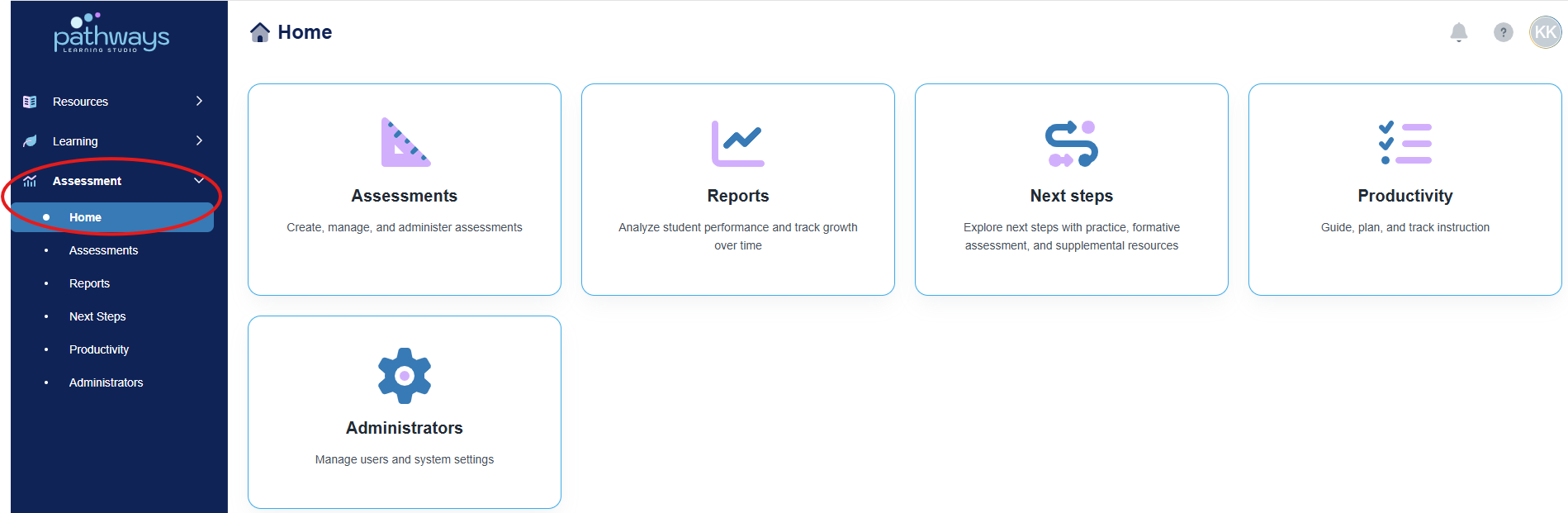
3. Select the 'Assessment' tile.
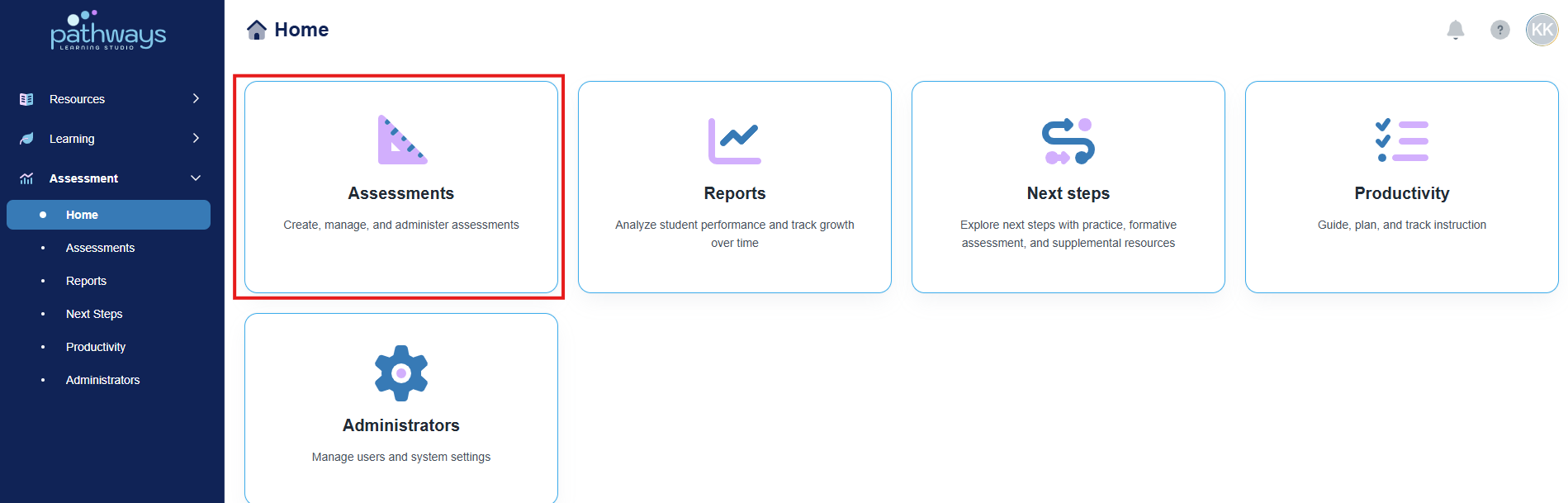
4. Select the 'Test' tile.
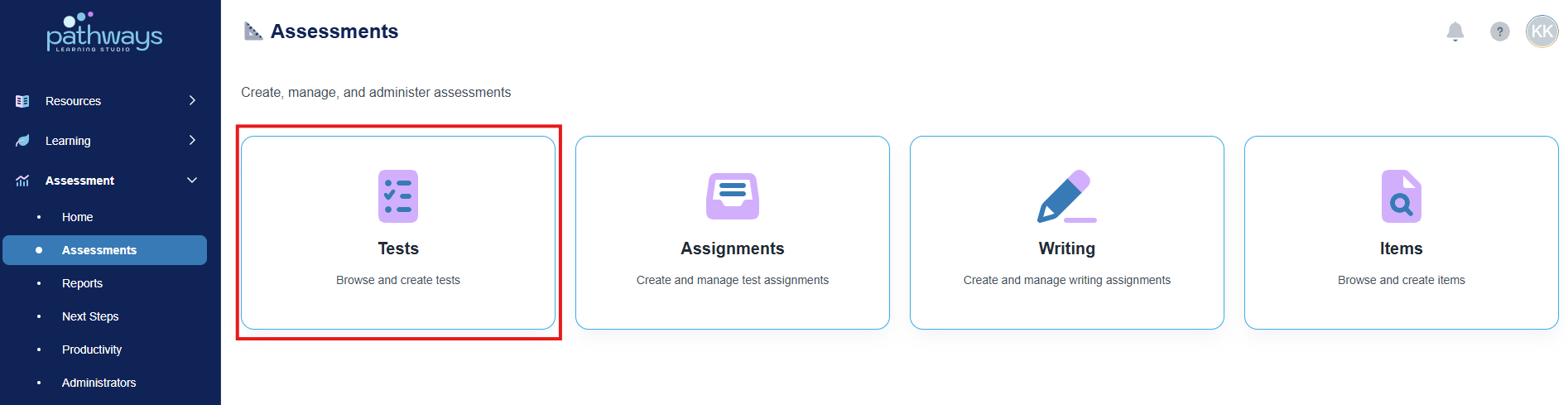
5. Select 'Apply' to load all existing assessments.
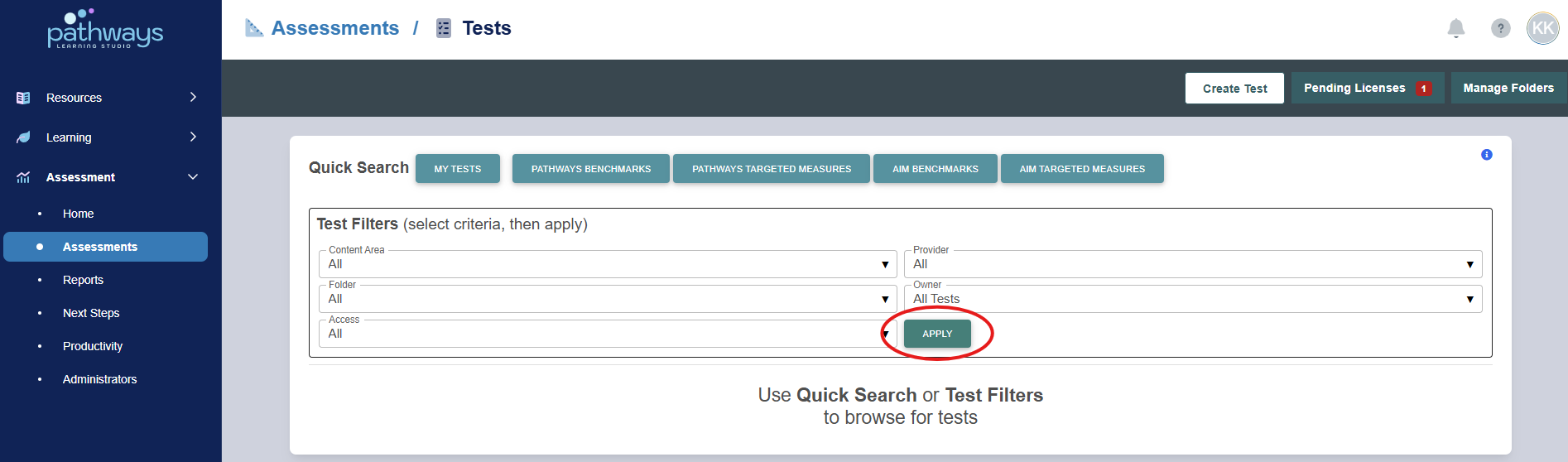
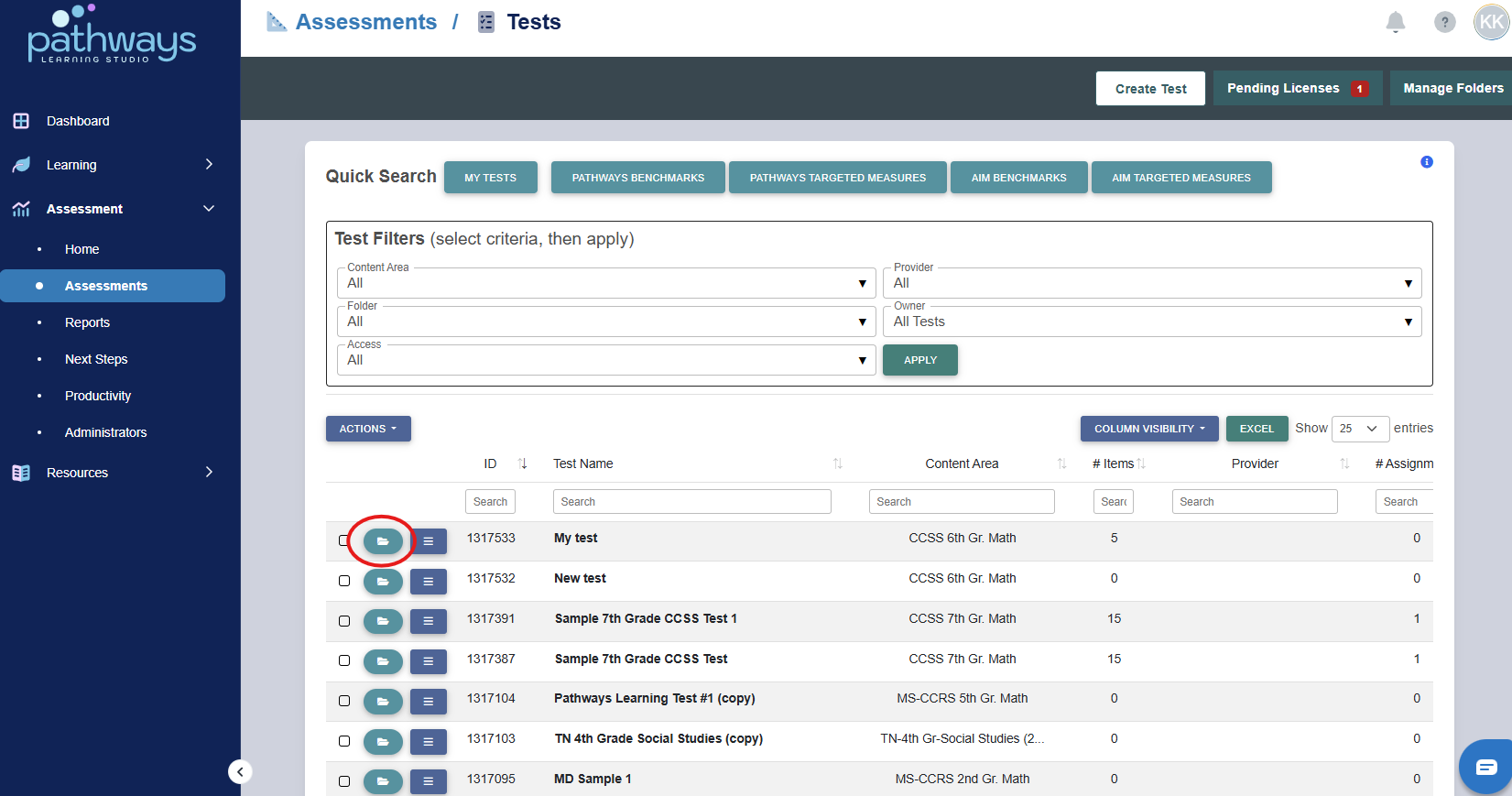
6. Locate the assessment with the item you wish to deactivate, and select the folder Icon to the left of the assessment ID.
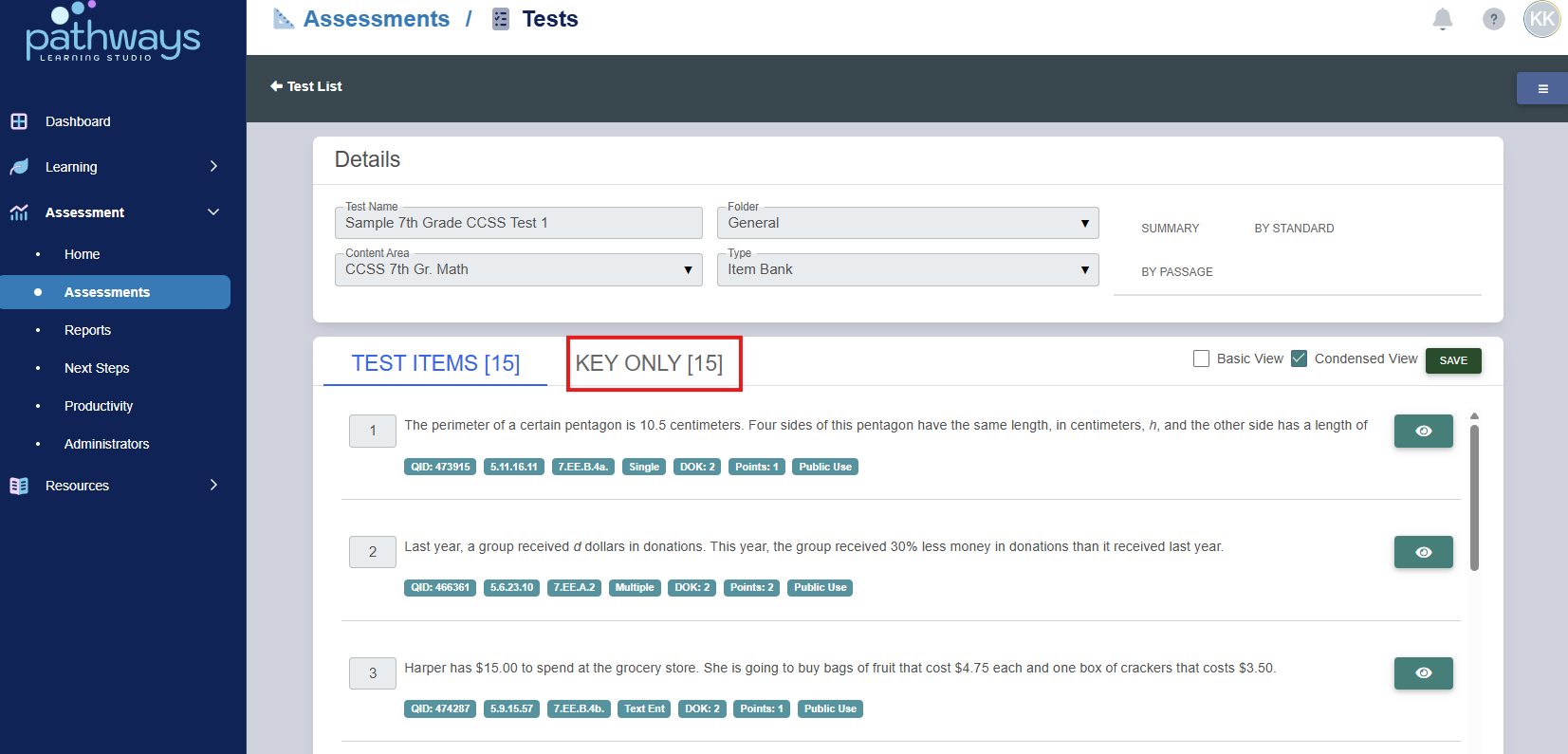
7. Navigate to the ‘Key Only’ tab.
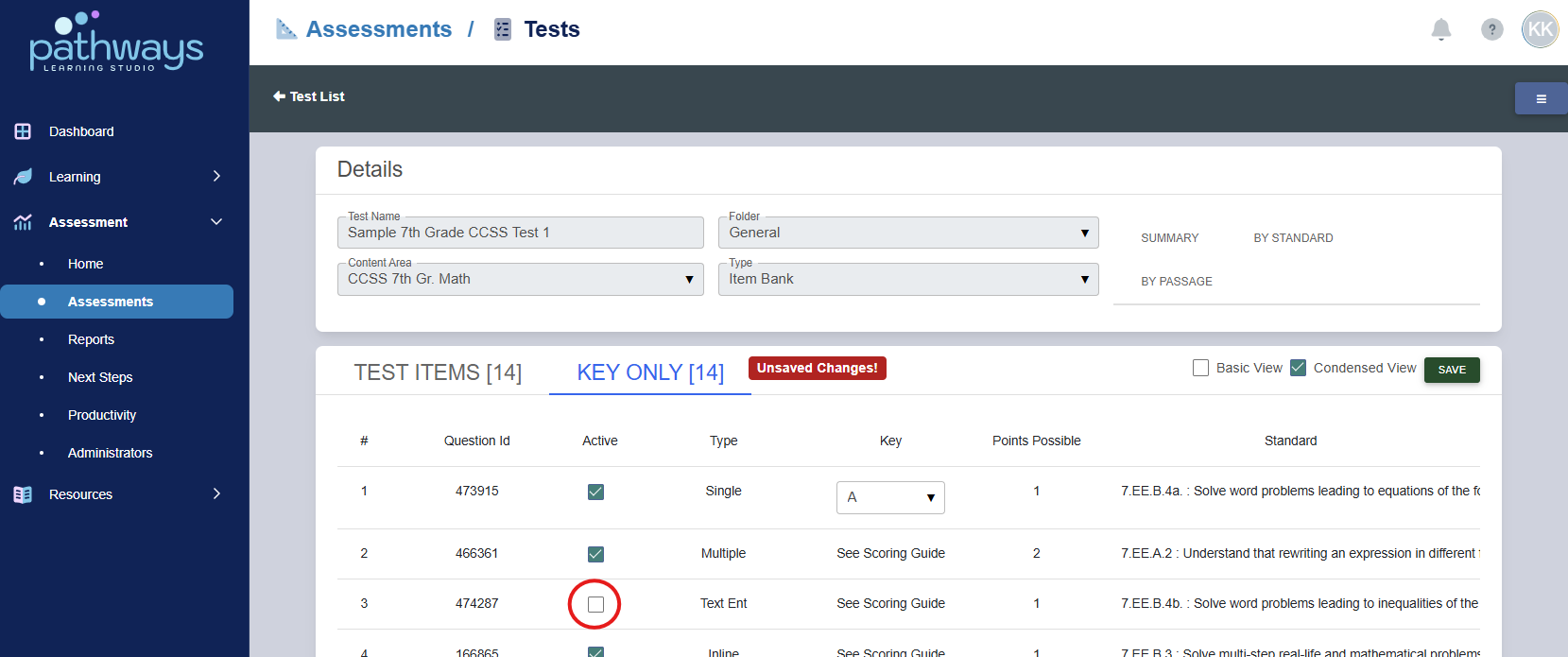
8. Locate the item you wish to deactivate, and unselect the box under the ‘Active’ Column.
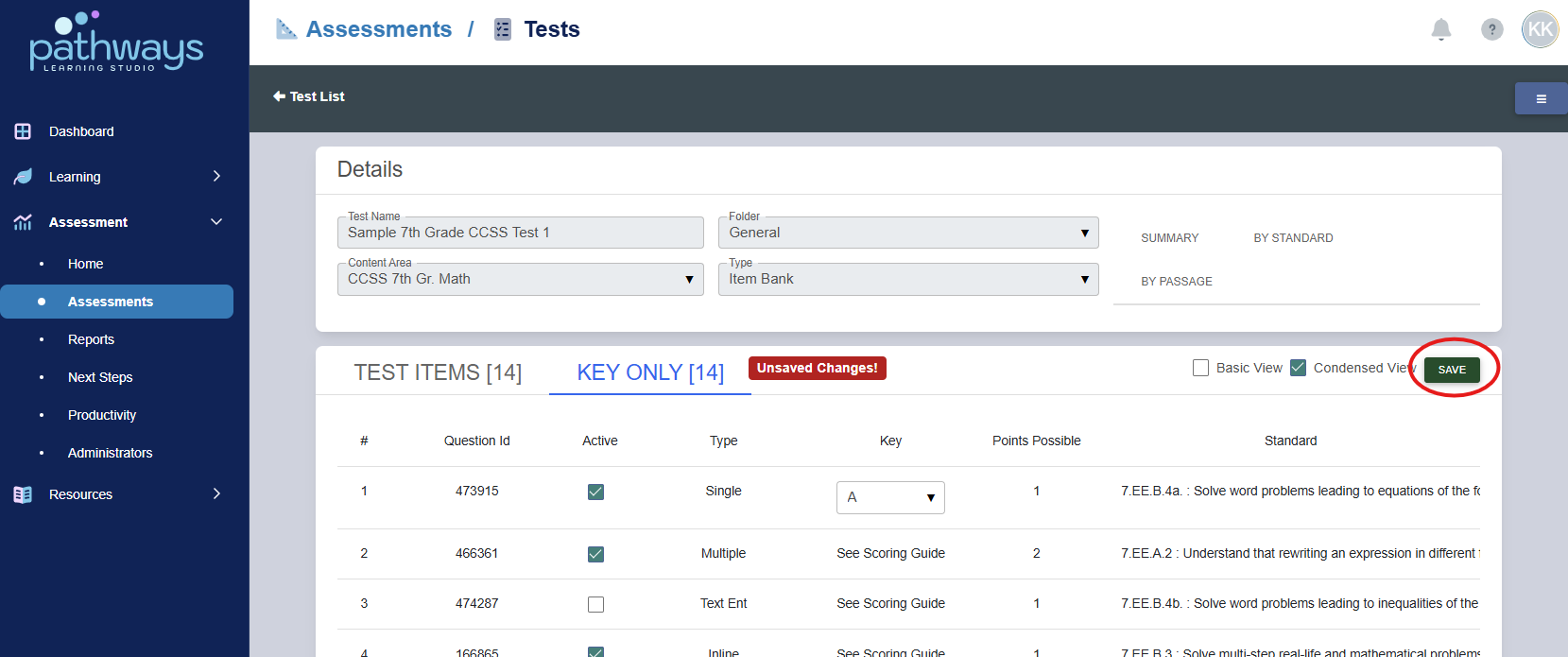
9. Select ‘save’ to deactivate the item.
Was this article helpful?
That’s Great!
Thank you for your feedback
Sorry! We couldn't be helpful
Thank you for your feedback
Feedback sent
We appreciate your effort and will try to fix the article