This article will explain how users can access the proctor code to assist in instances where a student loses access to their assessment before they are able to logout.
Students should not be given access to the proctor code because it allows them to login to the assessment as another student while that student is still taking the assessment.
1. Login to your Pathways Learning Studio account through Clever, ClassLink, or at pathwayslearningstudio.com.
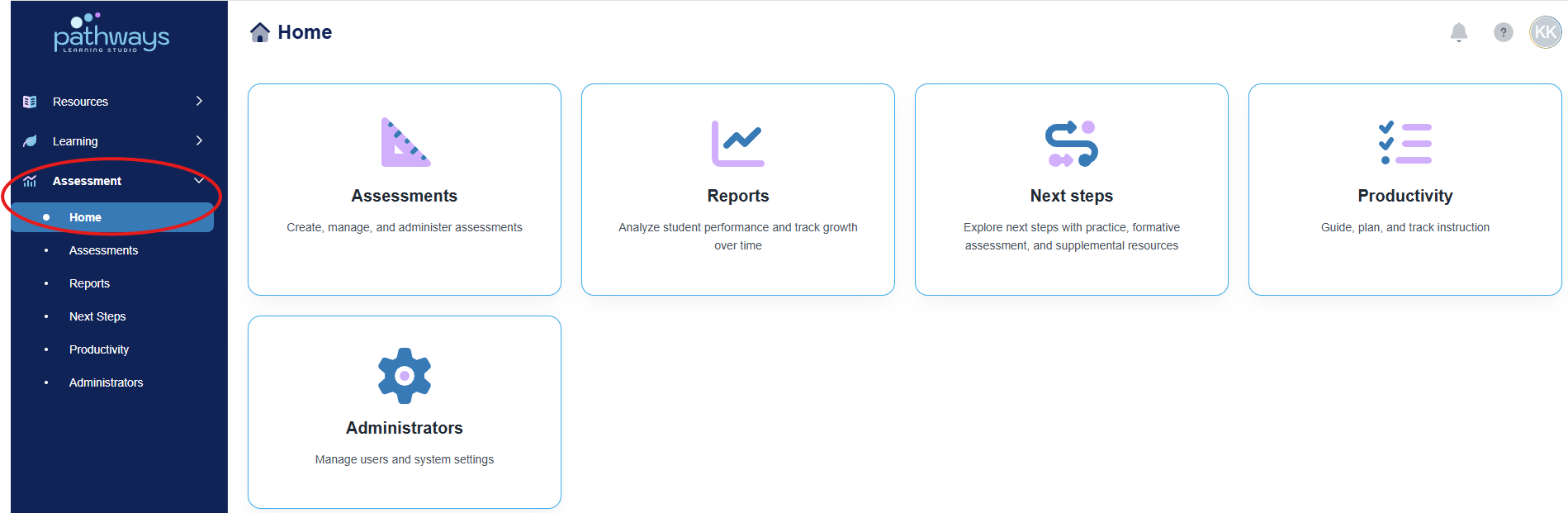
2. Navigate to 'Assessment' → 'Home.'
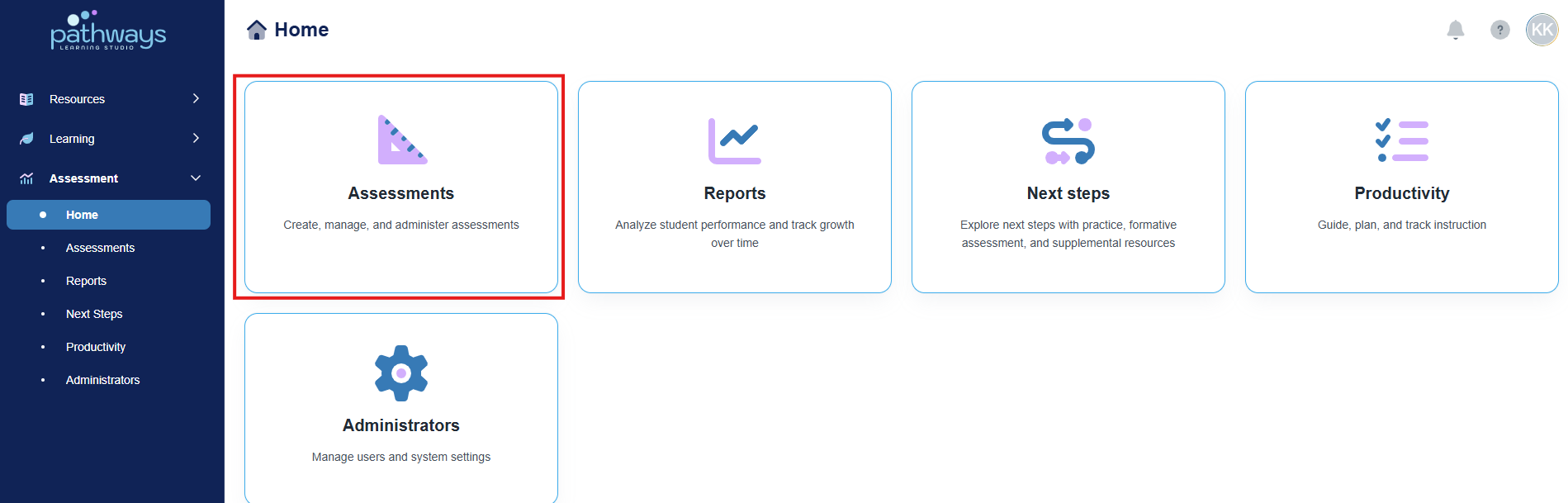
3. Select the 'Assessment' tile.
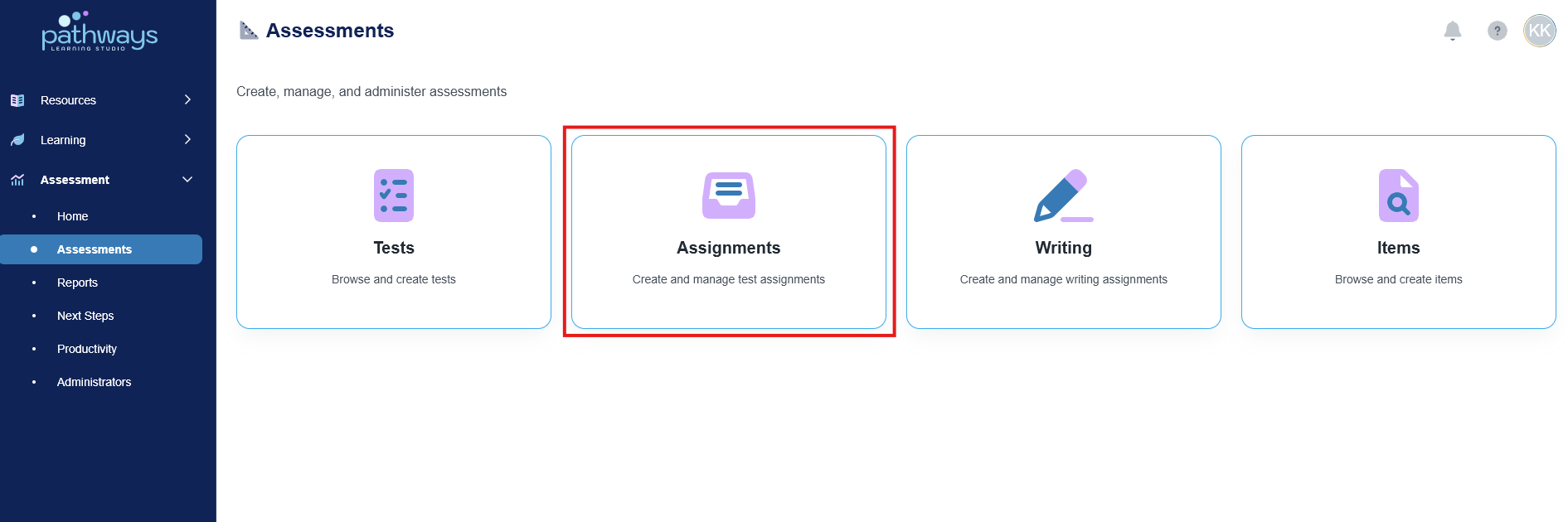
4. Select the 'Assignment' tile.
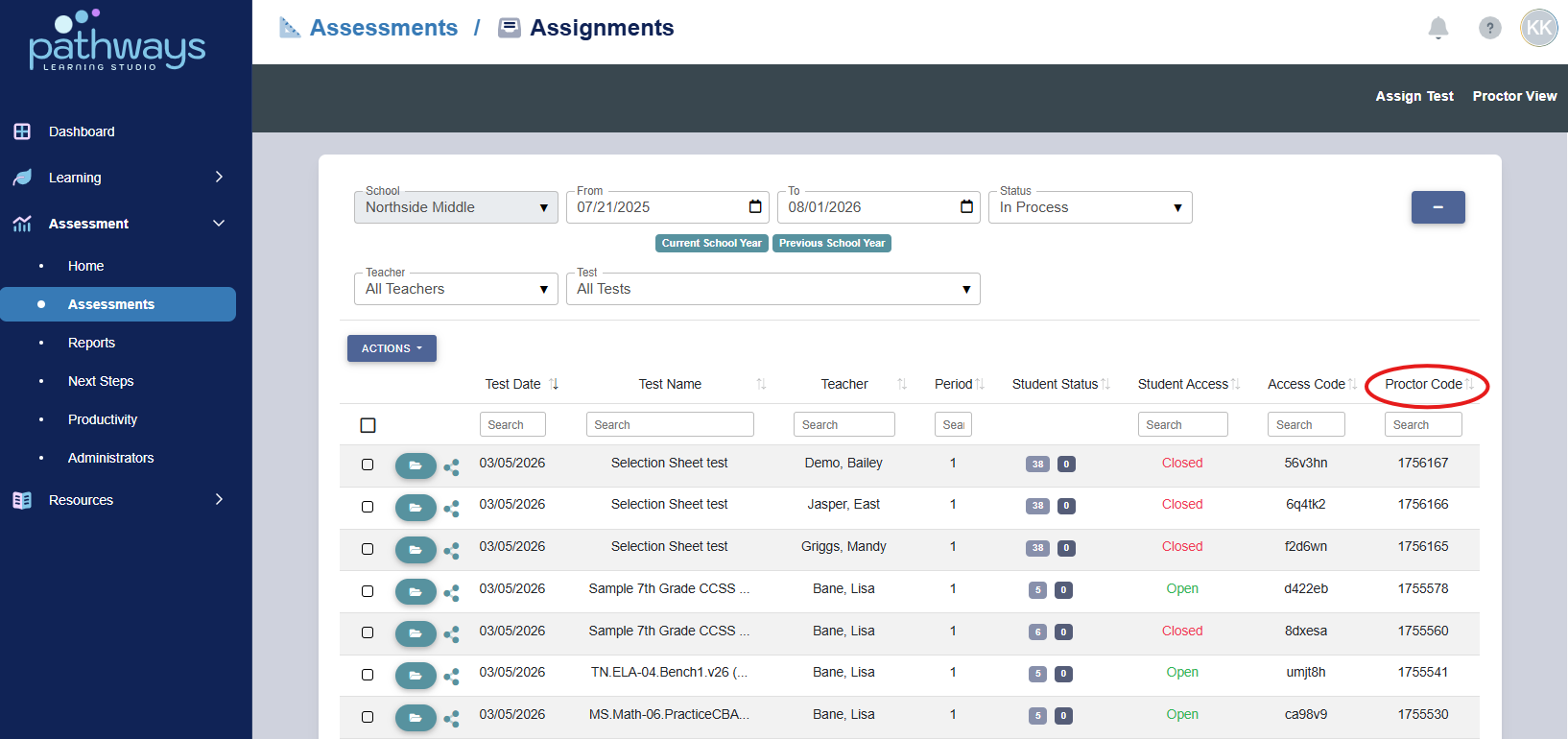
5. Locate the assignment of the proctor code you wish to view. The proctor code is located in the far right column.
Was this article helpful?
That’s Great!
Thank you for your feedback
Sorry! We couldn't be helpful
Thank you for your feedback
Feedback sent
We appreciate your effort and will try to fix the article