This article describes how to access items from item banks as well as any items you have authored.
1. Login to your Pathways Learning Studio account through Clever, ClassLink, or at pathwayslearningstudio.com.
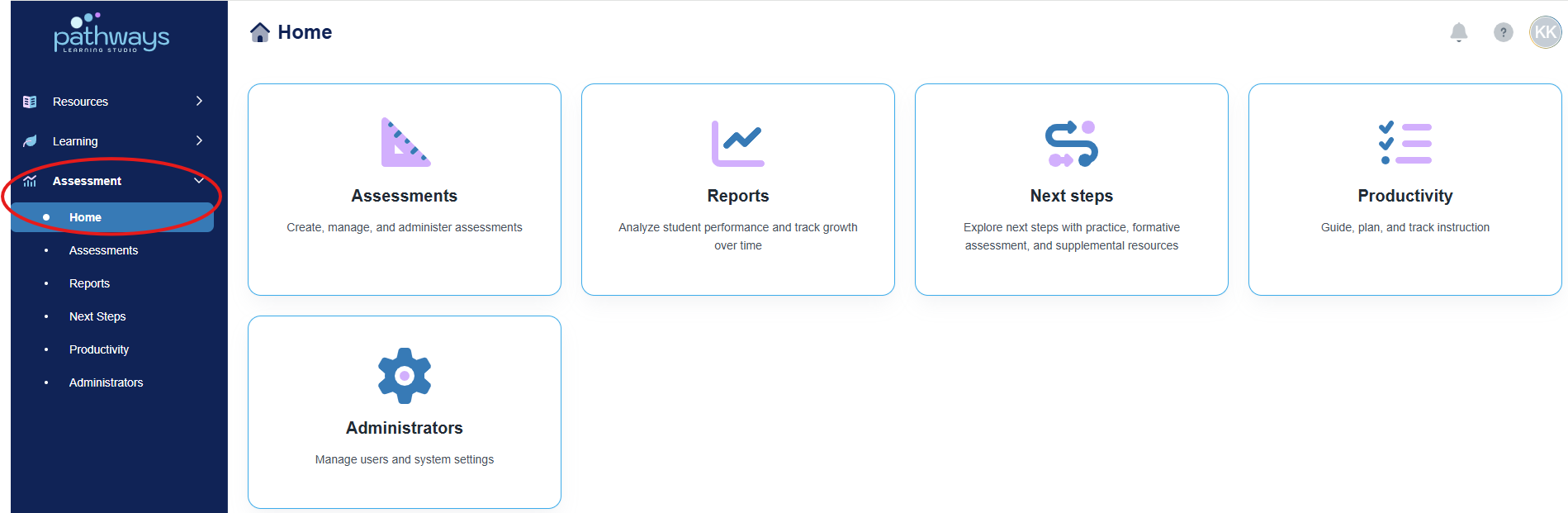
2. Navigate to 'Assessment' → 'Home.'
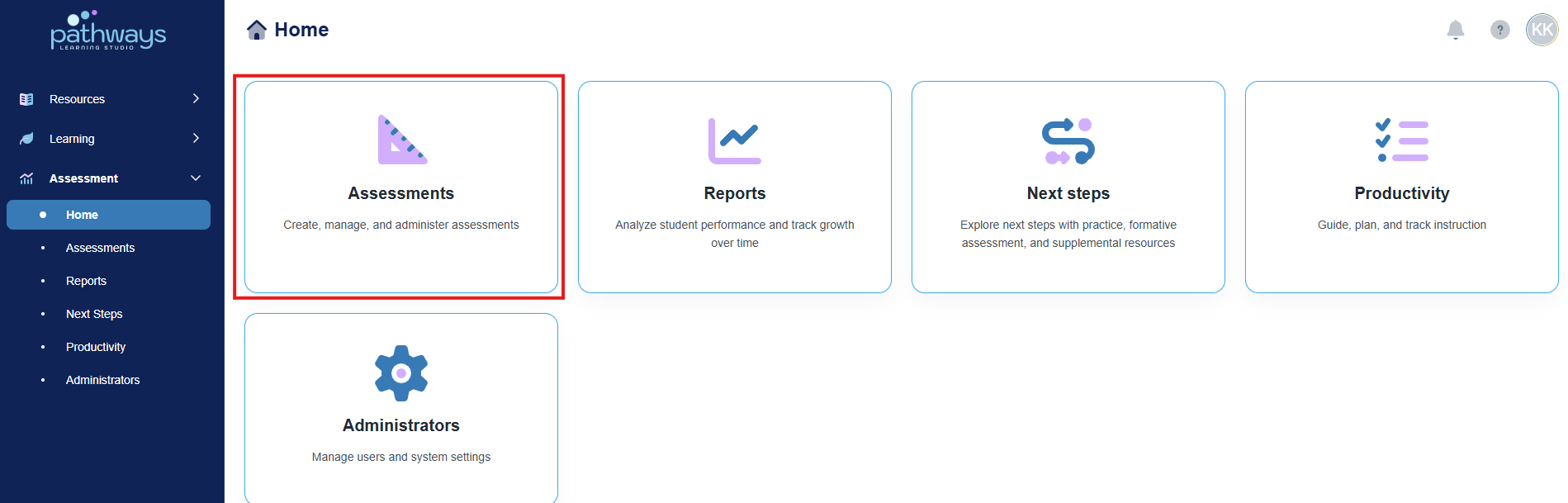
3. Select the 'Assessment' tile.
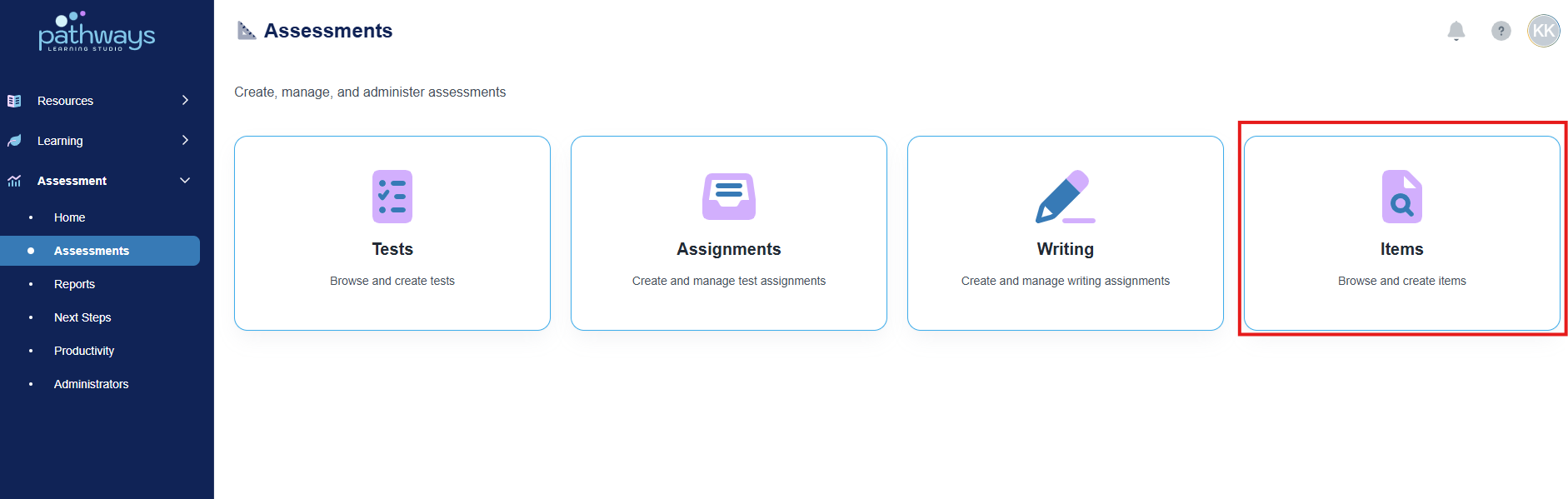
4. Select the 'Item' tile.
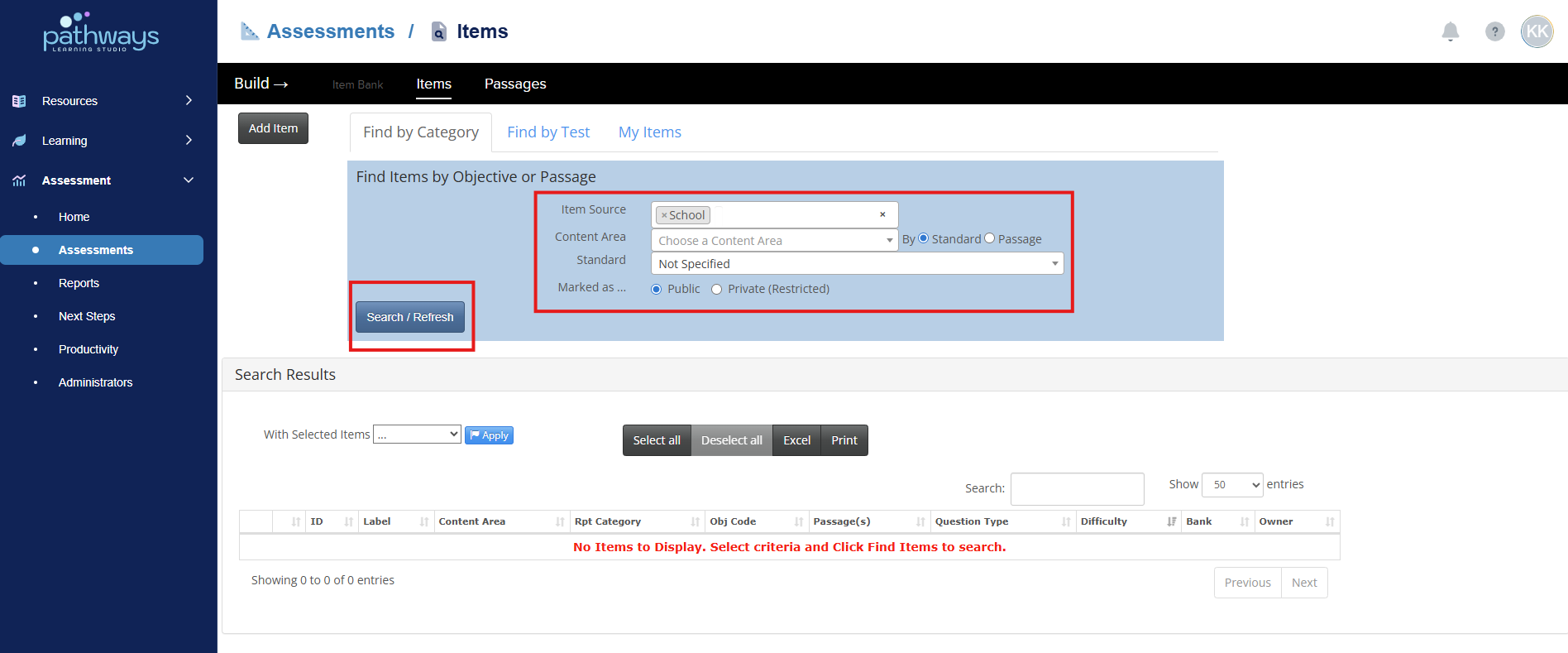
5. Select the Item Bank(s), Content Area, and Standard/Passage, then press ‘Search.’
If you are searching for an item you created, choose 'School' as the Item Source.
6. To filter, click on the arrows to the right of the column title to sort the list by the column category or search by character in the search bar.
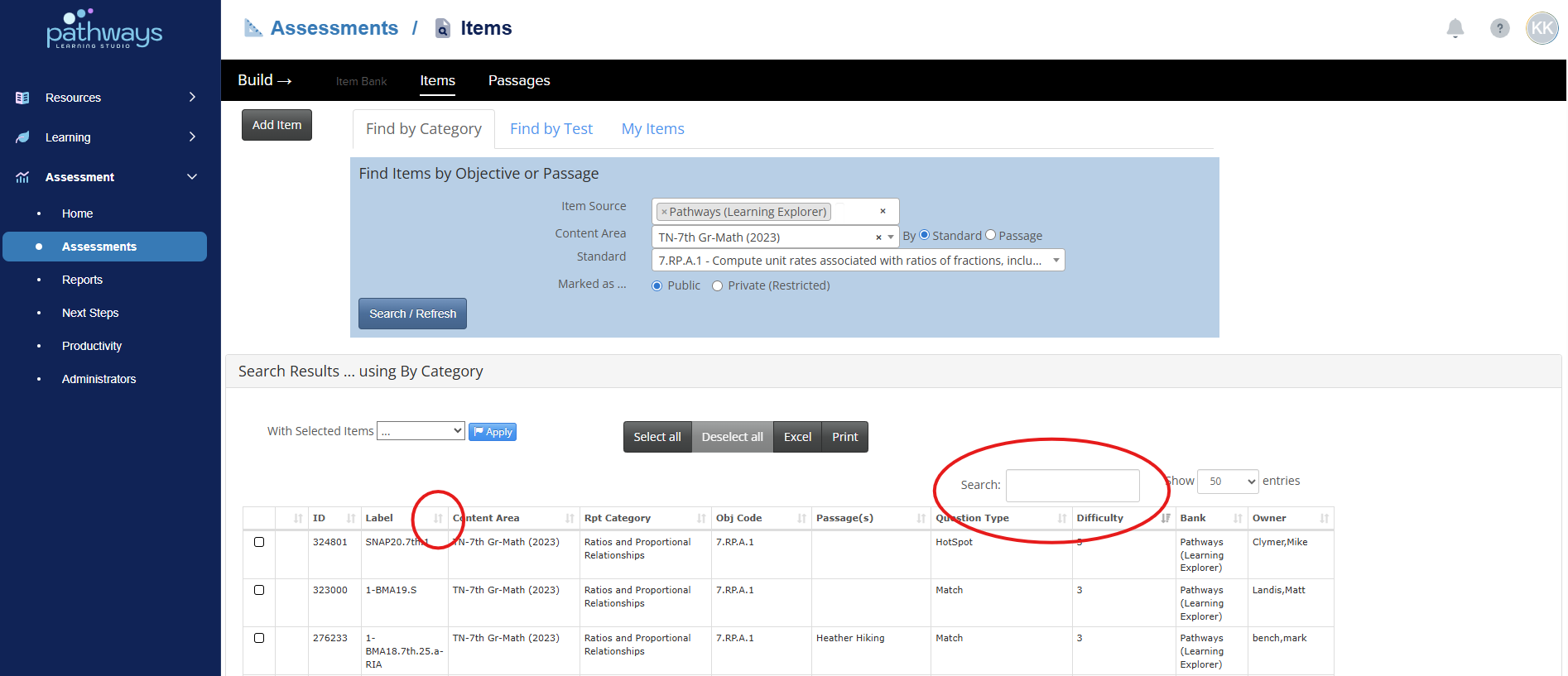
7. Click anywhere on each item row to view the item.
Was this article helpful?
That’s Great!
Thank you for your feedback
Sorry! We couldn't be helpful
Thank you for your feedback
Feedback sent
We appreciate your effort and will try to fix the article