To create an item, follow the steps below:
1. Login to your Pathways Learning Studio account through Clever, ClassLink, or at pathwayslearningstudio.com.
2. Navigate to 'Assessment' → 'Home.'
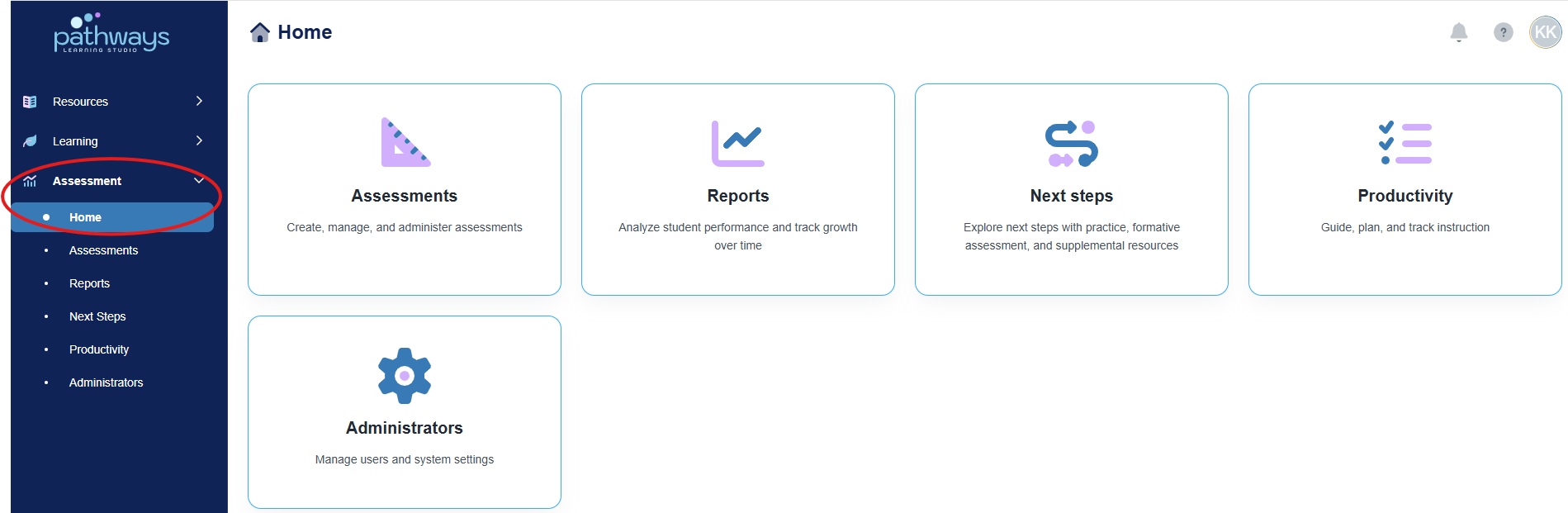
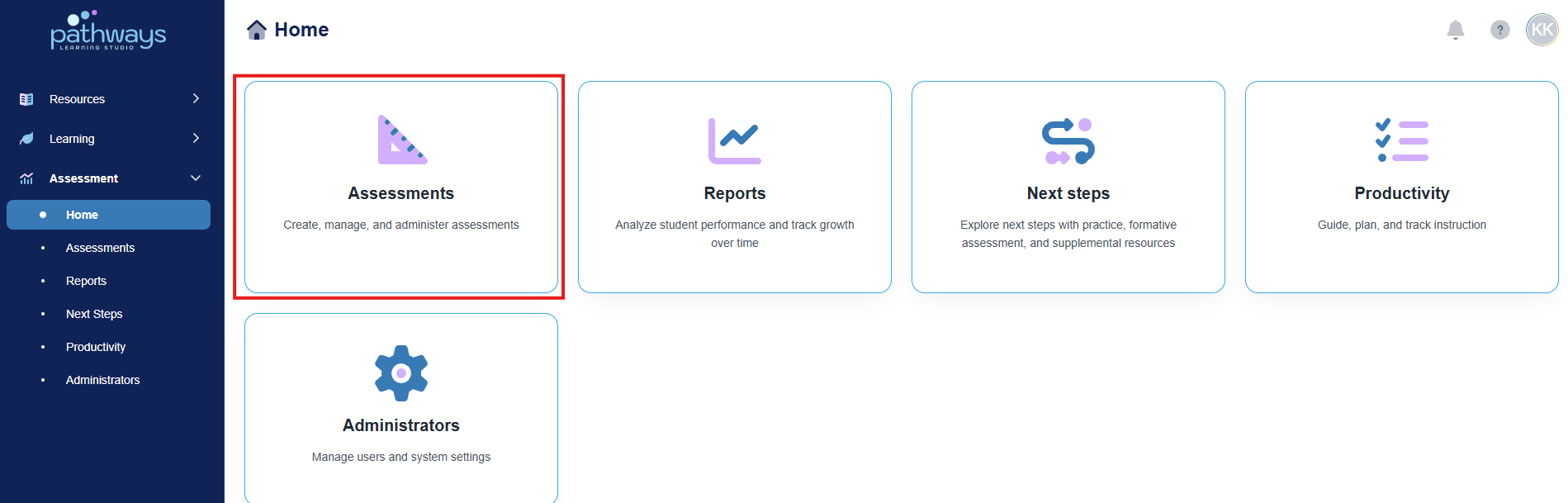
3. Select the 'Assessment' tile.
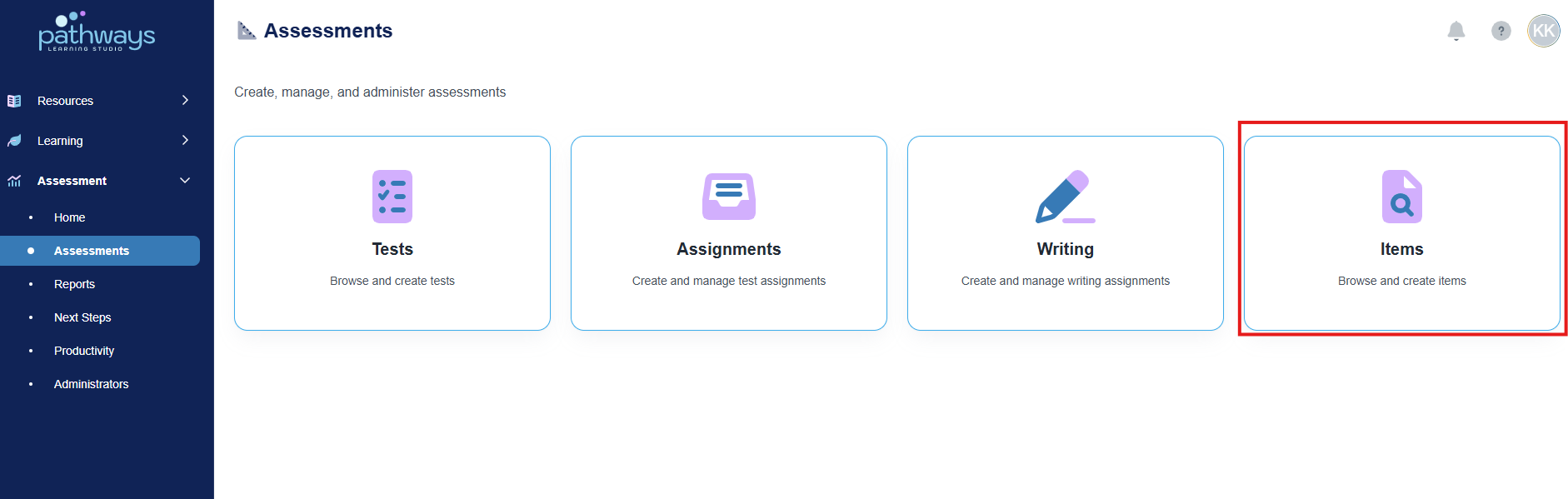
4. Select the 'Item' tile.
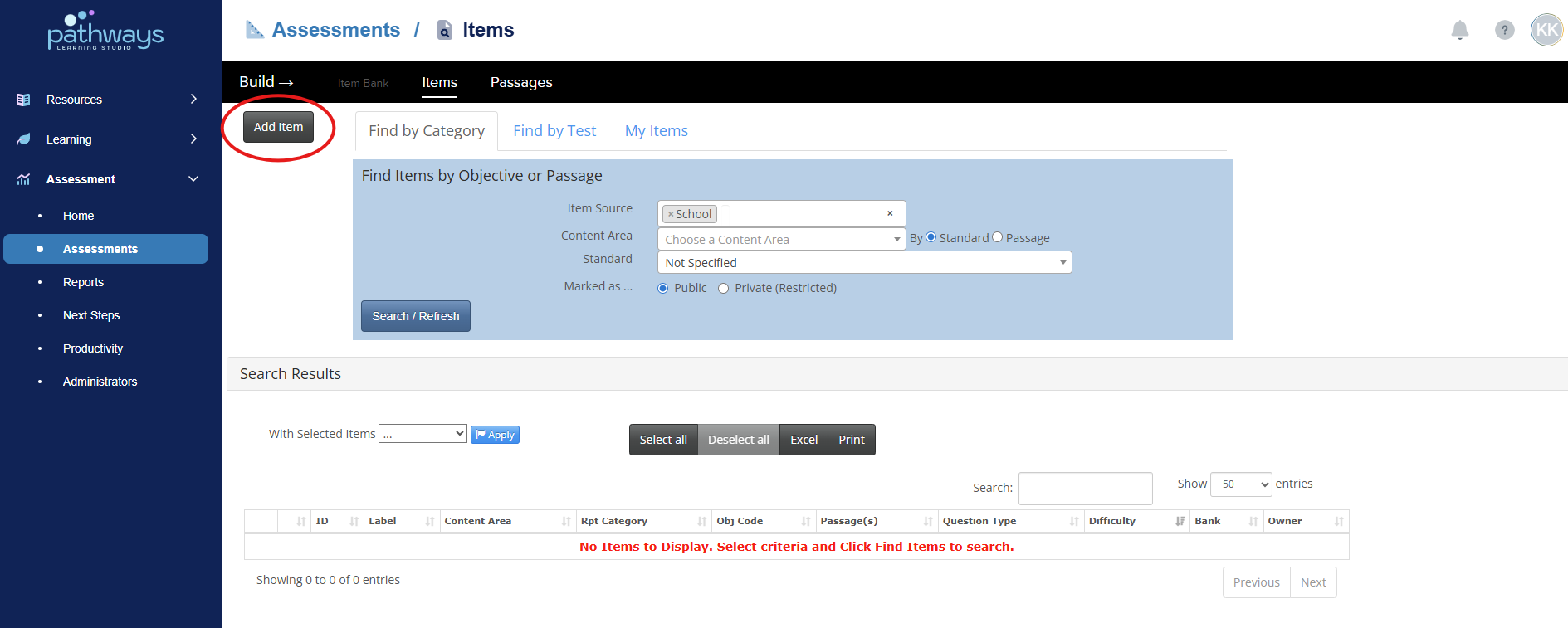
5. Select the 'Add Item' option in the top left-hand corner.
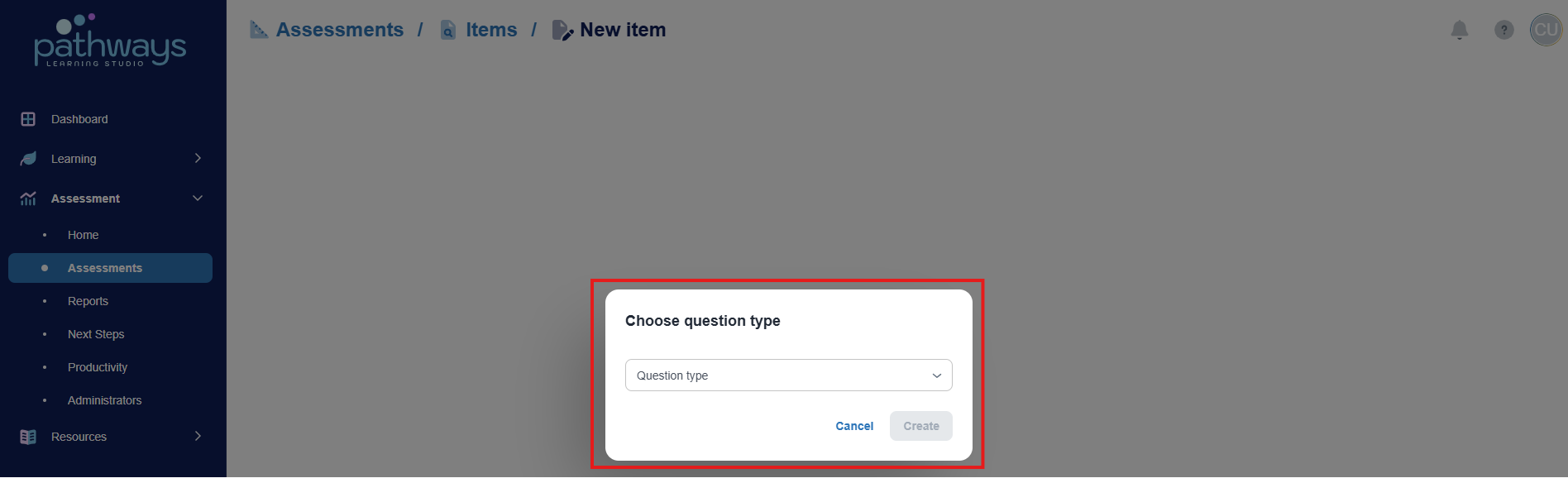
6. Choose a question type and select ‘Create.’
For additional details on item types, see Item Types Defined.
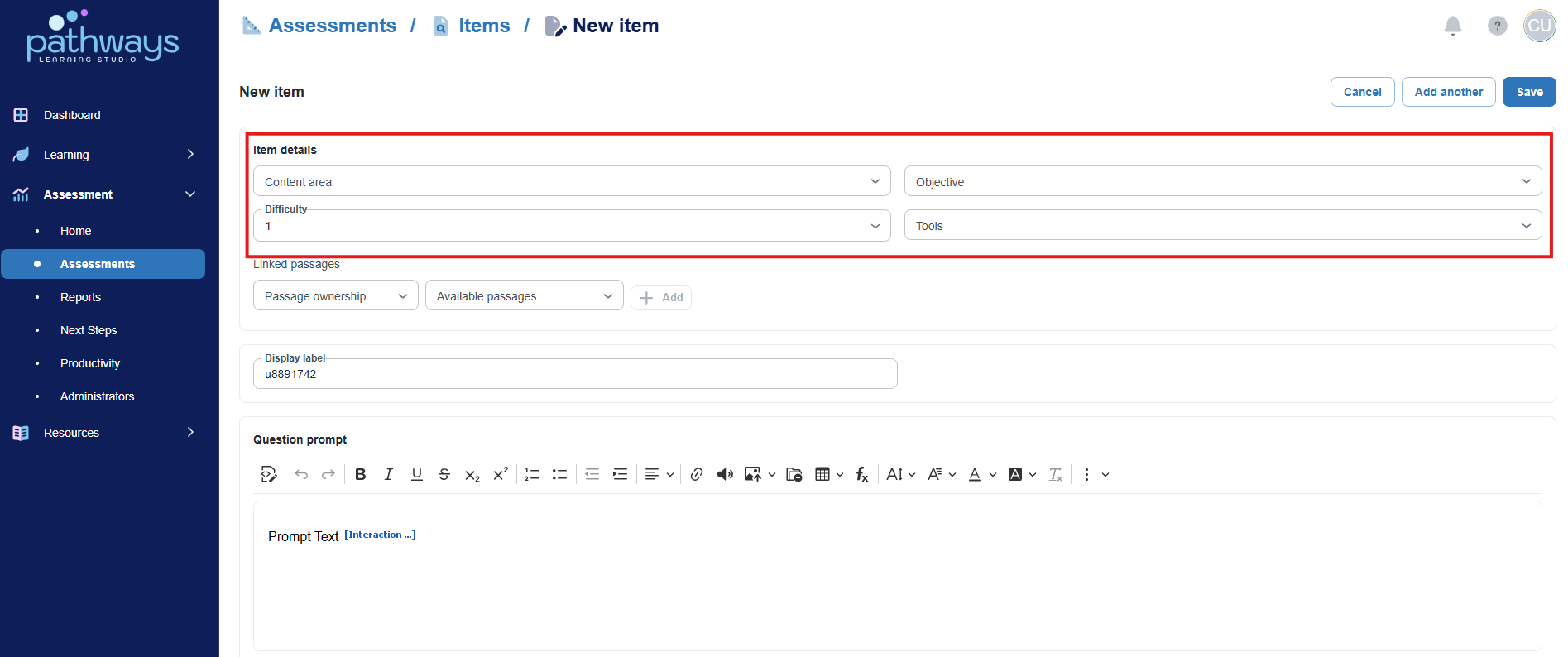
7. Fill in item details making sure to correctly choose the content area and objective as these categories will be essential to locating the item once it has been created.
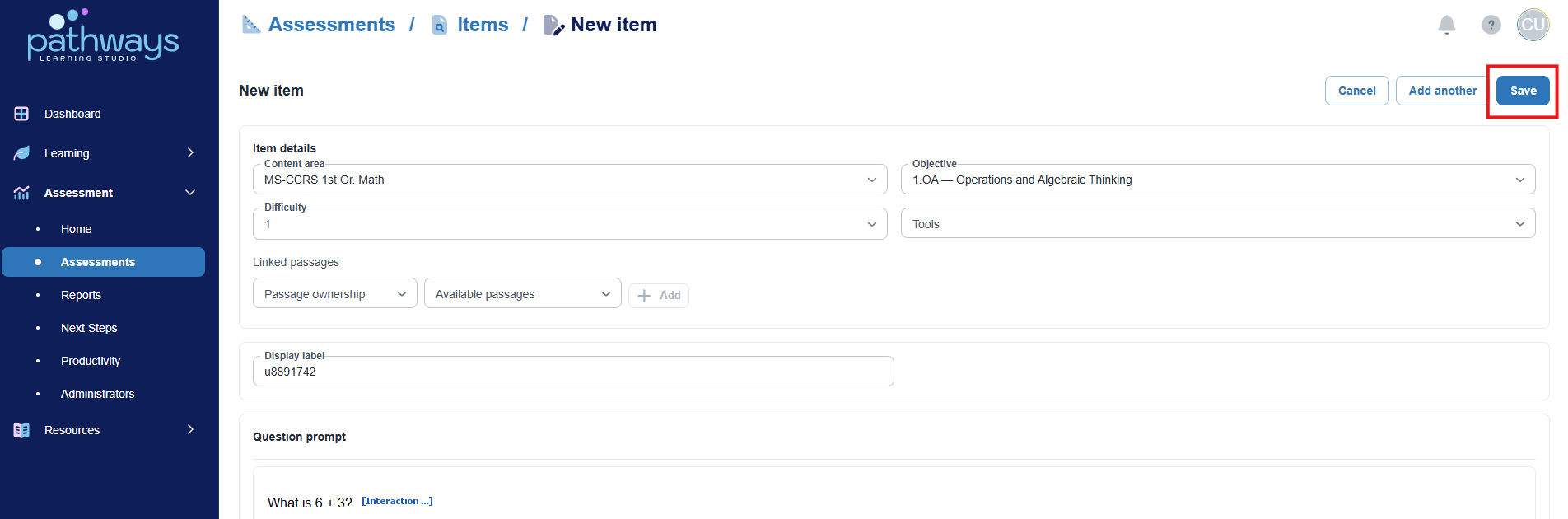
8.When finished with question and answer input, press ‘save’ to create the item.
To learn how to access the item you created, see the Accessing Items article.
Was this article helpful?
That’s Great!
Thank you for your feedback
Sorry! We couldn't be helpful
Thank you for your feedback
Feedback sent
We appreciate your effort and will try to fix the article