To create a passage, follow the steps below:
1. Login to your Pathways Learning Studio account through Clever, ClassLink, or at pathwayslearningstudio.com.
2. Navigate to 'Assessment' → 'Home.'
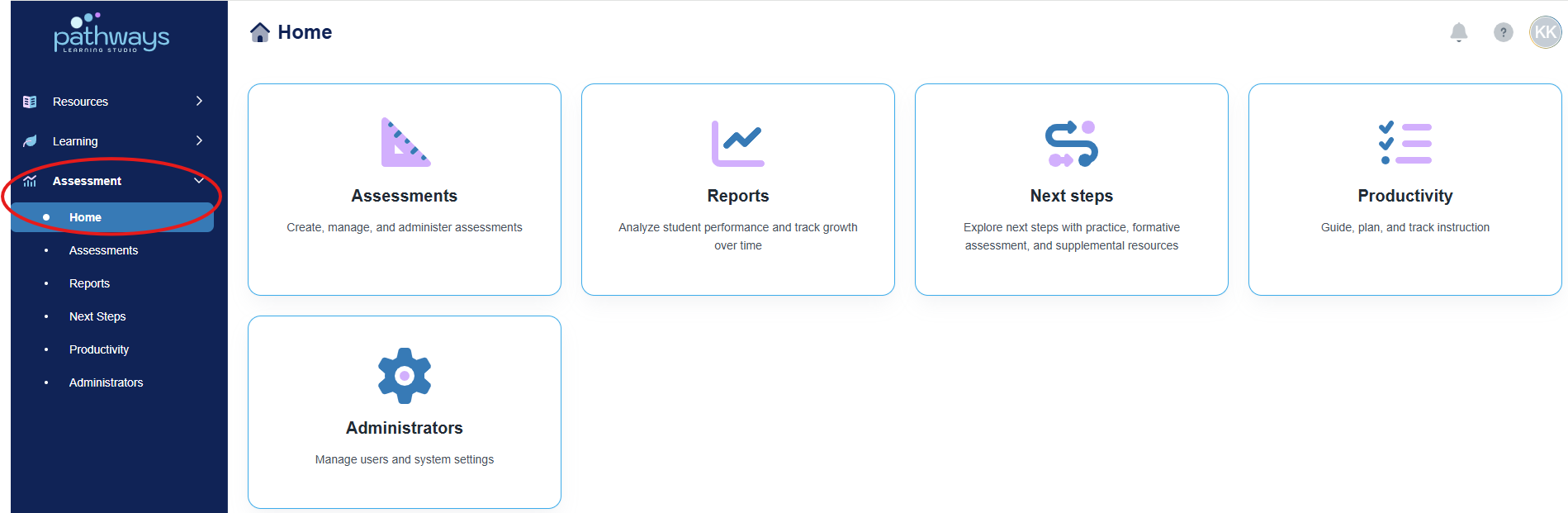
3. Select the 'Assessment' tile.
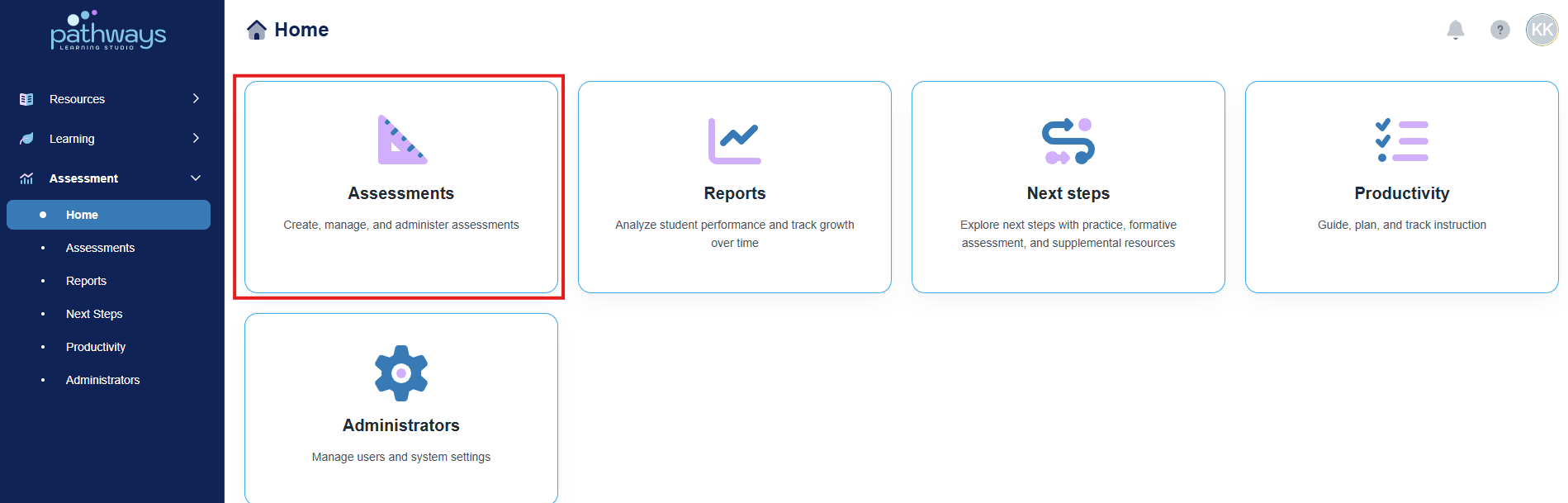
4. Select the 'Item' tile.
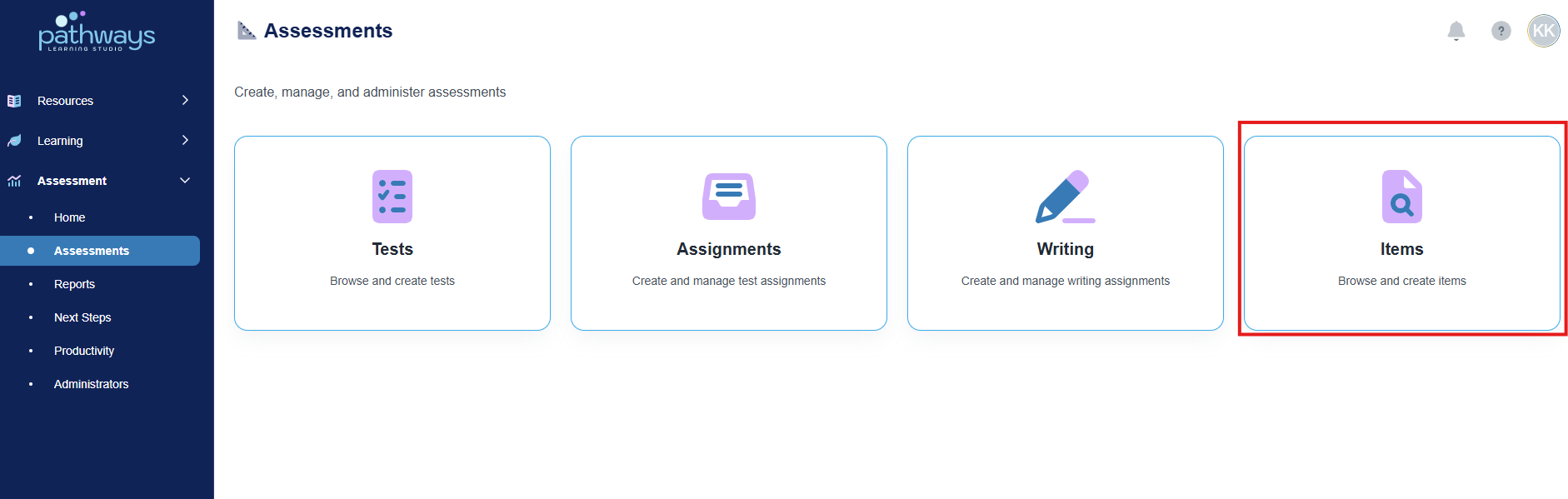
5. Navigate to 'Passages' at the top of the page.
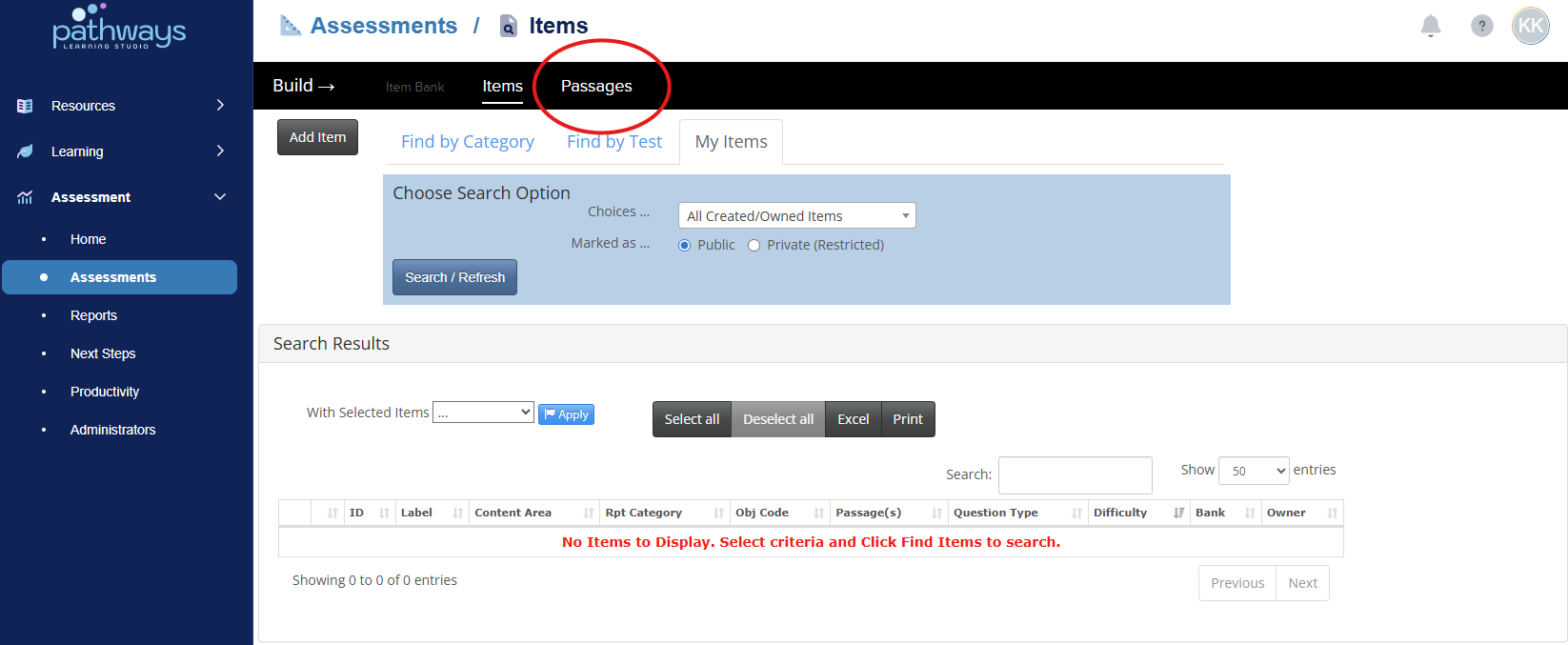
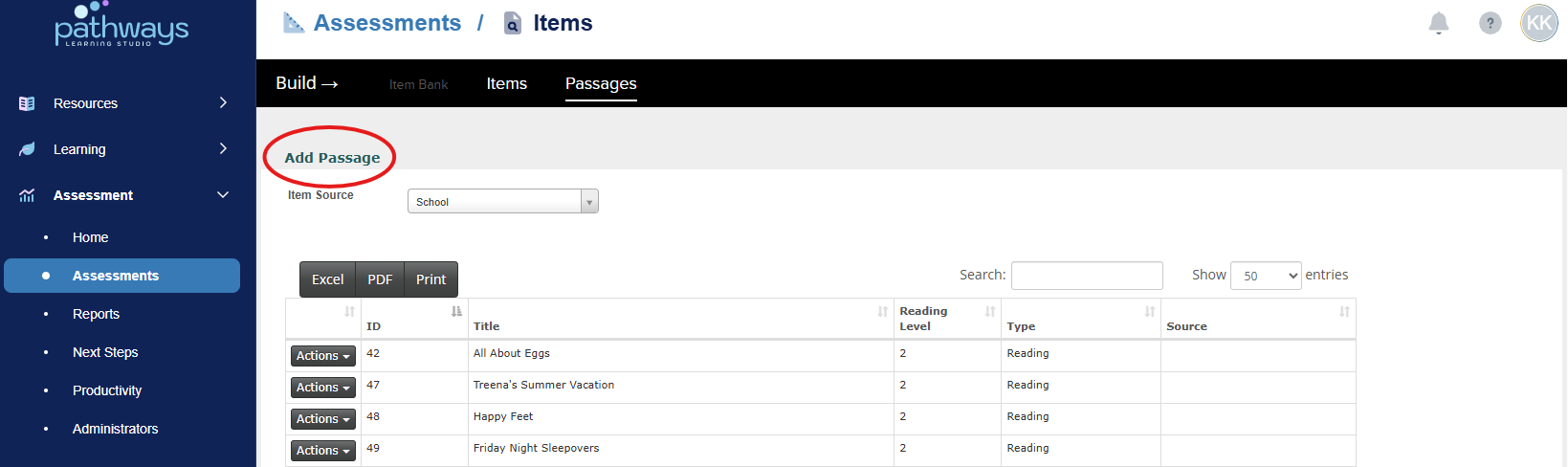
6. Choose 'Add Passage' at the top left corner of the page.
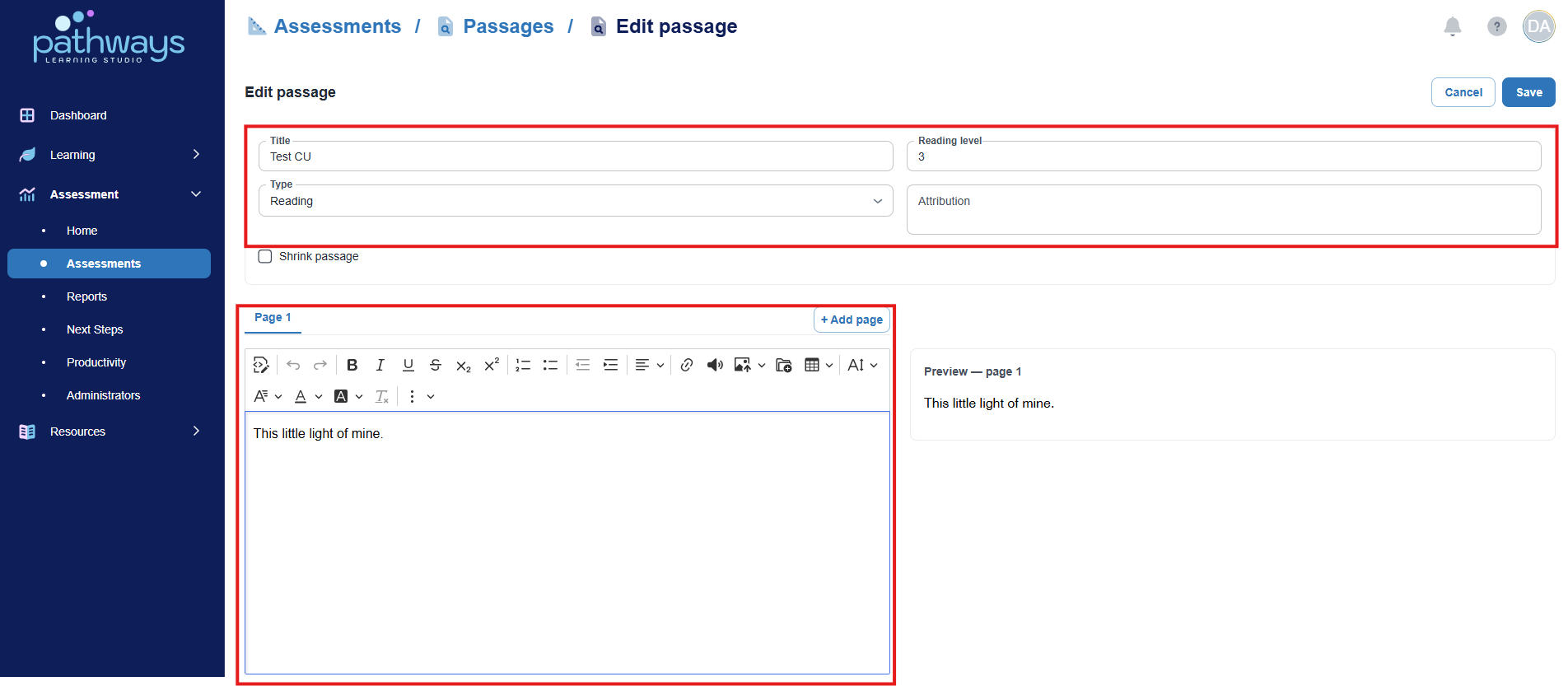
7. Fill in all required passage details, copy and paste your passage into the text box.
8. To add an image, select the 'Upload image from computer' or 'Insert image or file'
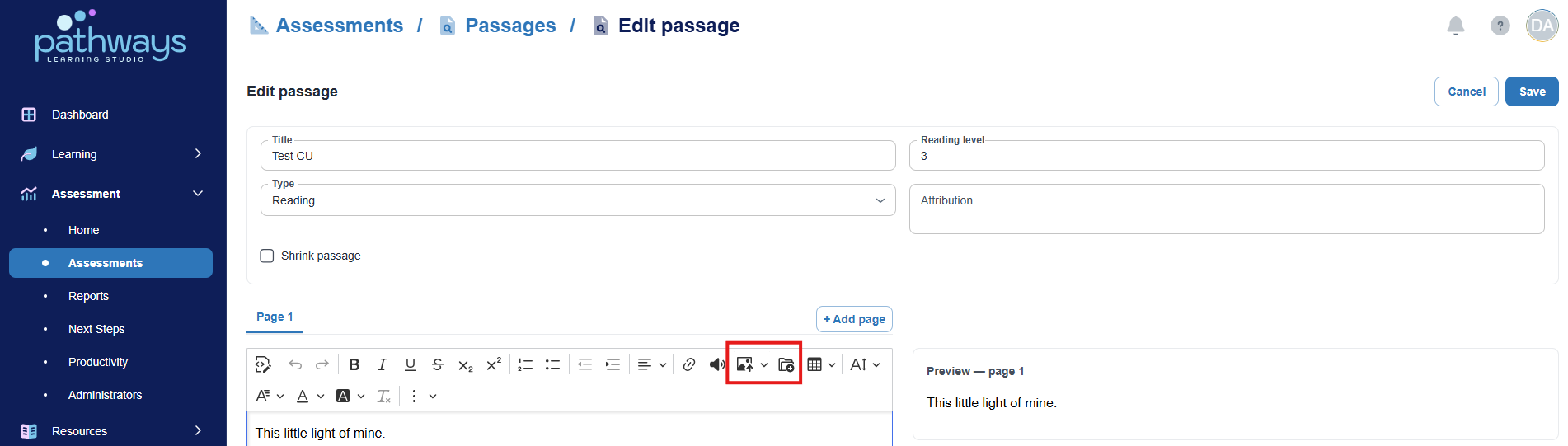
Note: An image loaded by copying and pasting a URL will not show on the student's test browser.
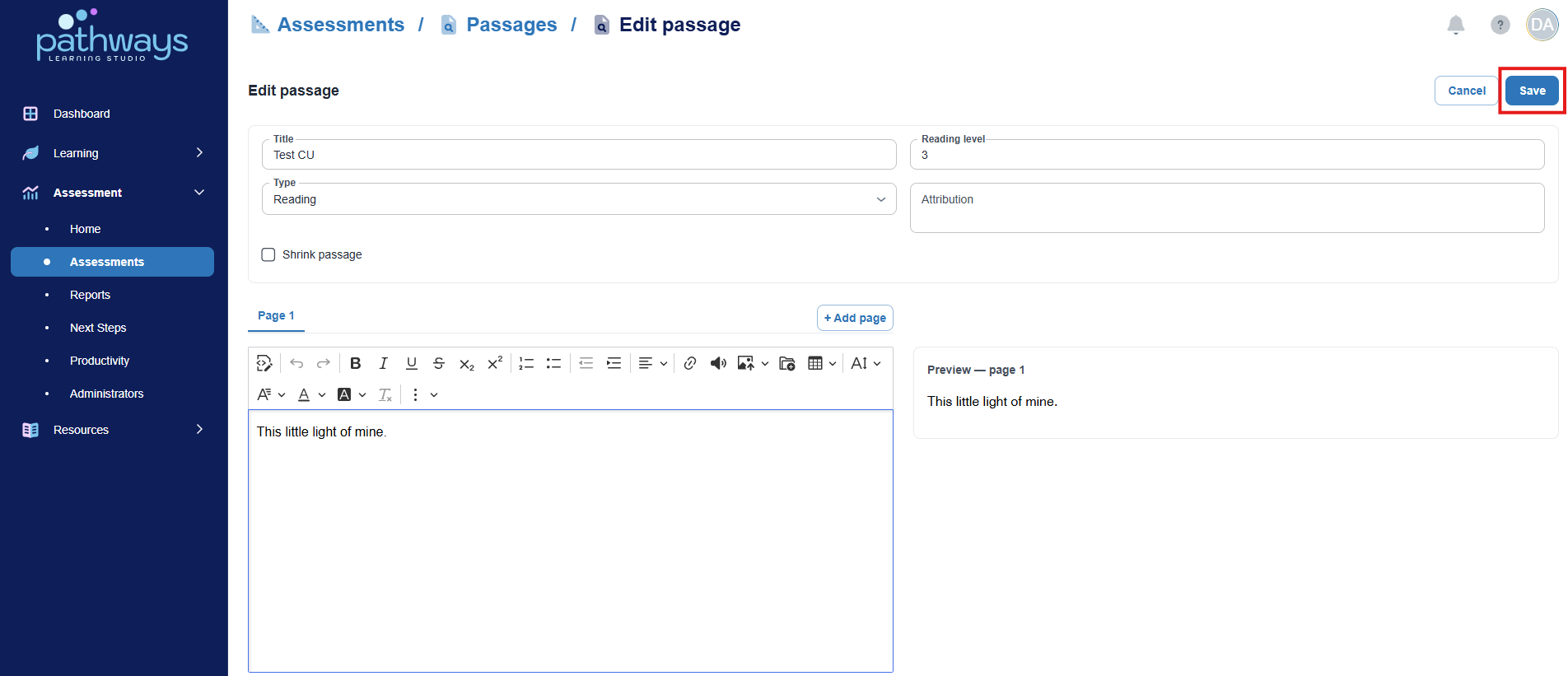
9. When finished adding the passage and image, select 'Save.'
Was this article helpful?
That’s Great!
Thank you for your feedback
Sorry! We couldn't be helpful
Thank you for your feedback
Feedback sent
We appreciate your effort and will try to fix the article