Users have the option to create a folder to store and organize any tests they create.
This organization method allows other teachers at the same school to easily find and use tests from their colleagues by filtering for the specific teacher’s folder.
To create, delete, or edit a folder in Pathways Assessment, follow these steps:
1. Login to your Pathways Learning Studio account through Clever, ClassLink, or at pathwayslearningstudio.com.
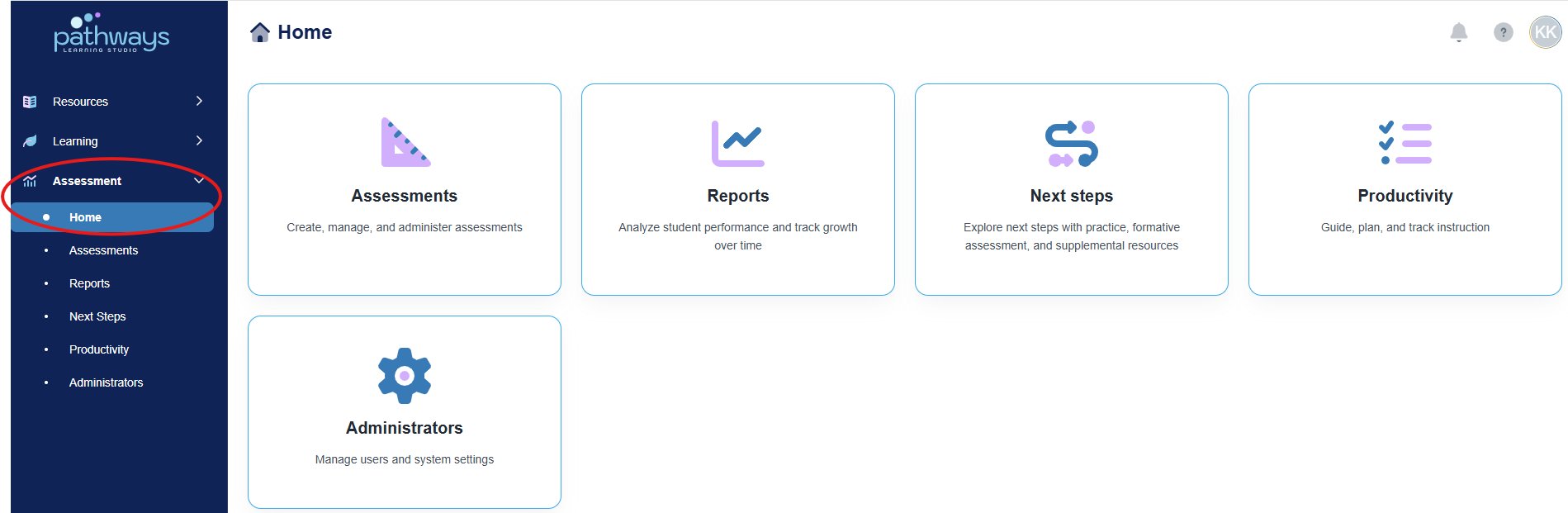
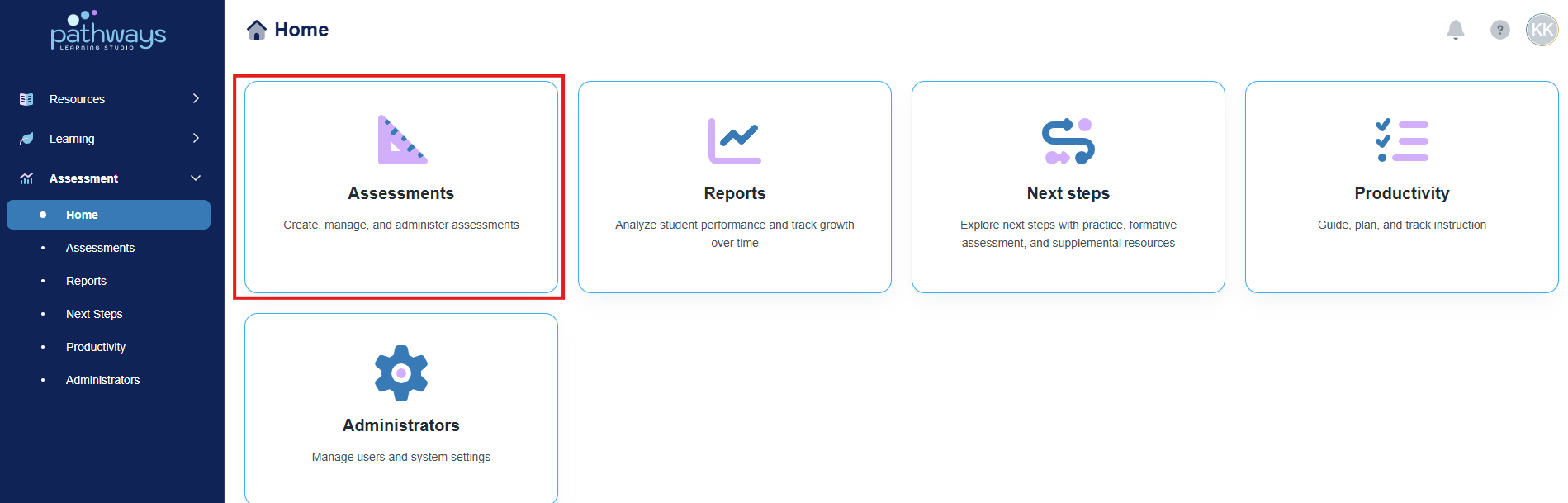
2. Navigate to 'Assessment' → 'Home.'
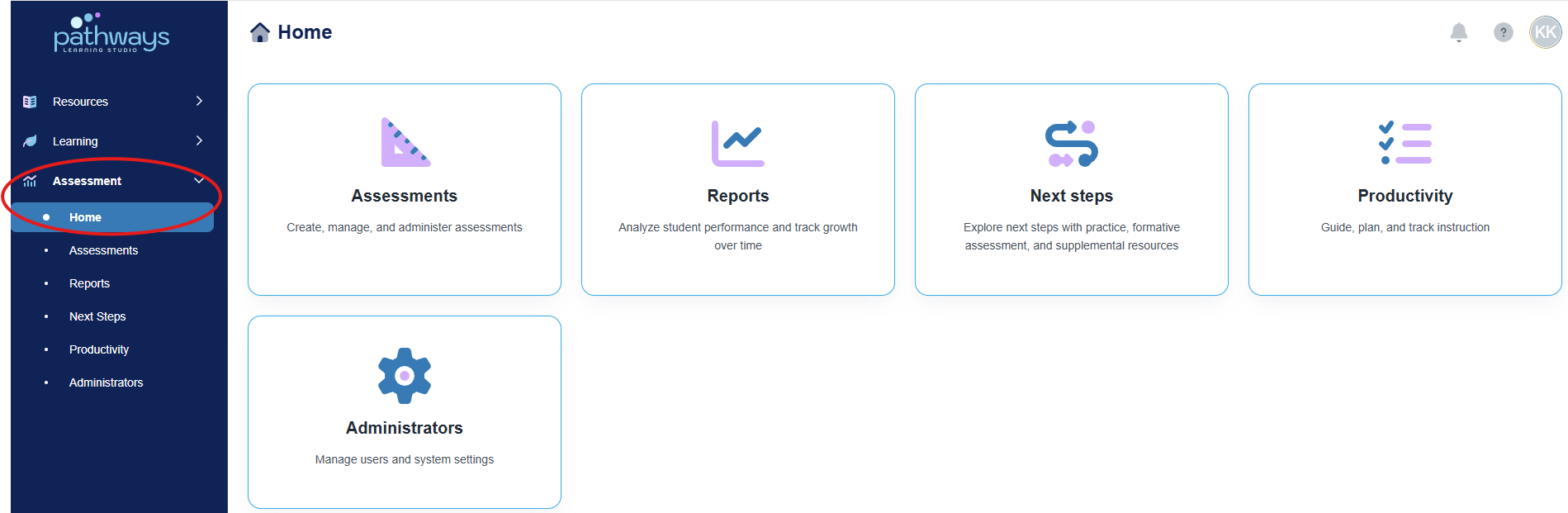
3. Select the 'Assessment' tile.
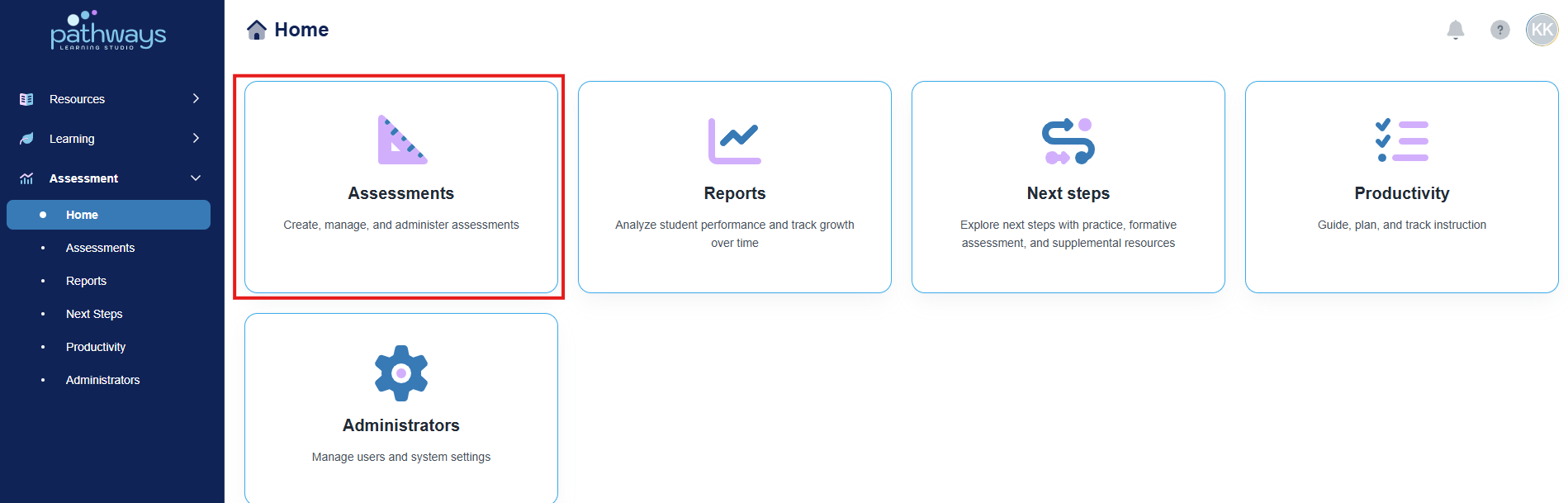
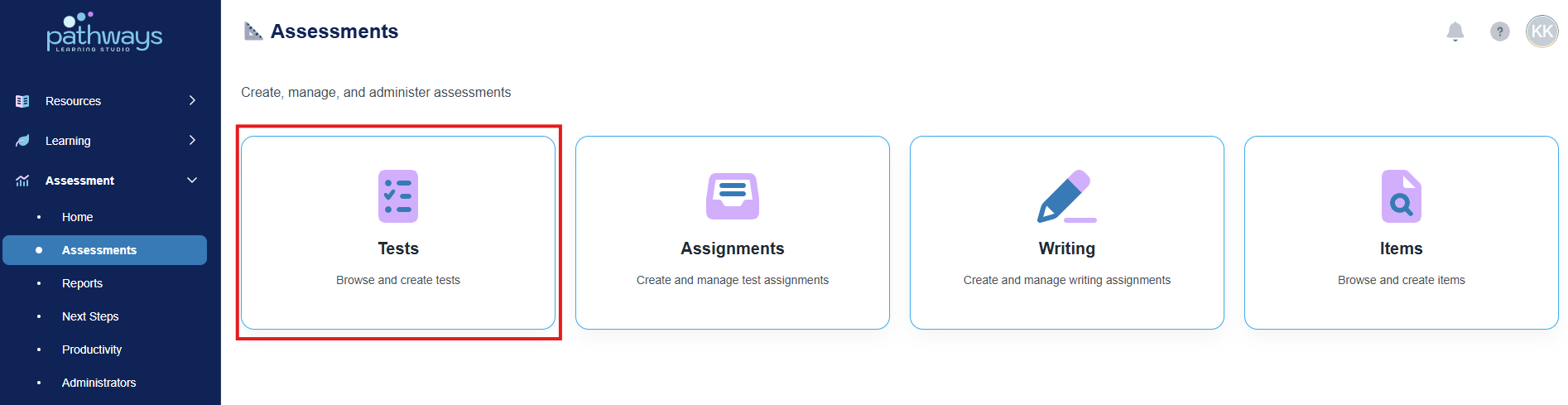
4. Select the 'Test' tile.
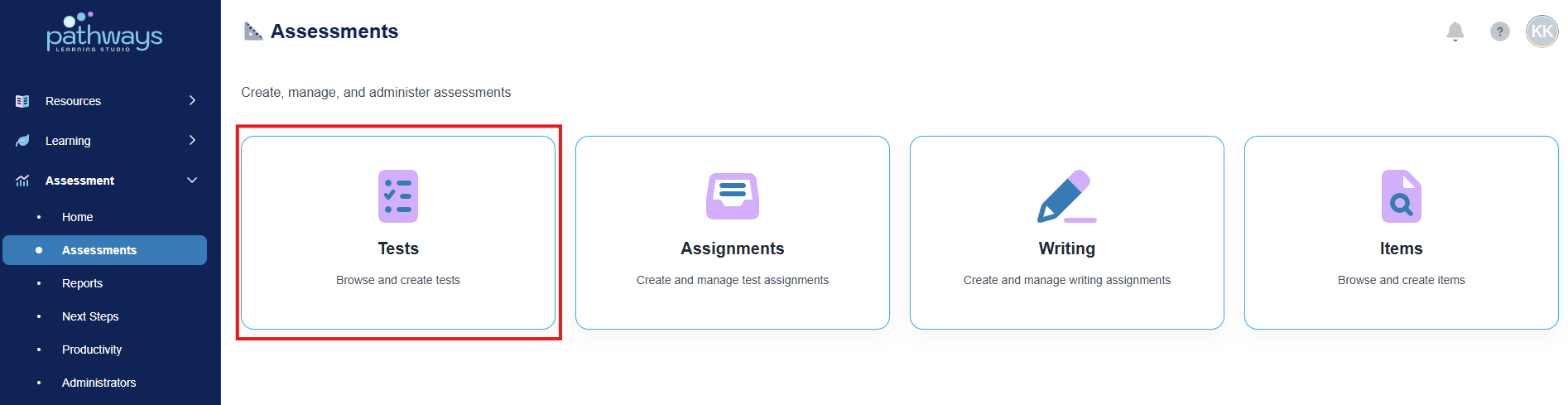
5. Select 'Manage Folders' in the top right-hand corner.
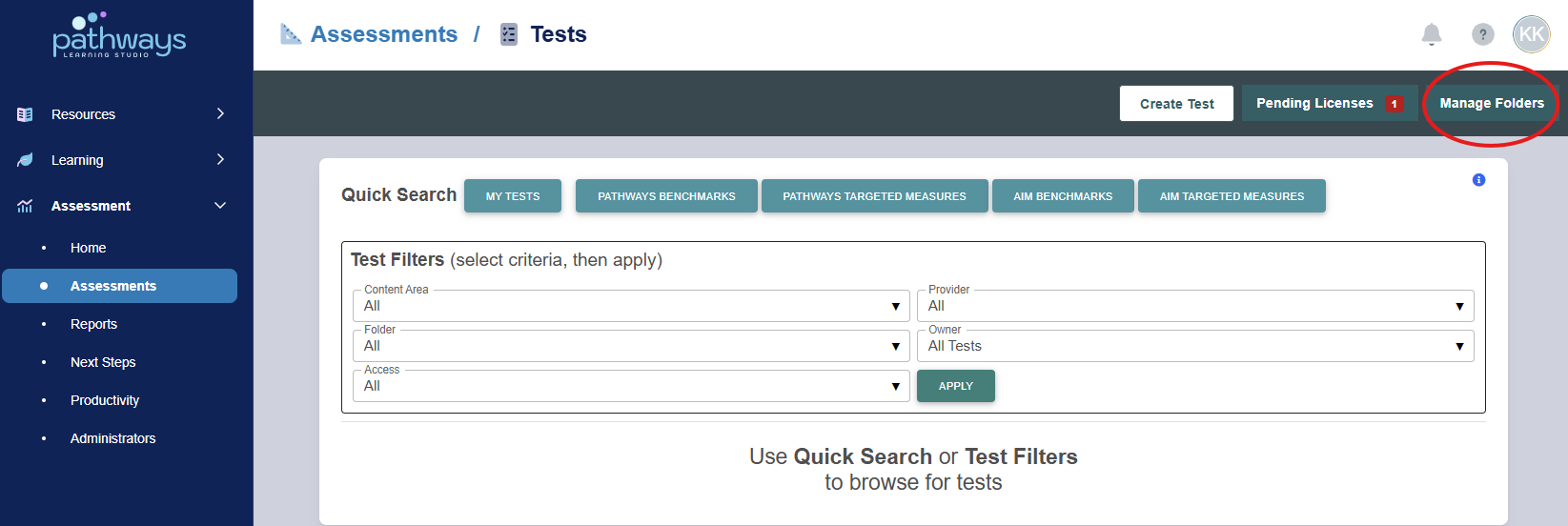
To Create a Folder
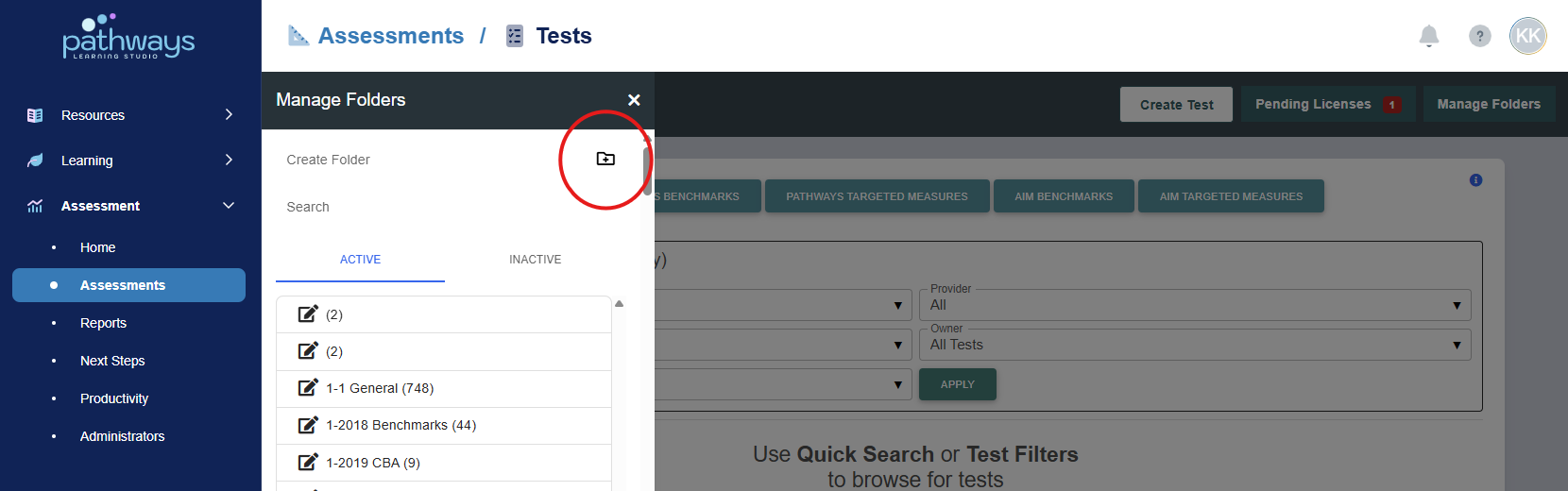
In the ‘Manage Folders’ section, create a new folder by typing the desired folder name and pressing the folder icon to the right of the text box.
To Edit a Folder
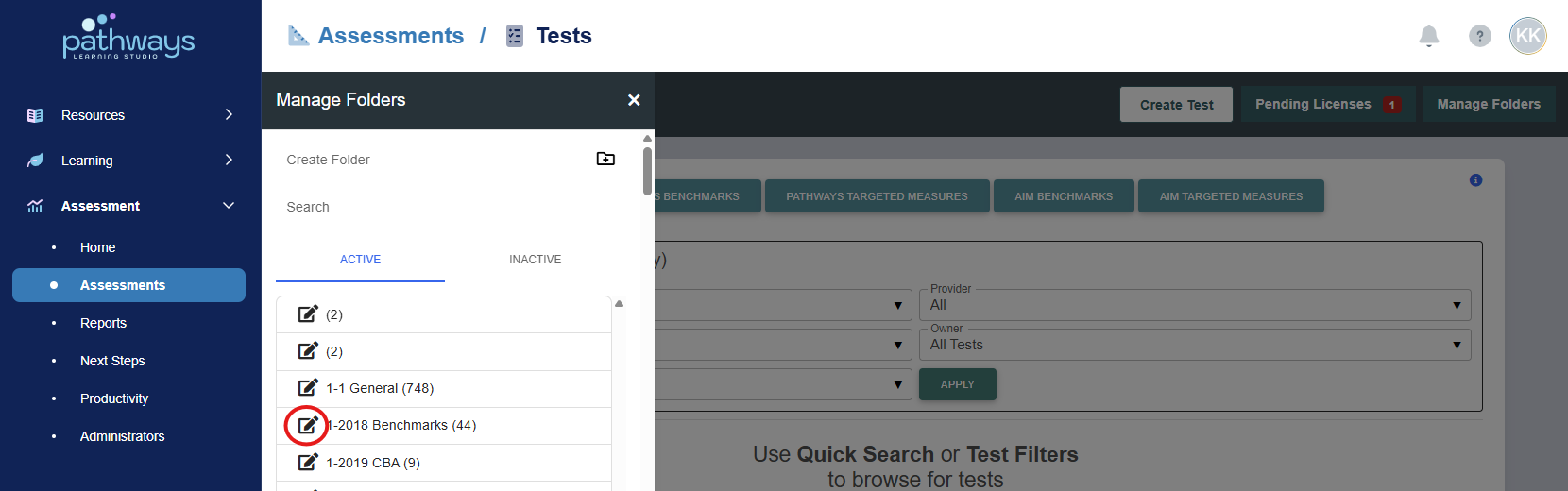
In the ‘Manage Folders’ section, locate the folder you wish to edit. Press the pencil icon to the left of the folder you wish to edit.
To Delete a Folder
In the ‘Manage Folders’ section, locate the folder you wish to delete. Press the folder icon with an 'x' to delete the folder. Folders that contain one or more assessments cannot be deleted.
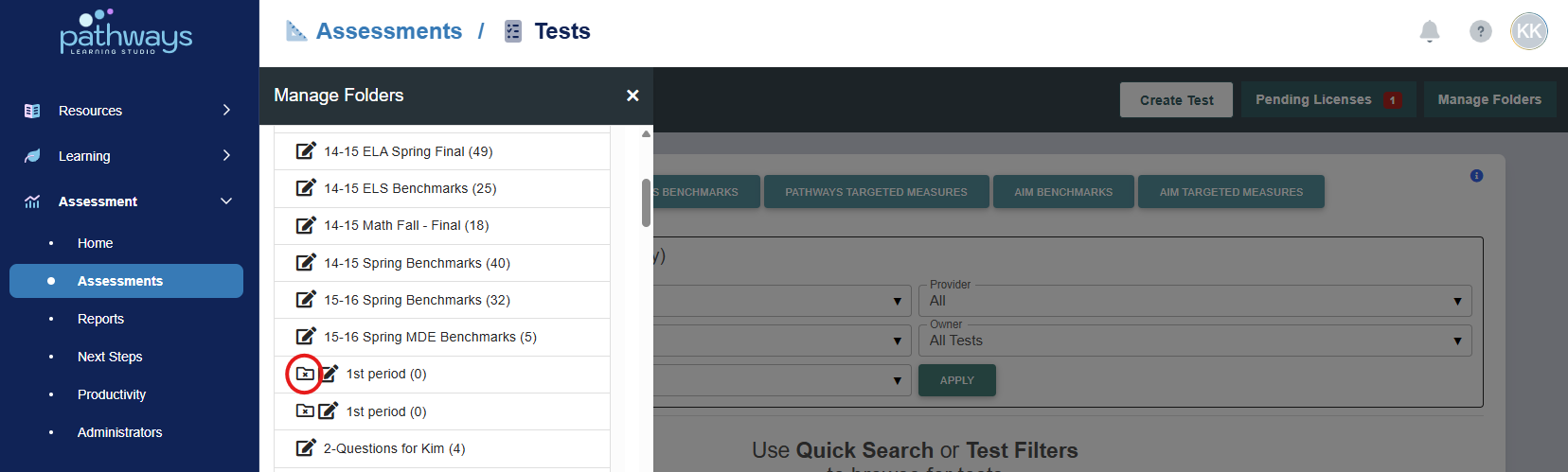
Note: Deleting a folder will move the folder to the 'Inactive' section.
Mass Transferring Assessments to a Folder
1. Navigate to 'Assessment' → 'Home.'
2. Select the 'Assessment' tile.
3. Select the 'Test' tile.
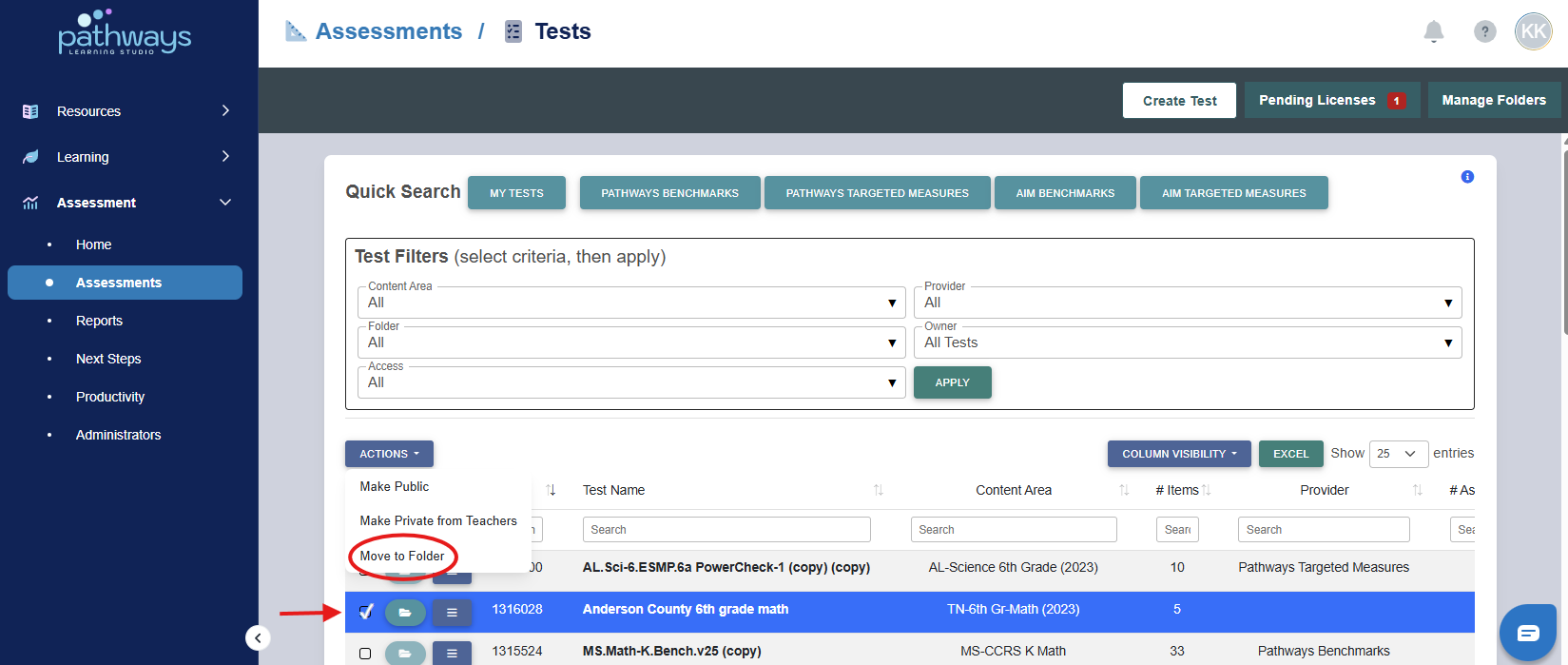
4. Find the assessment(s) to be moved to a folder. Check the box beside each assessment you would like to move to a folder, and choose 'Move to Folder' in the Actions drop down menu.
Was this article helpful?
That’s Great!
Thank you for your feedback
Sorry! We couldn't be helpful
Thank you for your feedback
Feedback sent
We appreciate your effort and will try to fix the article