This article will explain how to create an assessment from the item bank.
1. Login to your Pathways Learning Studio account through Clever, ClassLink, or at pathwayslearningstudio.com.
2. Navigate to 'Assessment' → 'Home.'
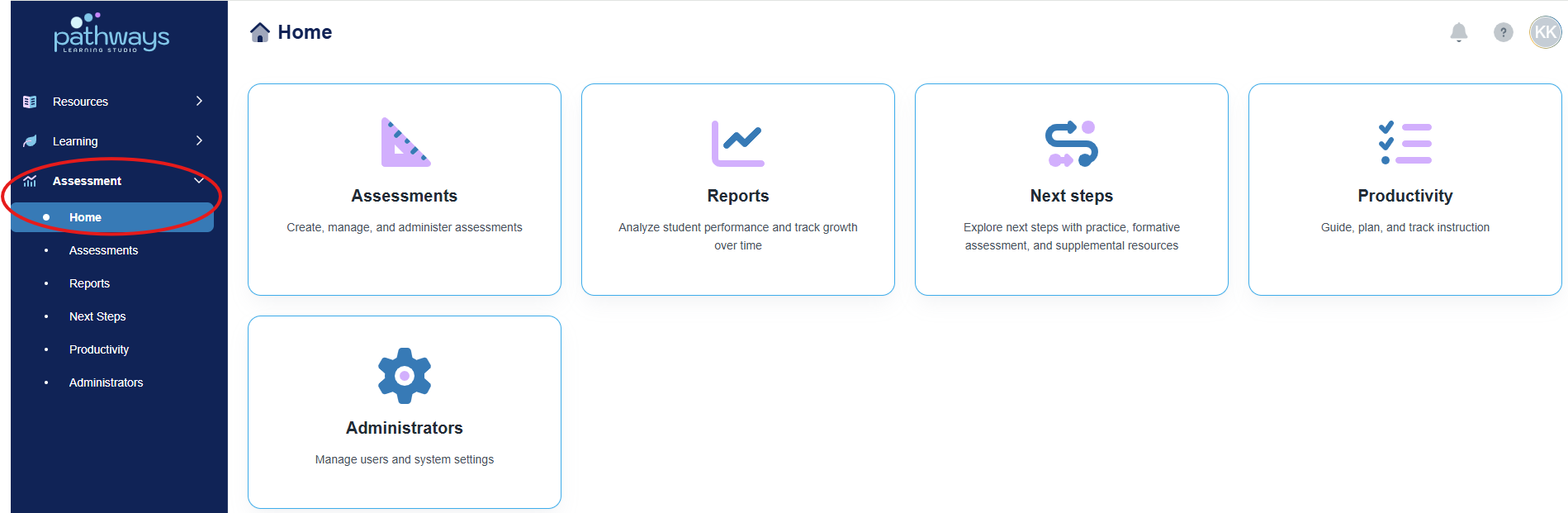
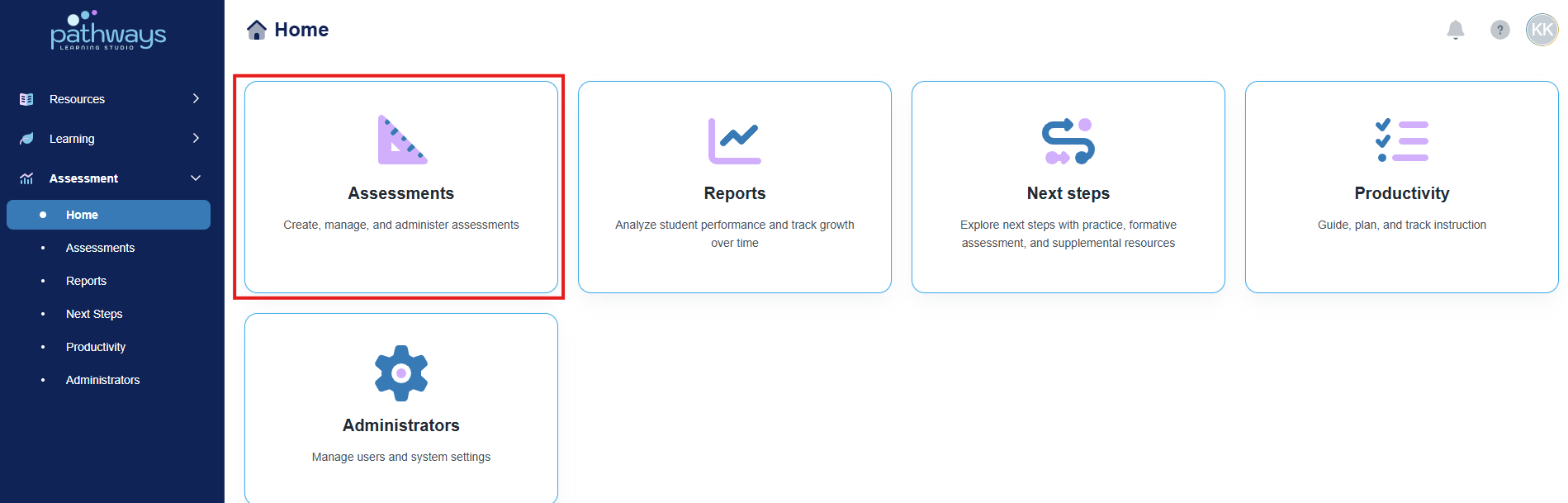
3. Select the 'Assessment' tile.
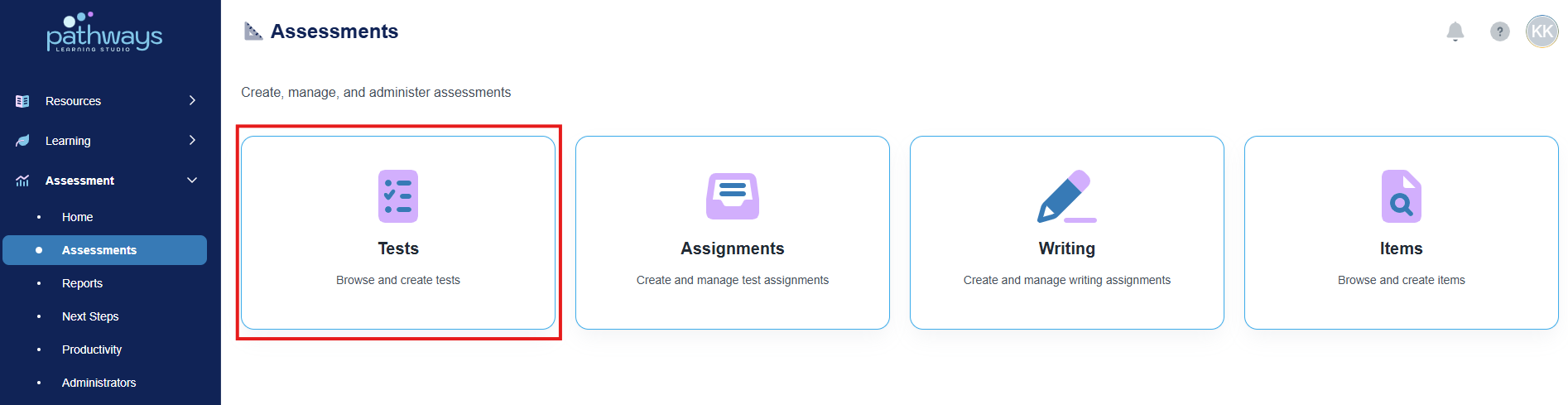
4. Select the 'Test' tile.
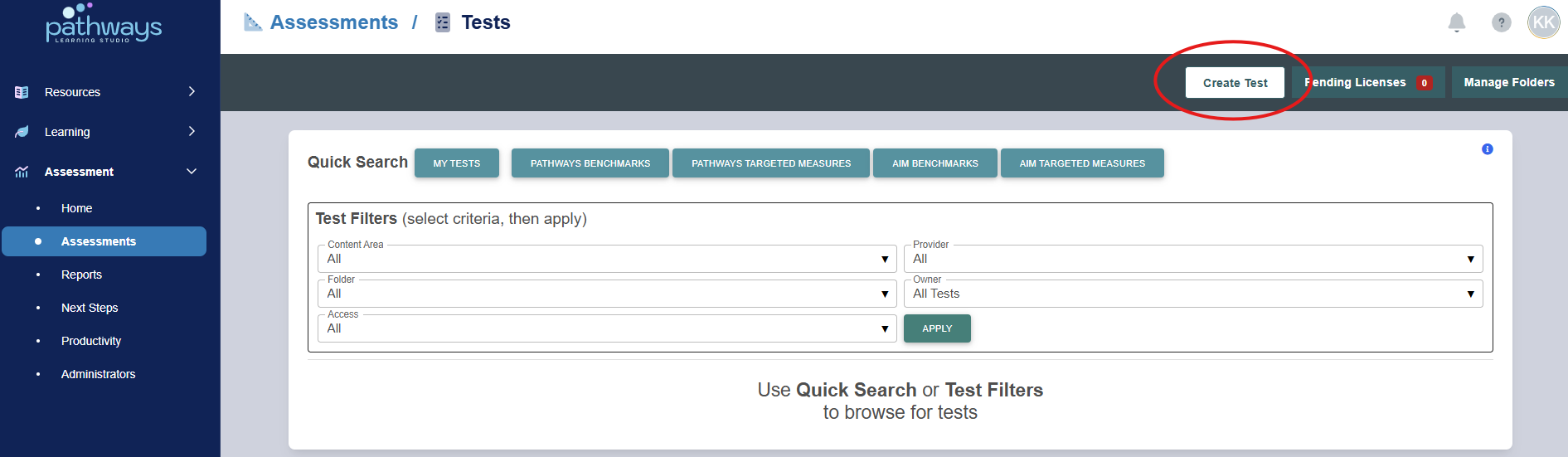
5. Select 'Create Test' in the top right-hand corner.
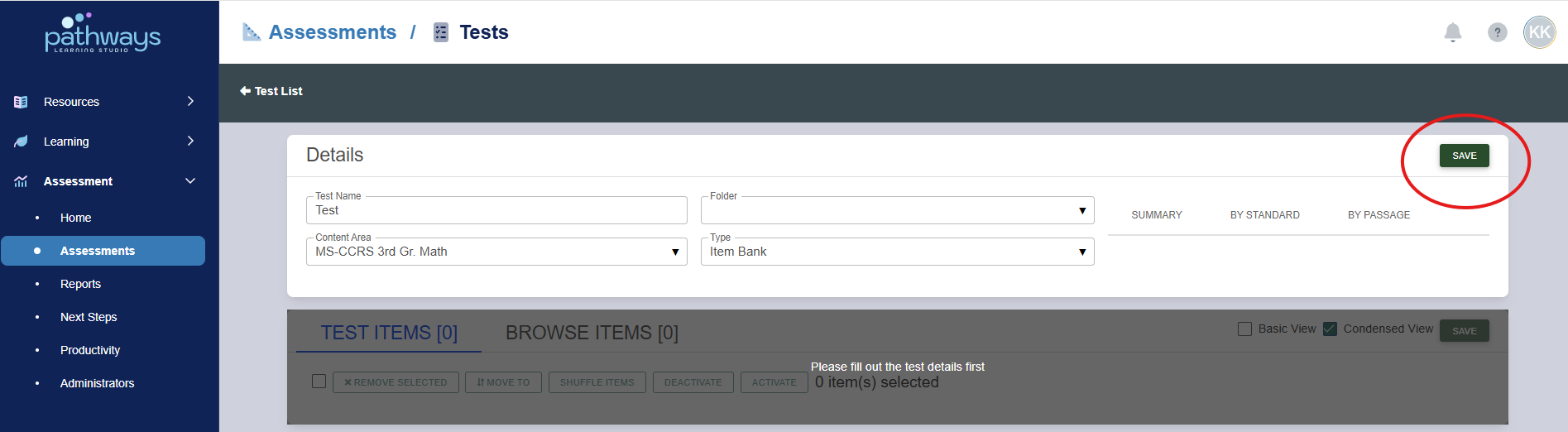
6. Input test name, choose test folder, select test content area, and choose 'Item Bank' for test type. Then, select 'Save.'
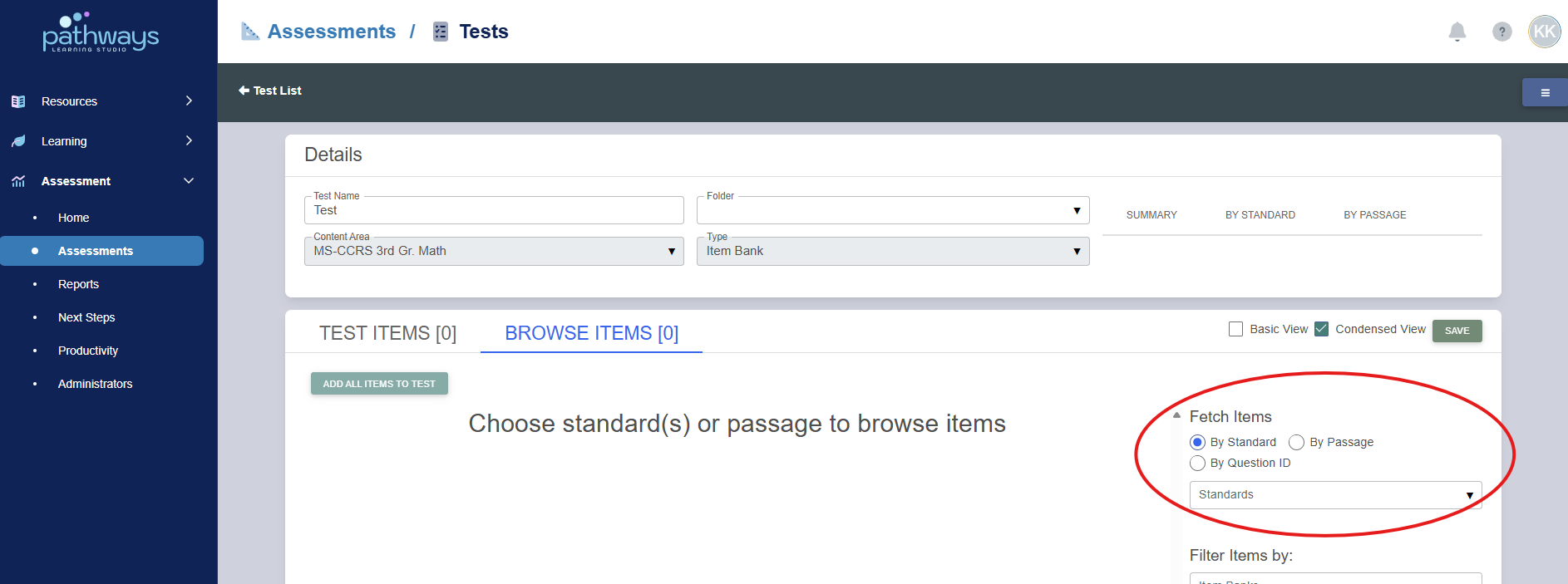
7. To add items to the test, choose 'By Standard', 'By Passage', or 'By Question ID' to filter the item search underneath 'Fetch Items.'
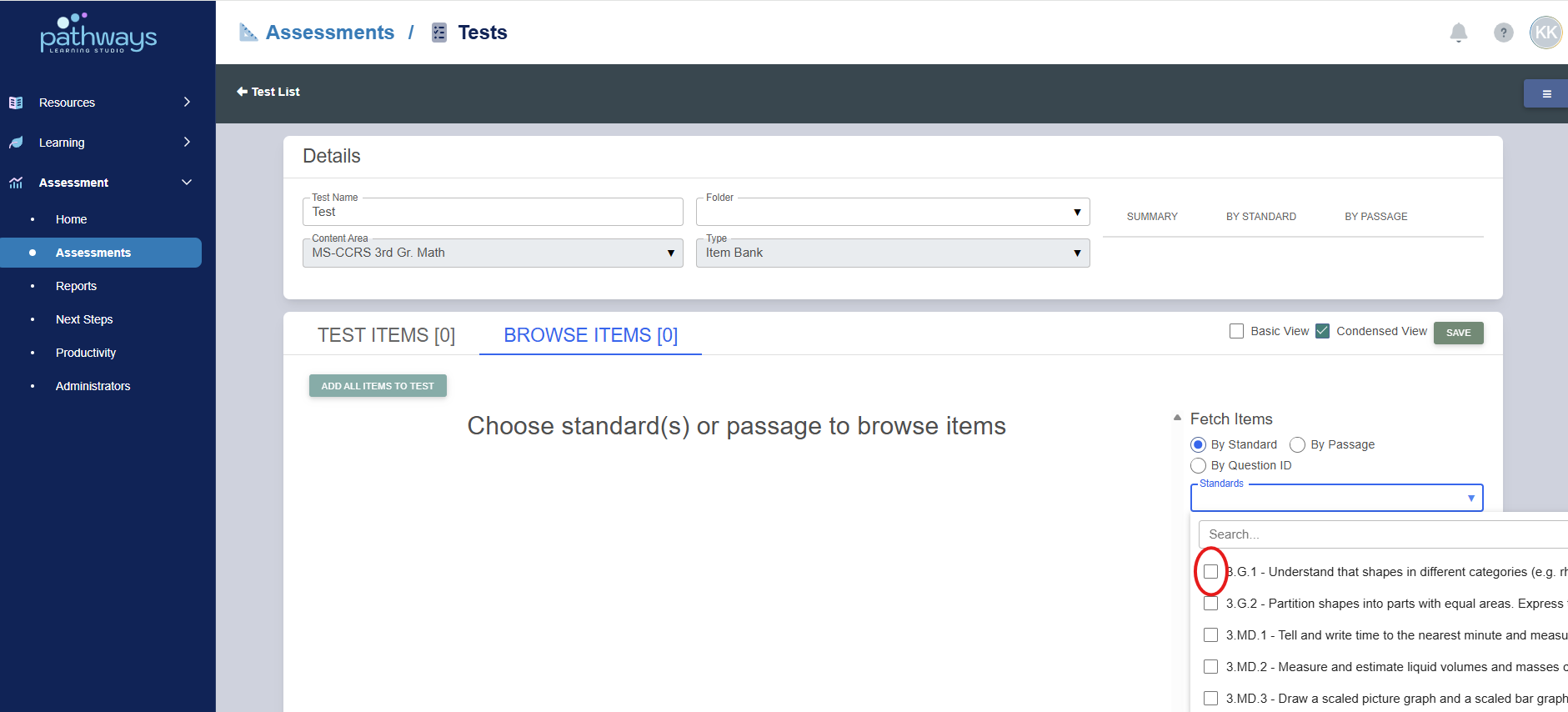
8. Choose the standard(s) or Passage(s) by selecting the boxes in the drop down menu under ‘Fetch Items’.
- Filters by Item Bank, DOK, or Question Type can be used to better find the type of question needed for the assessment.
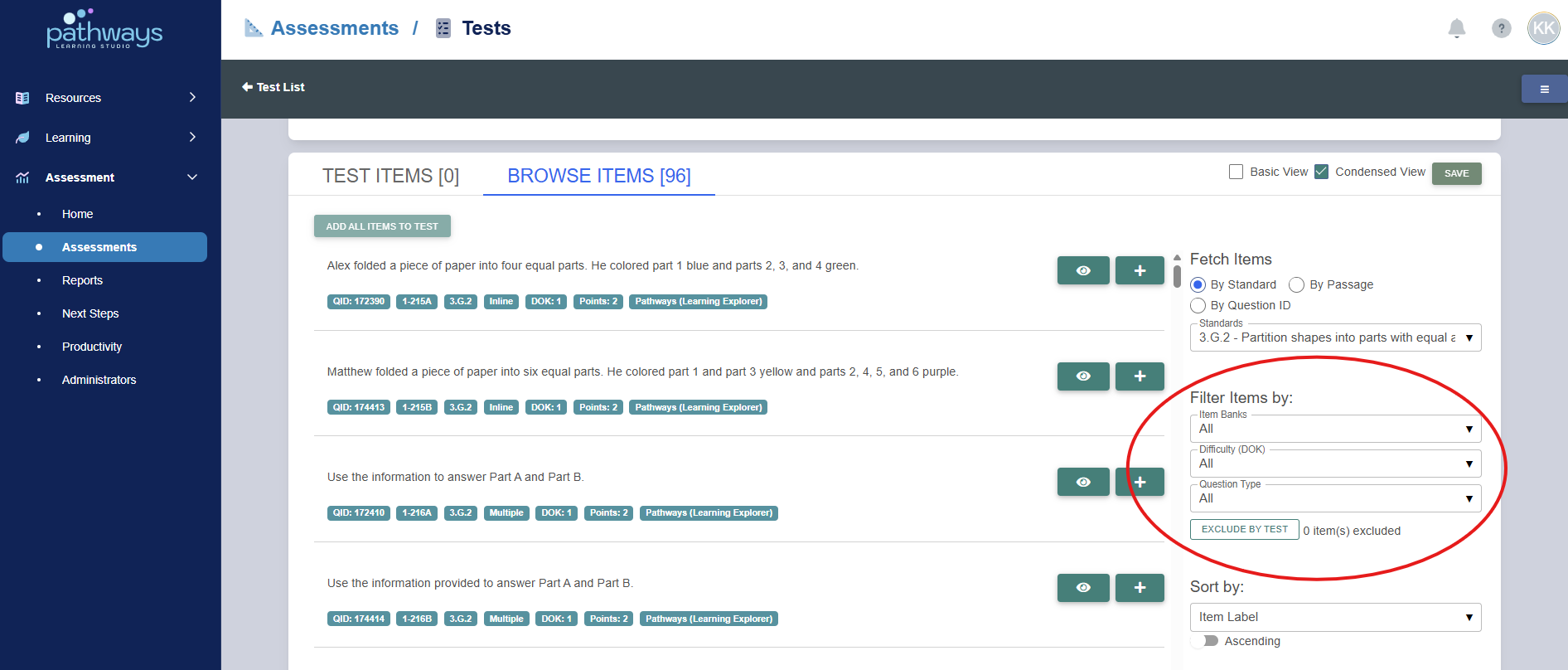
- To view a question, select the eye icon to the right of each question.
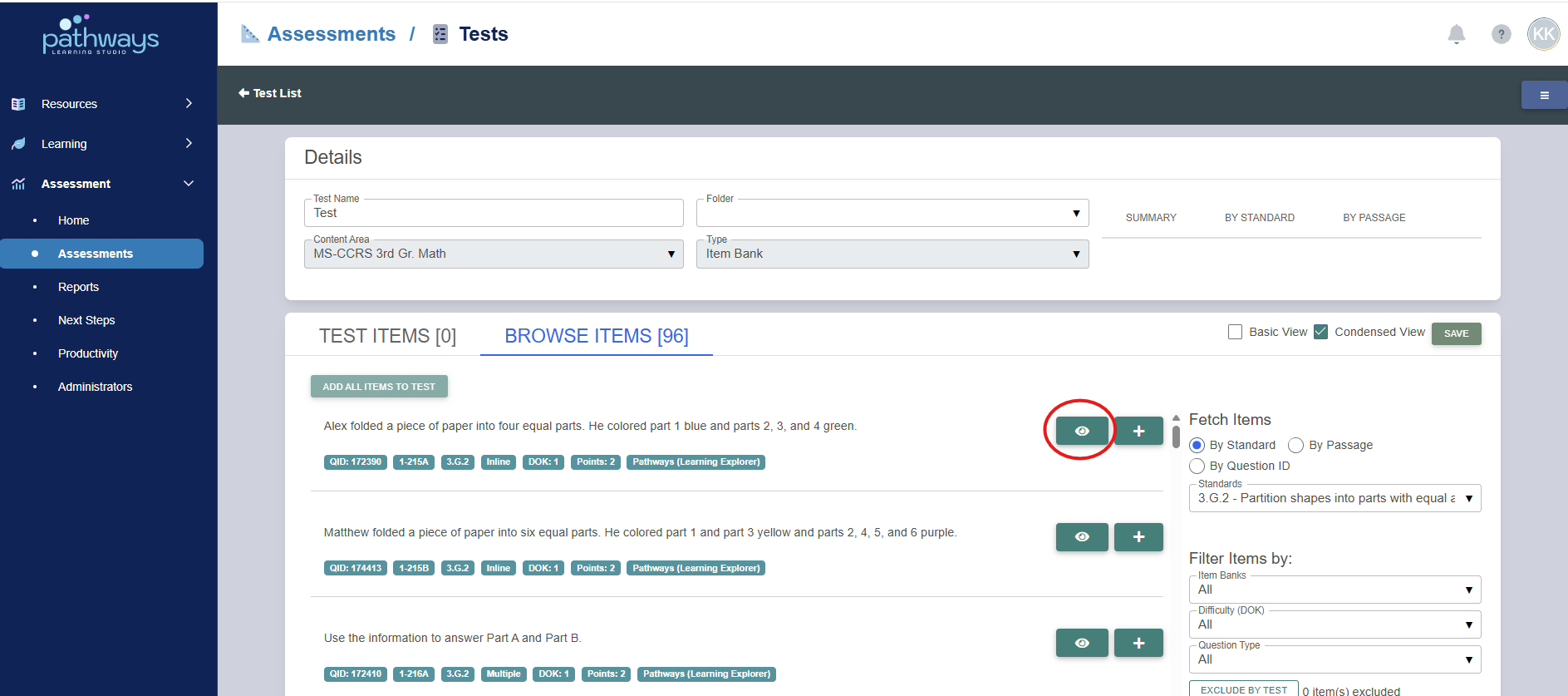
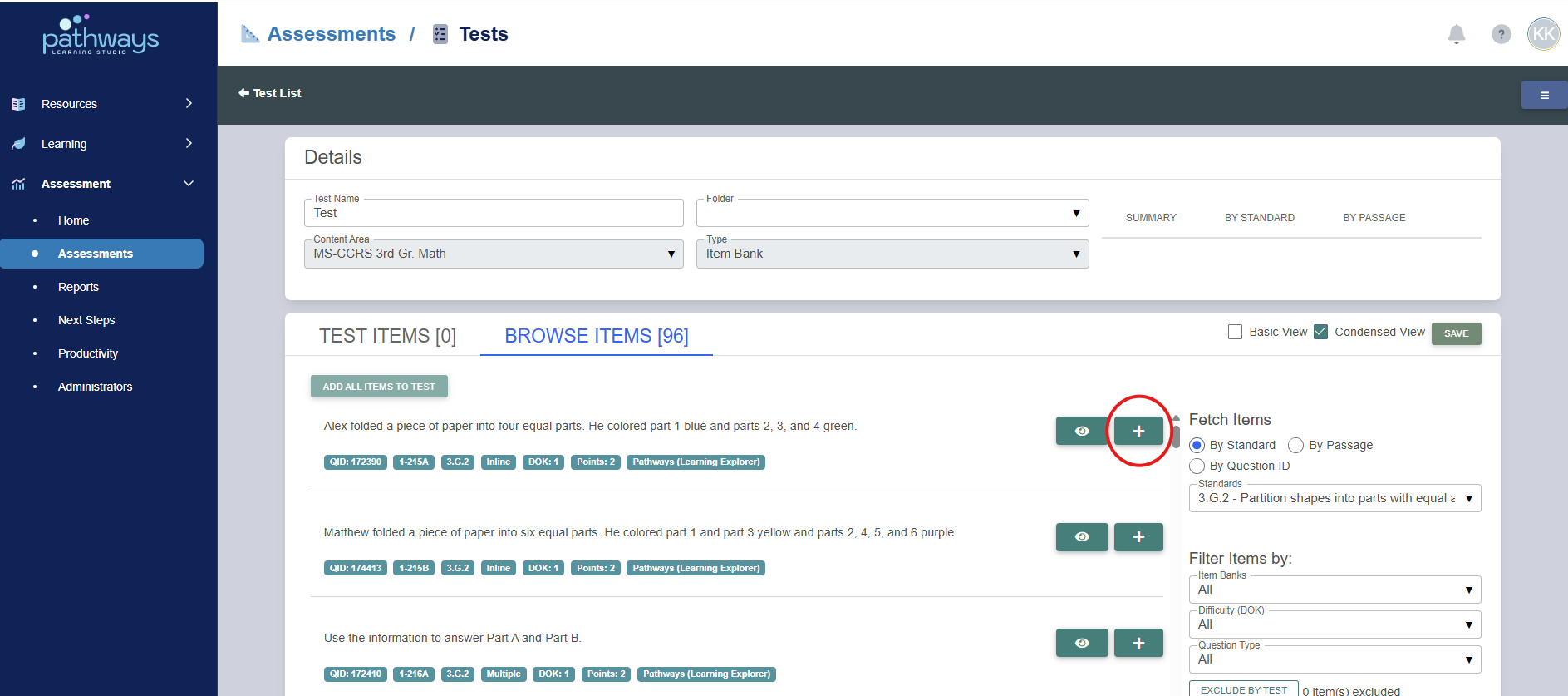
9. To add a question to the assessment, select the plus sign icon to the right of the eye icon.
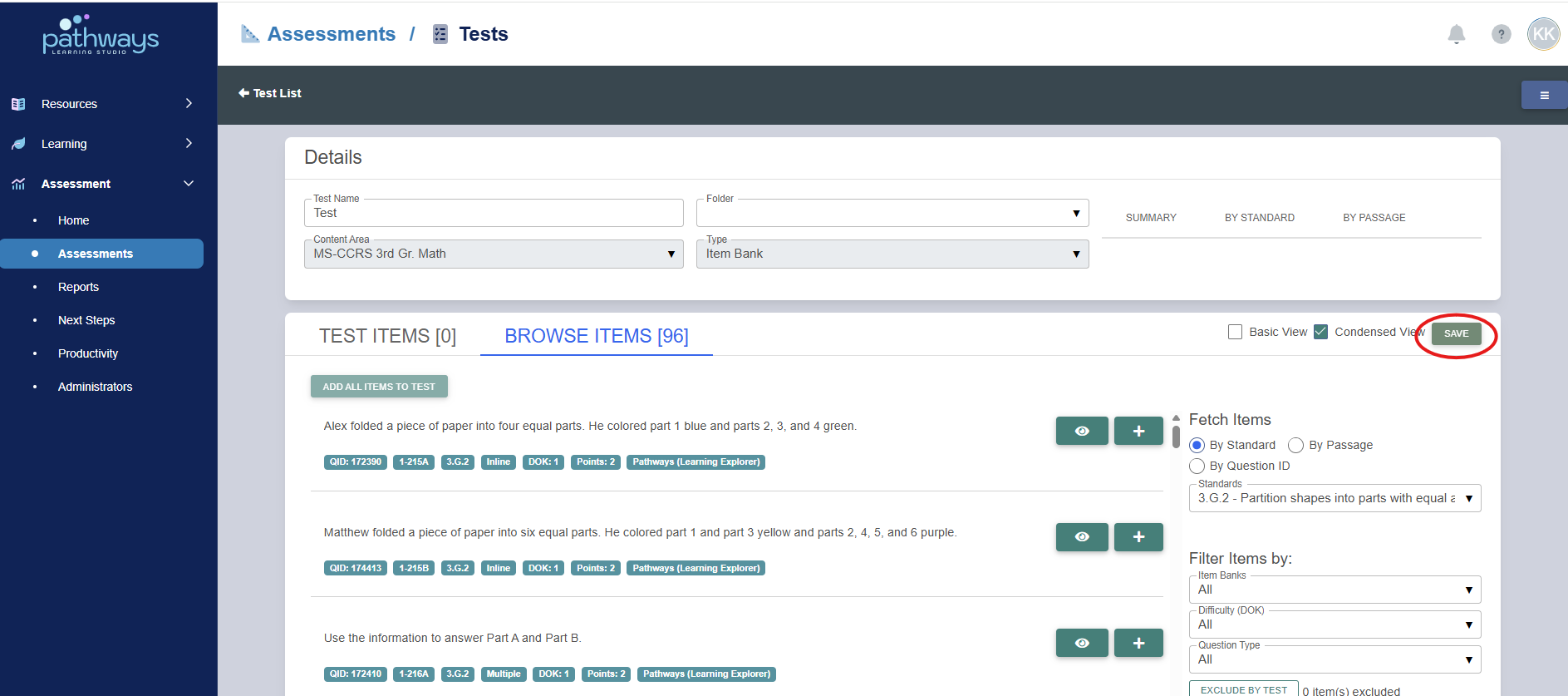
10. Select ‘save’ to create the assessment.
Was this article helpful?
That’s Great!
Thank you for your feedback
Sorry! We couldn't be helpful
Thank you for your feedback
Feedback sent
We appreciate your effort and will try to fix the article