An essential part of your district's testing program is the activation of Pathways Assessment Predictive Benchmarks and the management of each assessment's security level.
District level site administrators can activate assessments in the following way:
1. Login to your Pathways account through Clever, ClassLink, or at pathwayslearningstudio.com.
2. Navigate to 'Assessment' → 'Home'.
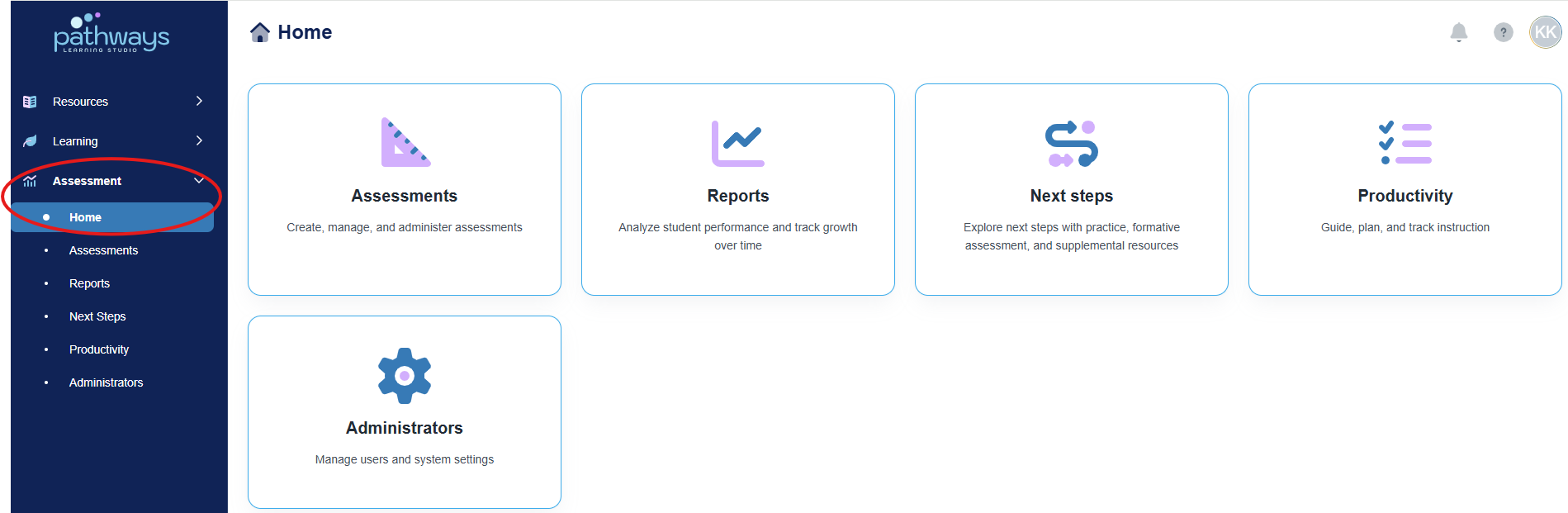
3. Select the 'Assessment' tile.
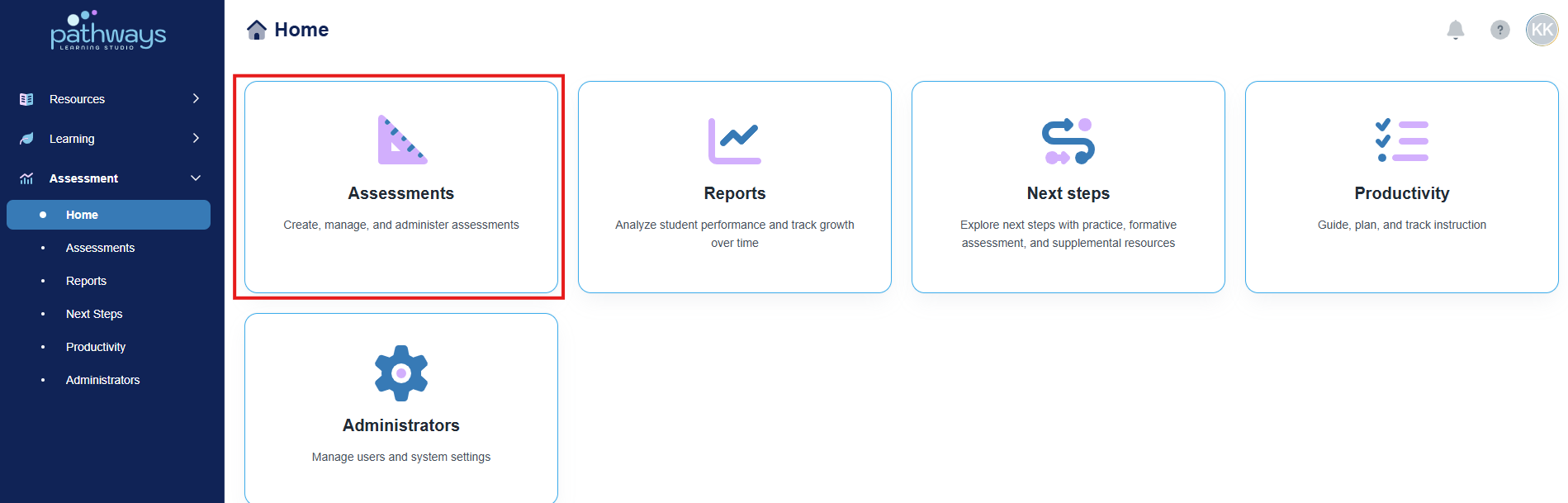
4. Select the 'Test' tile.
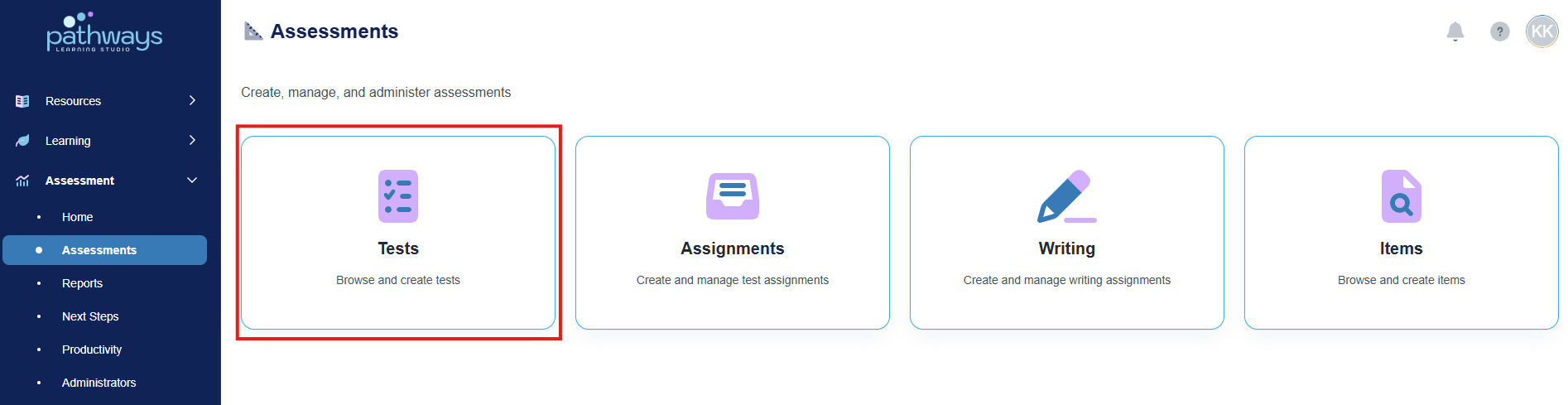
5. All available predictive benchmarks ready for activation, can be viewed and accessed by selecting 'Pending Licenses' in the upper right corner.
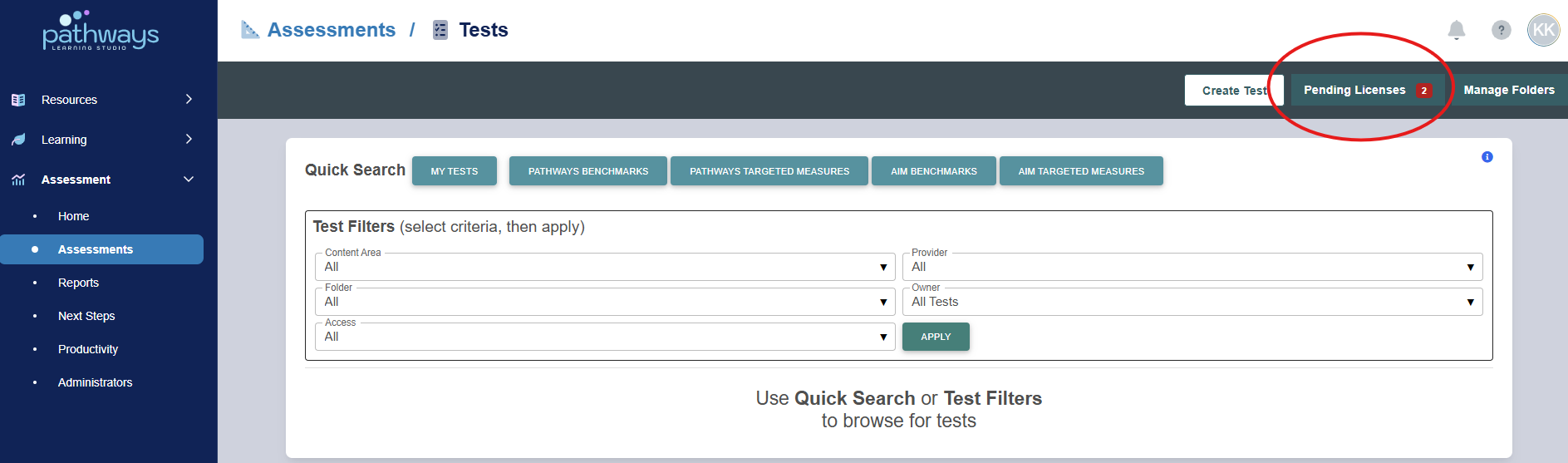
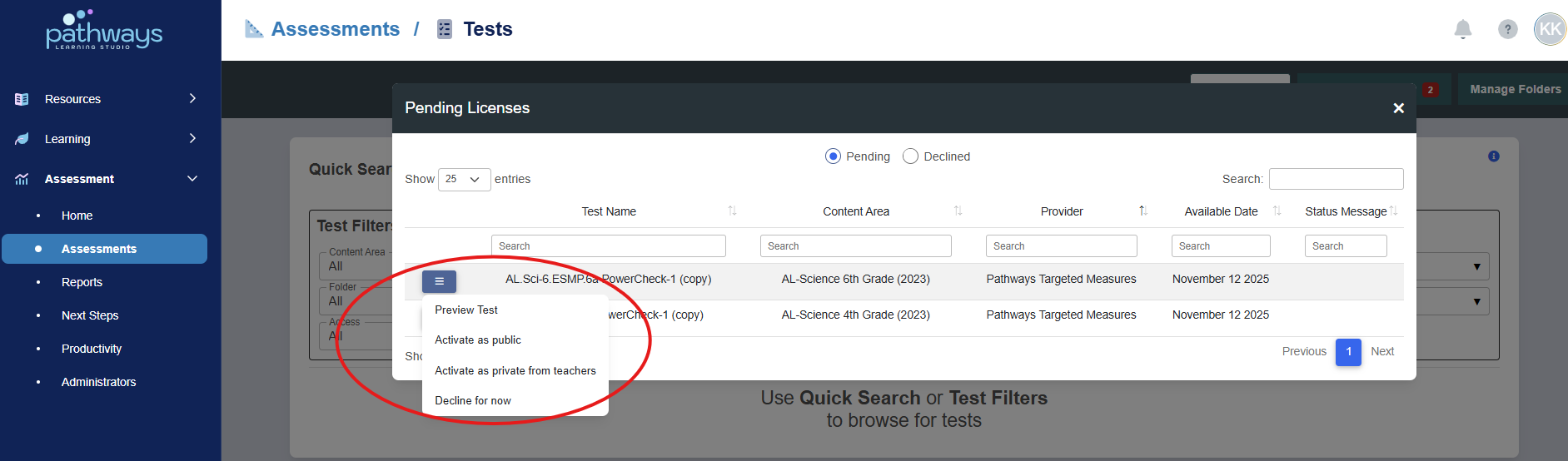
6. After clicking 'Pending Licenses,' the administrator can review the options by assessment by clicking the collapsed menu to the left of each test name.
From the collapsed menu, the administrator should decide the status to assign to the assessment, which is a necessary step in order for assignments to be created for student access.
To learn more about the privacy levels, see Understanding Assessment Privacy Levels.
Was this article helpful?
That’s Great!
Thank you for your feedback
Sorry! We couldn't be helpful
Thank you for your feedback
Feedback sent
We appreciate your effort and will try to fix the article