1. Login to your Pathways account through Clever, ClassLink, or at pathwayslearningstudio.com.
2. Navigate to 'Assessment' on the left-hand navigation bar.
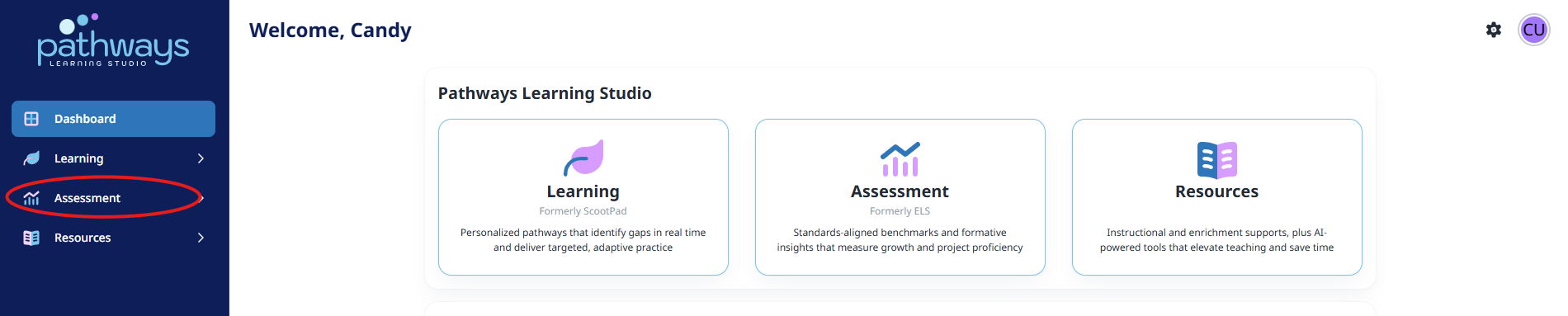
3. Navigate to 'Productivity' located under 'Assessment' on the left-hand navigation bar.
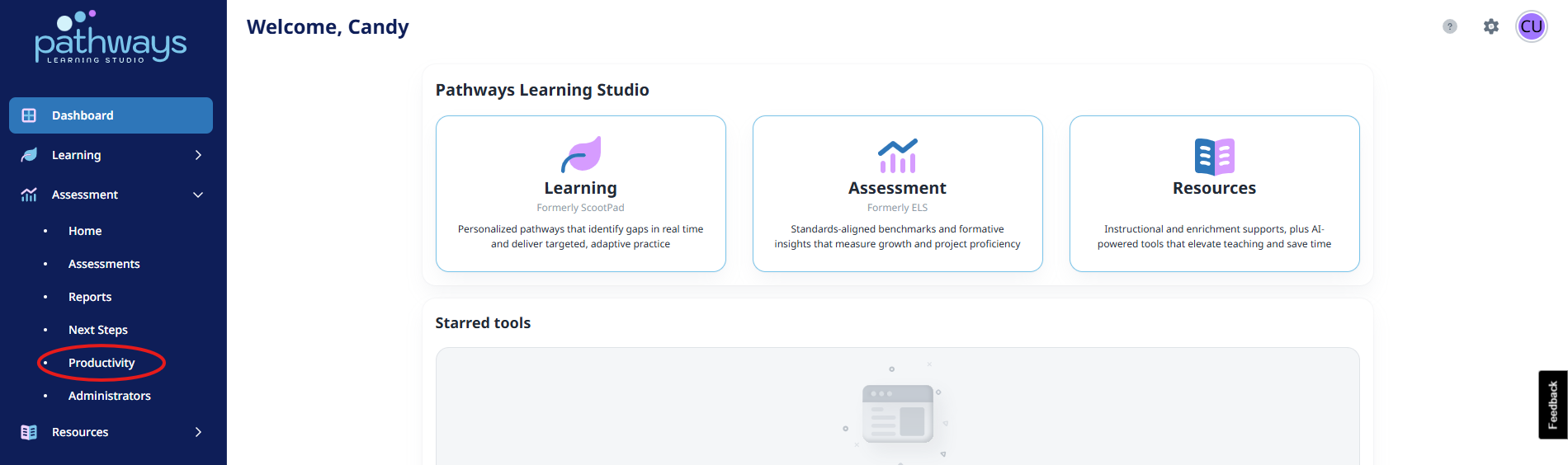
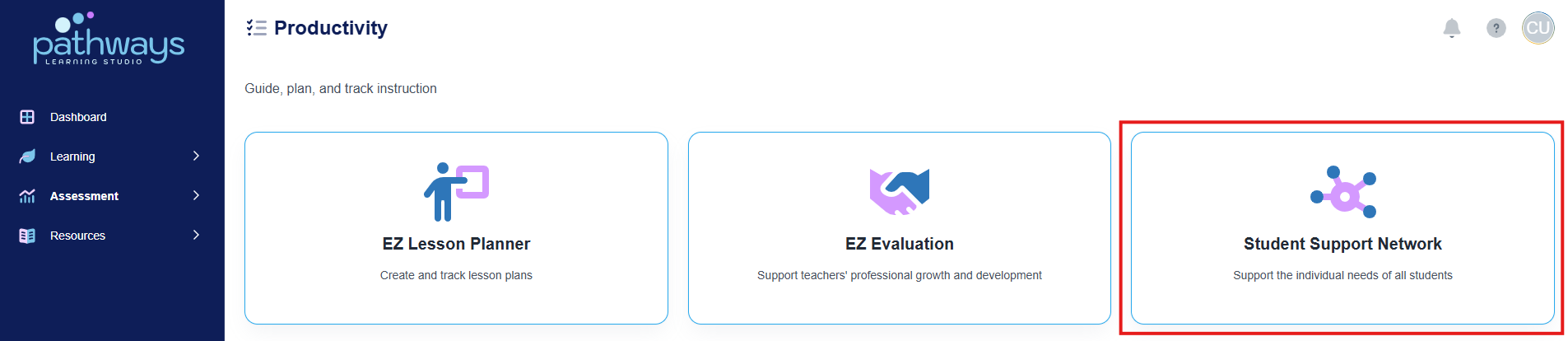
4. Select 'Student Support Network' from the Productivity dashboard.
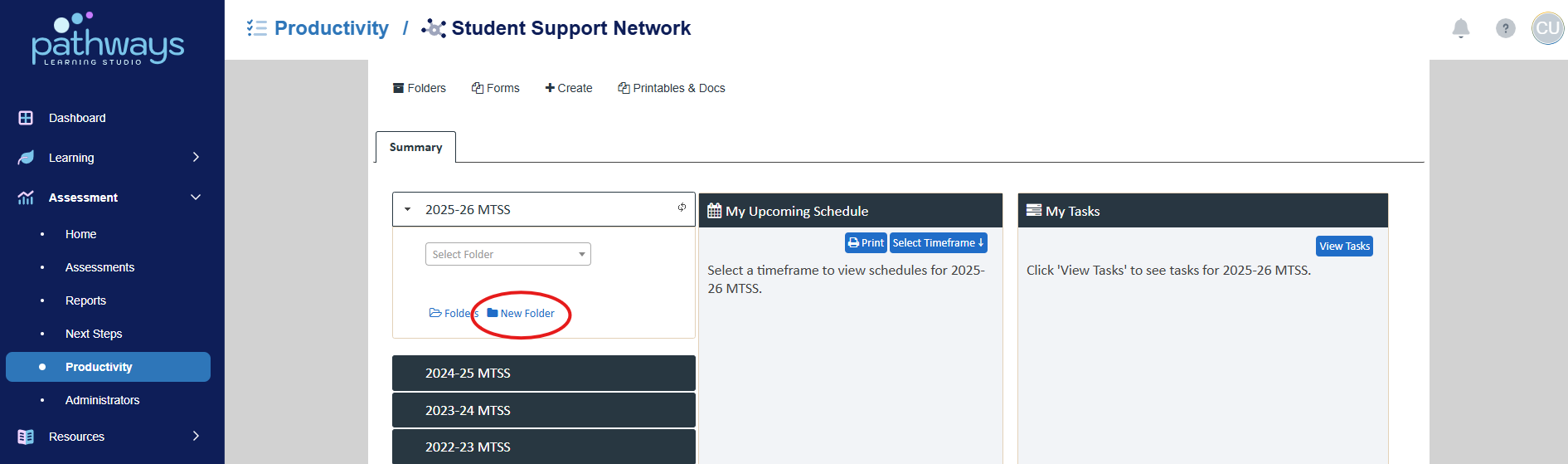
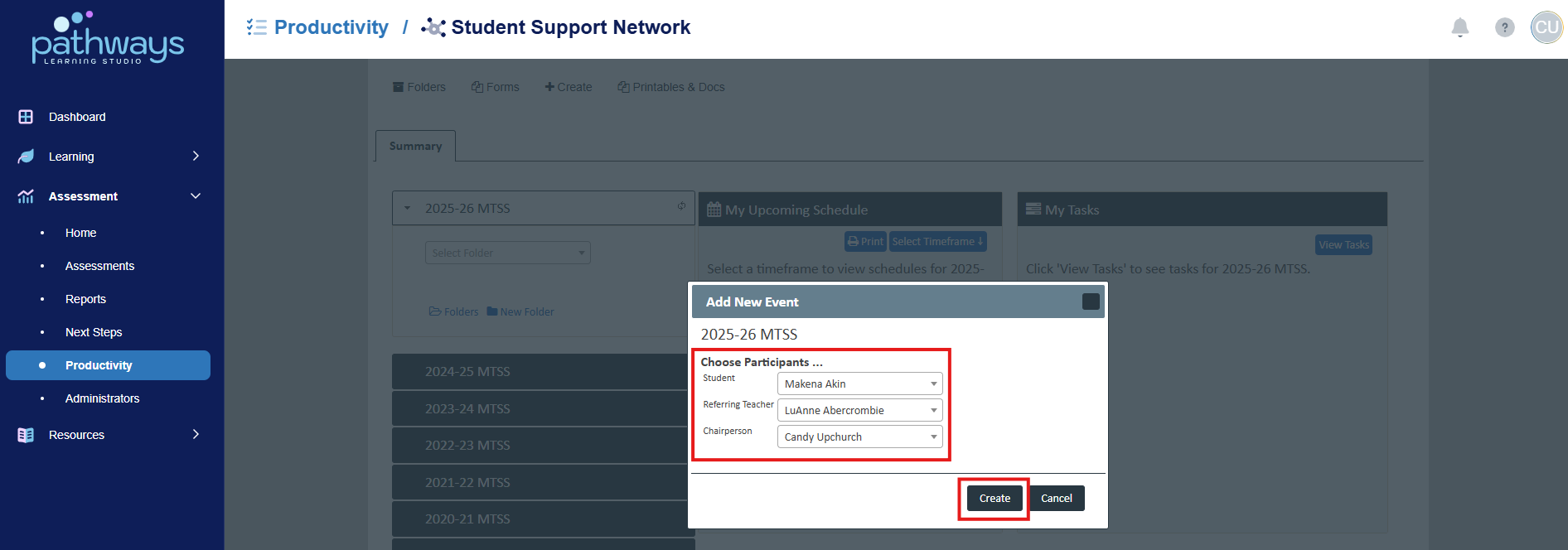
5. Choose ‘New Folder’ under the current year’s event.
6. Choose the correct teacher, chairperson, and student name, then select ‘Create.’
7. There are many options within the student's new folder:
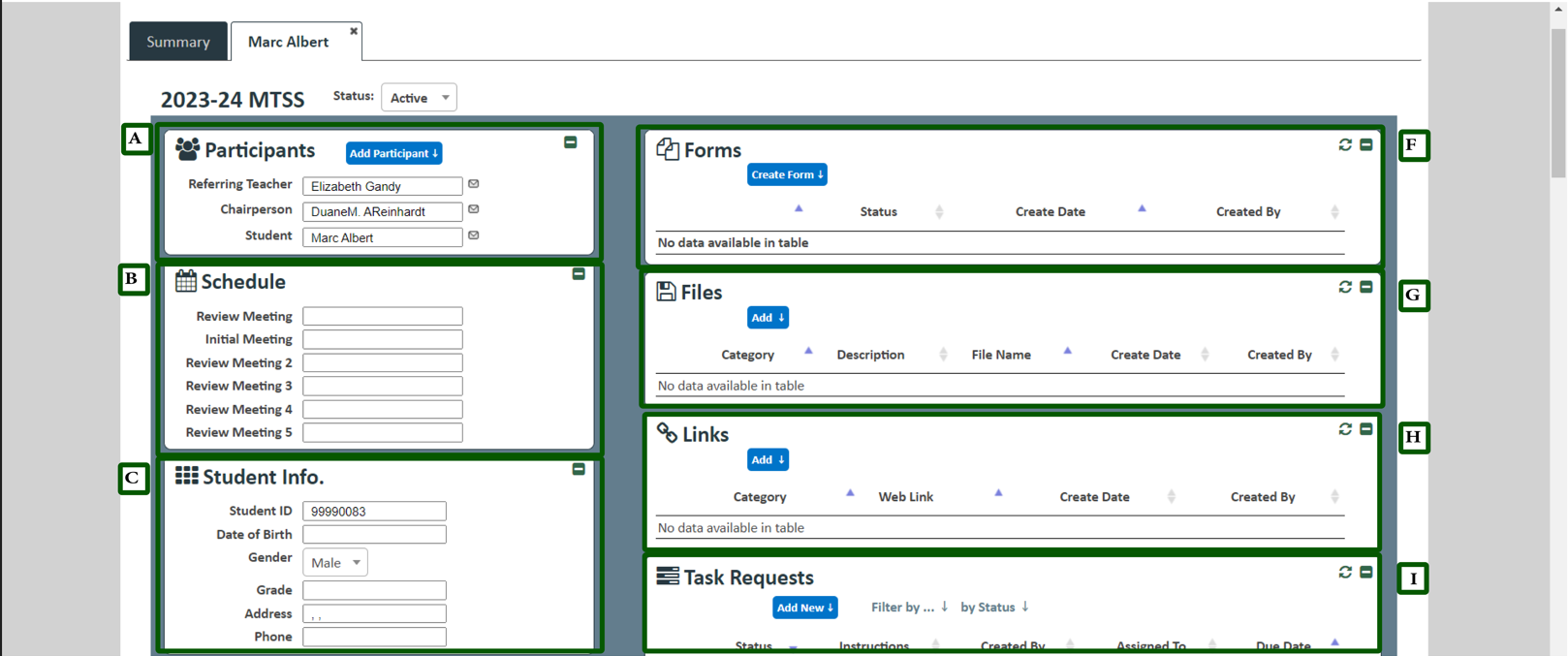
- Add participants that are also involved in the tier process for the student so that they have access to the folder.
- Add scheduled meetings here so that everyone involved in the student’s tier process can see.
- Add student information to share with participants in the student’s tier process.
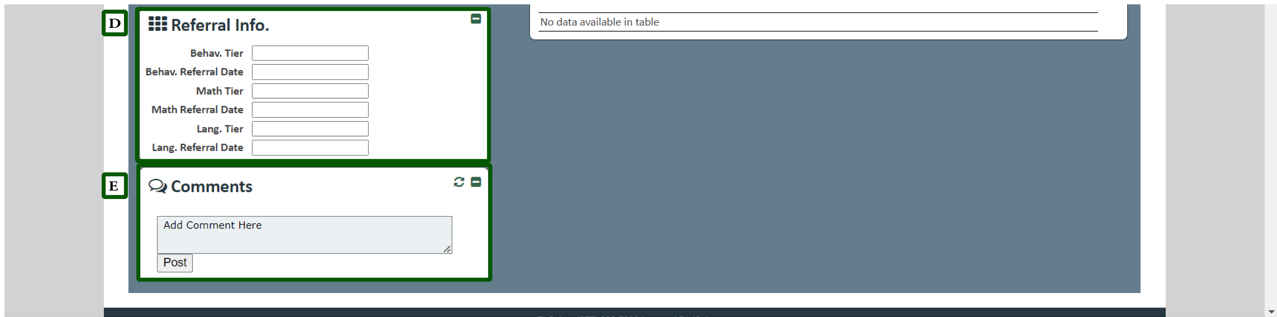
- Add pertinent information here about the student’s referral to the tier process.
- Add any comments you wish for others in the tier process to see.
- Add forms for others to view and edit here. See ‘Managing Forms’ to learn more.
- Add pertinent files here to share with everyone involved in the tier process.
- Add pertinent links here to share with everyone involved in the tier process.
- Add tasks and assign to any of the participants in the tier process.
Was this article helpful?
That’s Great!
Thank you for your feedback
Sorry! We couldn't be helpful
Thank you for your feedback
Feedback sent
We appreciate your effort and will try to fix the article