There are often forms for which multiple people need to contribute. In this case, there is an option to ‘Change the Form Ownership.’ Only one person can contribute to a form at a time, so ensure that you have finished all of your own desired fields before switching ownership.
1. Login to your Pathways account through Clever, ClassLink, or at pathwayslearningstudio.com.
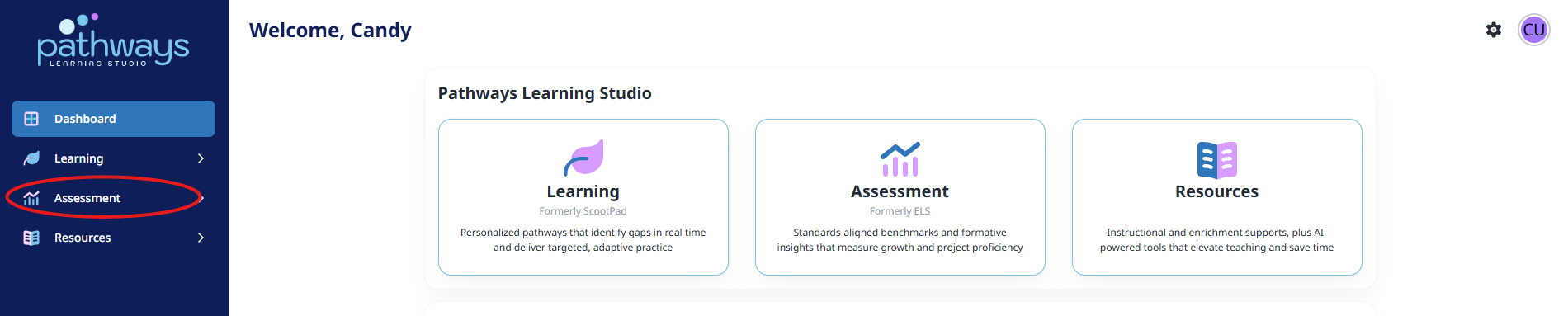
2. Navigate to 'Assessment' on the left-hand navigation bar.
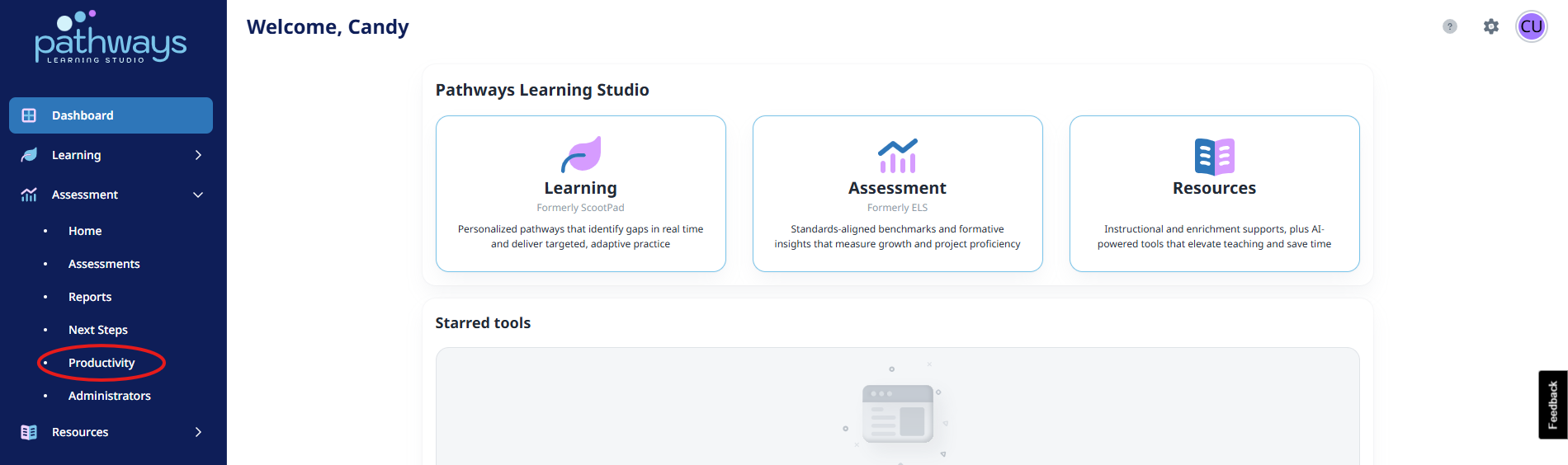
3. Navigate to 'Productivity' located under 'Assessment' on the left-hand navigation bar.
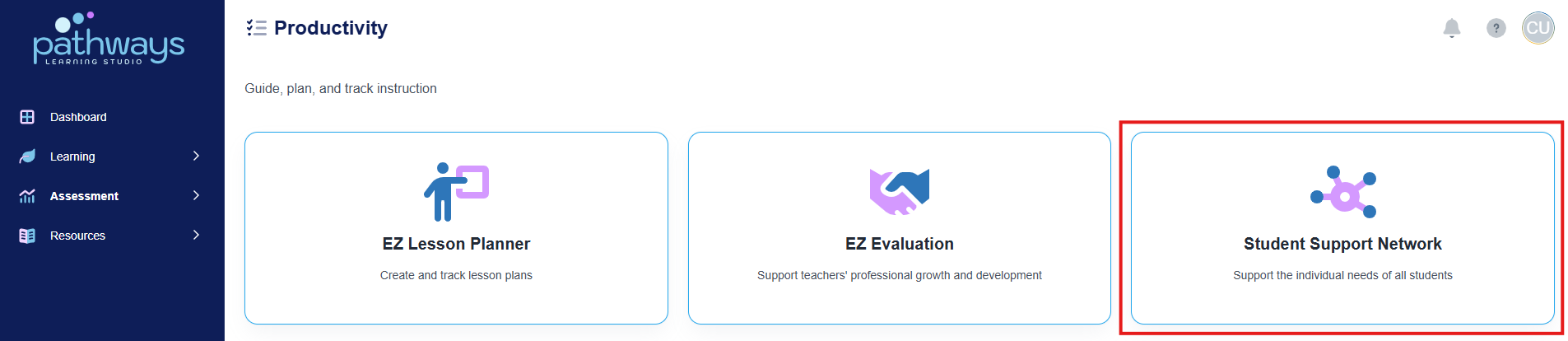
4. Select 'Student Support Network' from the Productivity dashboard.
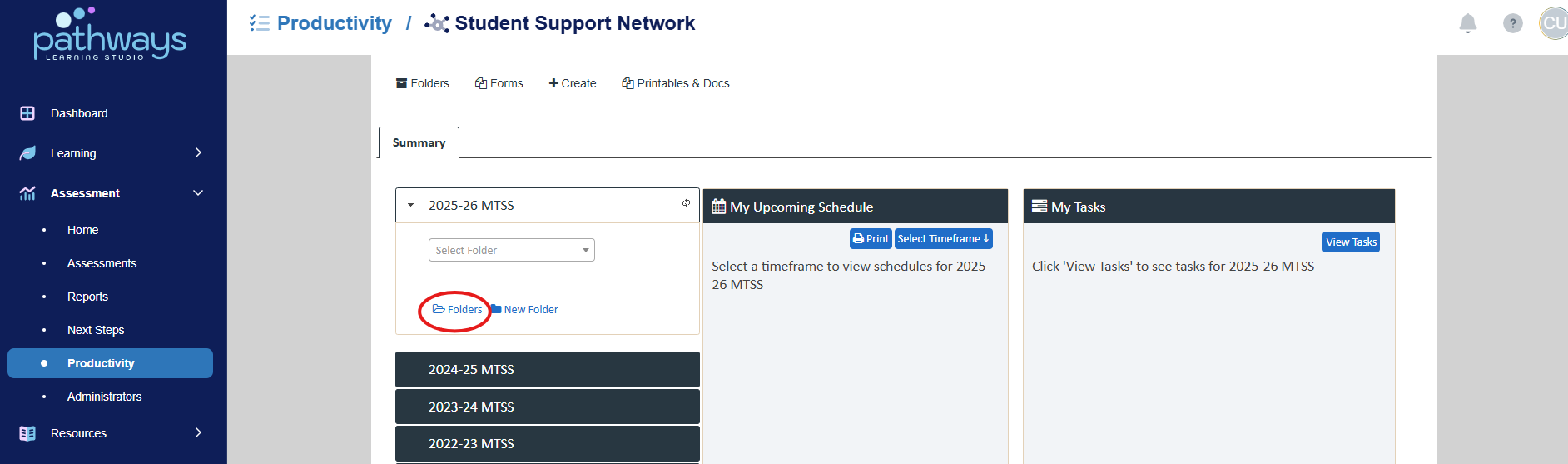
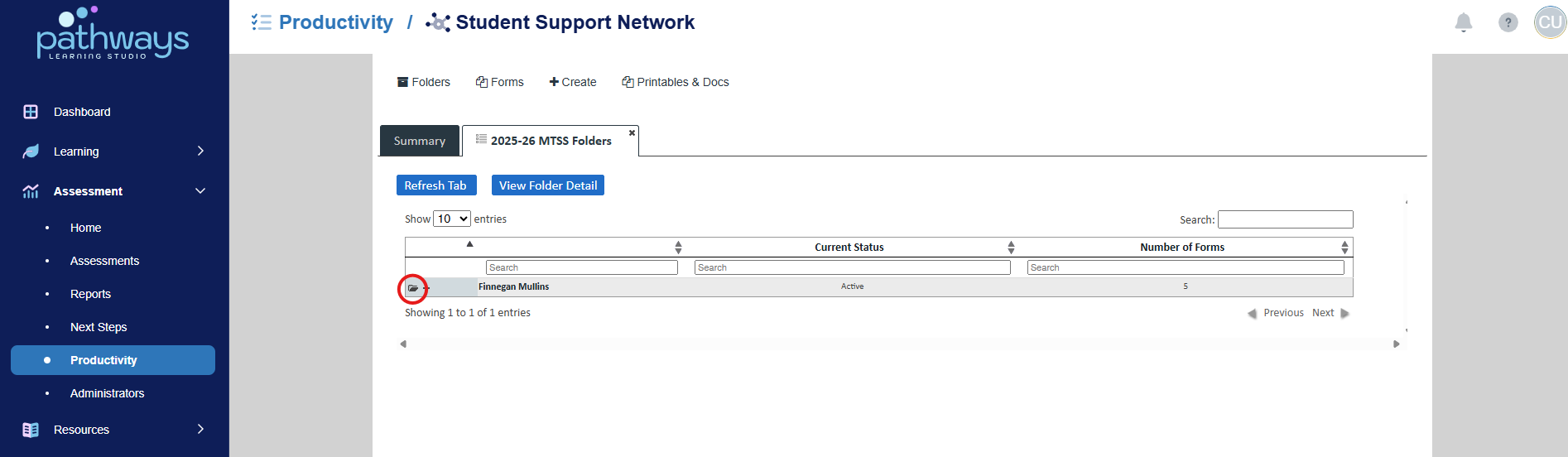
5. Choose ‘Folders’ under the current year’s event.
6. Choose the folder icon to the left of the student whose forms you wish to manage.
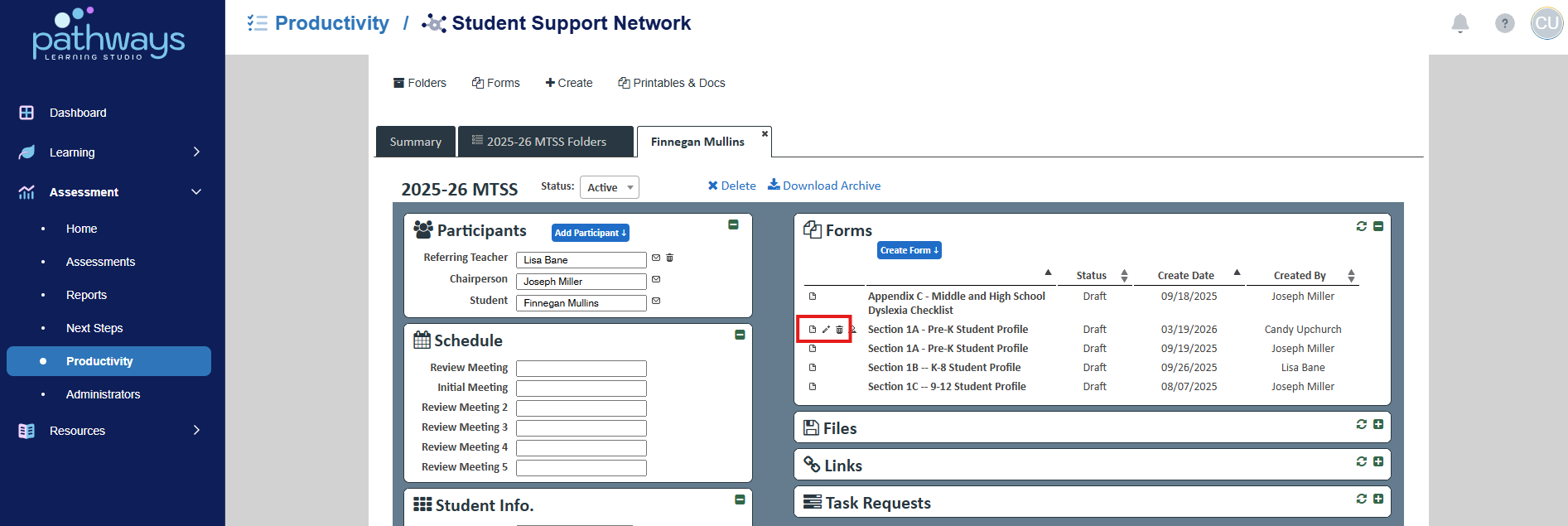
7. To view a form, choose the paper icon to the left of the form title. To edit a form, choose the pencil icon. To delete a form, choose the trash can icon.
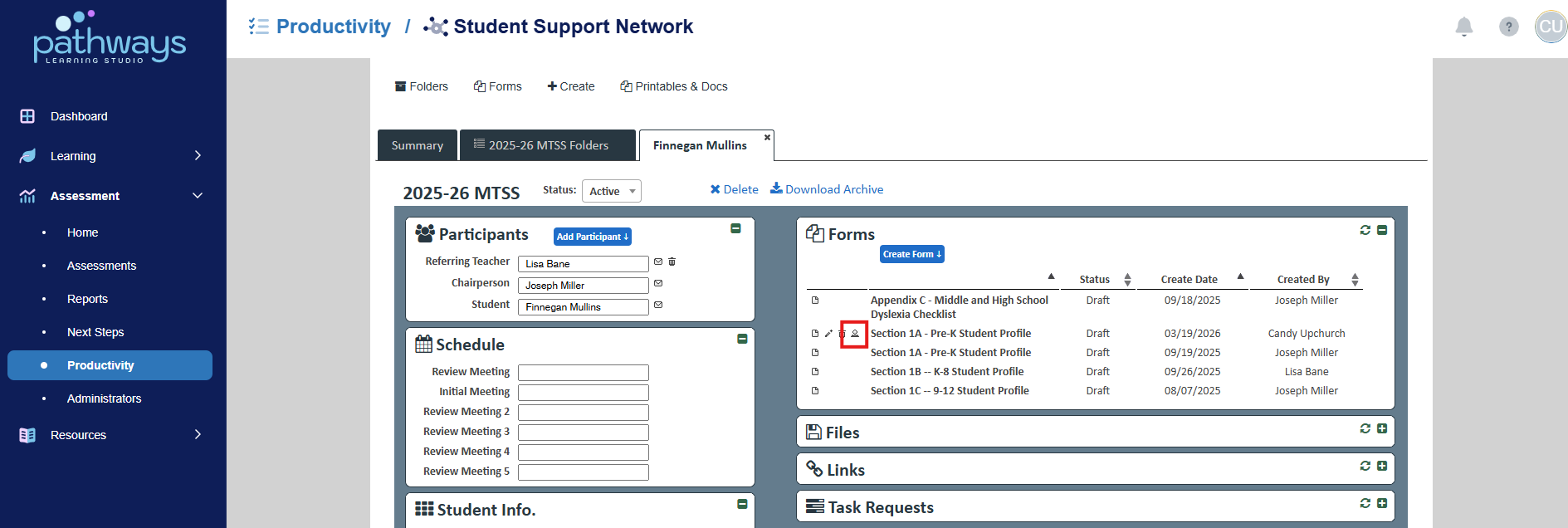
8. To change a form’s ownership, select the icon of a person to the left of the form title.
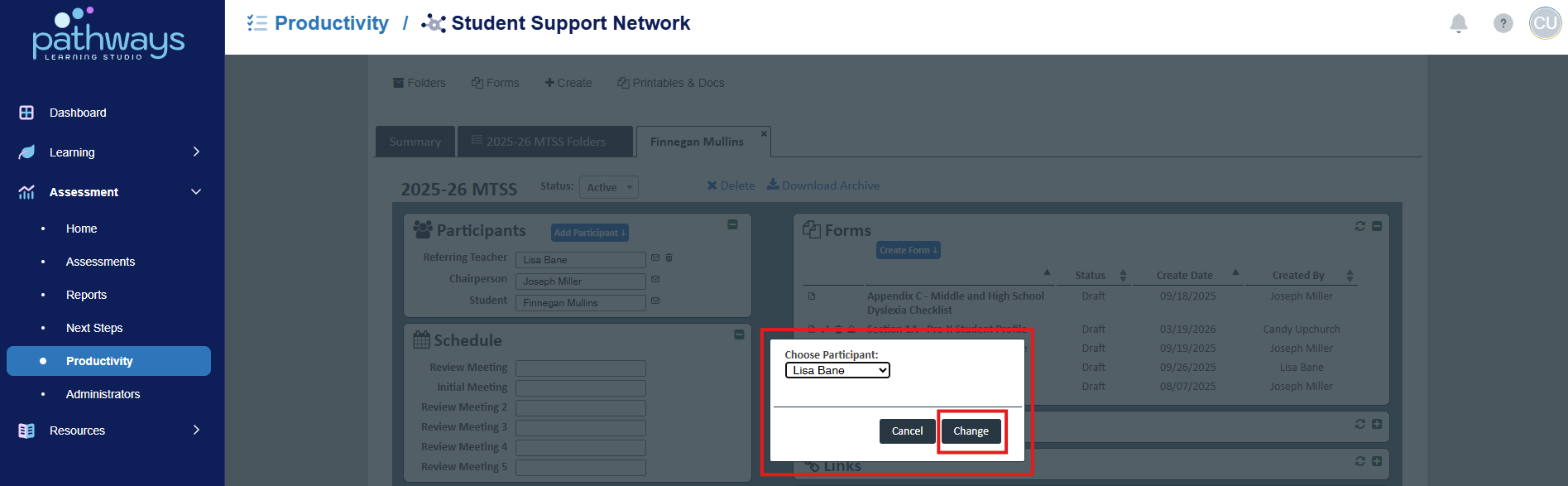
9. Choose which participant you wish to be able to contribute to the form, then press ‘Change.’
Was this article helpful?
That’s Great!
Thank you for your feedback
Sorry! We couldn't be helpful
Thank you for your feedback
Feedback sent
We appreciate your effort and will try to fix the article