1. Login to your Pathways account through Clever, ClassLink, or at pathwayslearningstudio.com.
2. Navigate to 'Assessment' on the left-hand navigation bar.
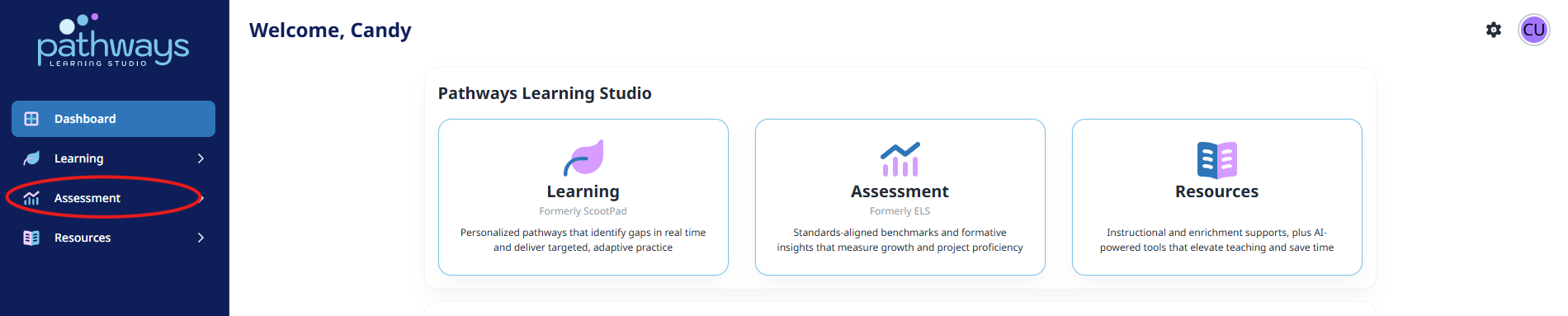
3. Navigate to 'Productivity' located under 'Assessment' on the left-hand navigation bar.
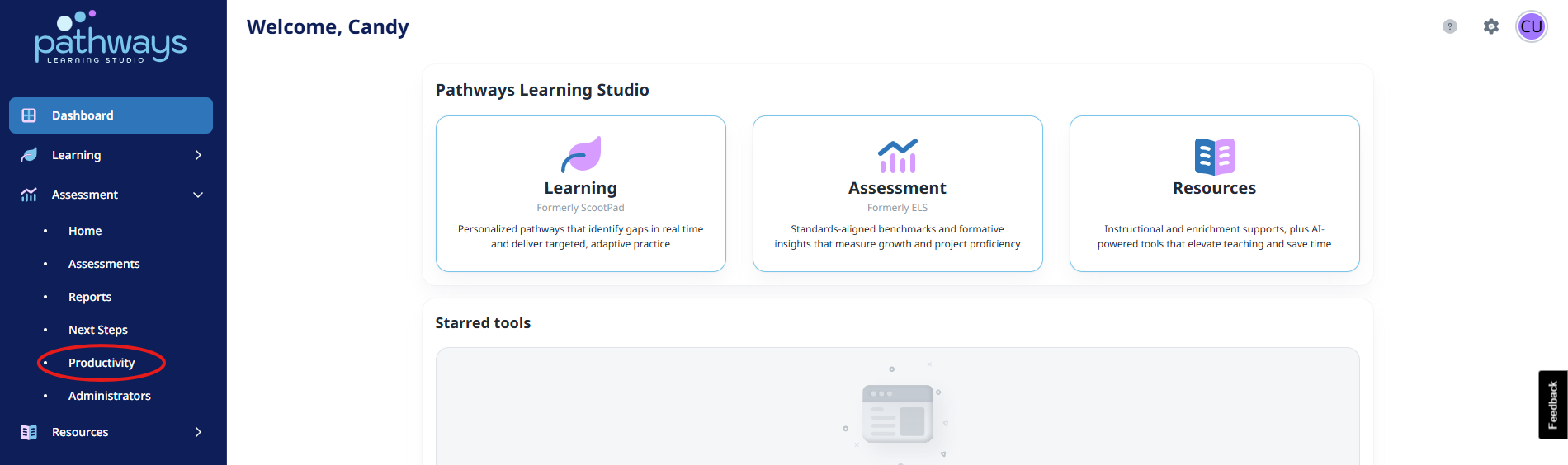
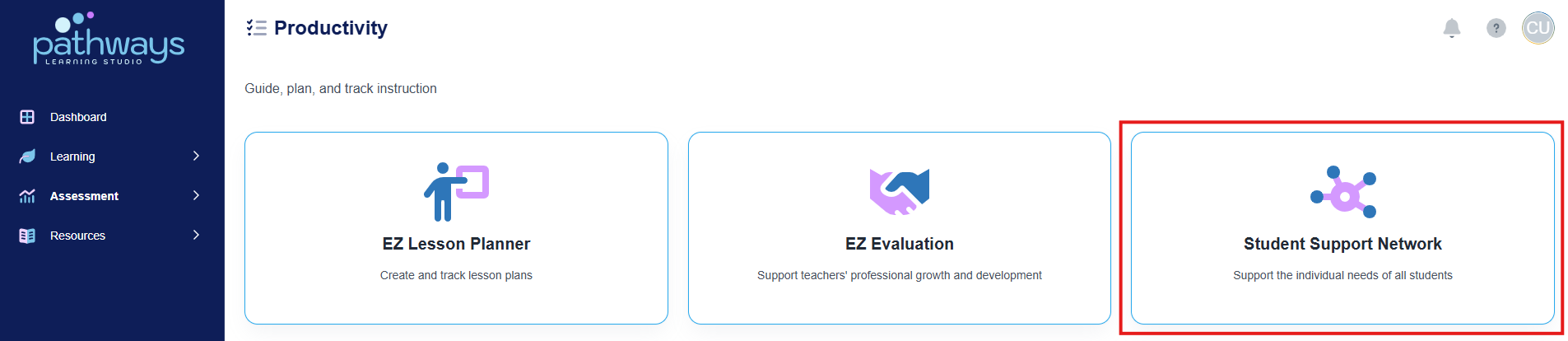
4. Select 'Student Support Network' from the Productivity dashboard.
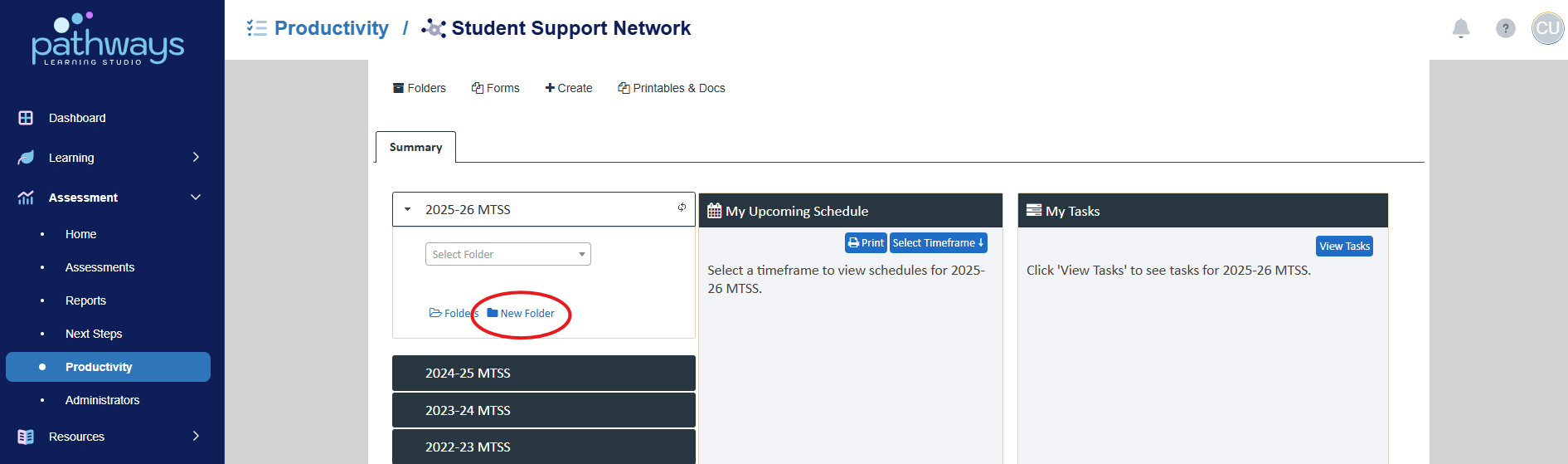
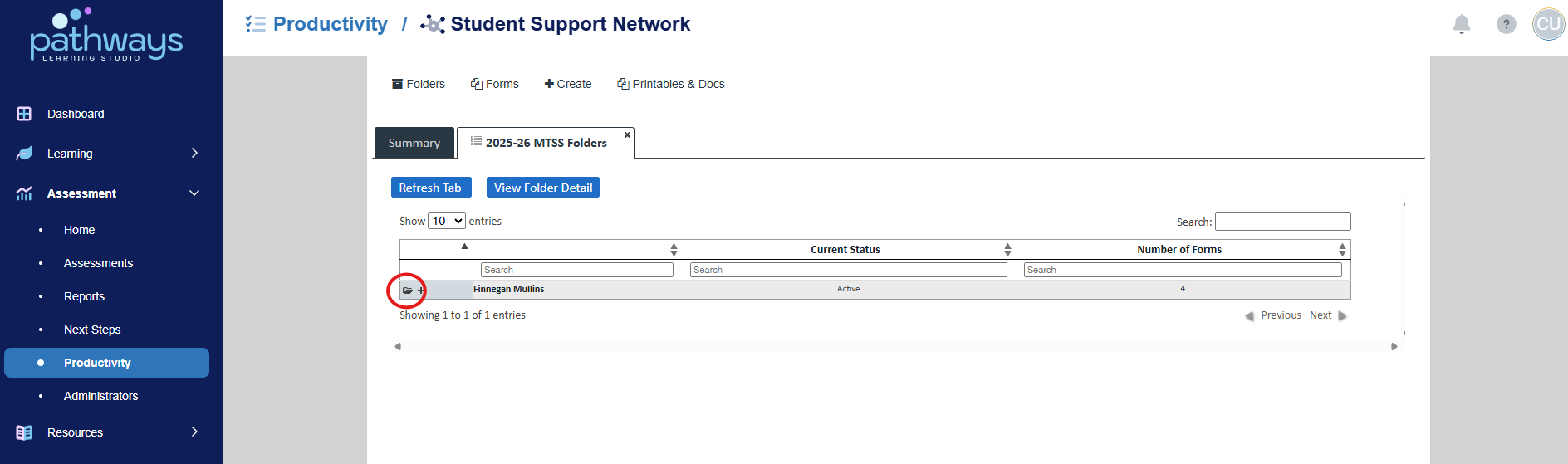
5. Choose ‘Folders’ under the current year’s event.
6. Choose the folder icon to the left of the student for whom you wish to create a form.
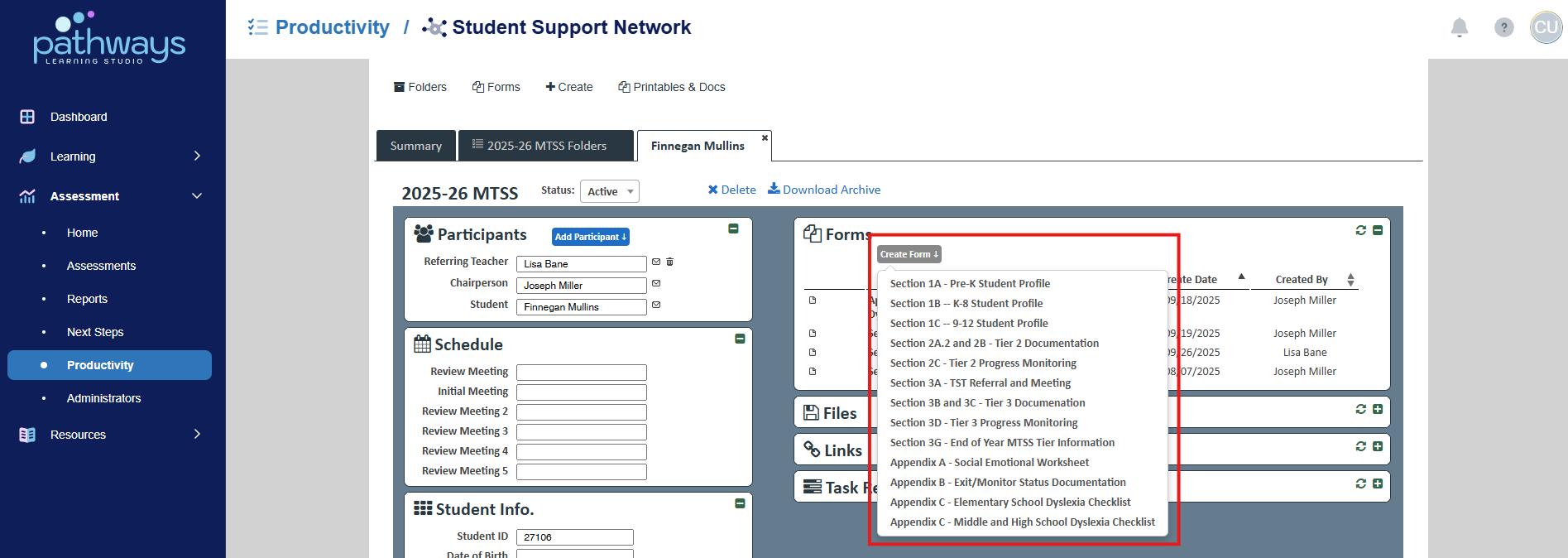
7. To create a form, select the blue ‘Create Form’ button at the top of the forms section, then choose the desired form from the drop down menu.
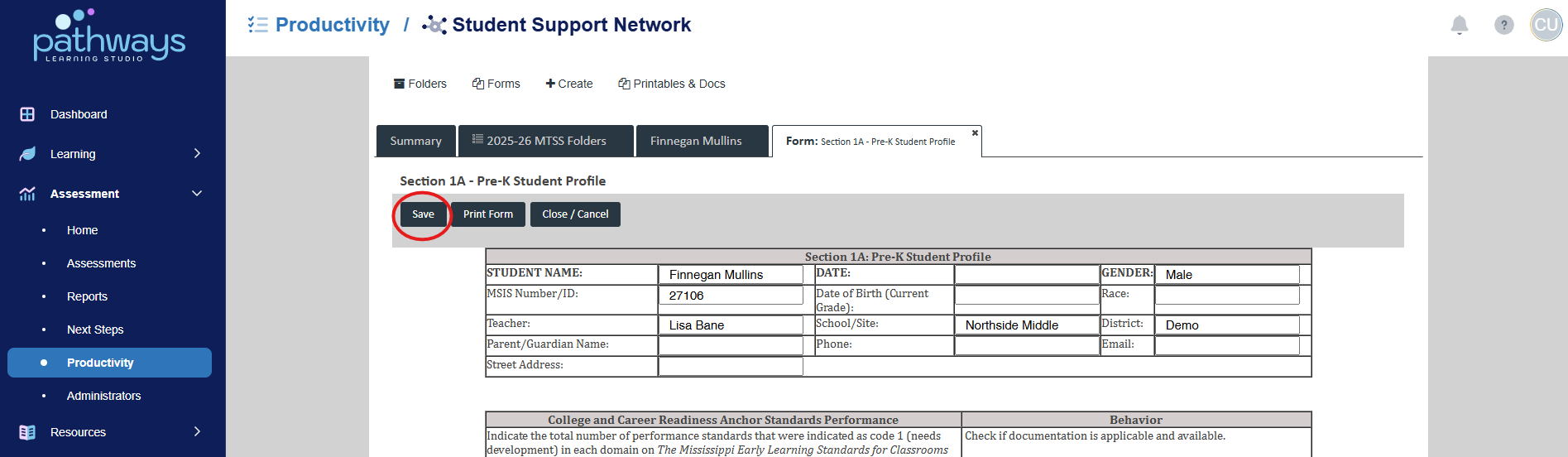
8. Each form has text boxes in each blank spot to fill out the form. When done, select ‘Save.’
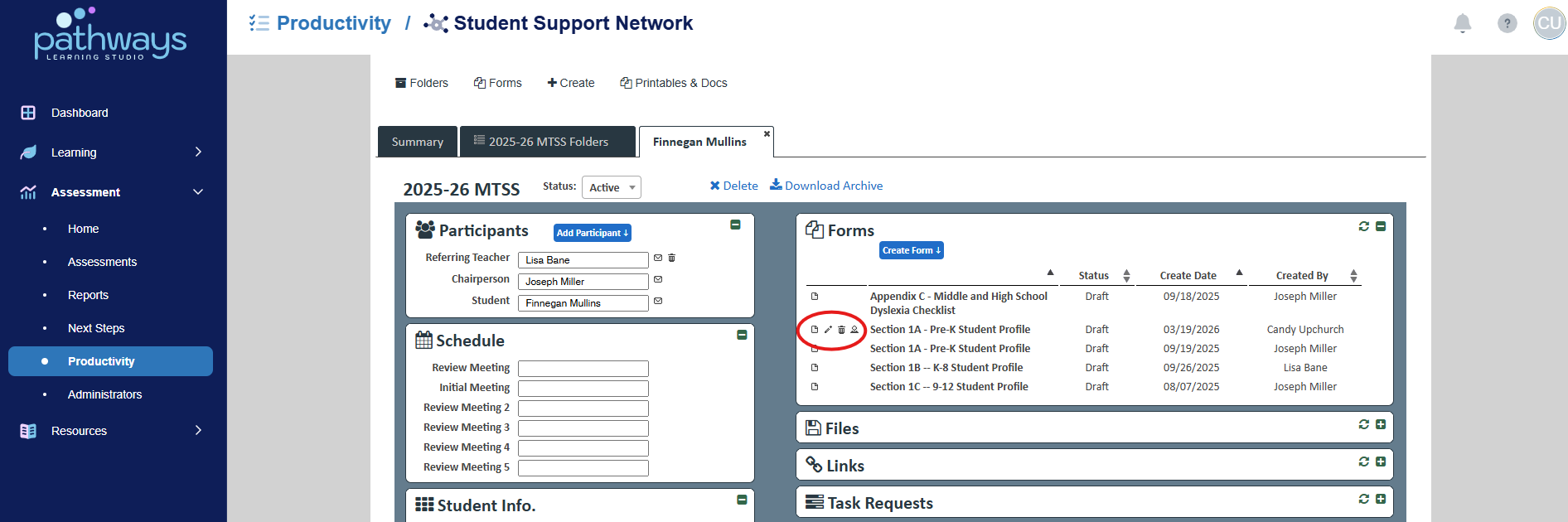
9. Once saved, you will be able to access the form to edit, view or delete it in the main dashboard. You can also change the form’s ownership for other participants in the tier process to be able to edit the form.
Was this article helpful?
That’s Great!
Thank you for your feedback
Sorry! We couldn't be helpful
Thank you for your feedback
Feedback sent
We appreciate your effort and will try to fix the article