1. Login to your Pathways account through Clever, ClassLink, or at pathwayslearningstudio.com.
2. Navigate to 'Assessment' on the left-hand navigation bar.
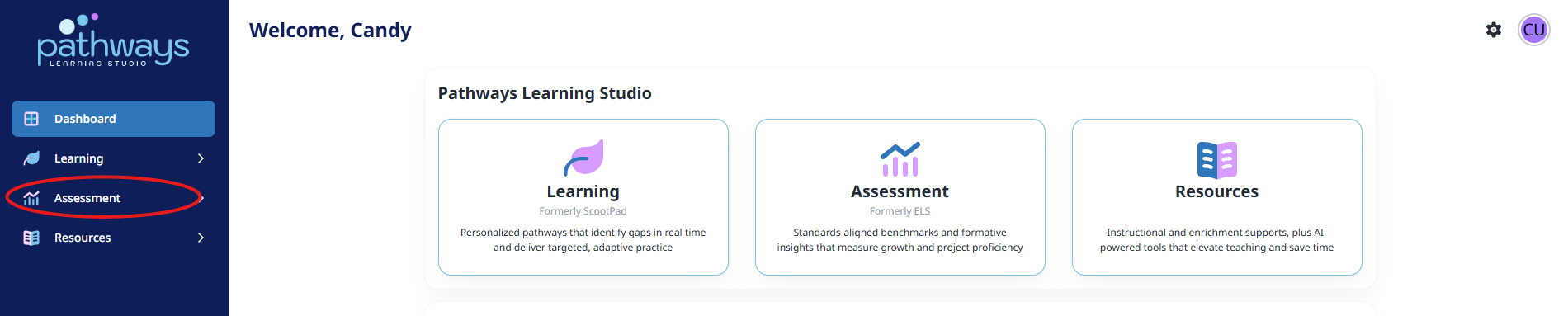
3. Navigate to 'Productivity' located under 'Assessment' on the left-hand navigation bar.
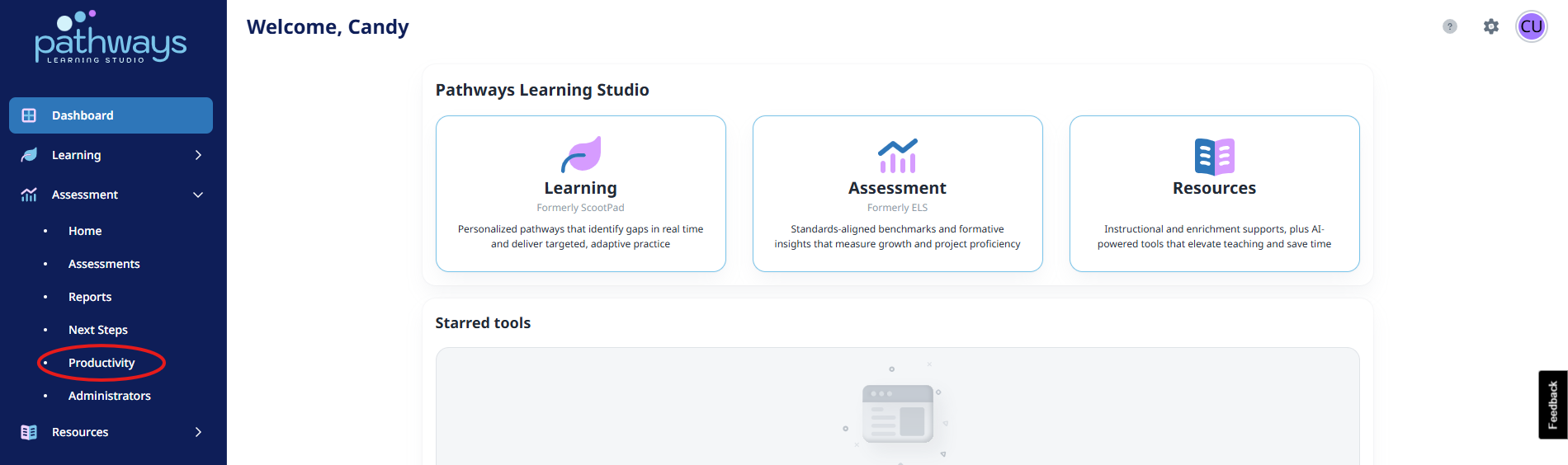
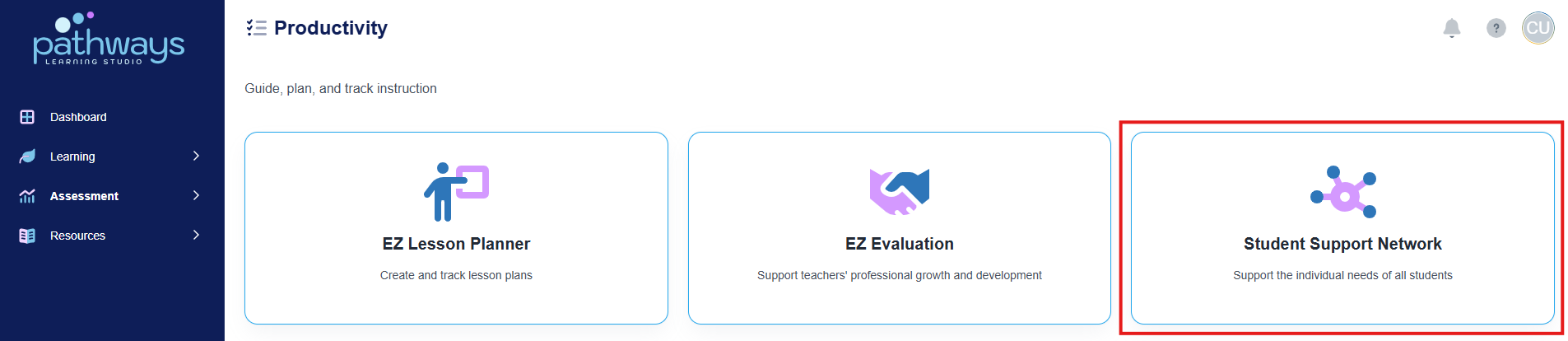
4. Select 'Student Support Network' from the Productivity dashboard.
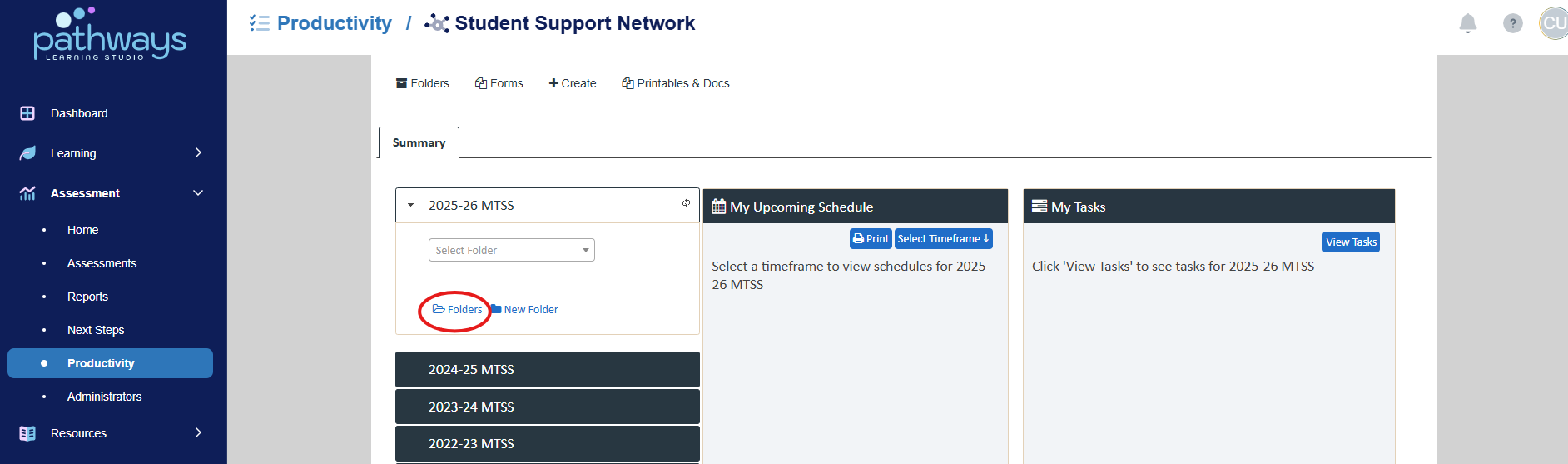
5. Choose ‘Folders’ under the current year’s event.
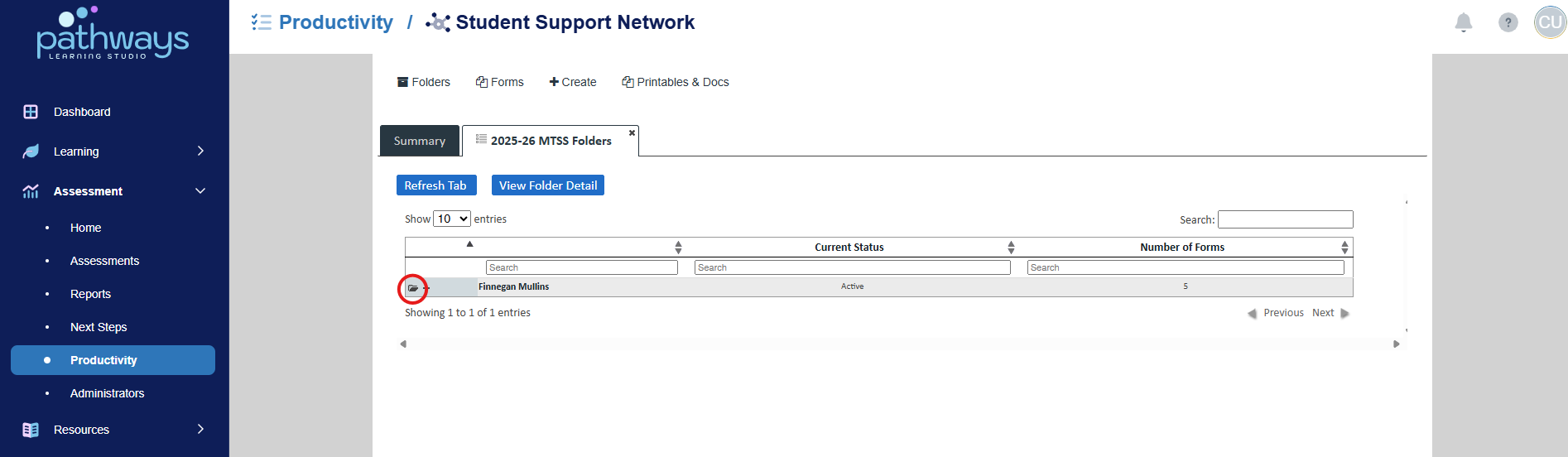
6. Choose the folder icon to the left of the student whose forms you wish to manage.
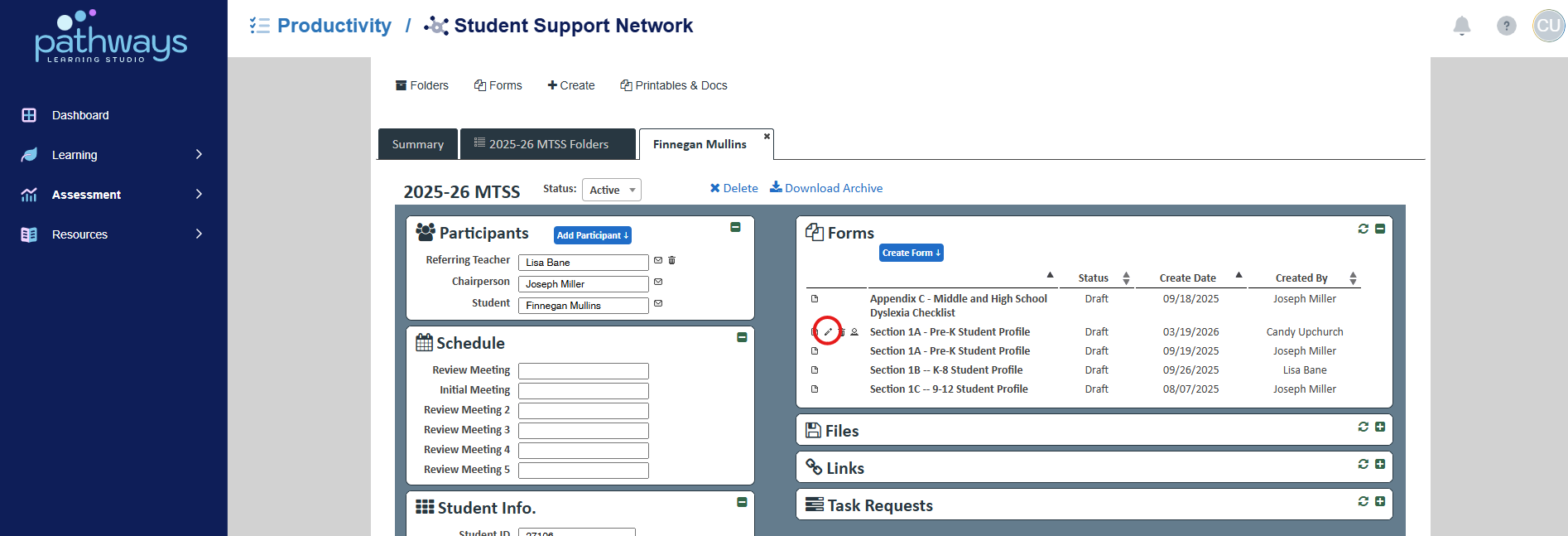
7. Select the pencil icon to the left of the form title.
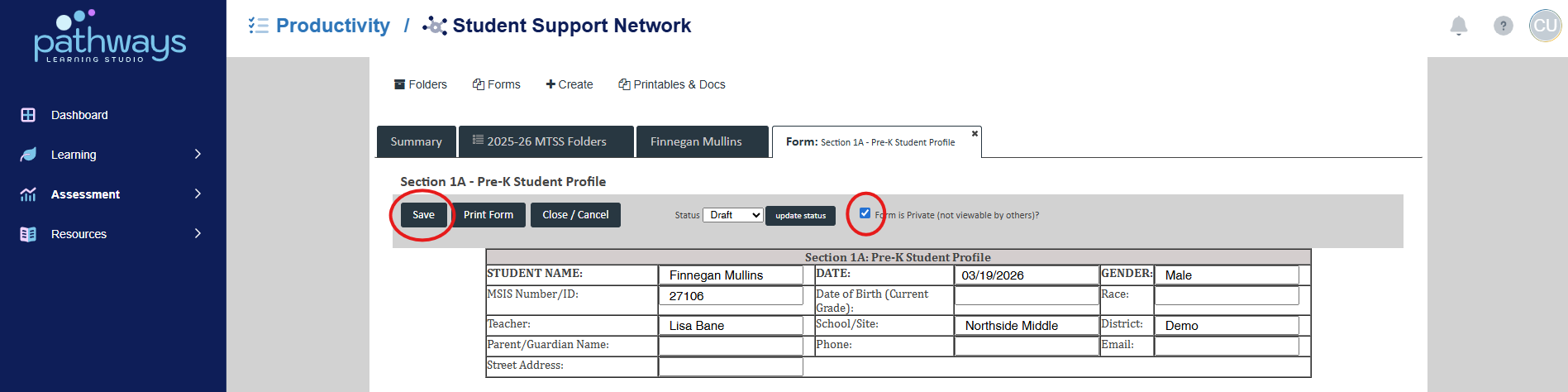
8. Mark the check box beside ‘Form is Private (not viewable by others)’ then select ‘Save.’ This will mean no one other than the owner (not even school administrators) can see the form.
Was this article helpful?
That’s Great!
Thank you for your feedback
Sorry! We couldn't be helpful
Thank you for your feedback
Feedback sent
We appreciate your effort and will try to fix the article