This article will explain how to print bubble sheets for an assessment.
1. Login to your Pathways Learning Studio account through Clever, ClassLink, or at pathwayslearningstudio.com.
2. Navigate to 'Assessment' → 'Home.'
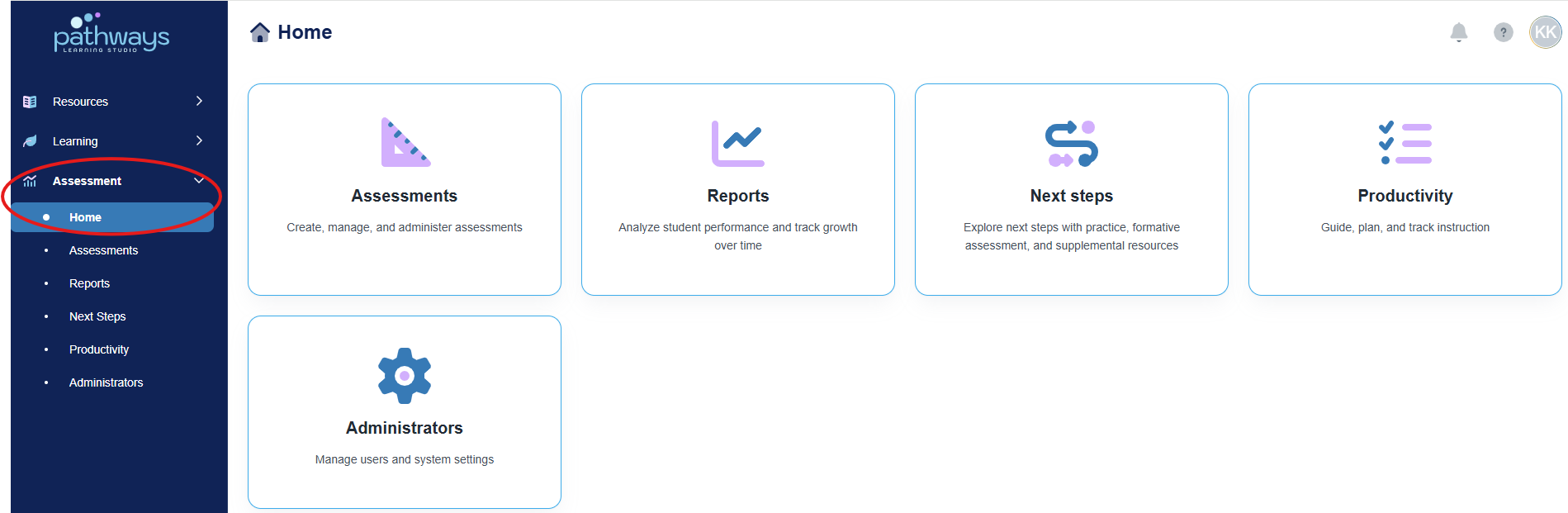
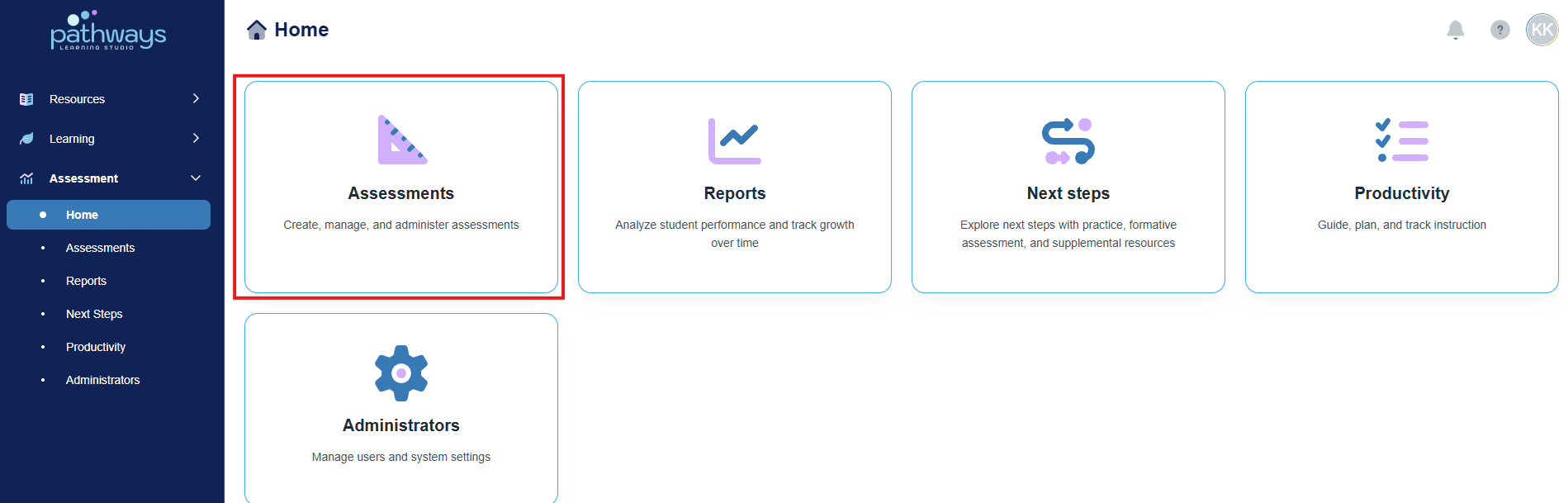
3. Select the 'Assessment' tile.
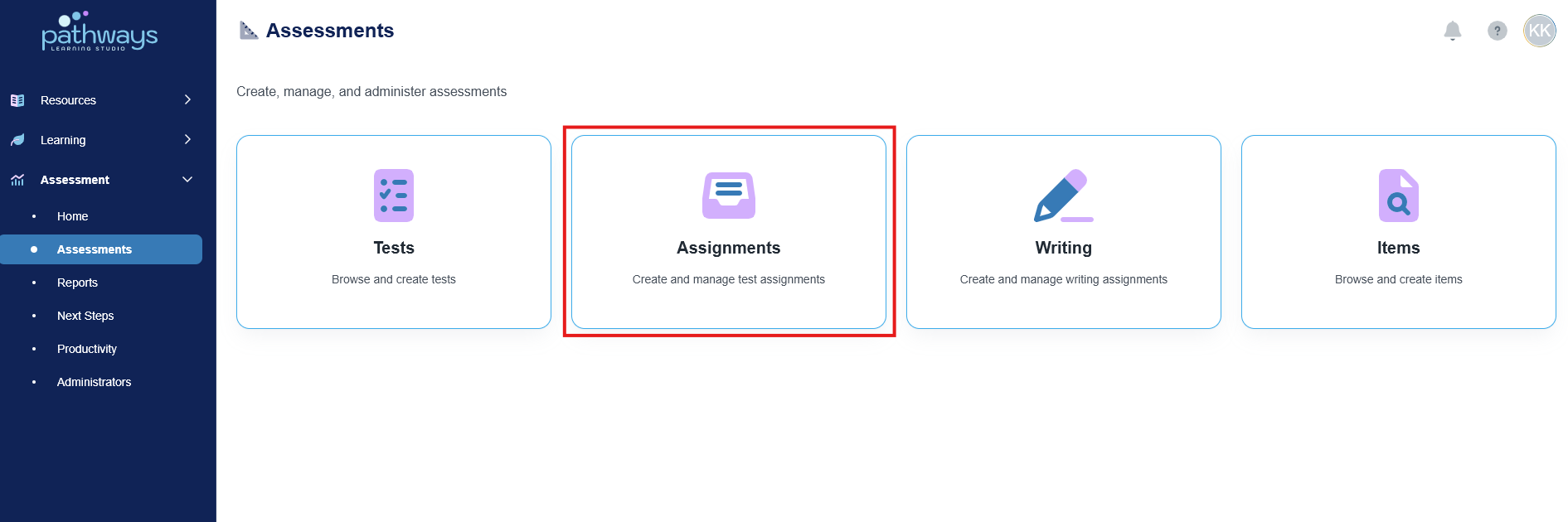
4. Select the 'Assignment' tile.
5. Locate the assignment of the assessment for which you wish to change the access code, and select the folder icon to the left of the assessment date.
If the folder icon is not present, a district level administrator has made the assessment private.
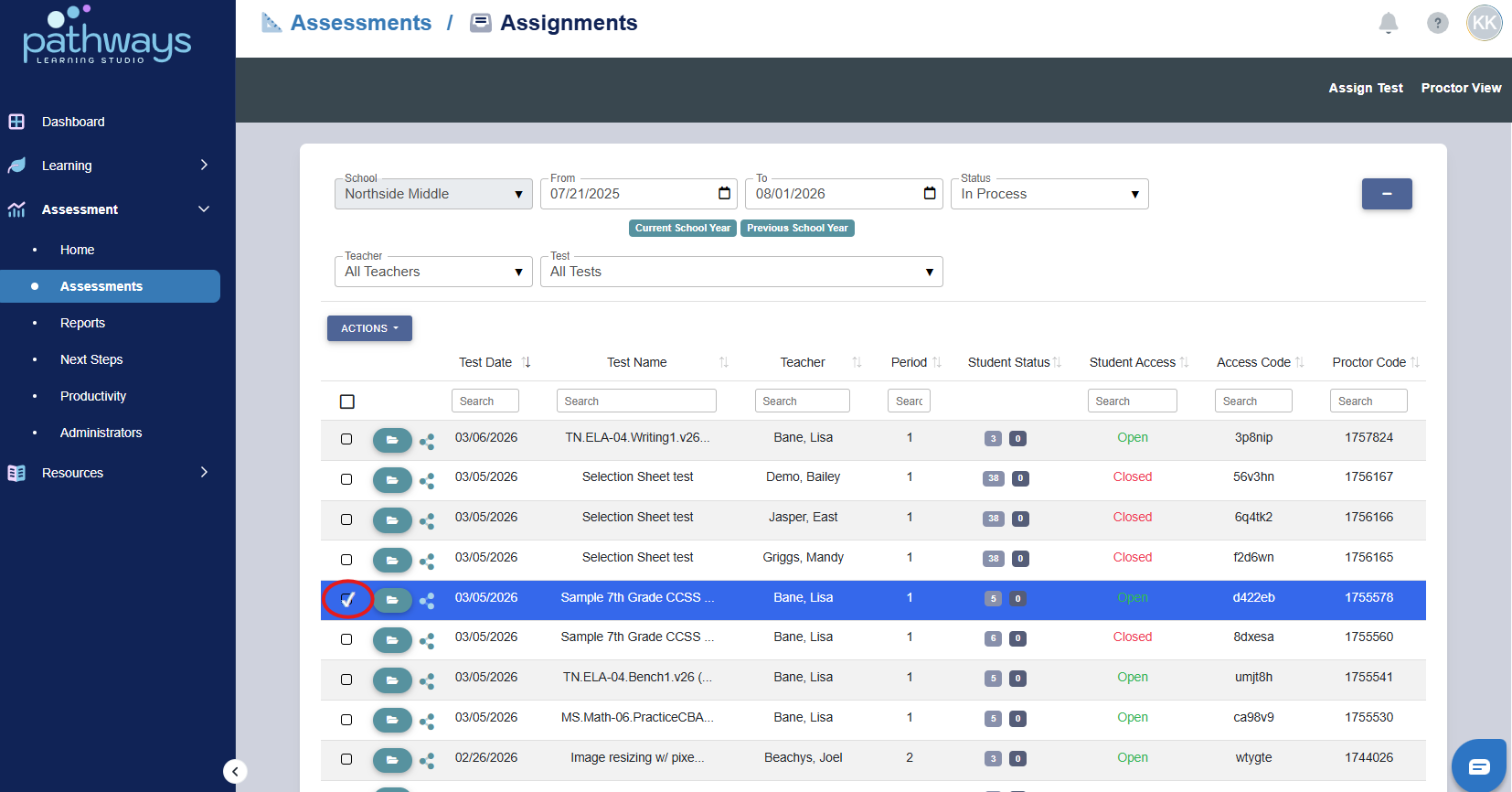
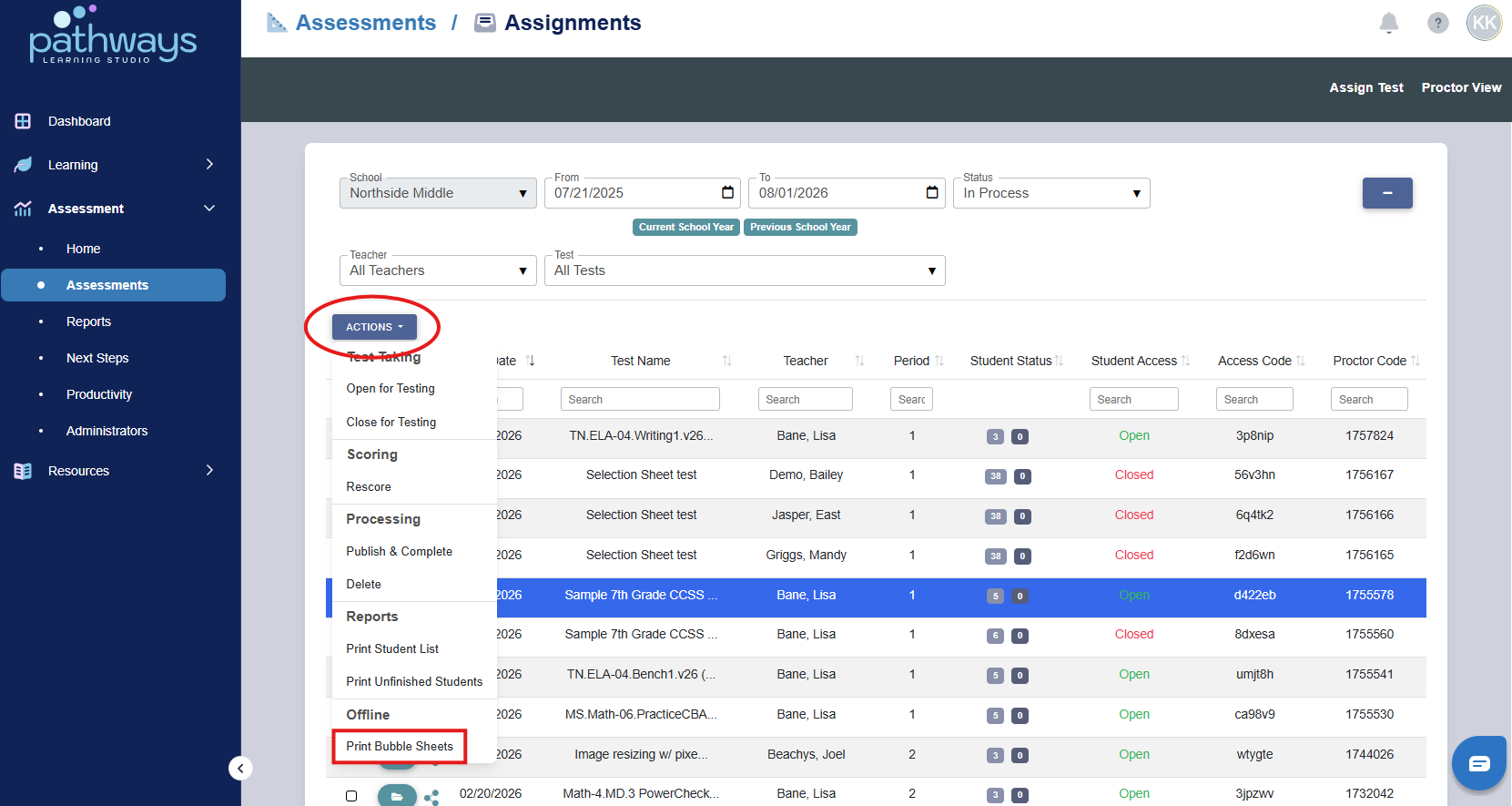
6. Once selected, choose ‘Print Bubble Sheets’ from the 'Actions' drop-down menu.
Was this article helpful?
That’s Great!
Thank you for your feedback
Sorry! We couldn't be helpful
Thank you for your feedback
Feedback sent
We appreciate your effort and will try to fix the article