This article will explain how to print an assessment from the test list.
1. Login to your Pathways Learning Studio account through Clever, ClassLink, or at pathwayslearningstudio.com.
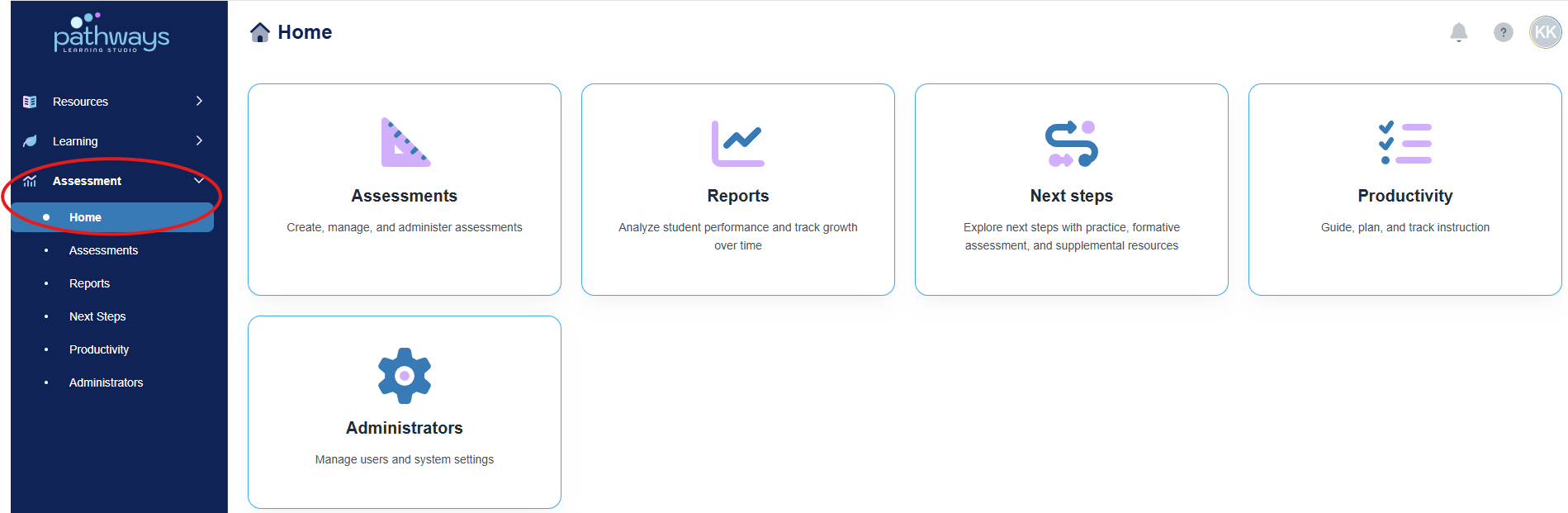
2. Navigate to 'Assessment' → 'Home.'
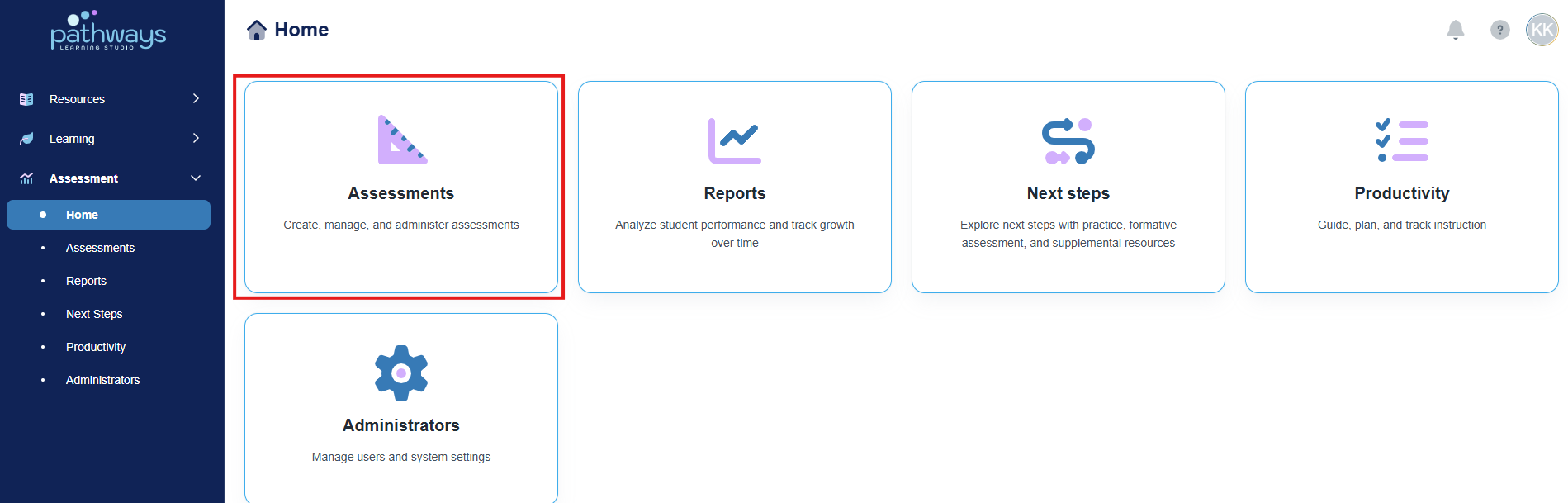
3. Select the 'Assessment' tile.
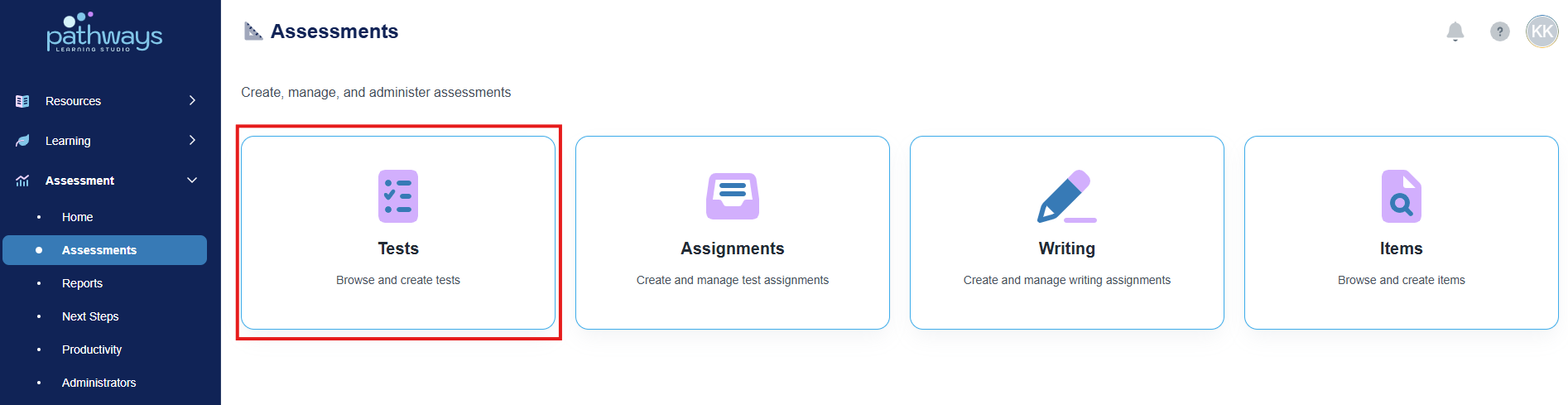
4. Select the 'Test' tile.
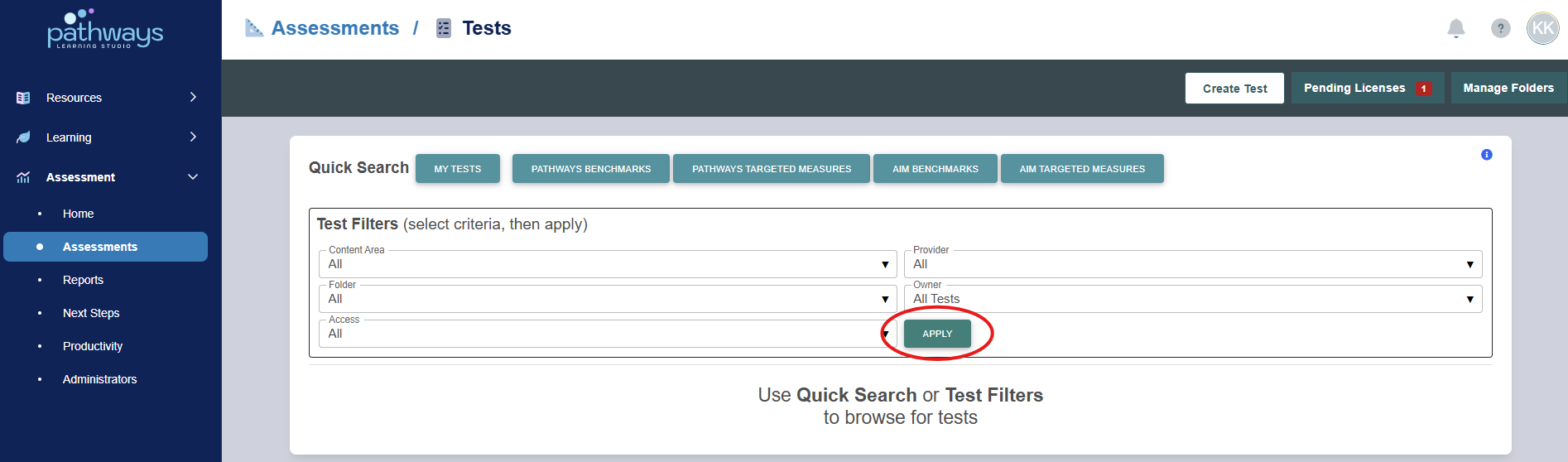
5. Select 'Apply' to load all existing assessments.
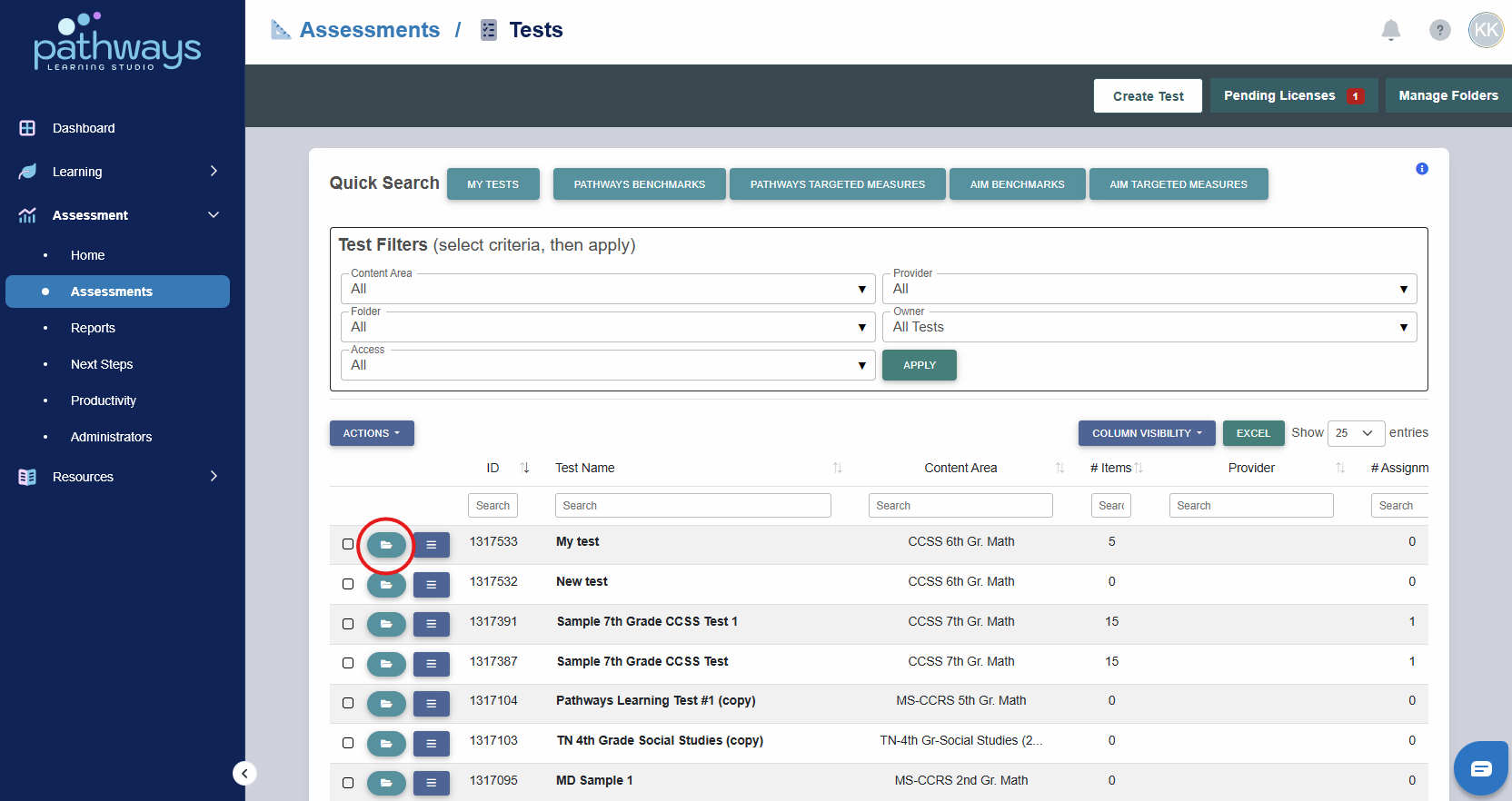
6. Locate the assessment and select the folder icon to the left of the assessment ID.
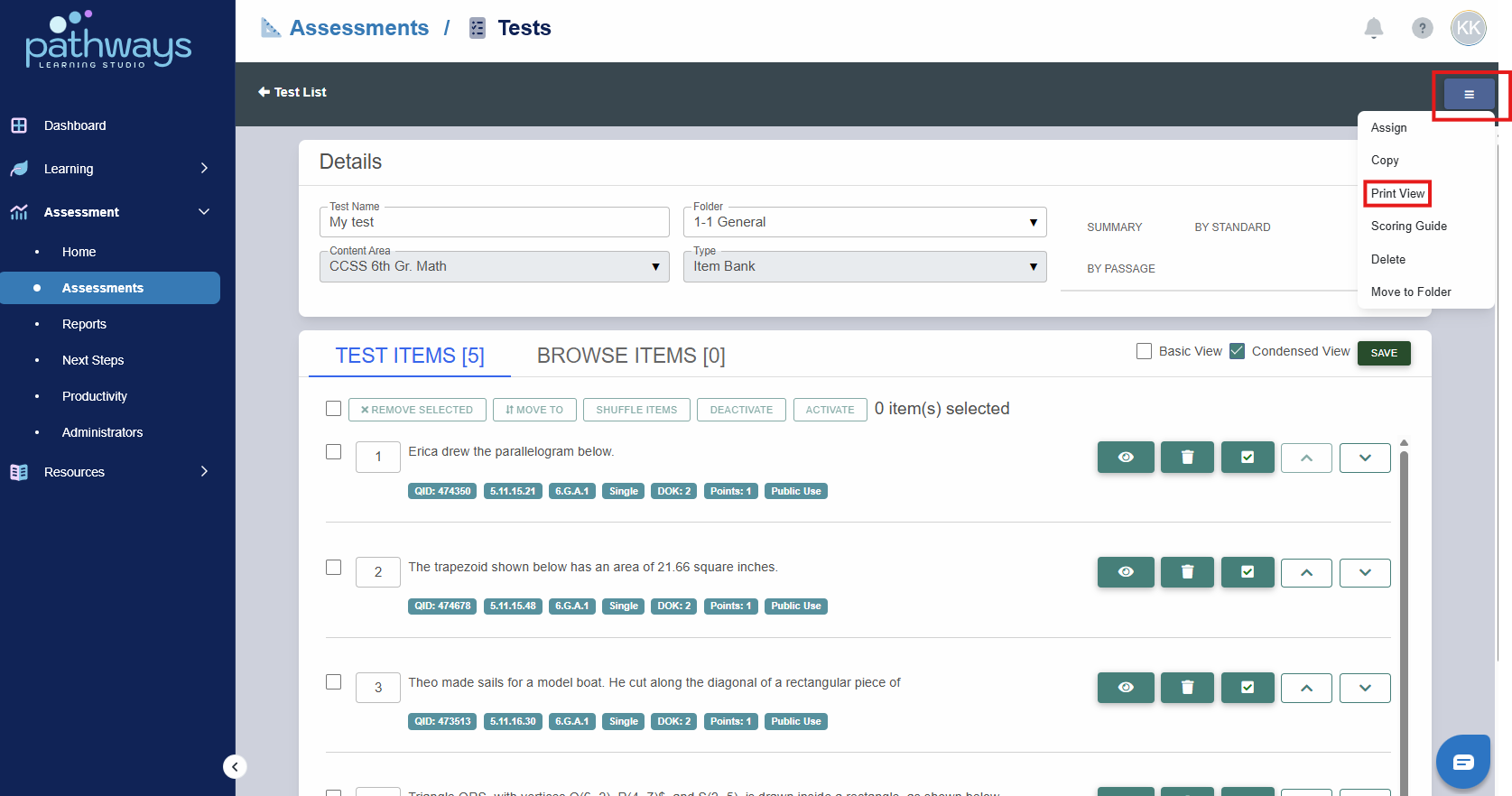
7. Click the collapsed menu the top right corner, and select ‘Print View’ from the drop down menu.
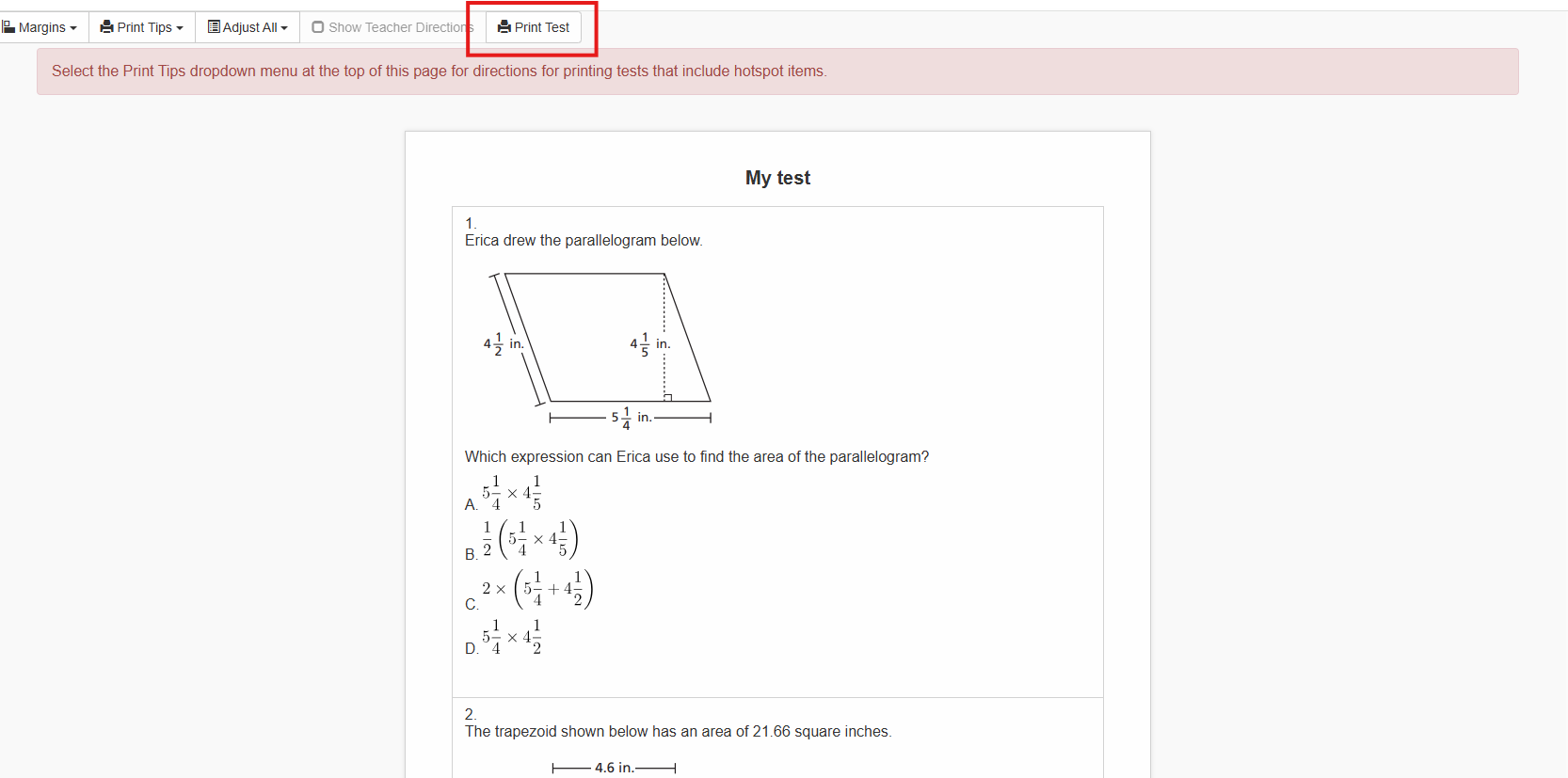
8. In the print view, choose ‘Print Test.’
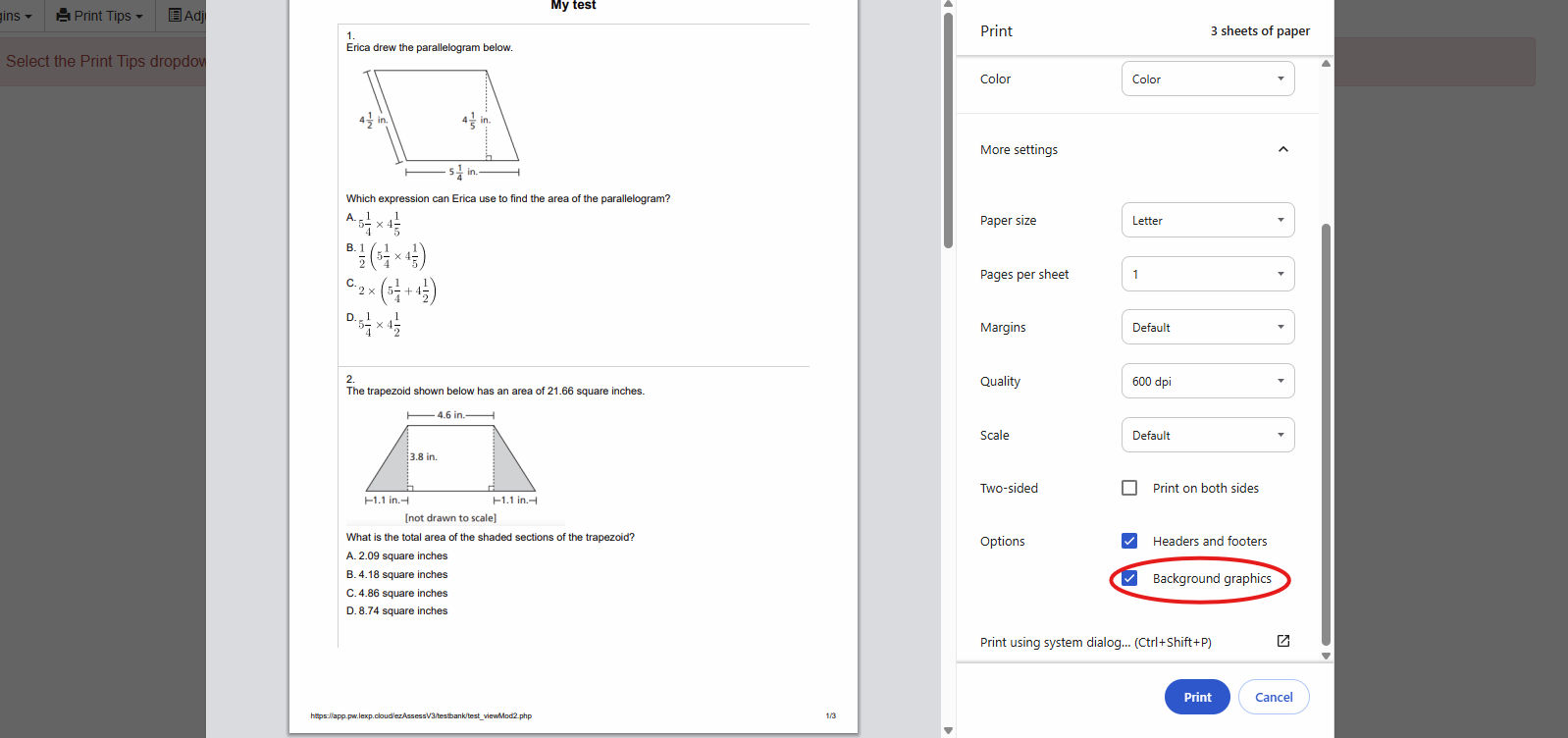
9. Before printing, ensure that the ‘Background Graphics’ option is selected under the ‘More Settings’ section.
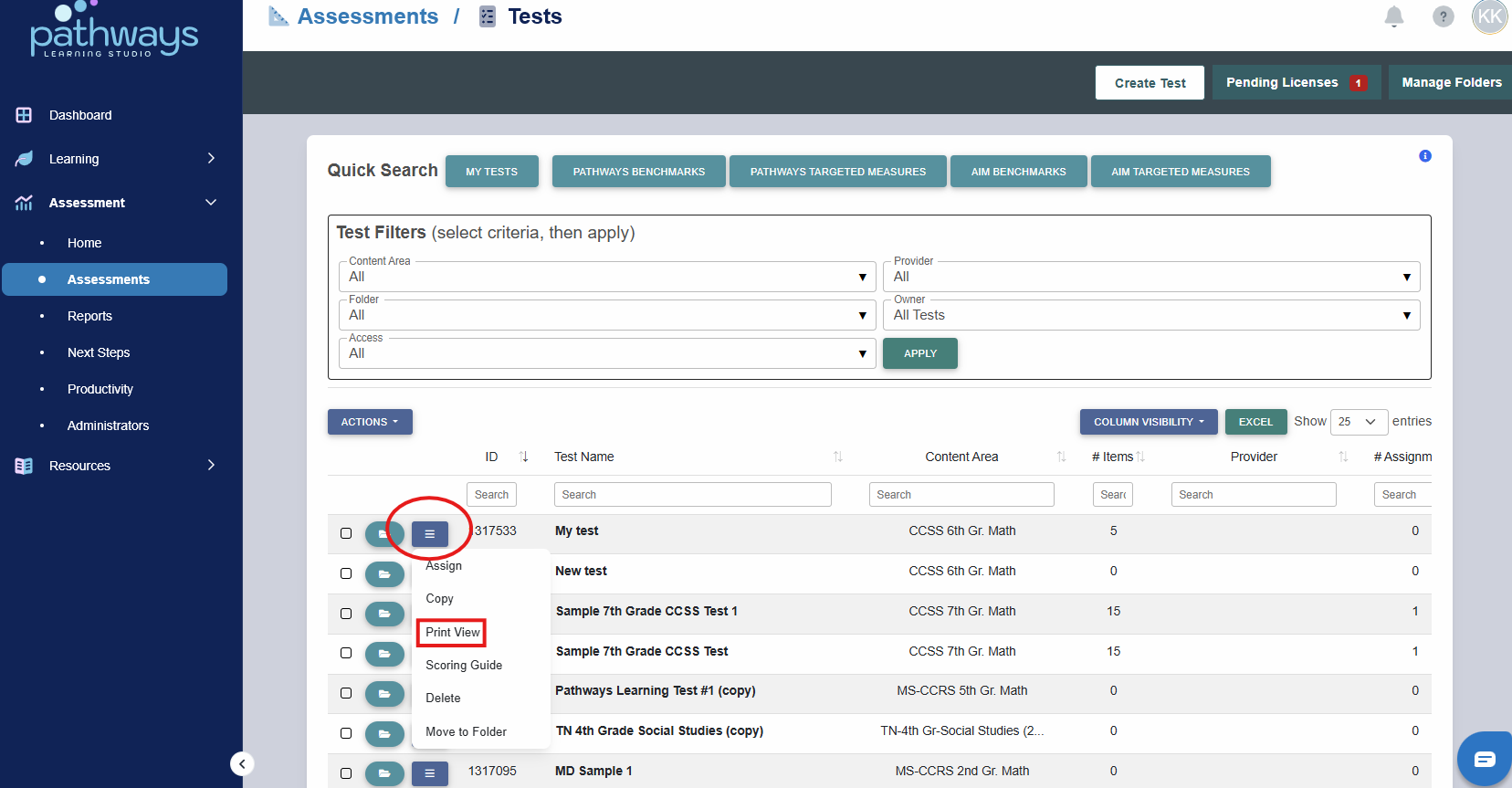
Note: It is also possible to print an assessment from the assessment list by selecting 'Print View' from the collapsed menu between the folder icon and the Test ID/Name.
Was this article helpful?
That’s Great!
Thank you for your feedback
Sorry! We couldn't be helpful
Thank you for your feedback
Feedback sent
We appreciate your effort and will try to fix the article