1. Login to your Pathways Assessment account through Clever, ClassLink, or at pathwayslearningstudio.com.
2. Navigate to 'Assessment' on the left-hand navigation bar.
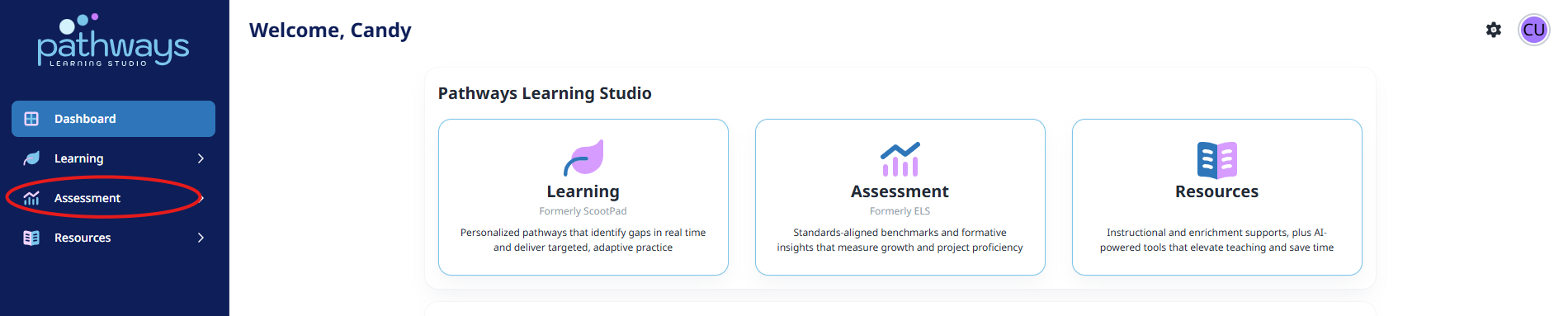
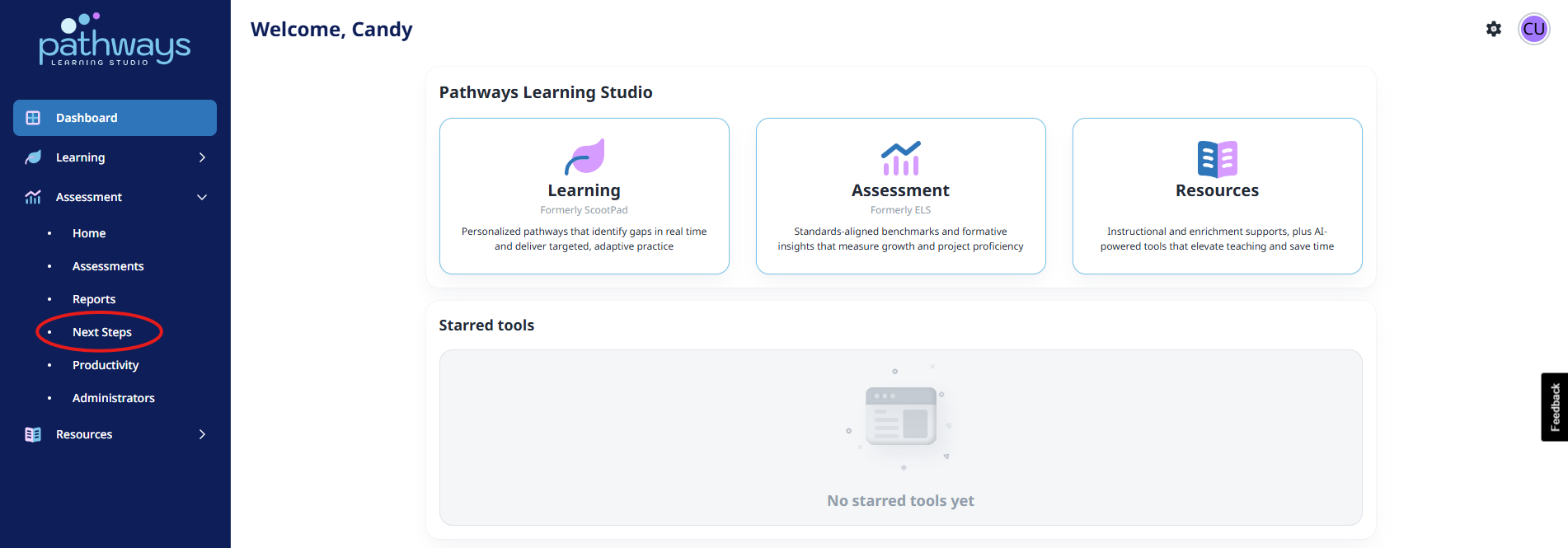
3. Navigate to 'Next steps' located under 'Assessment' on the left-hand navigation bar.
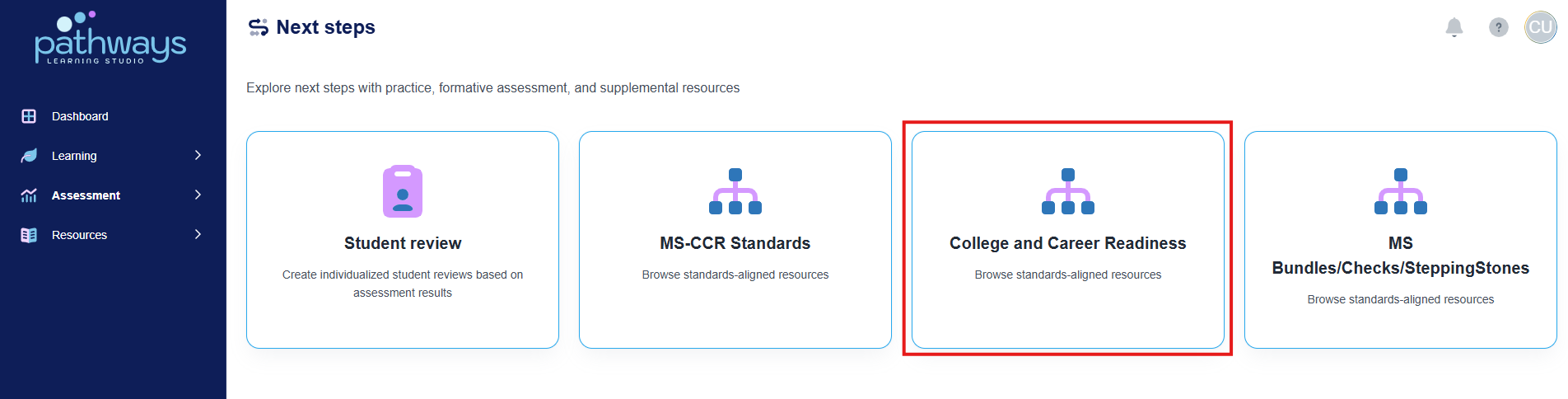
4. Select 'College and Career Readiness' from the Next steps dashboard.
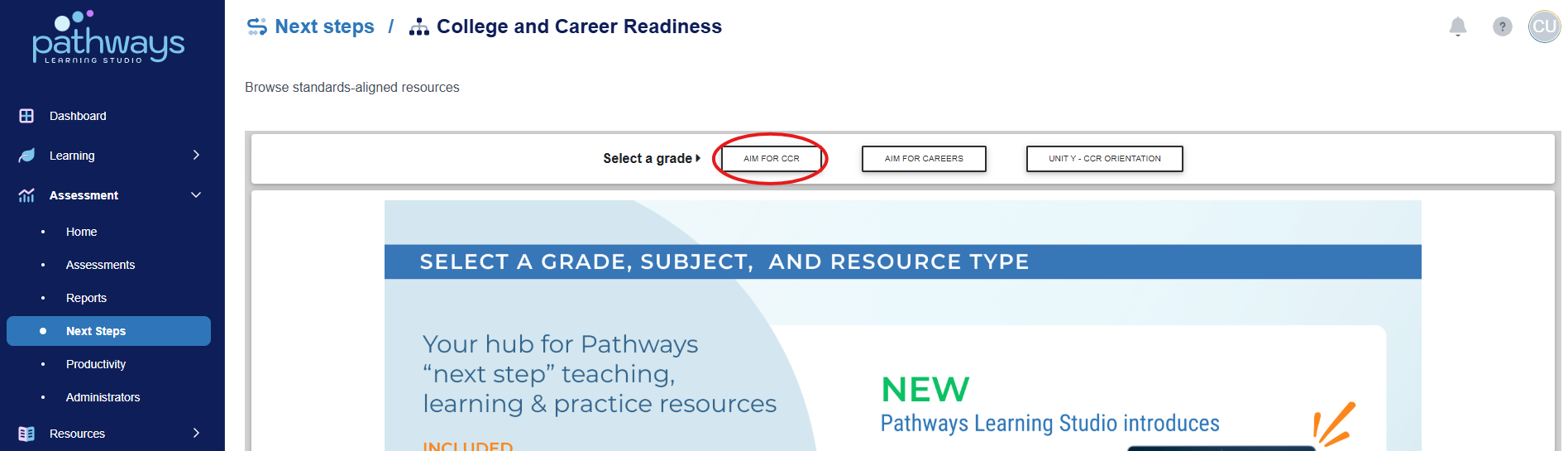
5. Select ‘AIM FOR CCR’ at the top of the screen.
6. Select the foundational subject for which you wish to give a practice test. If you are giving the diagnostic test, select any foundational subject.
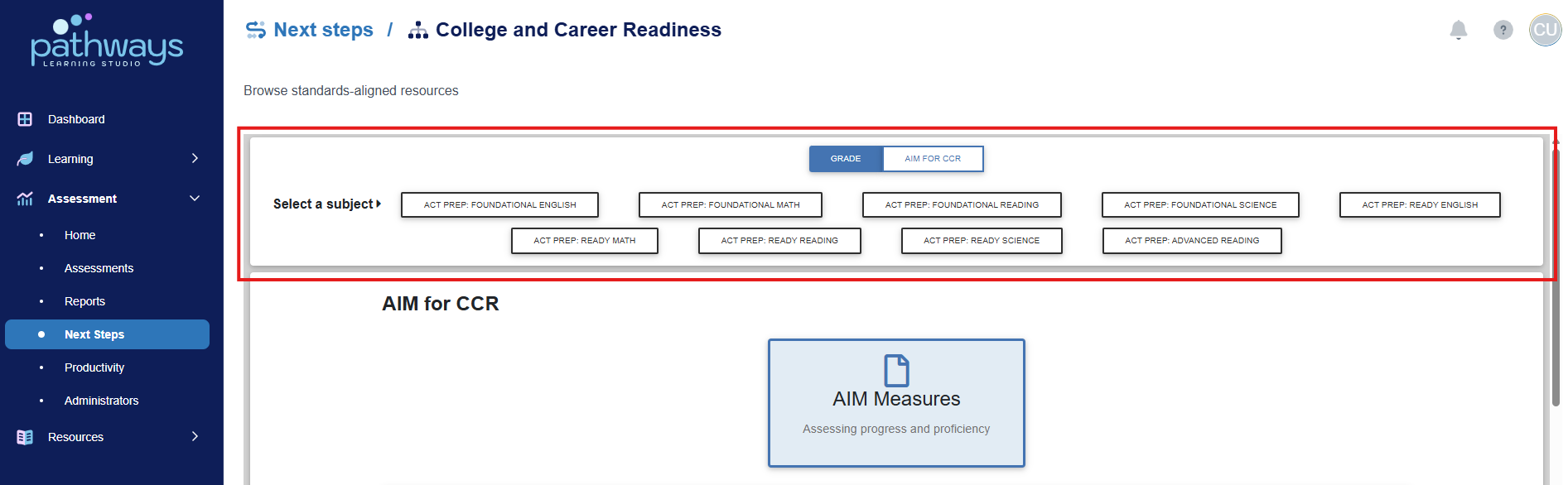
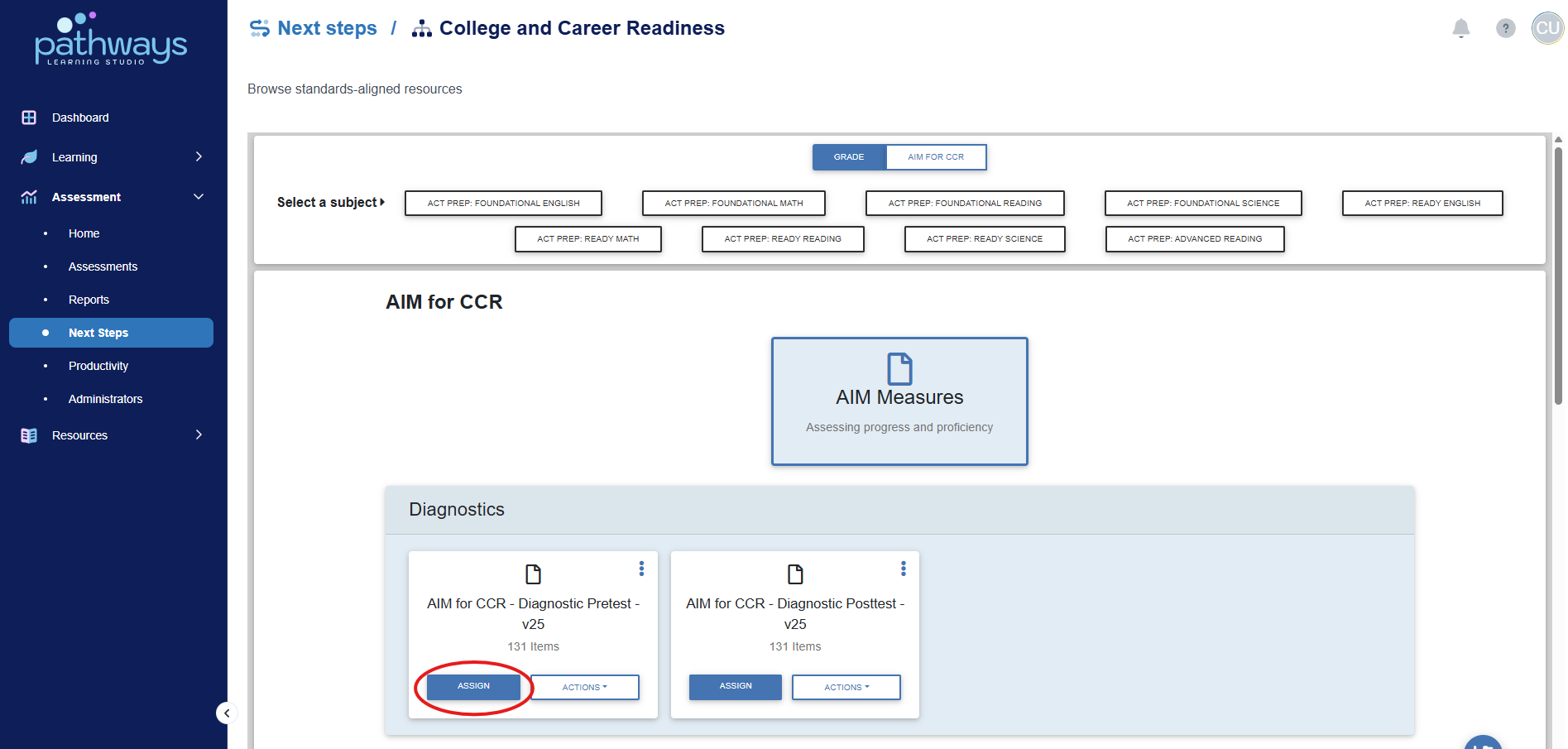
7. To assign a practice test online, choose the blue 'Assign' button that corresponds to the test you wish to assign.
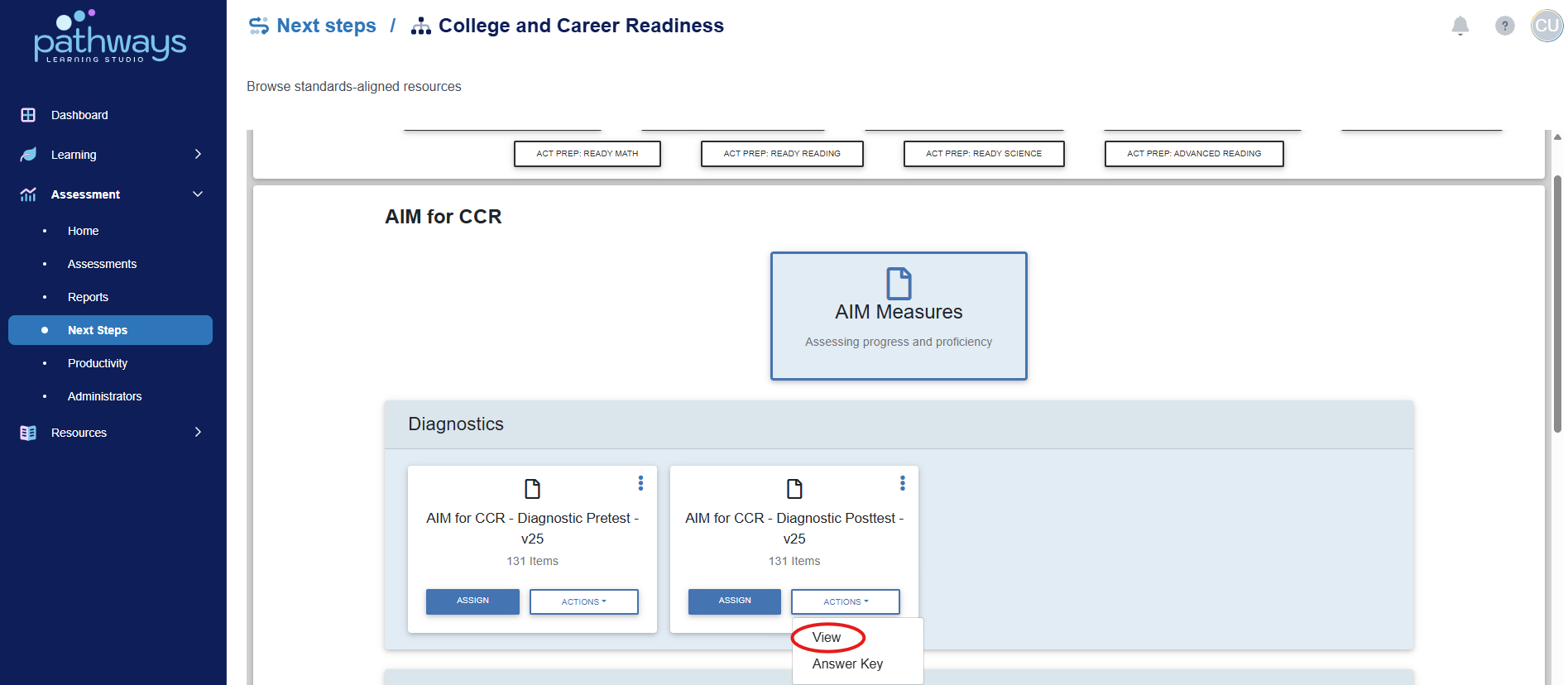
9. To print a practice test:
a. Choose ‘View’ in the ‘Actions’ drop down menu.
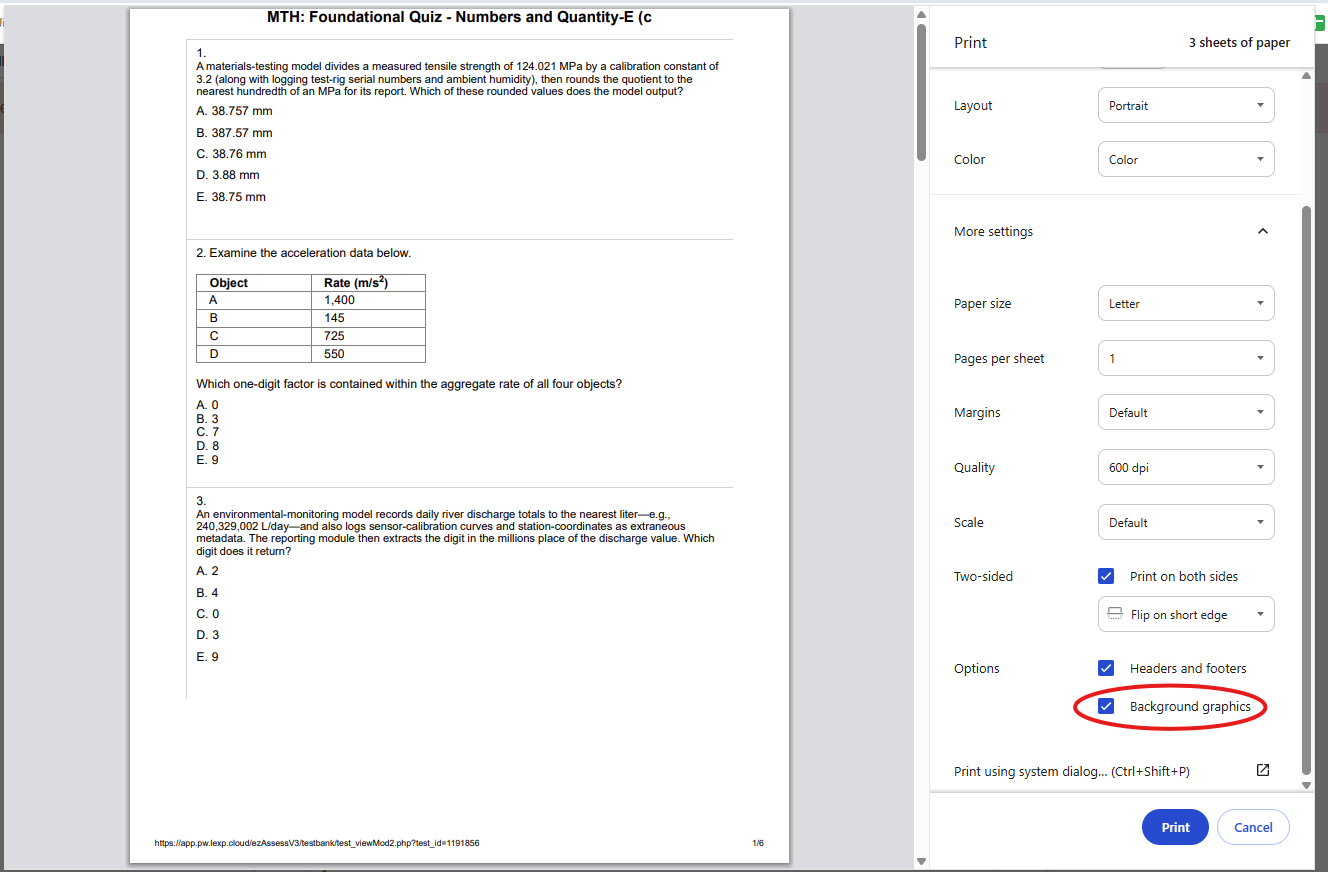
b. Choose ‘Print Test’ at the top of the document.
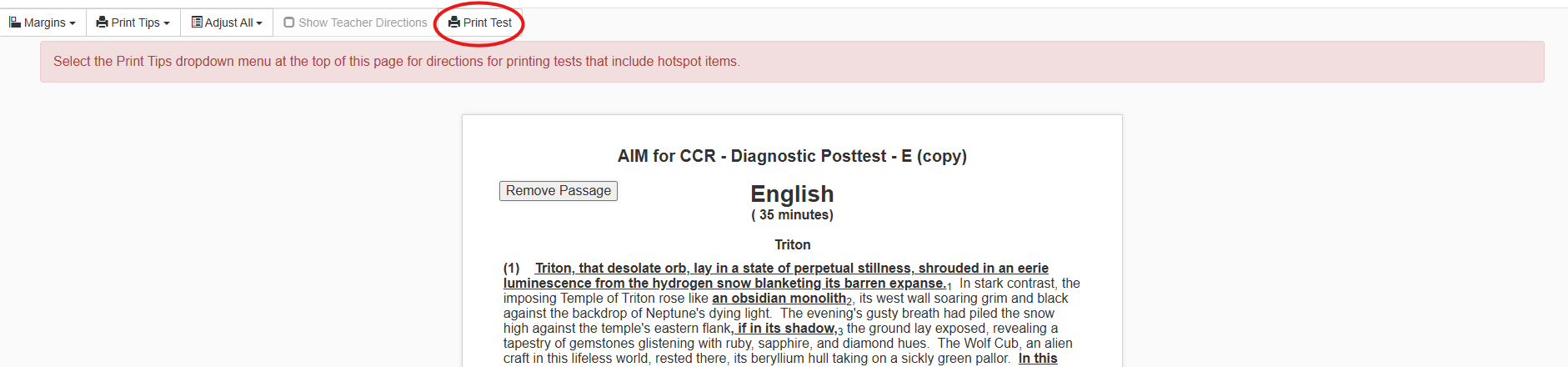
c. Ensure that ‘Background Graphics’ is on before printing.
Was this article helpful?
That’s Great!
Thank you for your feedback
Sorry! We couldn't be helpful
Thank you for your feedback
Feedback sent
We appreciate your effort and will try to fix the article