1. Login to your Pathways account through Clever, ClassLink, or at pathwayslearningstudio.com.
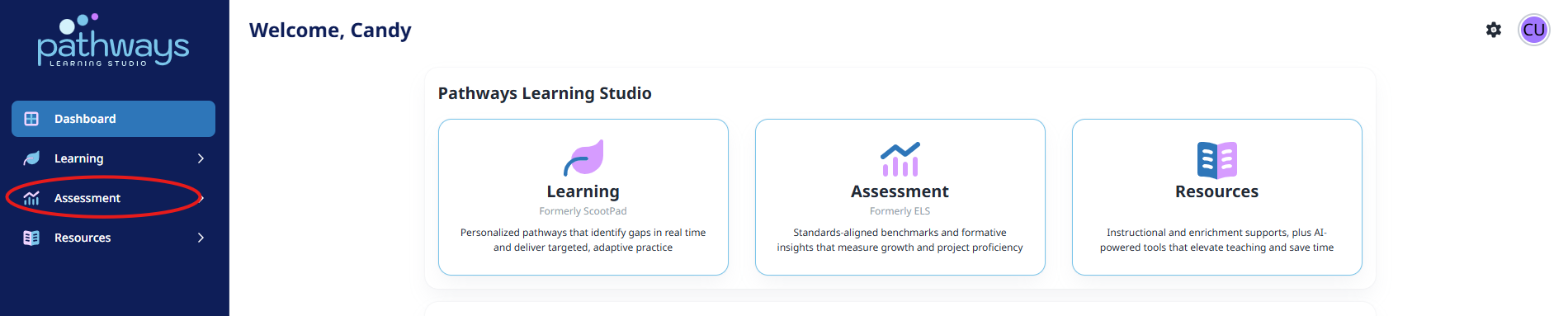
2. Navigate to 'Assessment' on the left-hand navigation bar.
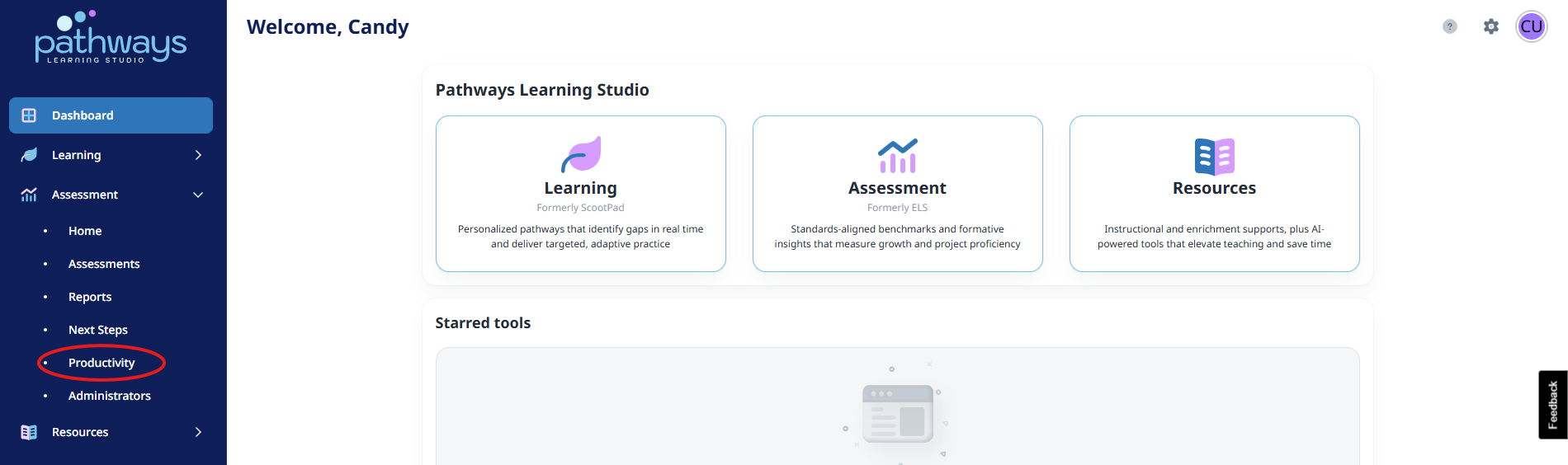
3. Navigate to 'Productivity' located under 'Assessment' on the left-hand navigation bar.
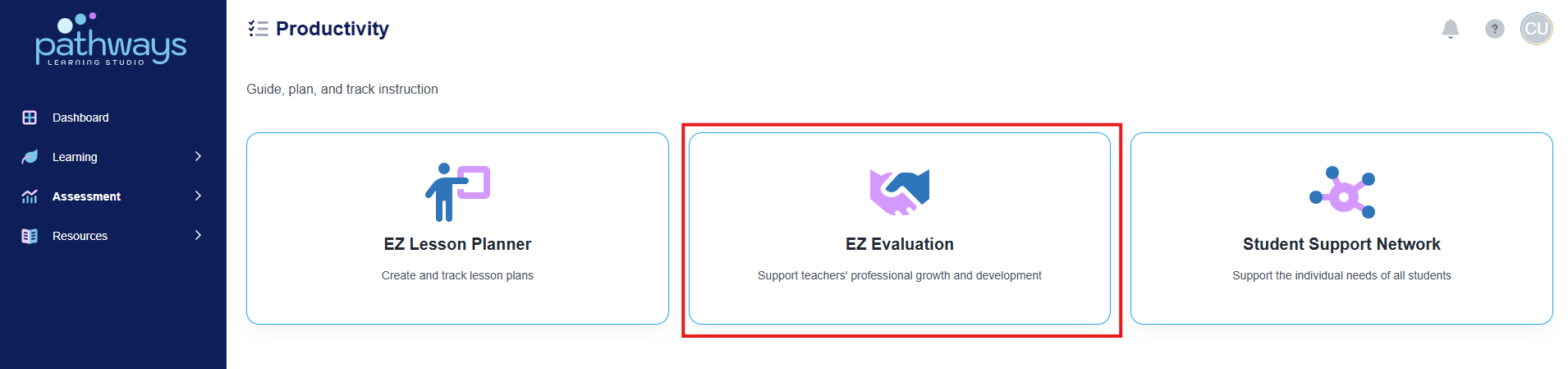
4. Select 'EZ Evaluation' from the Productivity dashboard.
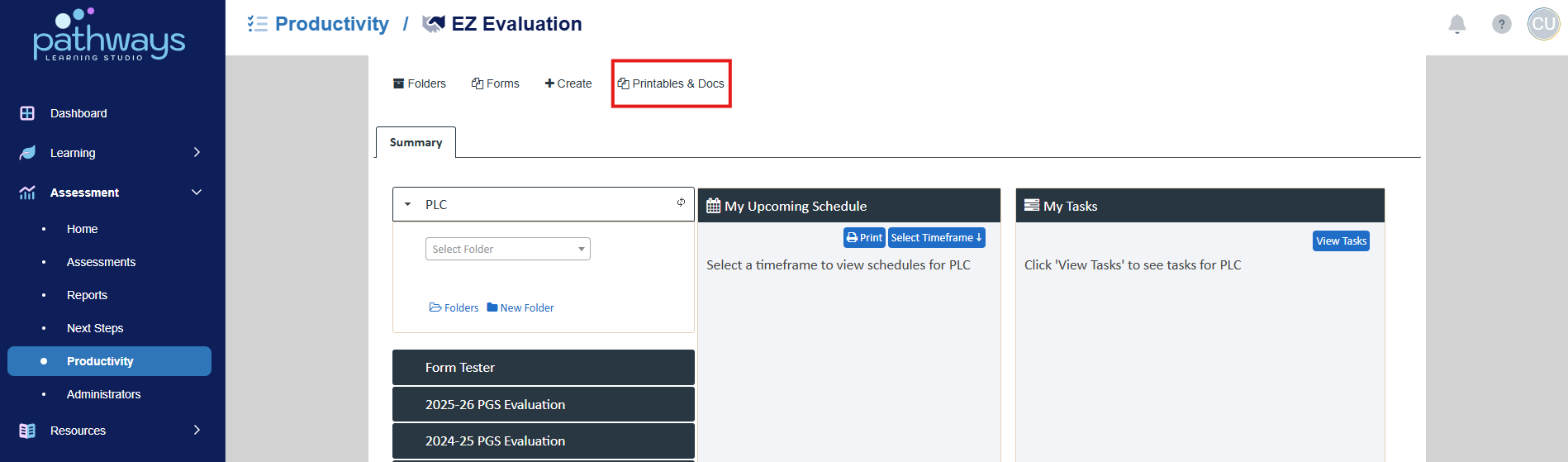
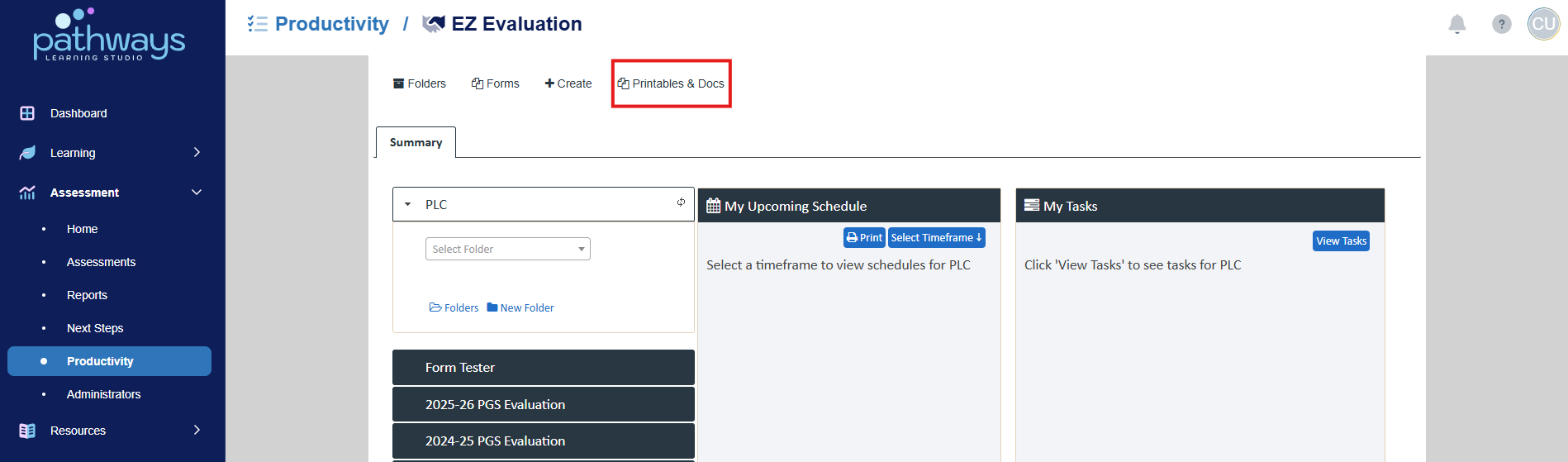
5. Choose ‘Upload a Template’ under the ‘Printables & Docs’ drop-down at the top center of the screen. Make sure to choose ‘Upload a Template’ under the current school year.
6. Give the document a title, and upload it by selecting ‘Choose File.’ Press save to make the document accessible to all teachers and administrators.
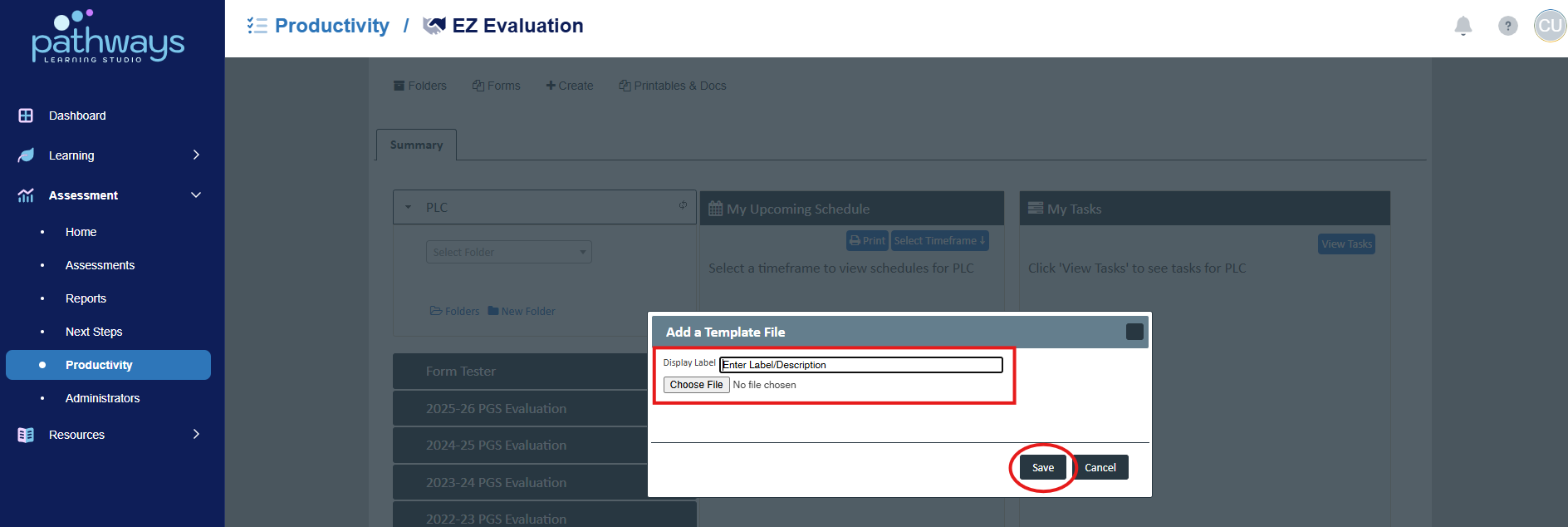
7. Once you’ve uploaded the document, teachers and administrators can find it to download or print in the drop-down menu under ‘Printables and Docs.’
Was this article helpful?
That’s Great!
Thank you for your feedback
Sorry! We couldn't be helpful
Thank you for your feedback
Feedback sent
We appreciate your effort and will try to fix the article