1. Login to your Pathways account through Clever, ClassLink, or at pathwayslearningstudio.com.
2. Navigate to 'Assessment' on the left-hand navigation bar.
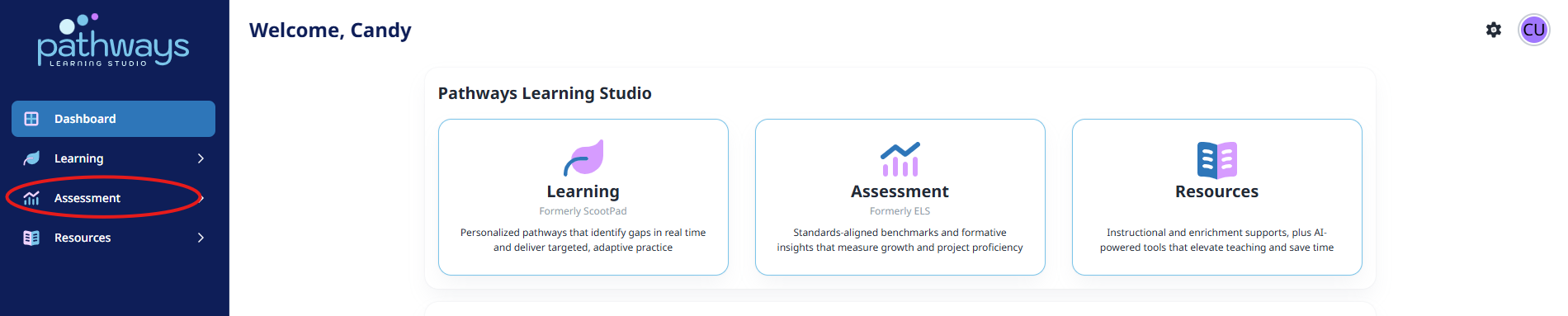
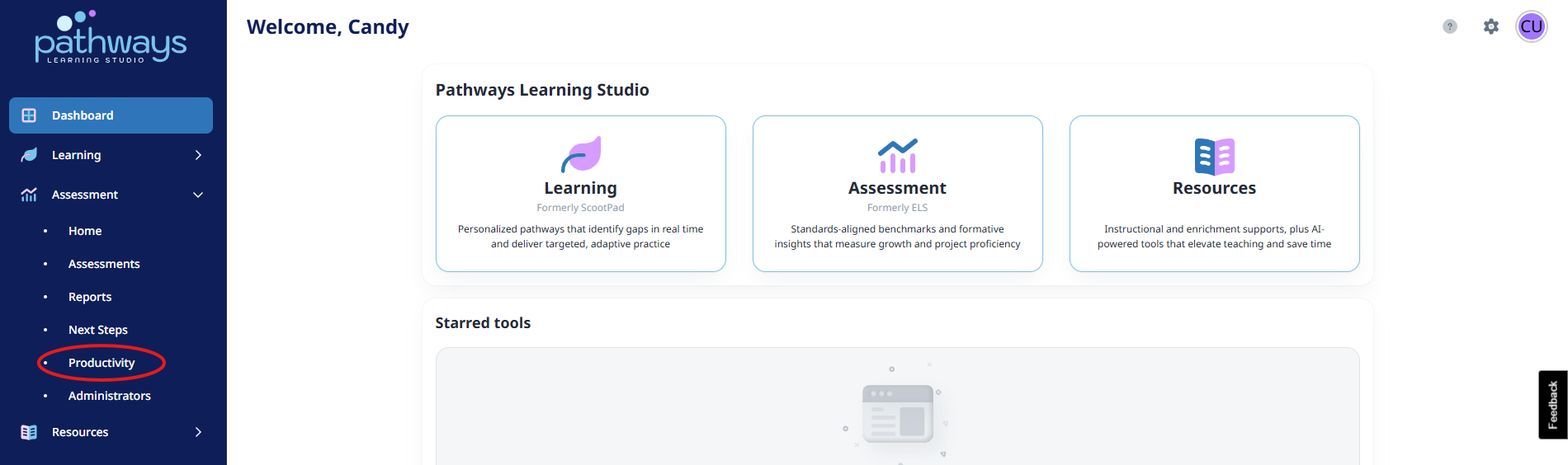
3. Navigate to 'Productivity' located under 'Assessment' on the left-hand navigation bar.
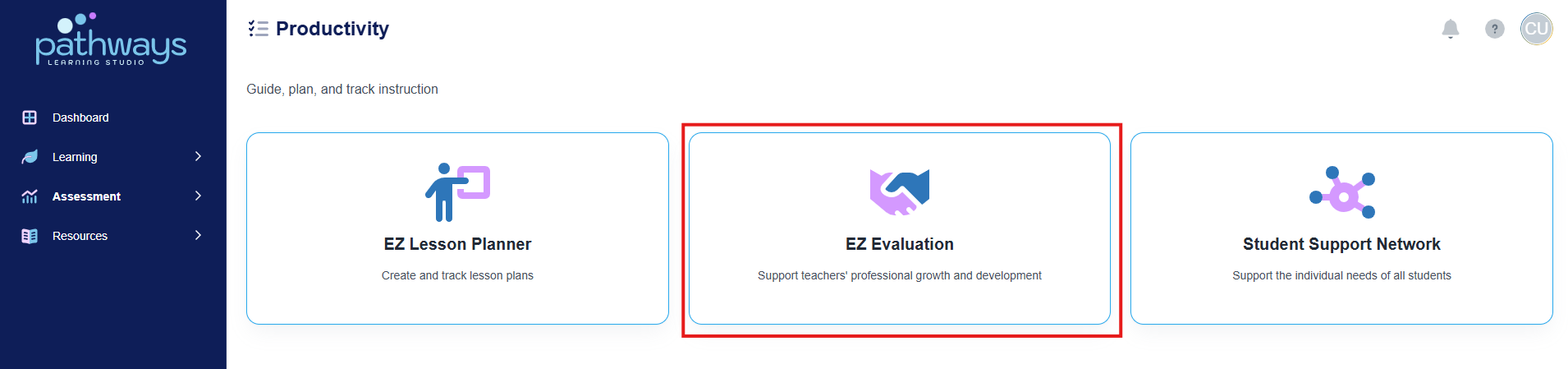
4. Select 'EZ Evaluation' from the Productivity dashboard.
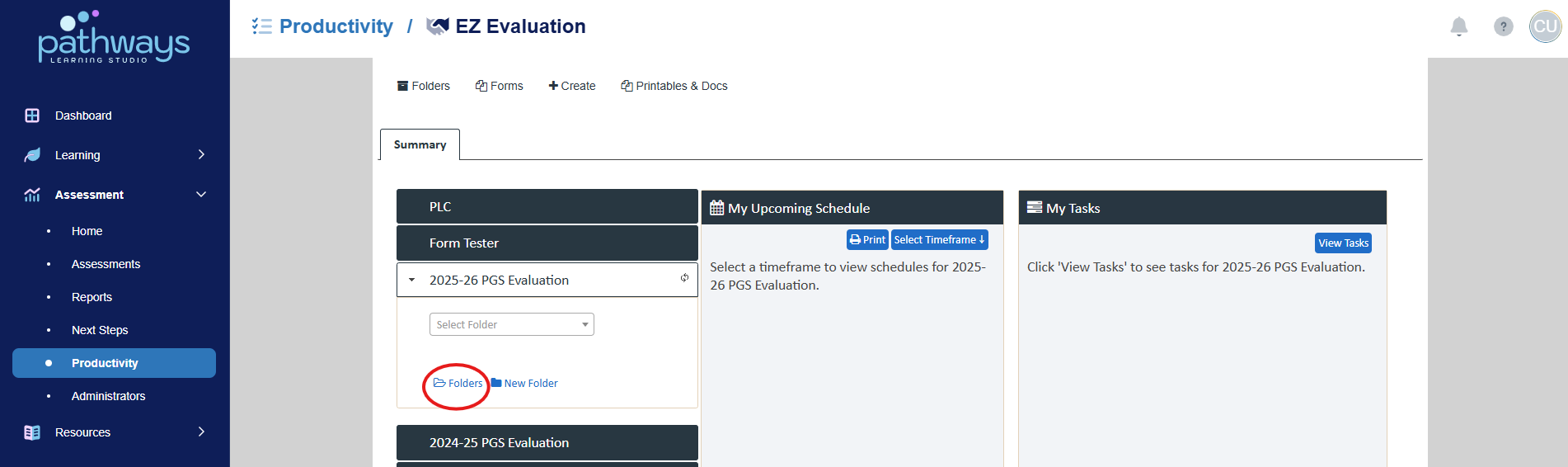
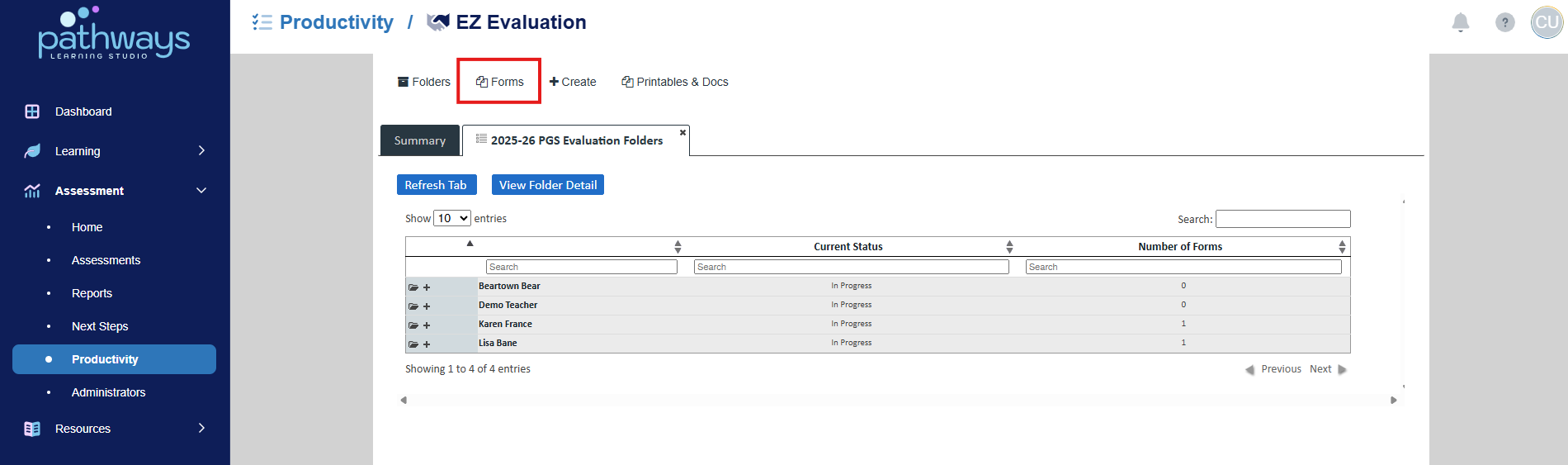
5. Choose ‘Folders’ under the current year’s event.
6. Choose the current year in the ’Forms’ drop-down menu at the top of the screen.
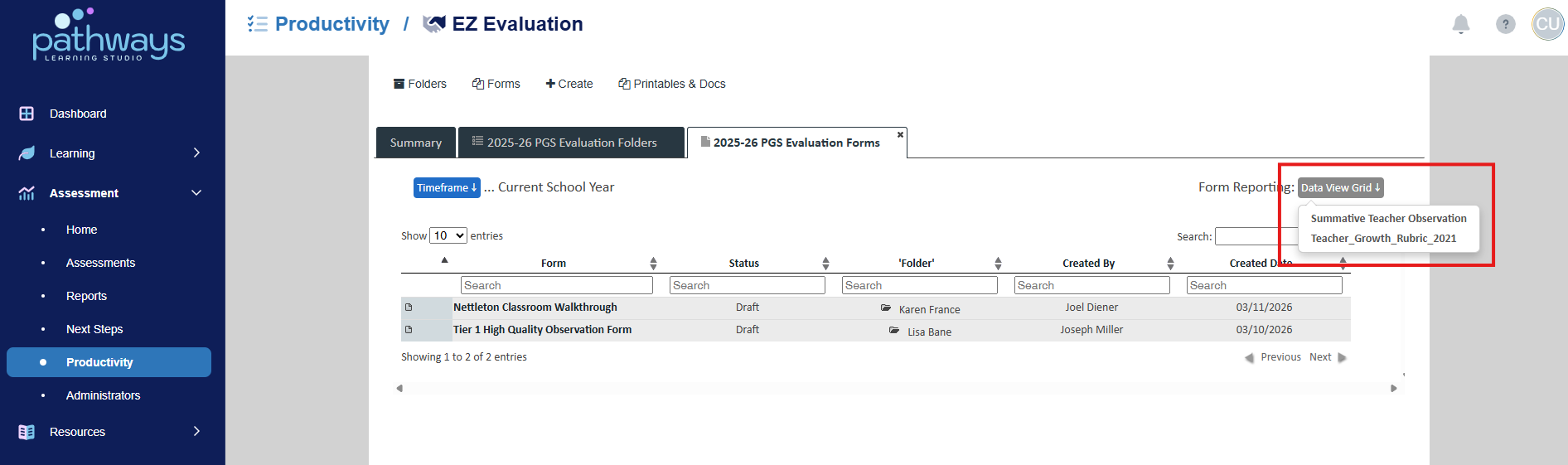
7. Select the blue ‘Data View Grid’ button at the top right of the screen, then choose which form you wish to compile into a spreadsheet.
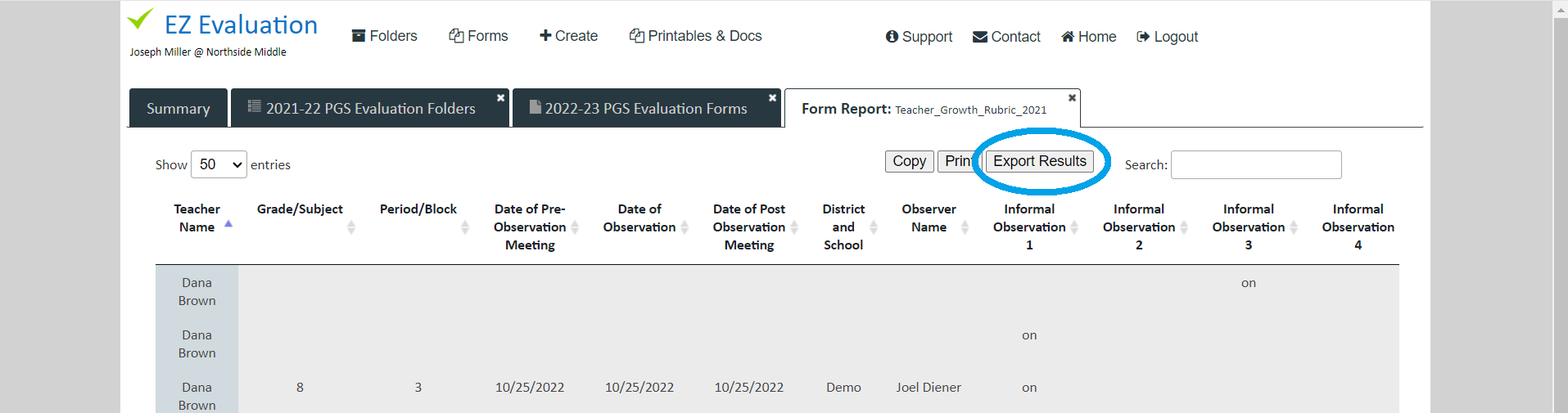
8. To download the results as a spreadsheet that can be sent to the state, choose ‘Export Results’ in the top right corner.
Was this article helpful?
That’s Great!
Thank you for your feedback
Sorry! We couldn't be helpful
Thank you for your feedback
Feedback sent
We appreciate your effort and will try to fix the article