1. Login to your Pathways account through Clever, ClassLink, or at pathwayslearningstudio.com.
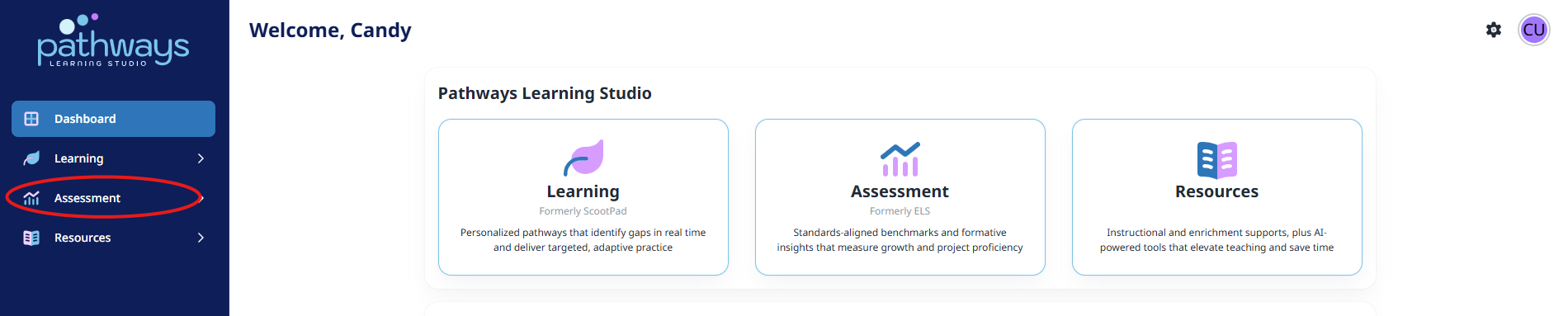
2. Navigate to 'Assessment' on the left-hand navigation bar.
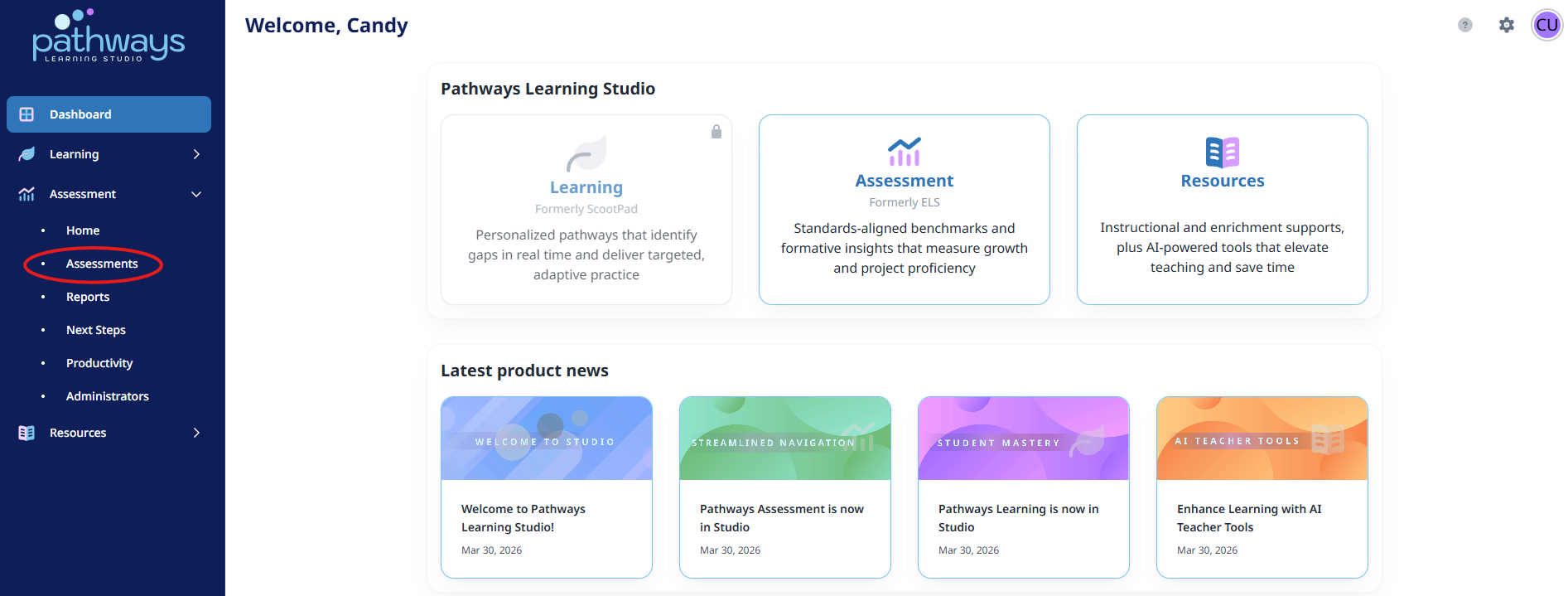
3. Navigate to 'Assessments' located under 'Assessment' on the left-hand navigation bar.
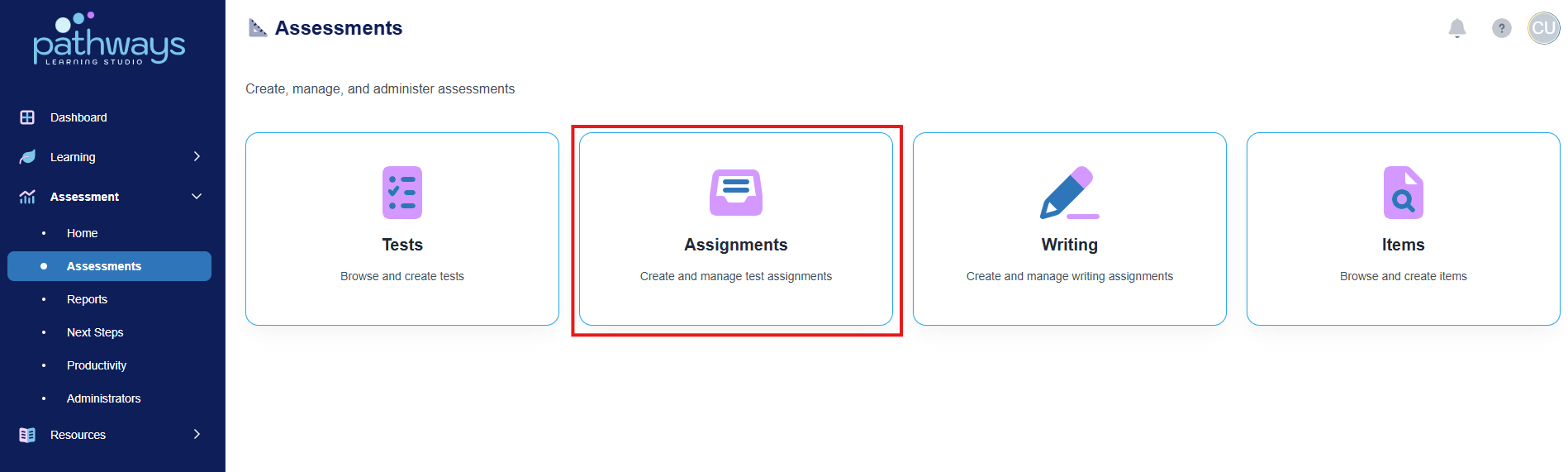
4. Select 'Assignments' from the Assessments dashboard.
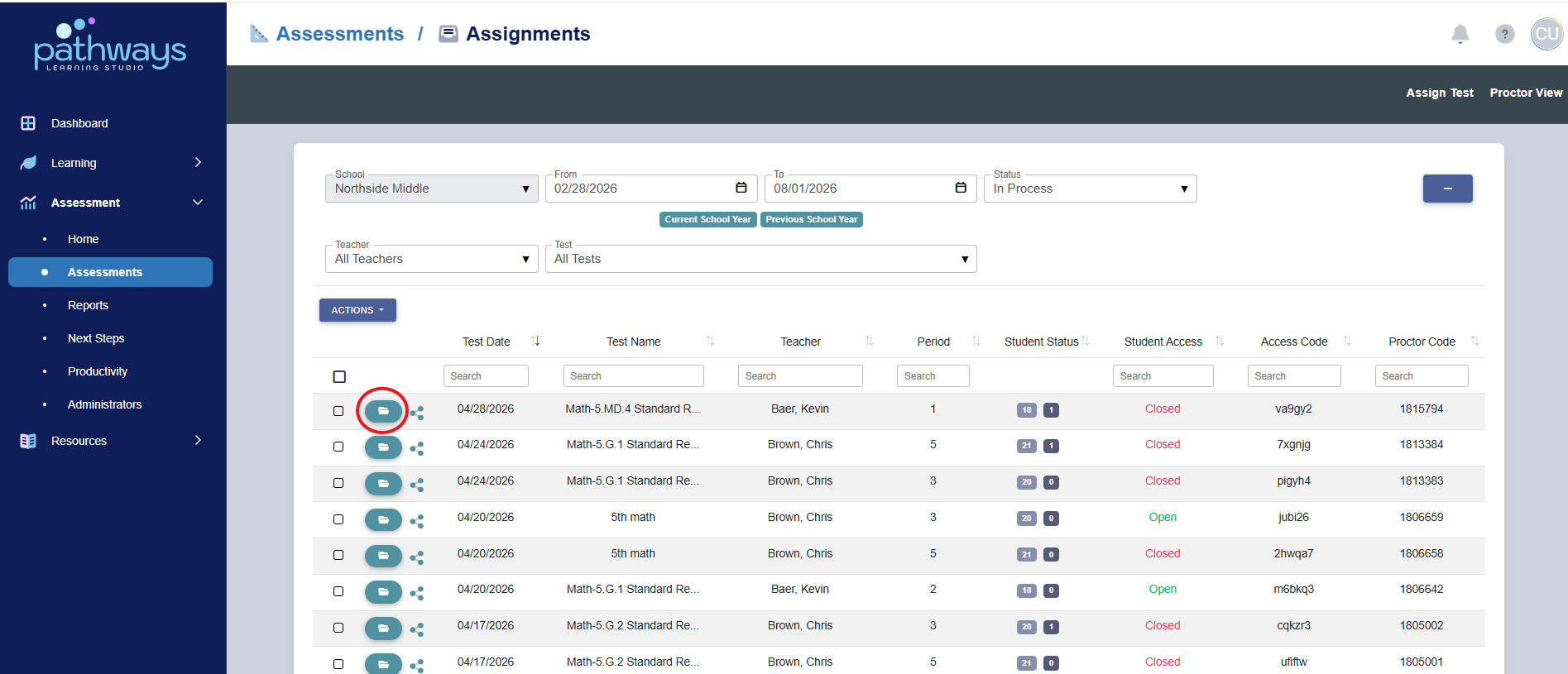
5. Locate the assignment of the assessment for which you wish to add text to speech, and select the folder icon to the left of the assessment date. If the folder icon is not present, this means a district level administrator has made the assessment private.
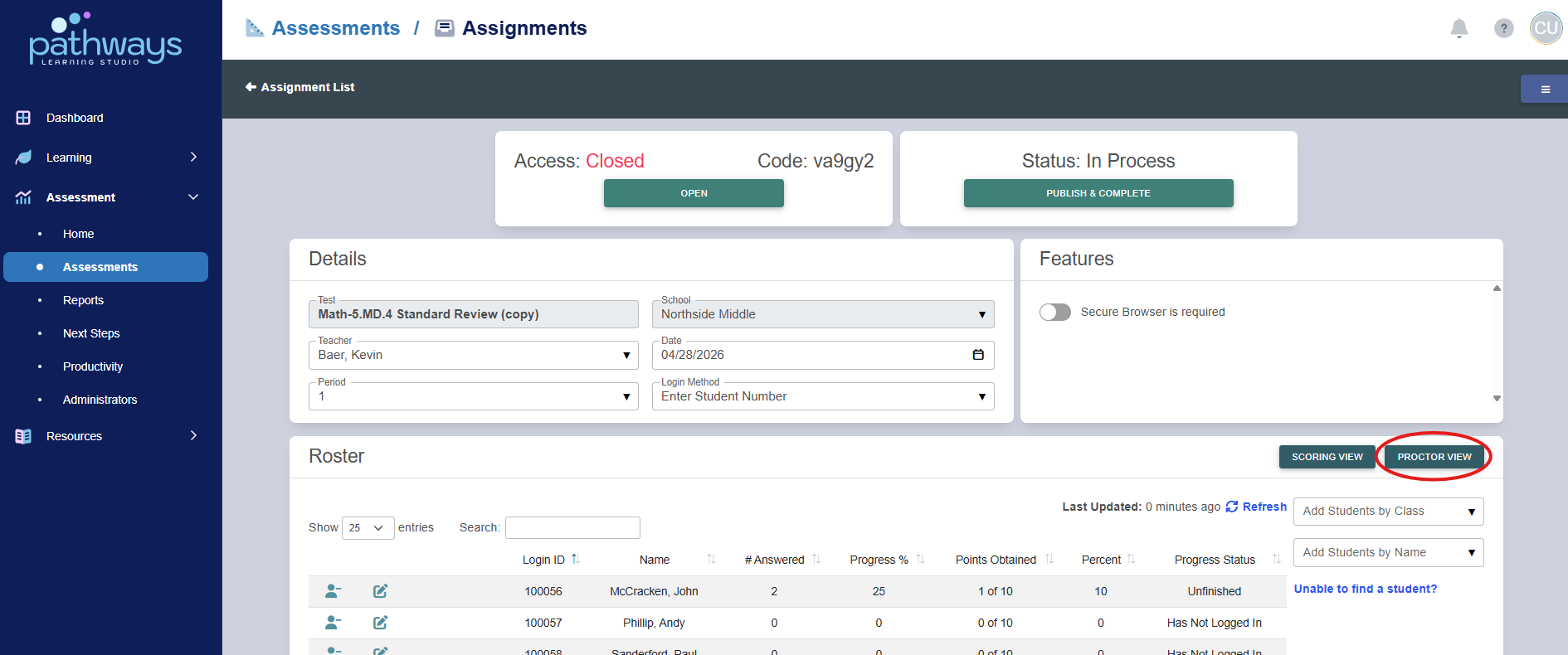
6. Select the ‘Proctor View’ button at the center right of your screen.
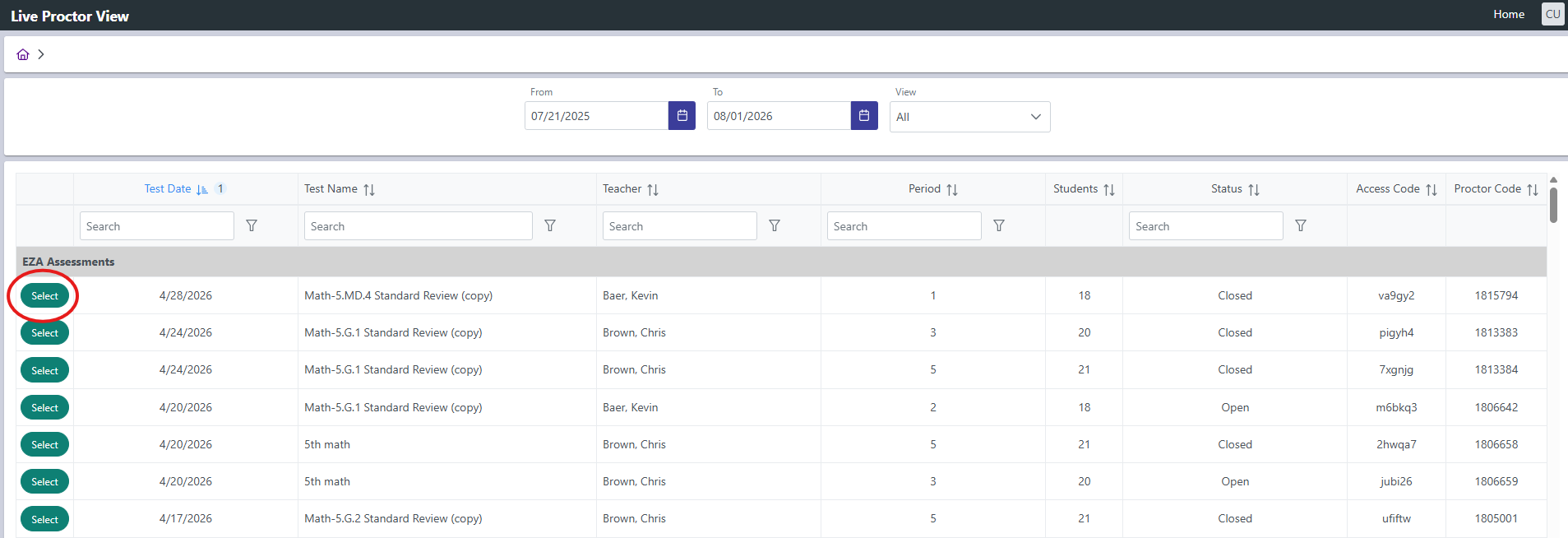
7. Locate the assessment you are administering and press the ‘select’ button to the left of the test date.
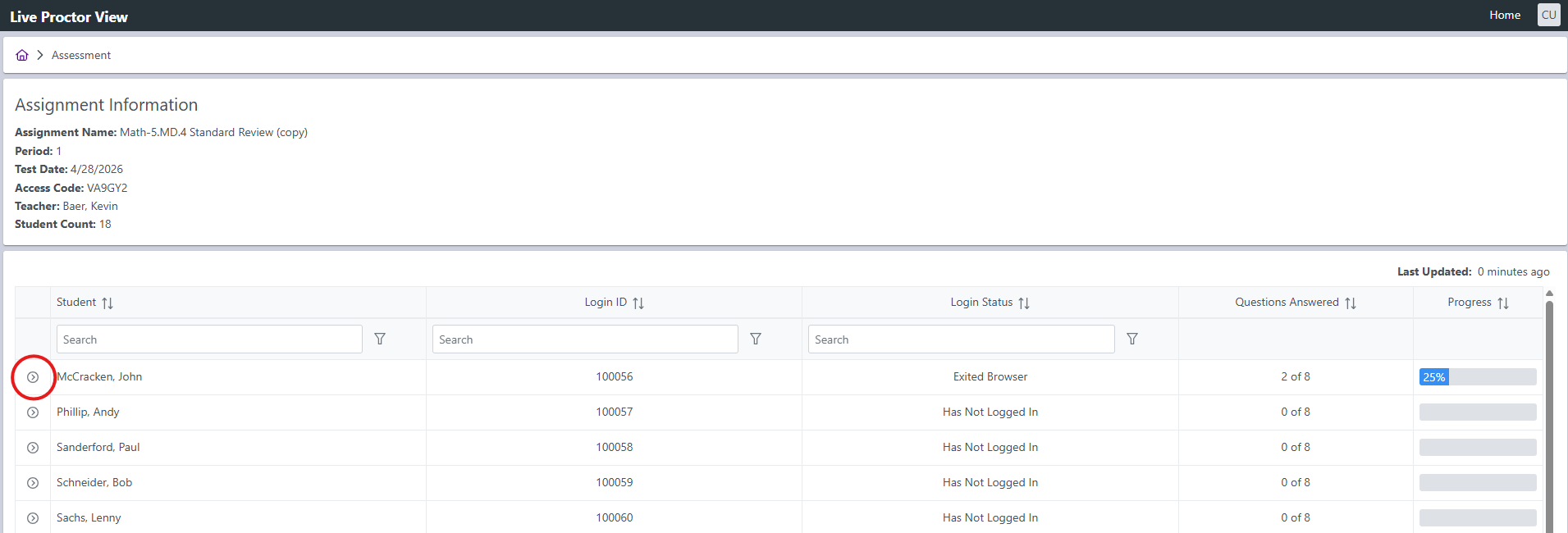
8. Locate the student for which you want to add text to speech, and select the arrow icon to the left of the student name.
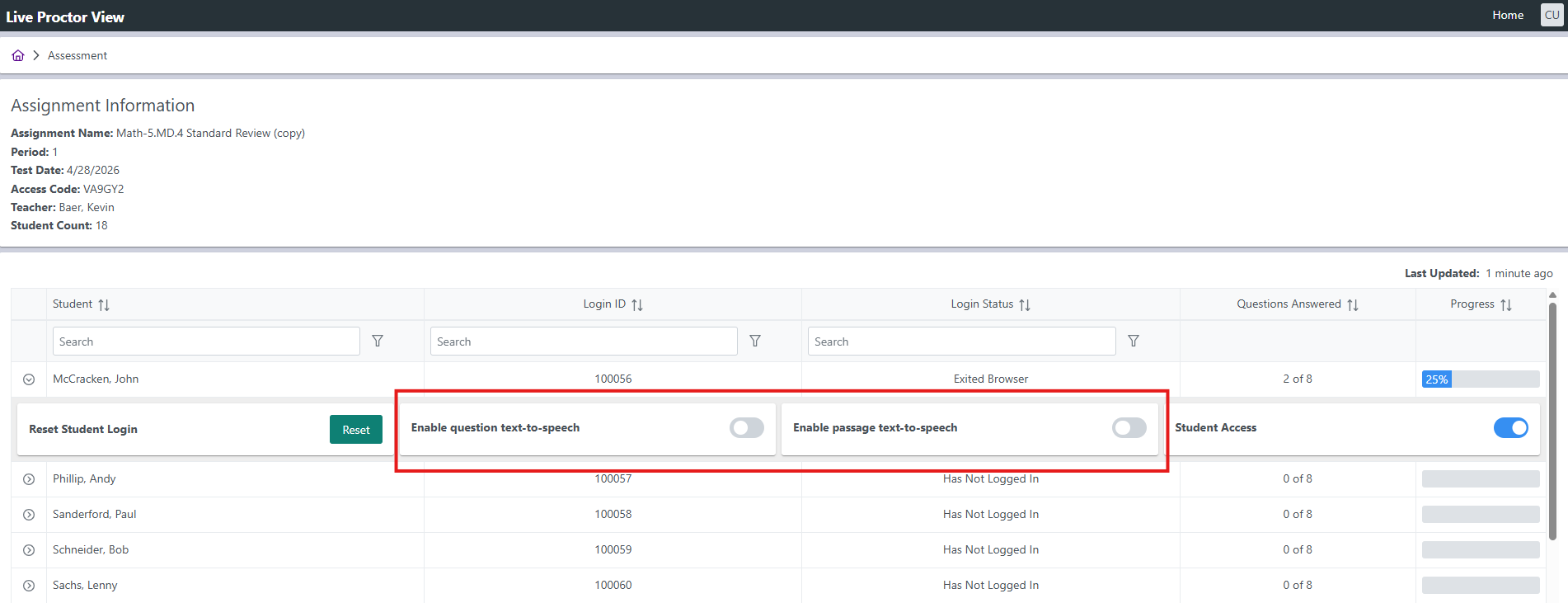
9. Turn on the ‘Enable Question Text to Speech’ option for questions and/or passages. Please note that the MAAP test does not allow passages to be read out loud.
Was this article helpful?
That’s Great!
Thank you for your feedback
Sorry! We couldn't be helpful
Thank you for your feedback
Feedback sent
We appreciate your effort and will try to fix the article