1. Login to your Pathways Assessment account through Clever, ClassLink, or at pathwayslearningstudio.com.
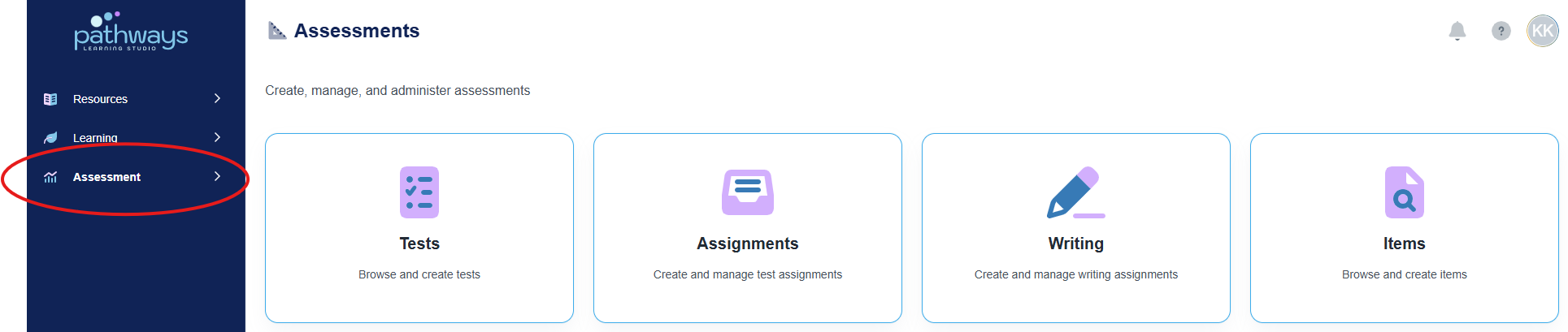
2. Navigate to 'Assessment' on the left-hand navigation bar.
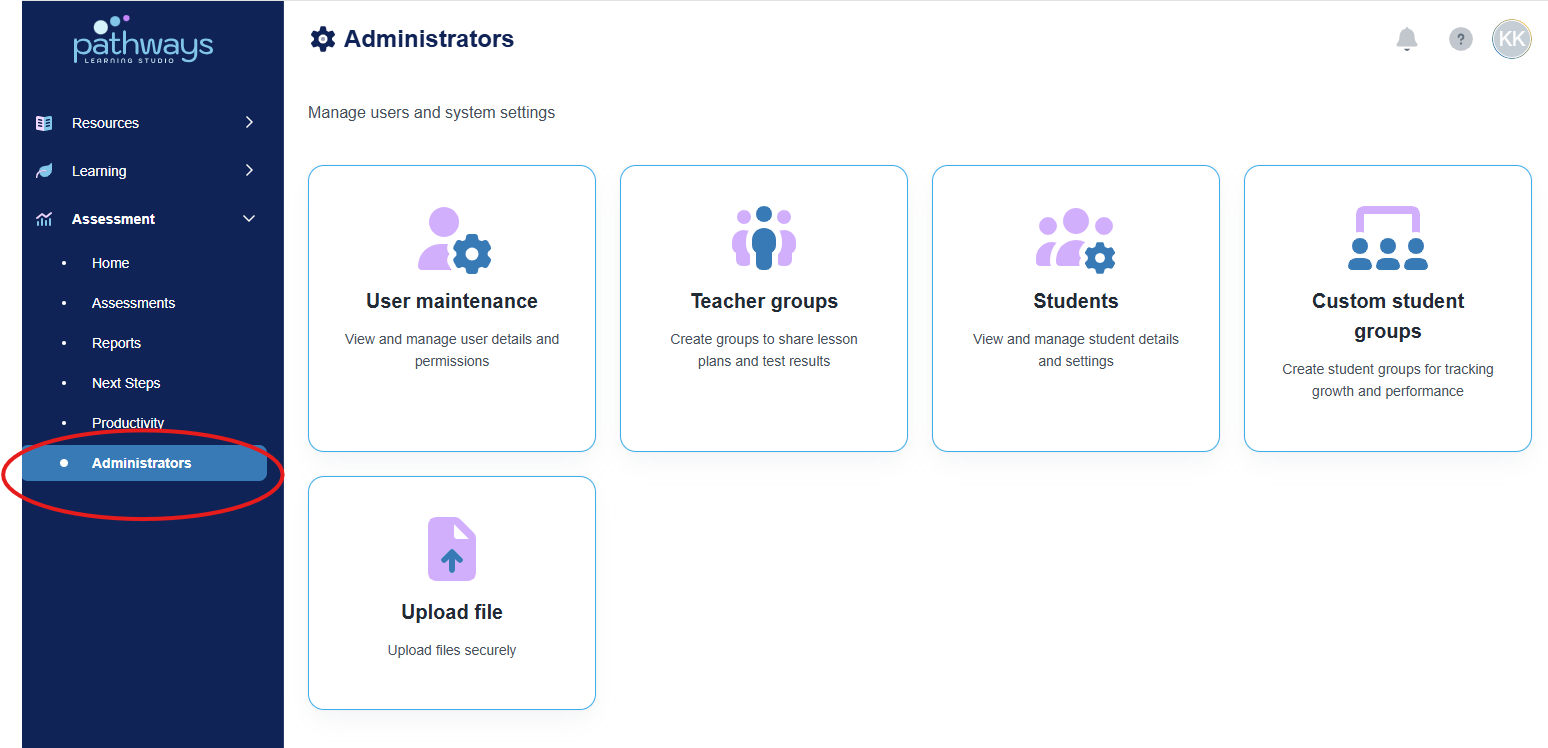
3. Navigate to 'Administrator' located under 'Assessment' on the left-hand navigation bar..
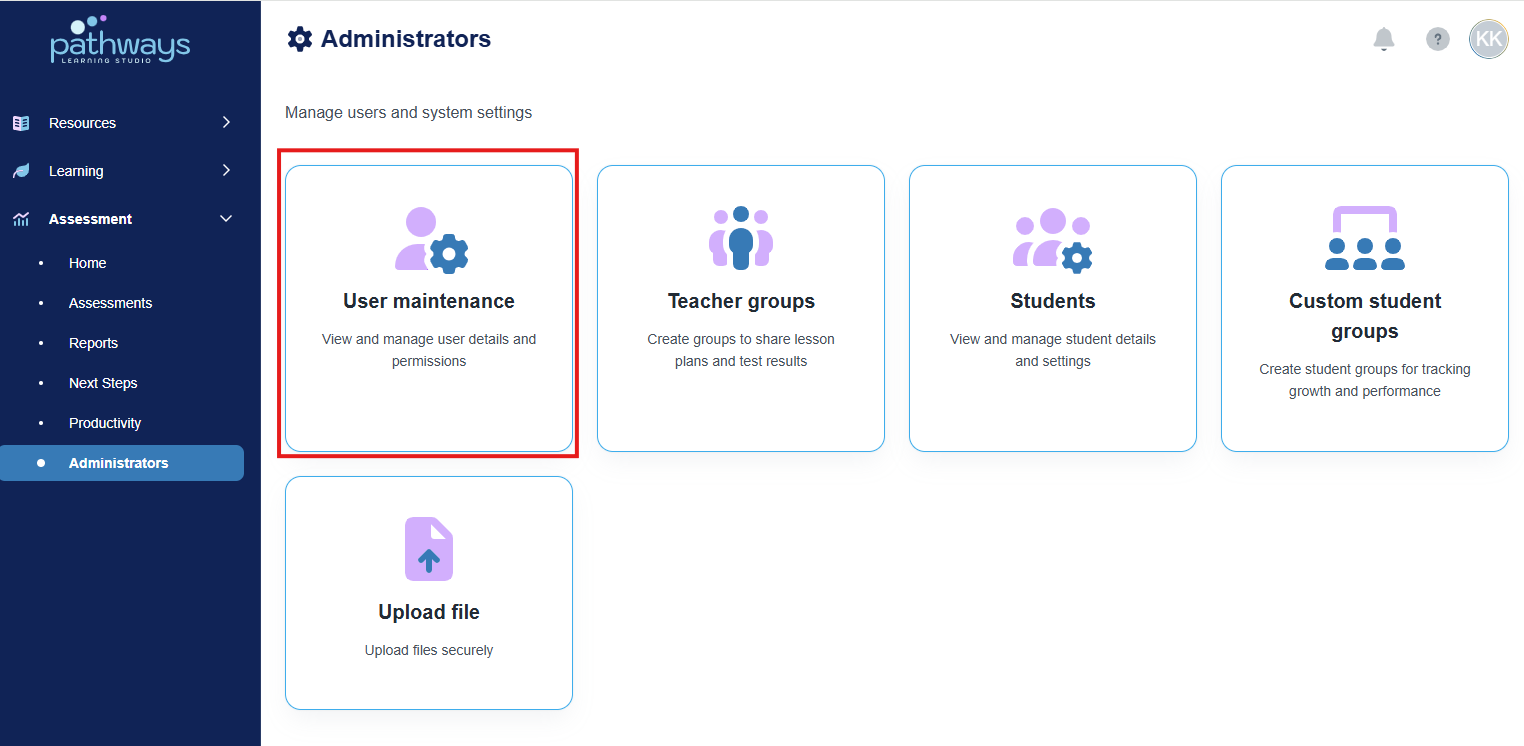
4. Select 'User Maintenance' from the Administrator dashboard.
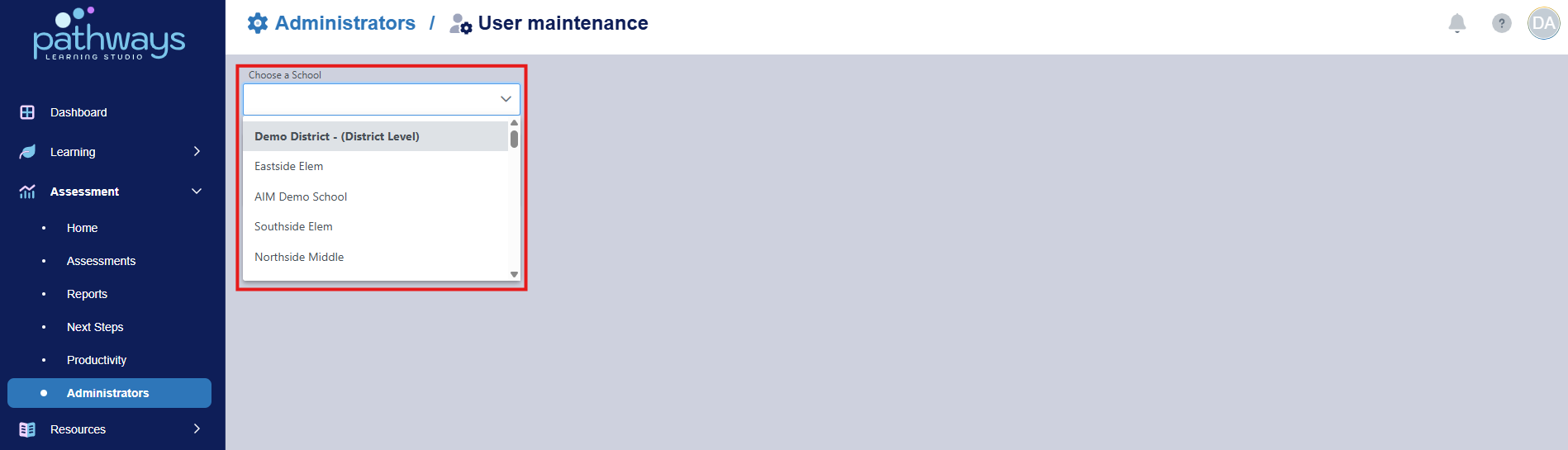
5. If you are district administrator, you will select the school for which you want to add a user (the school will be automatically selected for school admins).
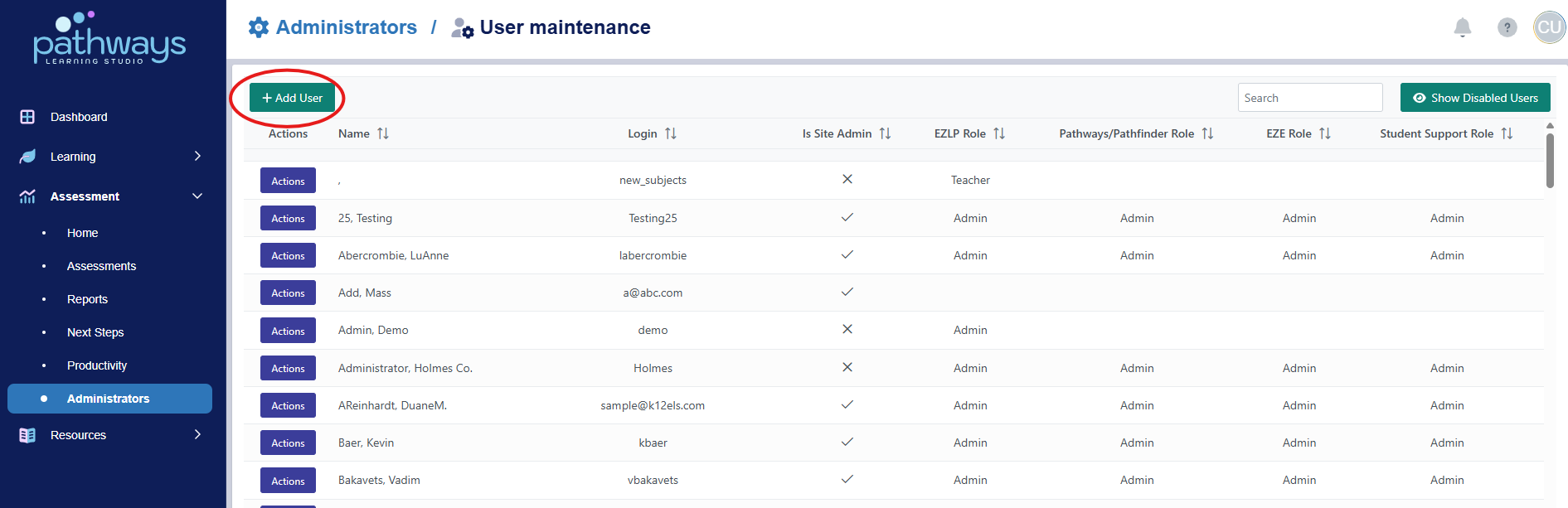
6. Choose 'Add User' at the top left hand corner.
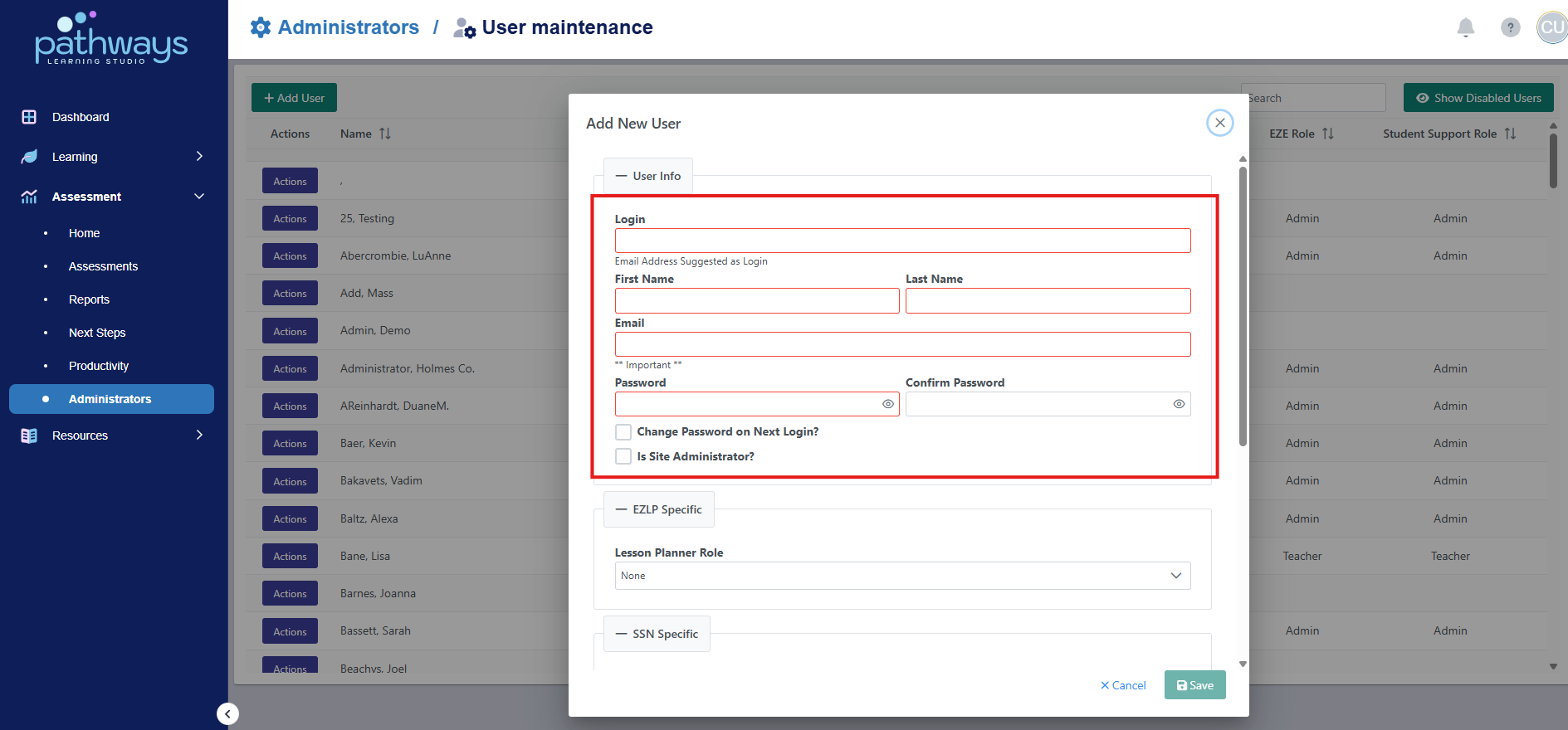
7. Add Login Details.
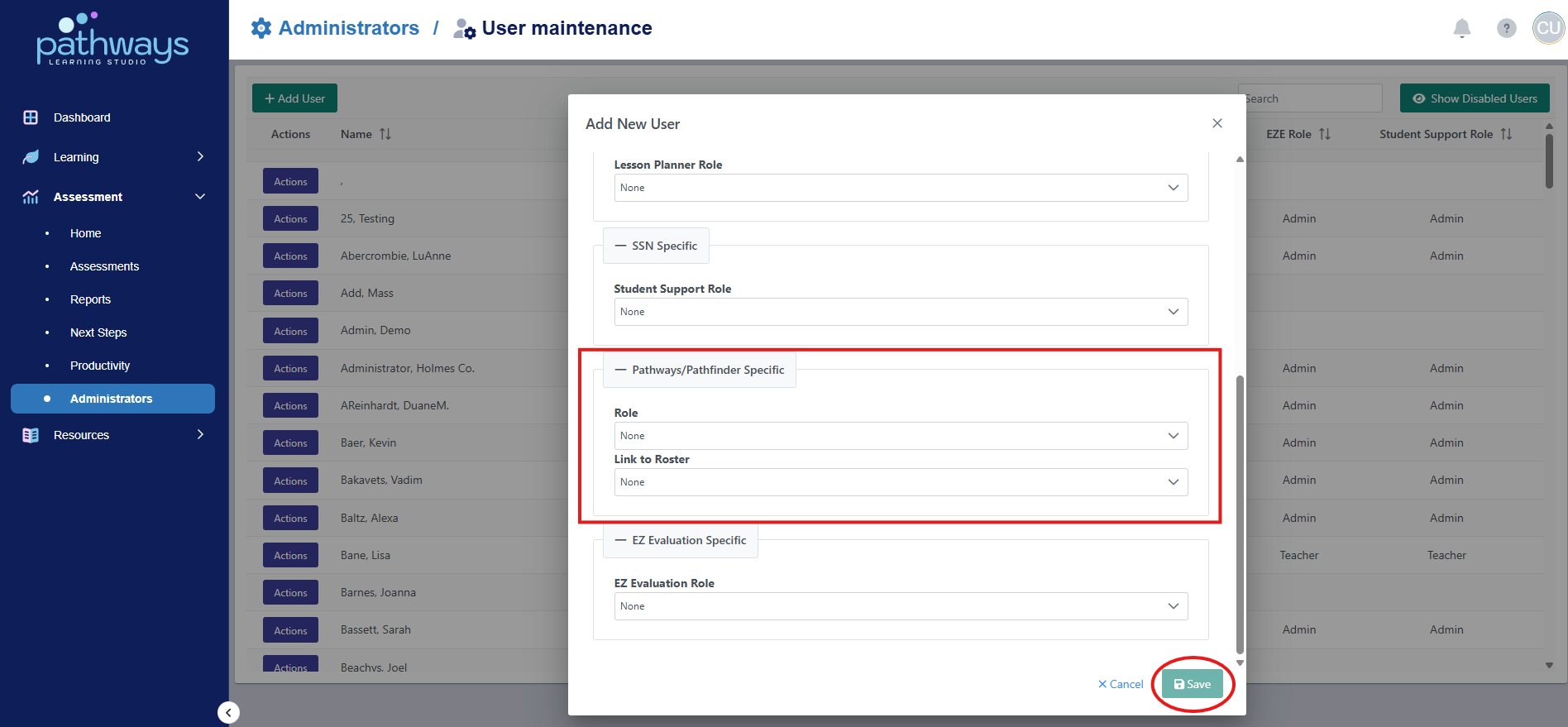
8. Under Pathways/Pathfinder Specific, choose the role of the user. If creating a teacher account, the name of the teacher should be selected in the 'Link to Roster' drop-down (only applicable for teacher accounts). By saving, you create the new user.
9. After creating the user's account, you will need to provide them with their password and school code. There is not currently an automatic notification system in place for new user accounts that are created. If your district utilizes Clever or ClassLink single sign-on and you would like the user for the account you created to be able to access Pathways Assessment via Clever or ClassLink, please contact Pathways Assessment support.
Was this article helpful?
That’s Great!
Thank you for your feedback
Sorry! We couldn't be helpful
Thank you for your feedback
Feedback sent
We appreciate your effort and will try to fix the article