An assignment must be published and completed to access the assignment's reports.
1. Login to your Pathways account through Clever, ClassLink, or at pathwayslearningstudio.com.
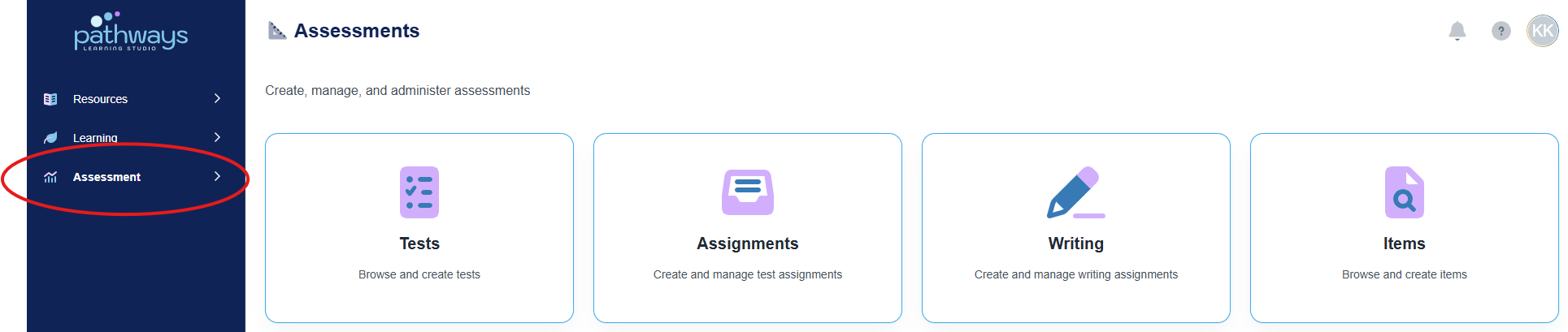
2. Navigate to 'Assessment' on the left-hand navigation bar.
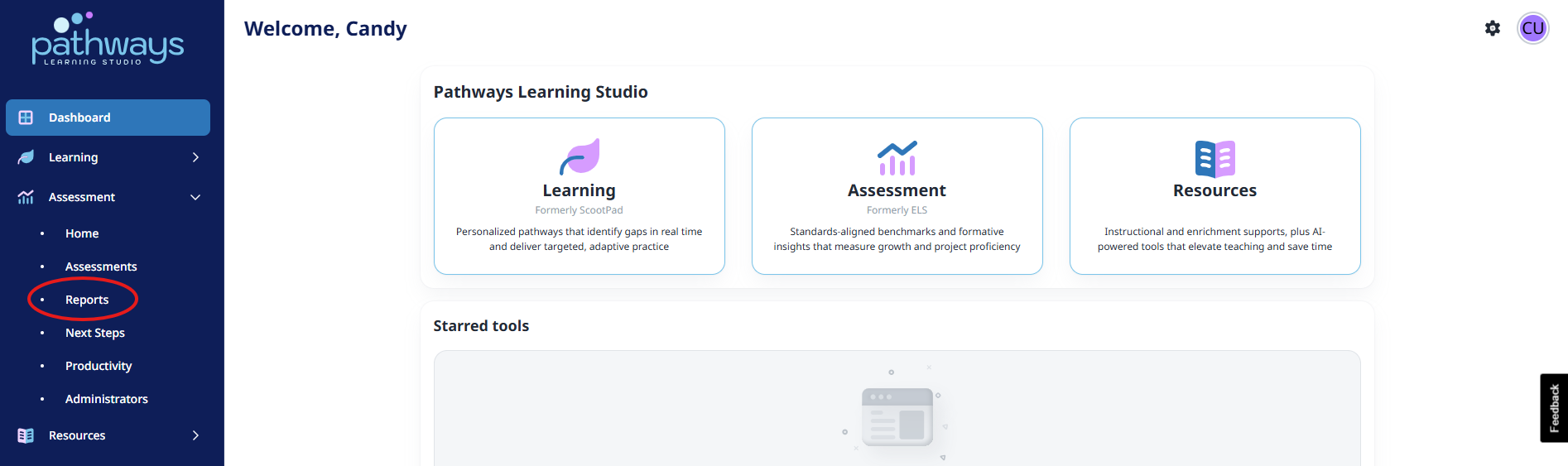
3. Navigate to 'Reports' located under 'Assessment' on the left-hand navigation bar..
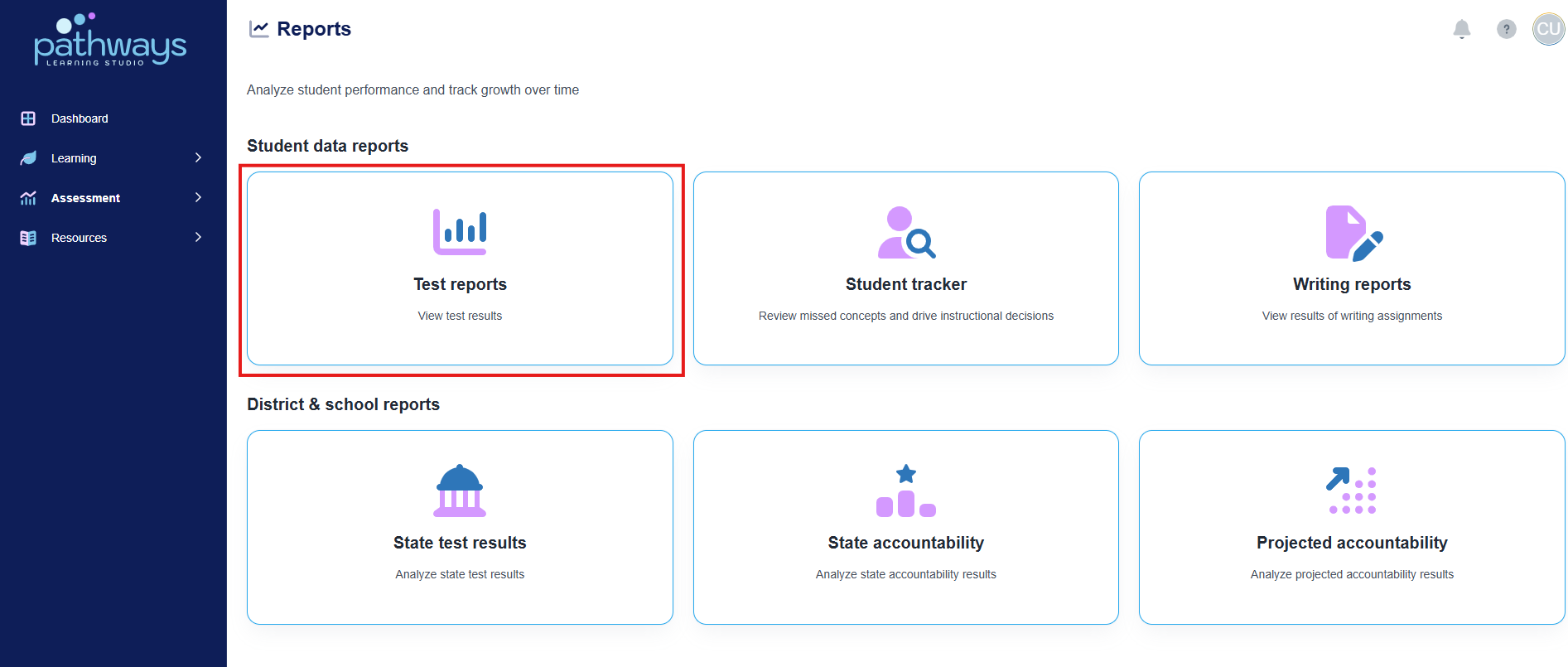
4. Select 'Test reports' from the Reports dashboard.
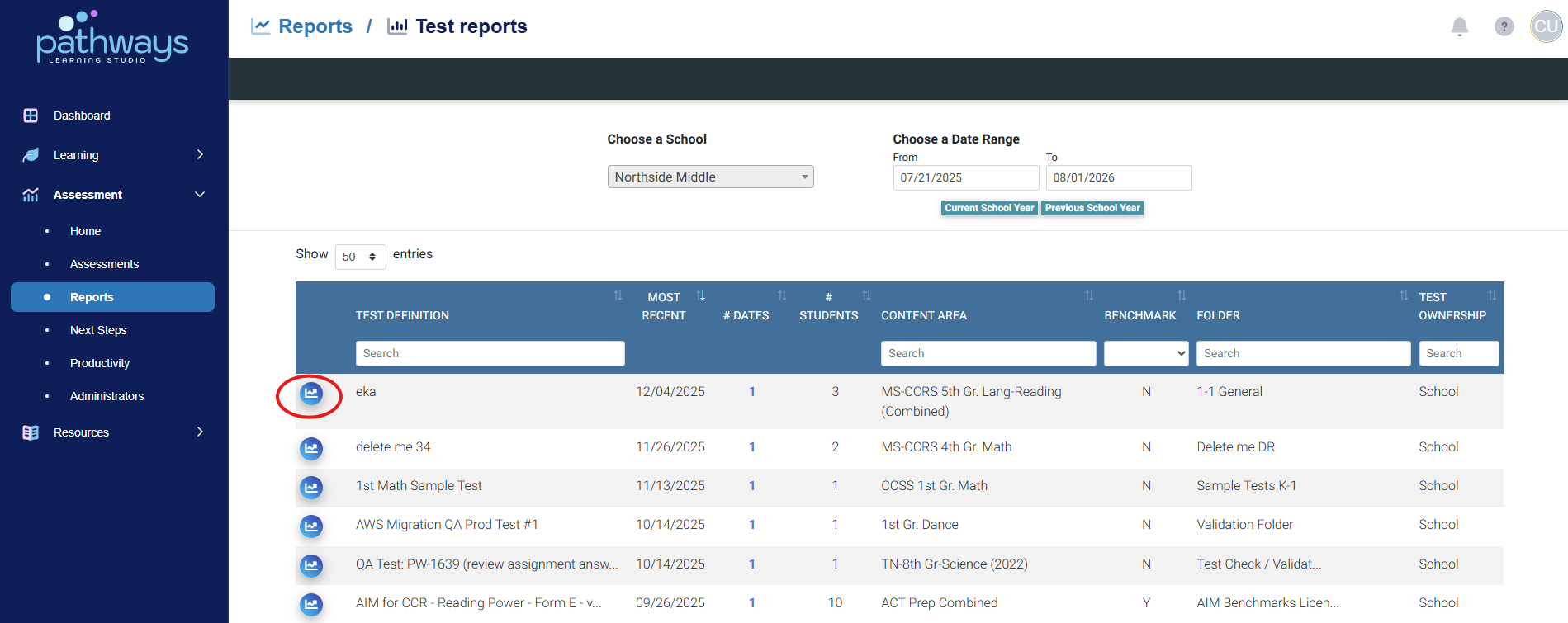
5. Locate the assessment for which you wish to view a report, and select the graph icon to the left of the assessment name.
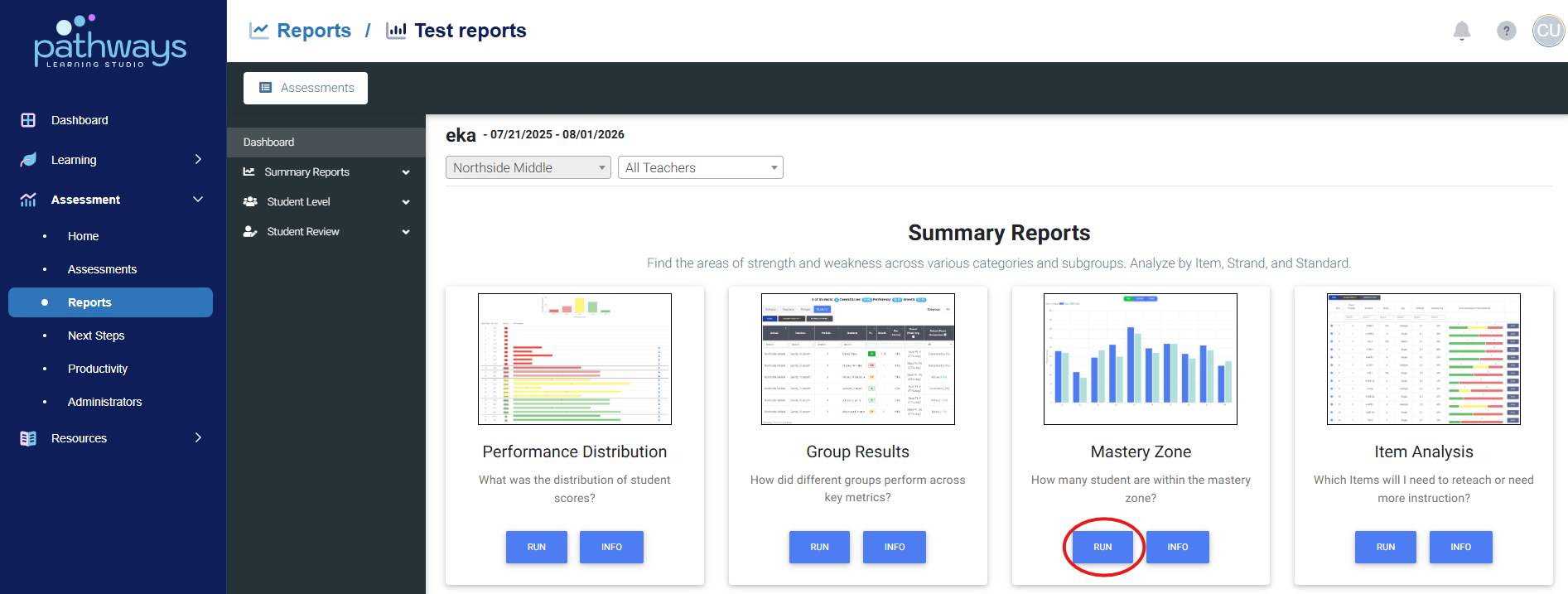
6. Choose which assessment report you wish to view, and select ‘Run.’
Was this article helpful?
That’s Great!
Thank you for your feedback
Sorry! We couldn't be helpful
Thank you for your feedback
Feedback sent
We appreciate your effort and will try to fix the article