1. Login to your Pathways account through Clever, ClassLink, or at pathwayslearningstudio.com.
2. Navigate to 'Assessment' on the left-hand navigation bar.
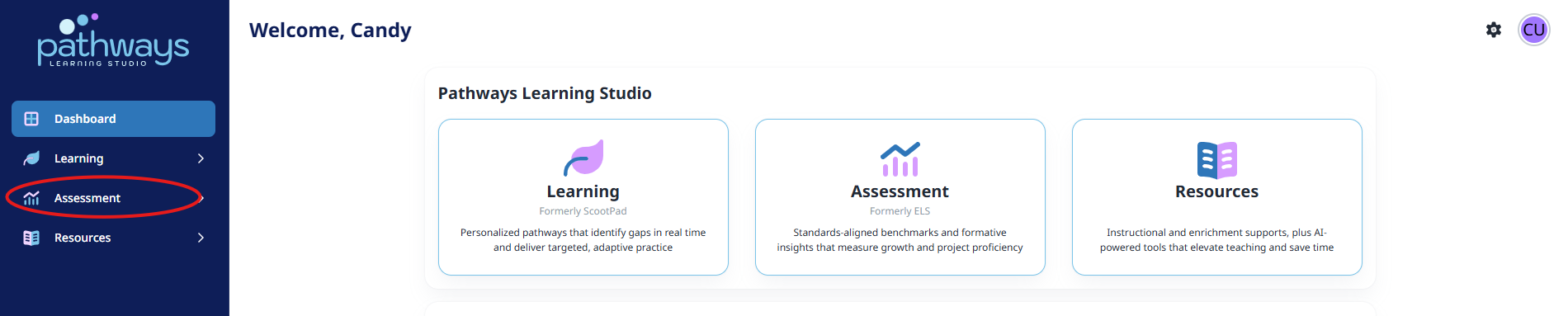
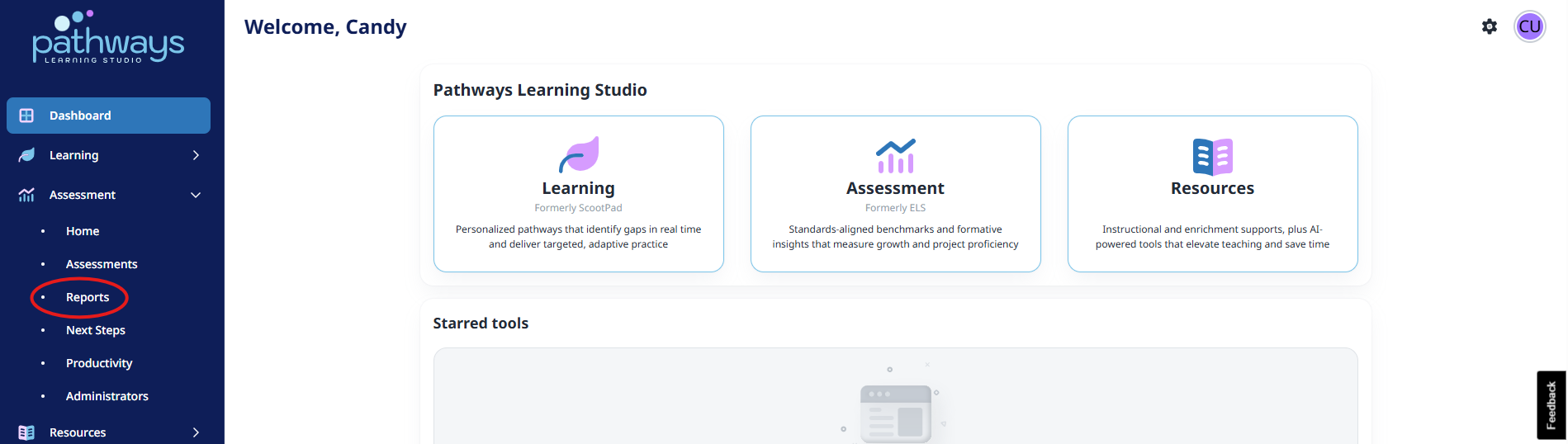
3. Navigate to 'Reports' located under 'Assessment' on the left-hand navigation bar.
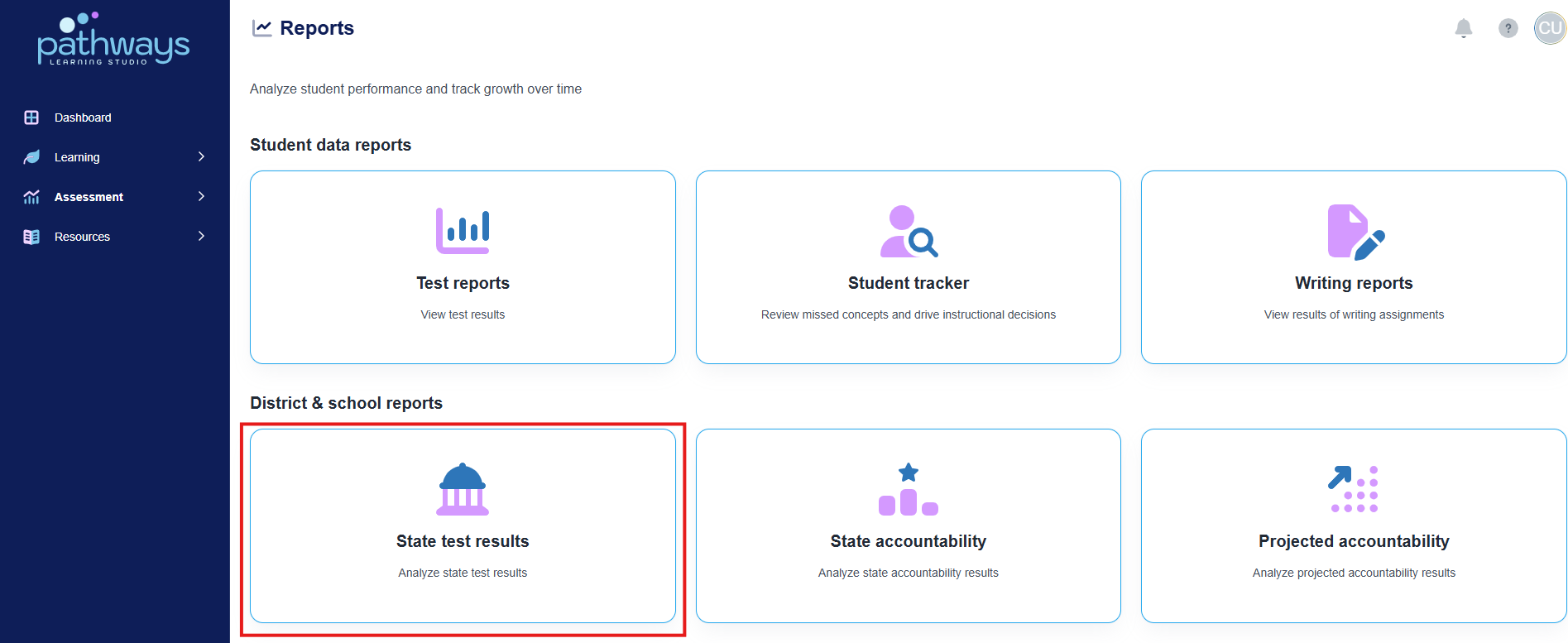
4. Select 'State test results' from the Reports dashboard.
5. Navigate to “Student Data” on the left side dashboard.
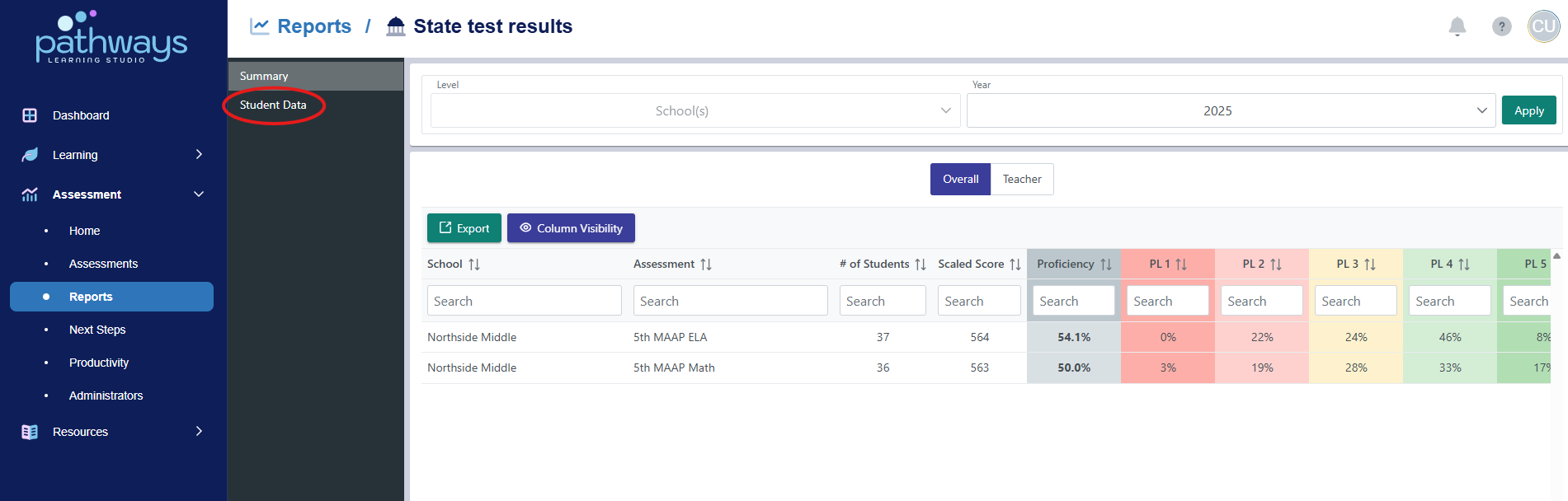
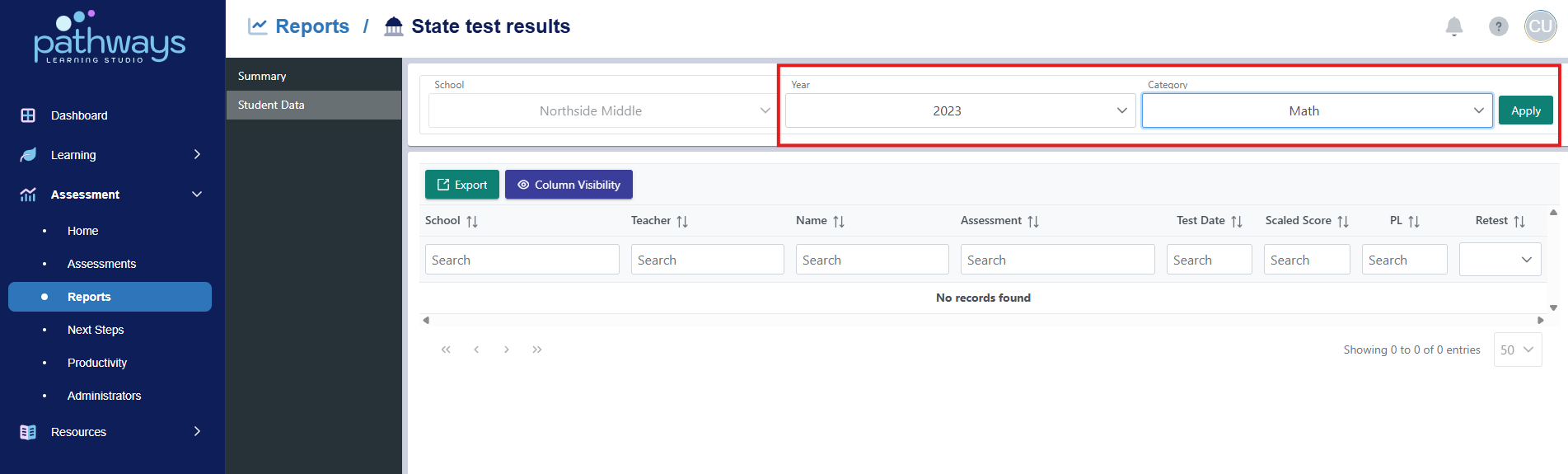
6. Choose the current year and the subject you would like to search. Select ‘Apply.’
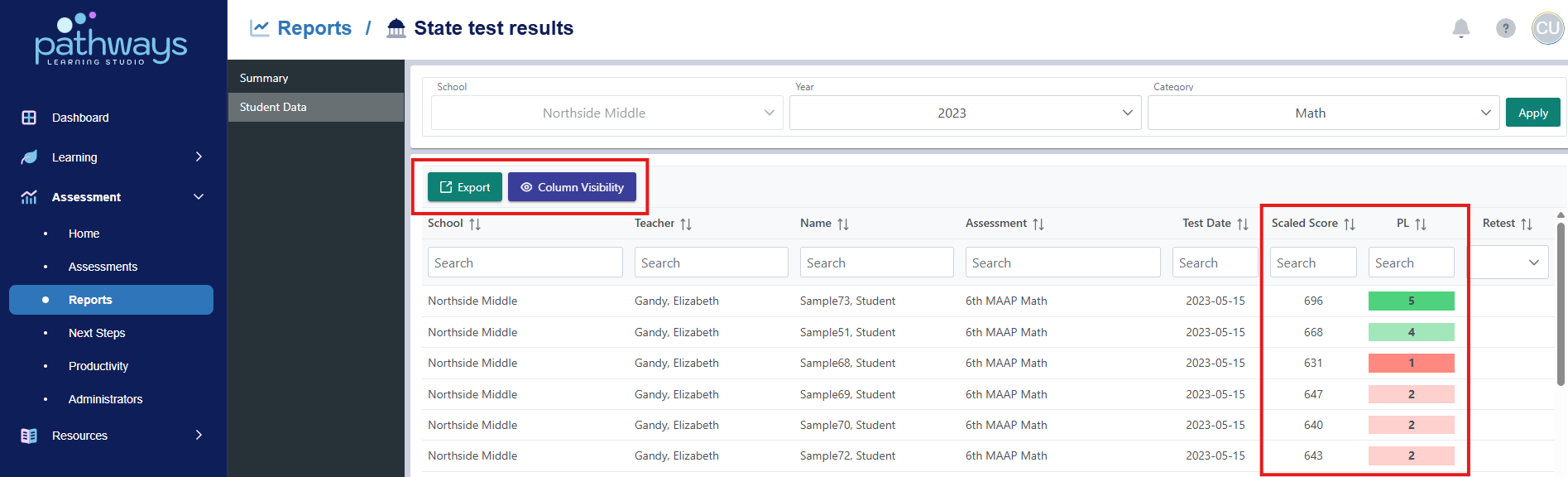
7. View each student’s scaled score and PL from the state assessment. Choose ‘export’ to download the data into a spreadsheet. Choose ‘Column Visibility’ to choose which data points show on the table. To sort by a column, click the title of that column.
Was this article helpful?
That’s Great!
Thank you for your feedback
Sorry! We couldn't be helpful
Thank you for your feedback
Feedback sent
We appreciate your effort and will try to fix the article